Find the right fix for PS5, PS5 Pro, Xbox Series X|S, Switch 2 and Switch, OLED or Lite problems. This hub links our five troubleshooting guides and focused fix guides.
This guide summarises official PlayStation, Xbox and Nintendo support pages checked on 29 October 2026. NextPlayIntel did not test these fixes on hardware; follow the linked official page if anything differs.
Try this first: whatever the console, turn it fully off, unplug it from the wall for a few minutes and reconnect only power and HDMI. Why first: it clears a stuck power state and rules out accessories in one go, deletes nothing, and Sony, Microsoft and Nintendo all list a power reset among their first steps.
How this page was made: drafted with AI assistance from official manufacturer support pages and the public user threads linked on this page, checked on 29 October 2026, and published under Tulasiram Pemmadi's byline. NextPlayIntel did not test these fixes on hardware; anything marked user-reported comes from the linked thread.
Quick Answer: Summary of Steps
Pick your console. Open its guide.
Fix power and video first. Power cycle, then connect HDMI directly.
Then network and controllers. Test, update and re-pair.
Then storage and errors. Look up the official code.
Recovery modes last. Keep your saves.
Prerequisites & Materials Needed
Required tools & items
Your console model — check the label or settings
Controller and cable — for recovery modes
Spare HDMI cable — to rule out the cable
Estimated time
Preparation: 2 minutes
Execution: depends on the guide
Step-by-Step Instructions
Use these steps to choose and order your fixes.
Step 1: Identify your console and its symptom
Problem: You aren't sure which guide fits.
Likely causes: different models have different lights, buttons and recovery modes.
Fixes, easiest to hardest:
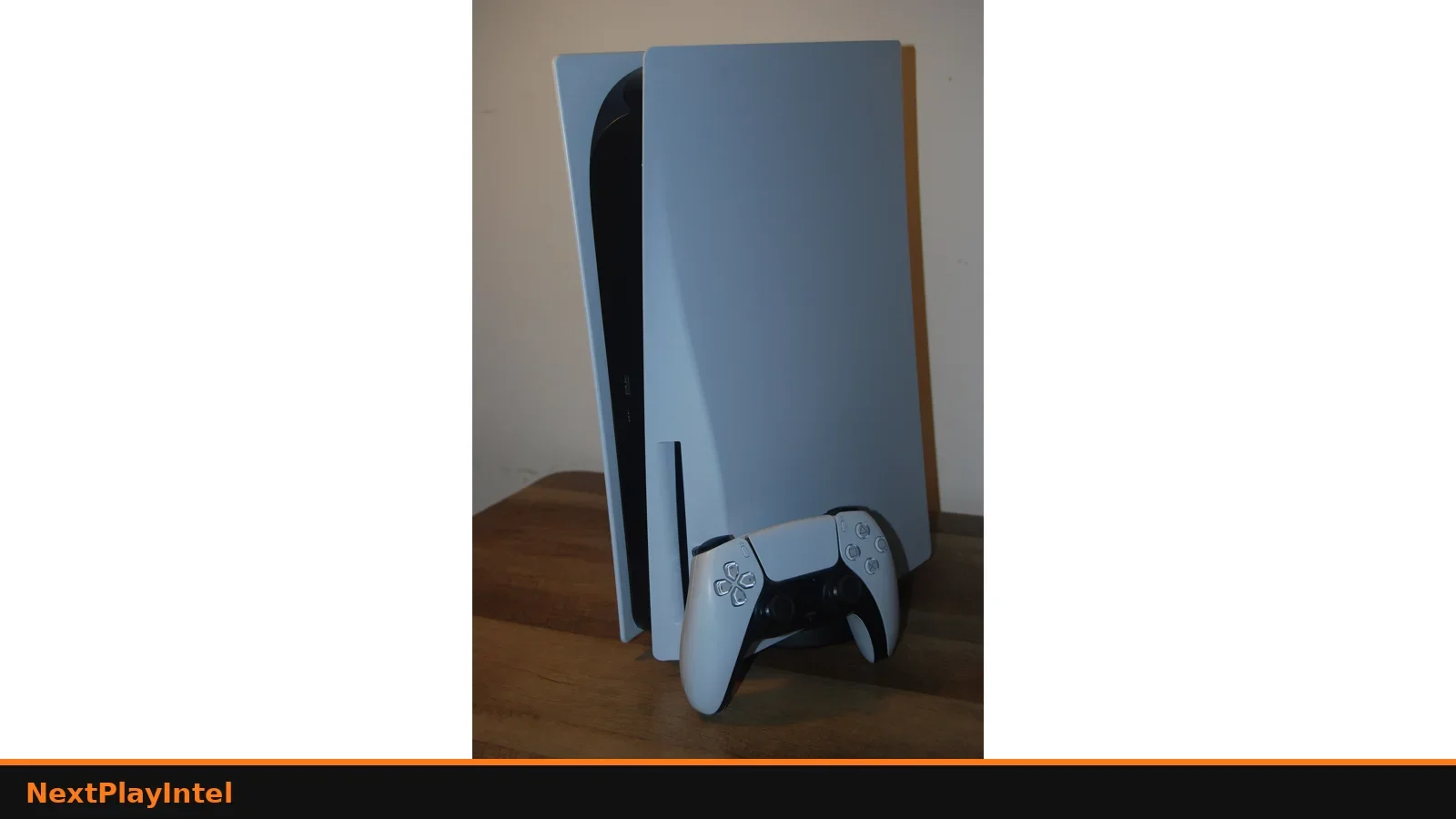
PS5 or PS5 Digital Edition: PS5 troubleshooting.
PS5 Pro (CFI-7000): PS5 Pro troubleshooting.
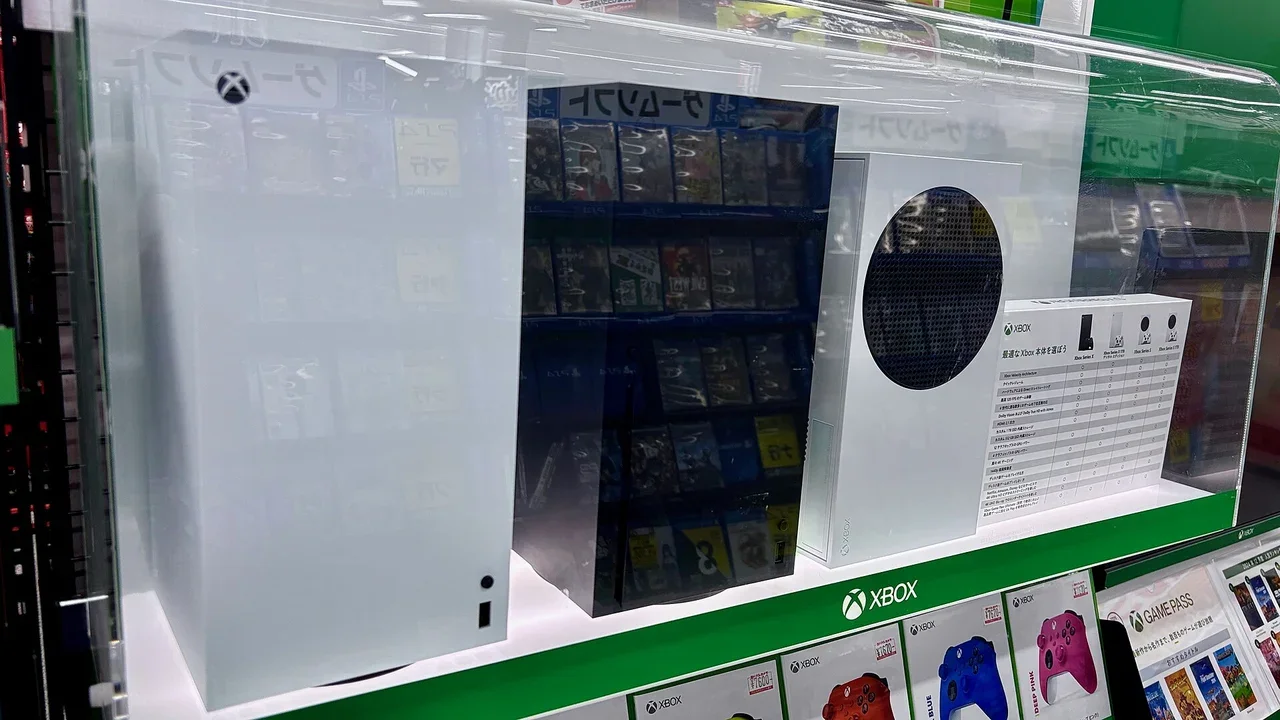
Xbox Series X or Series S: Xbox Series X|S troubleshooting.
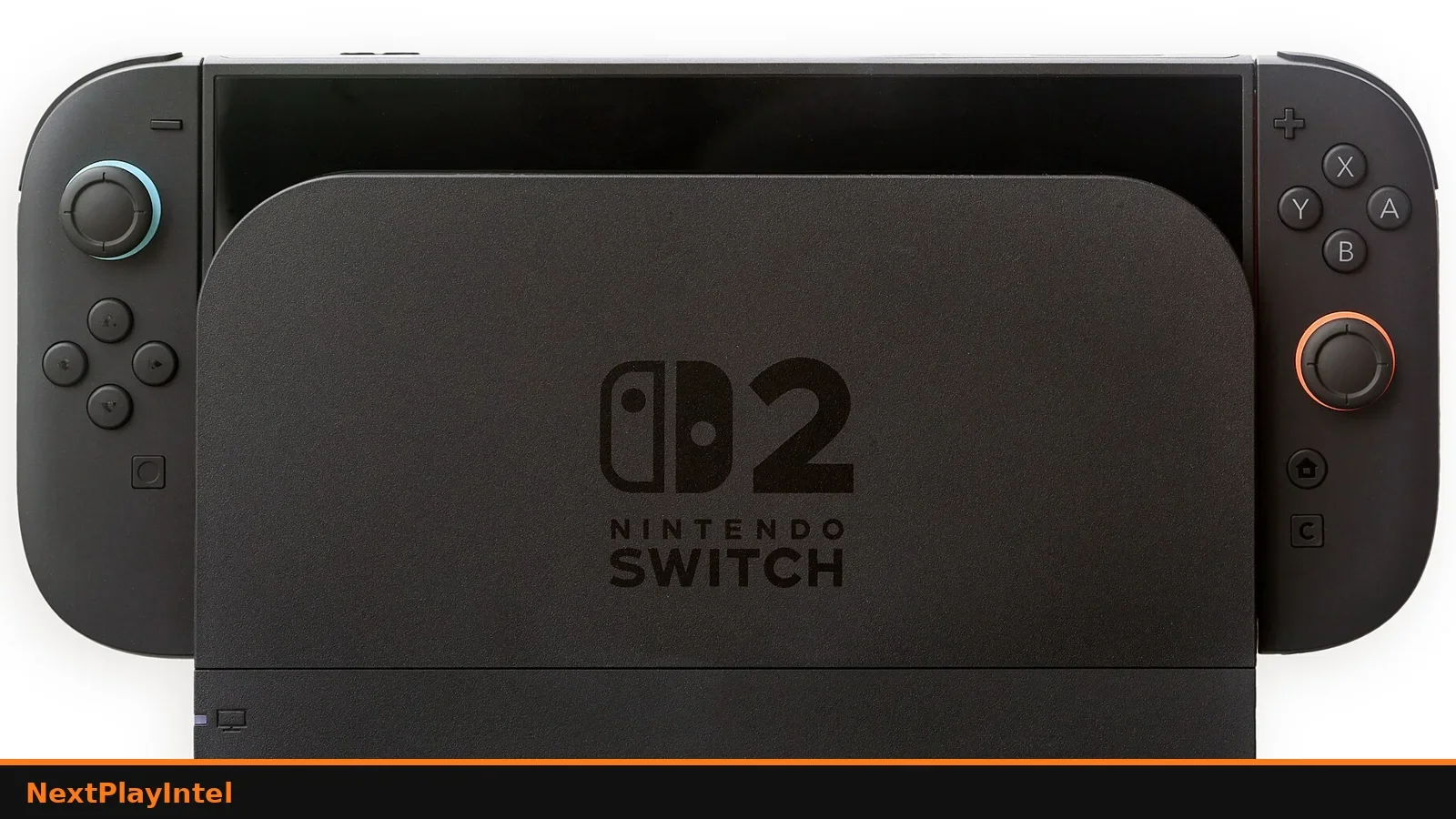
Switch 2: Switch 2 troubleshooting.
Switch, OLED or Lite: Switch troubleshooting.
How you know it worked: You are on the guide for your model.
When to contact official support: Each guide links official support.
Step 2: Start with power and video
Problem: Nothing on screen.
Likely causes: power, HDMI or a frozen system.
Fixes, easiest to hardest:
Power cycle: unplug the console (PS5 for 3 minutes, Xbox for 10 seconds, Switch adapter for 30 seconds).
Connect HDMI directly to the TV.
Use the low-resolution or safe video option for your console.
How you know it worked: You see the home screen.
When to contact official support: Hardware faults go to official repair.
Step 3: Then the network, controllers and storage
Problem: Online, controller or space errors.
Likely causes: router, pairing or full storage.
Fixes, easiest to hardest:
Restart the router and test the connection.
Update and calibrate controllers; DualSense reset, Joy-Con drift.
Fix downloads: PS5 download stuck, Switch download paused, PS5 USB storage, redownload Switch games.
How you know it worked: Errors clear.
When to contact official support: Contact your ISP for network problems or the manufacturer for hardware.
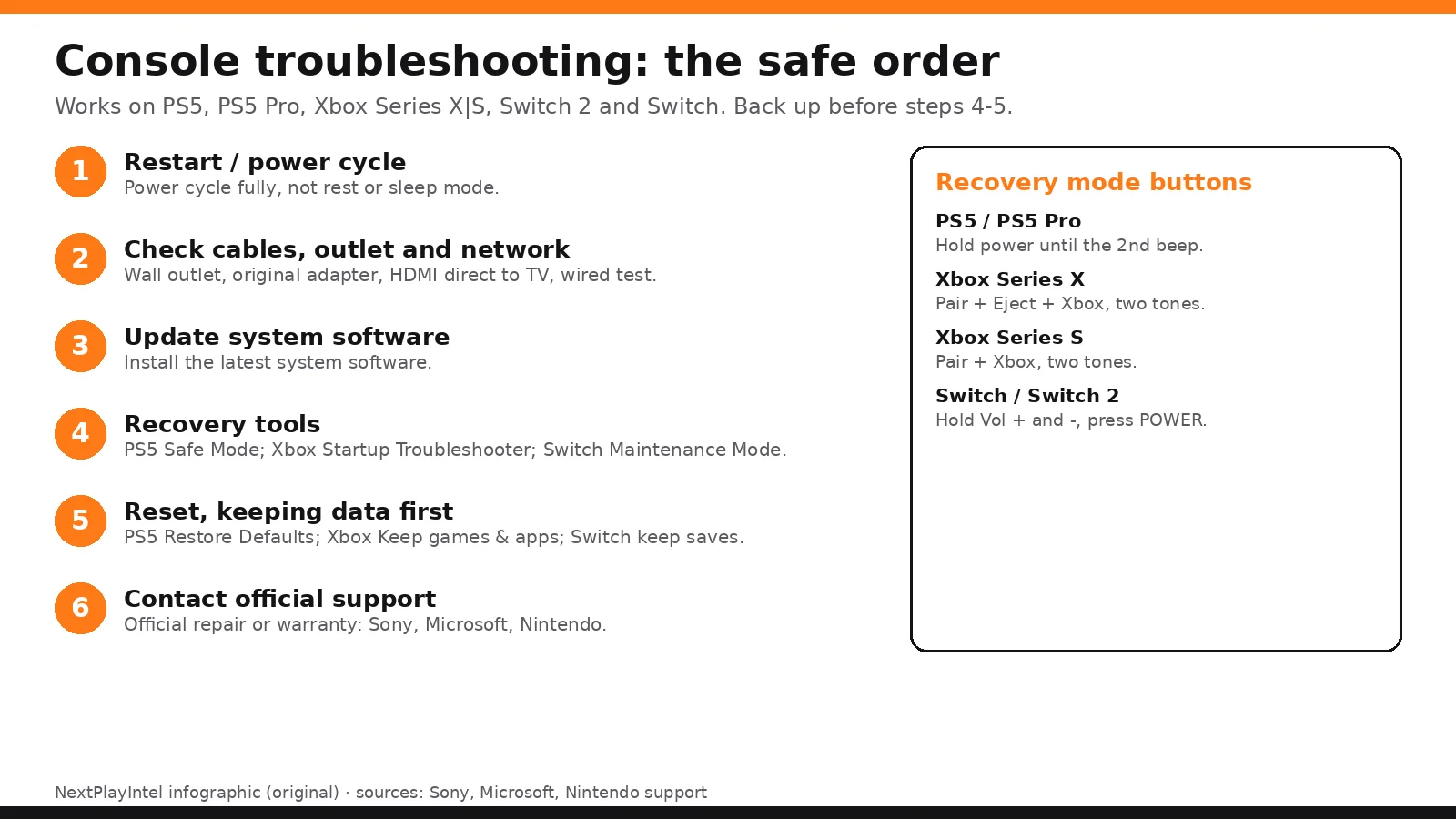
Step 4: Use recovery modes last
Problem: Repeated crashes.
Likely causes: corrupted system data.
Fixes, easiest to hardest:
Xbox: Startup Troubleshooter, then Reset (keep games).
Switch: Maintenance Mode; Switch 2: Recovery Mode, restore without deleting saves.
How you know it worked: The console boots normally.
When to contact official support: Request repair if recovery fails.
Troubleshooting guides by console
Console | Guide | Recovery mode | Official support |
|---|---|---|---|
PS5 | Safe Mode | ||
PS5 Pro | Safe Mode | ||
Xbox Series X|S | Startup Troubleshooter | ||
Switch 2 | Recovery Mode | ||
Switch / OLED / Lite | Maintenance Mode |
Buying in India: support notes
PlayStation: PlayStation Support India; repair cost is unconfirmed.
Xbox: Microsoft lists INR out-of-warranty fees (₹22,871 for Series S).
Nintendo: no official India support site found; cost is unconfirmed.
Why these problems happen
Most console problems fall into three groups. Power faults usually come from the console's power supply getting stuck after a surge or sleep state, which a full unplug clears. Picture faults usually come from the HDMI handshake between console, cable, TV and anything in between (soundbar, receiver, switch). Software faults, such as error codes and crashes, usually come from corrupted data or a network service being down, which is why updates, database rebuilds and status pages fix so many of them.
Hardware failures do happen, but they are the least likely cause, so work from the cheap, reversible steps to the destructive ones.
Fixes users report working (user-reported, not NextPlayIntel testing)
These are what individual owners said worked for them in public threads. They are not official advice and not NextPlayIntel testing; each links to its source.
PS5 owners report a full power drain (all cables out, then hold power) got a blue-light console into Safe Mode (user-reported, r/playstation).
An Xbox owner fixed lost picture and sound by resetting the display output with the power and eject buttons held together until the second beep (user-reported, r/XboxSupport).
Switch 2 owners report docked TV output only worked with the Switch 2's own AC adapter, not the Switch 1 adapter (user-reported, r/NintendoSwitchHelp); Nintendo says the same.
Common Mistakes to Avoid
Resetting first. You lose data unnecessarily.
Using unofficial fix tools. They can void the warranty.
Ignoring the error code. The official code page often gives the exact fix.
Related NextPlayIntel guides
Frequently asked questions
Which console guide should I use?
Use the guide for your exact model, because power lights and recovery modes differ. The table above maps each model.
What should I try first?
Power cycle the console and connect HDMI directly to the TV. Most guides start there.
Will recovery modes delete my games?
Not if you choose the keep-data options, such as Rebuild Database, Keep games and apps, or Without Deleting Save Data.
Where do I get help in India?
PlayStation has an India support site and Microsoft lists INR repair fees. We found no official Nintendo India support site.
Did NextPlayIntel test these fixes?
No. The guides summarise official manufacturer support pages and link each one.
Sources & verification
Sources last verified on . This article covers published information, not hands-on testing.
Editorial & update notes
Updated 29 Oct 2026: added a 'Try this first' recommendation, why these problems happen, fixes users report working (with links to the threads), and an AI-assistance note.