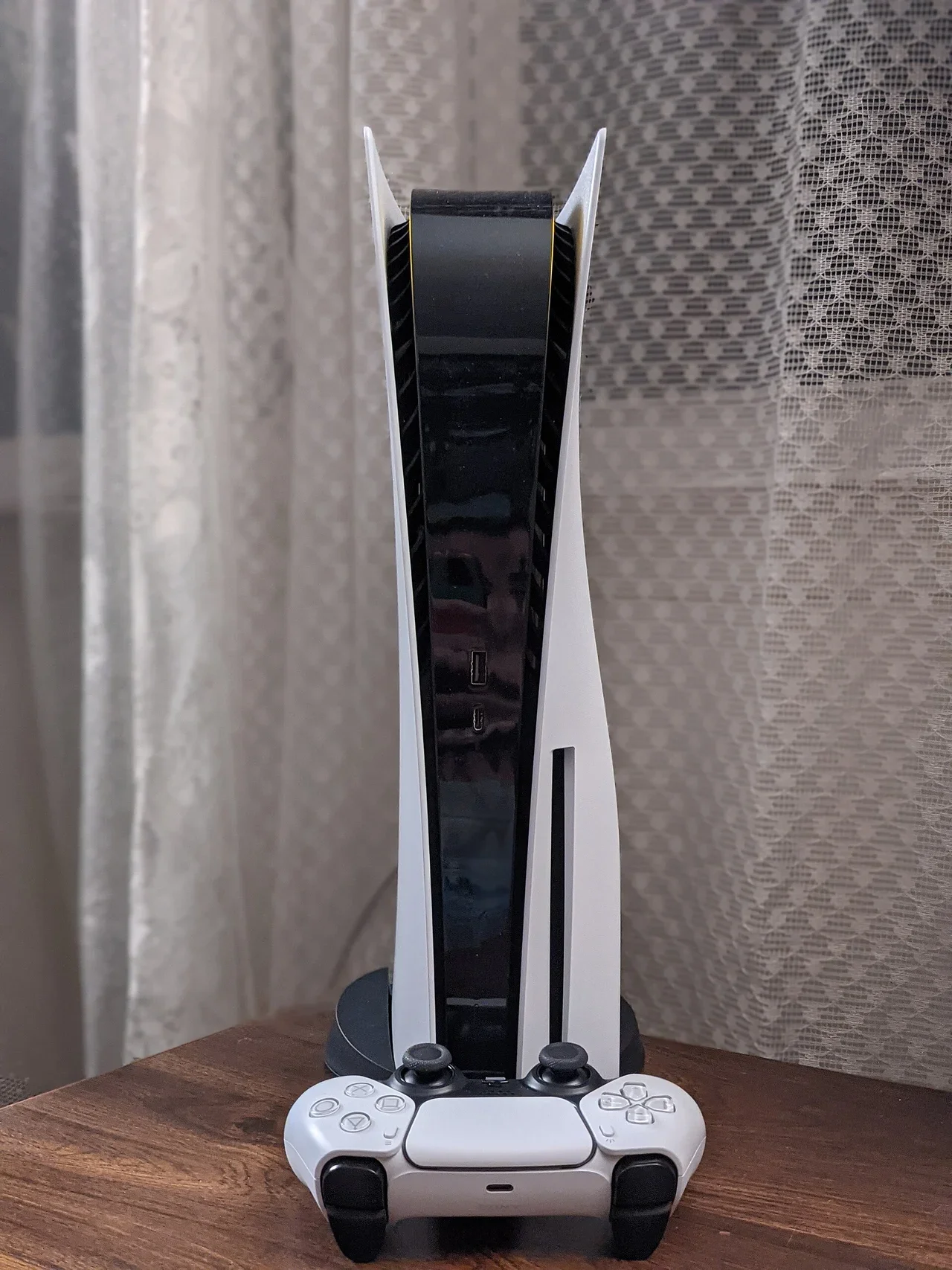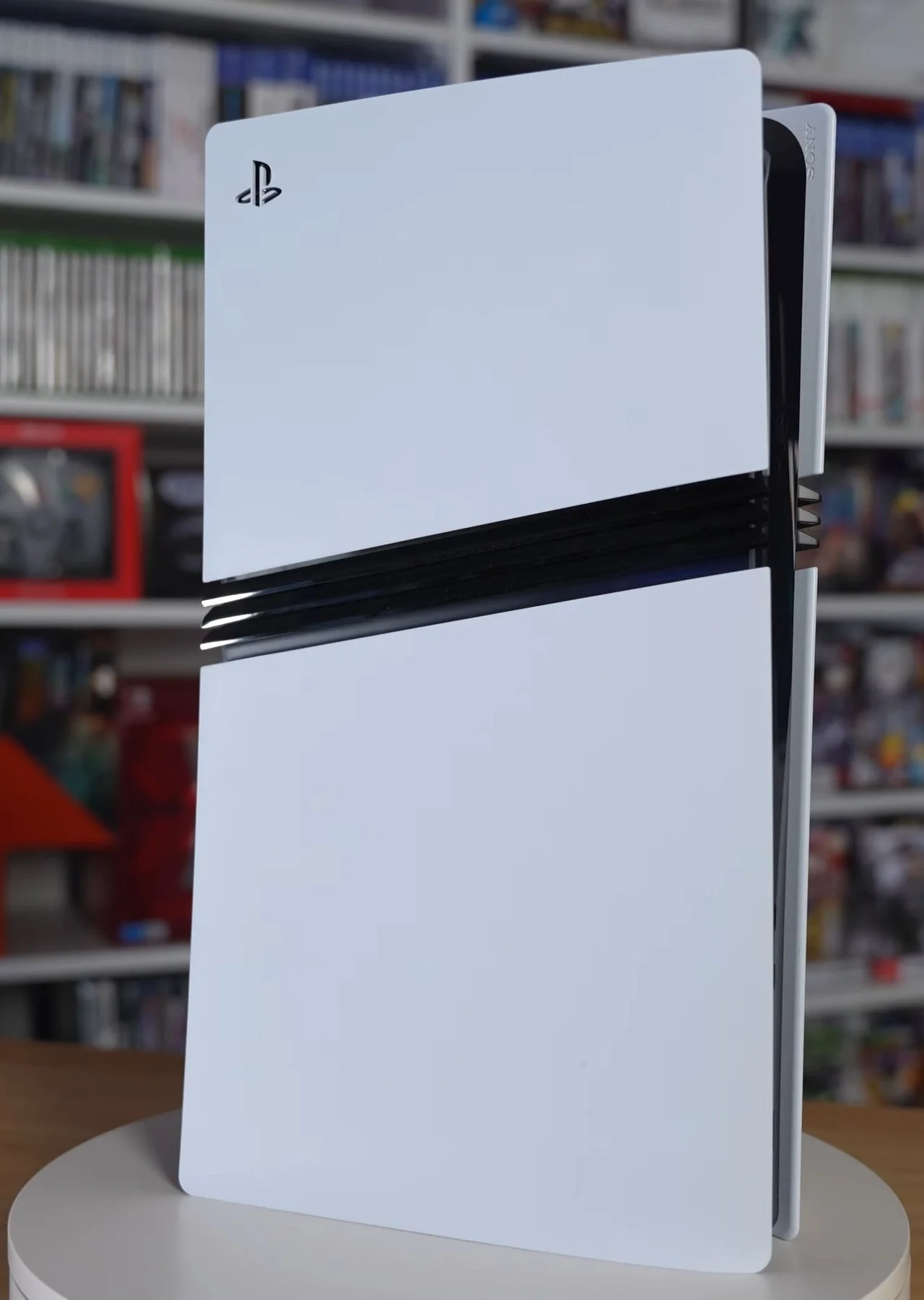
Fix PS5 Pro (CFI-7000) problems, from power and HDMI faults to Wi-Fi 7, the add-on Disc Drive, storage and error codes, using Sony's official steps.
This guide summarises official PlayStation, Xbox and Nintendo support pages checked on 29 October 2026. NextPlayIntel did not test these fixes on hardware; follow the linked official page if anything differs.
Try this first: read the power light, then if there's no picture, connect the PS5 Pro straight to the TV with the supplied cable. Why first: the Pro outputs high-bandwidth 4K/120Hz signals, so most black screens are HDMI-chain problems rather than faults, and checking takes two minutes.
How this page was made: drafted with AI assistance from official manufacturer support pages and the public user threads linked on this page, checked on 29 October 2026, and published under Tulasiram Pemmadi's byline. NextPlayIntel did not test these fixes on hardware; anything marked user-reported comes from the linked thread.
Quick Answer: Summary of Steps
Read the light. Same light states as the PS5.
Check HDMI directly. Use the included cable and connect straight to the TV.
Test Wi-Fi 7 MLO on and off. Or use LAN.
Pair the Disc Drive online. The add-on drive needs internet to pair.
Clear storage and errors. The Pro has a 2TB SSD; use USB or M.2 for more.
Use Safe Mode last. Rebuild the database before any reset.
Prerequisites & Materials Needed
Required tools & items
DualSense and USB cable — for Safe Mode
HDMI cable — the included one if possible
LAN cable — to rule out Wi-Fi
Internet connection — to pair the Disc Drive
USB drive, FAT32/exFAT — for an offline update
Estimated time
Preparation: 5–10 minutes
Execution: 10 minutes to 1 hour
Step-by-Step Instructions
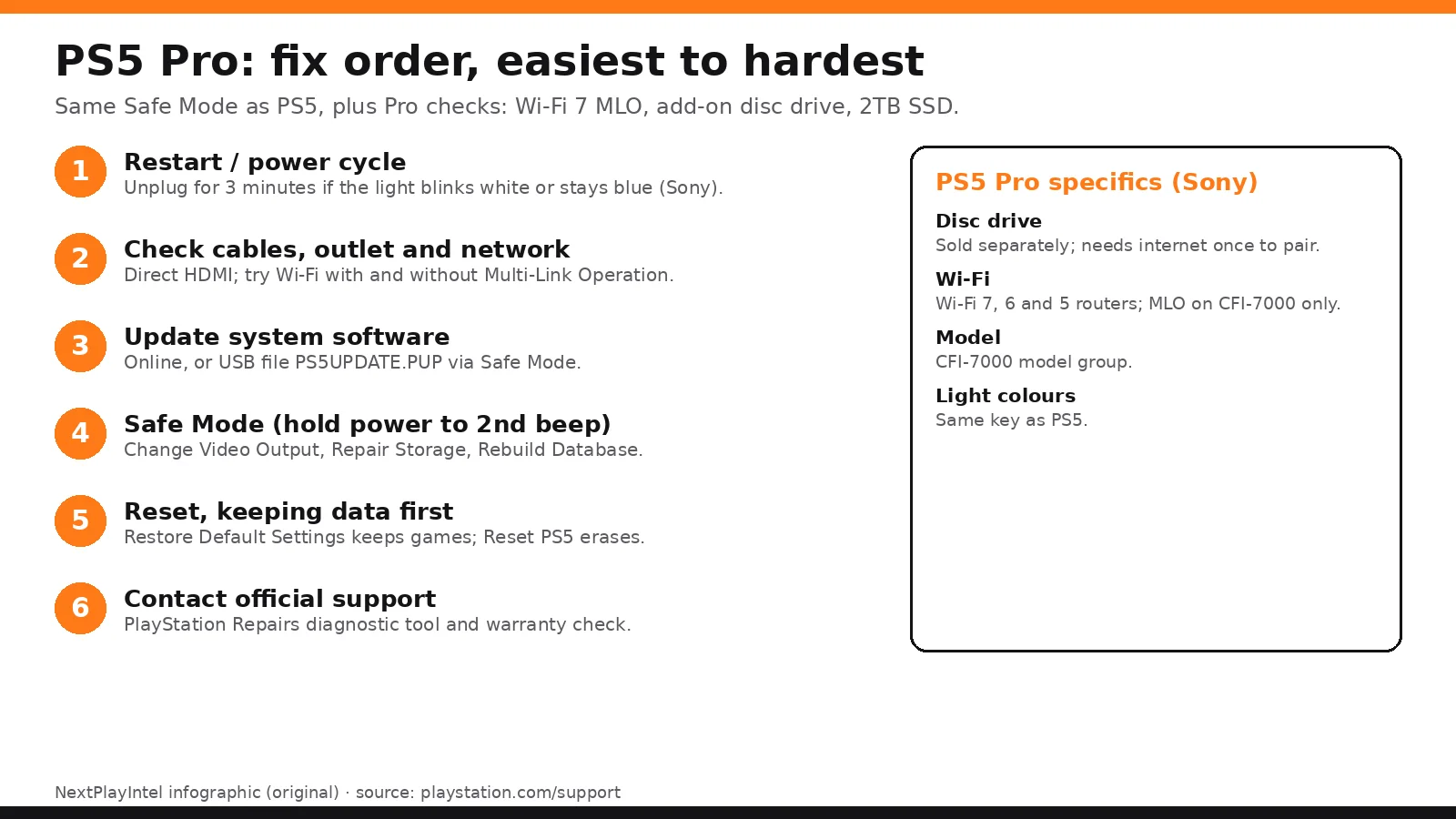
The PS5 Pro follows the PS5 steps, plus Wi-Fi 7 and Disc Drive differences.
Step 1: Read the power light and fix a console that won't turn on
Problem: The PS5 Pro won't switch on, shows a blinking or stuck light, or turns on with no picture.
Likely causes: a frozen system, rest mode being mistaken for power-off, a loose power cable or a faulty outlet, or a hardware fault.
Fixes, easiest to hardest:
Check the light against Sony's power indicator chart. Solid orange means rest mode. Blue then white means it is powering on. Pulsing white then off means it is powering down.
Try a different wall outlet and reseat the power cable firmly at both ends.
If the light blinks white or stays blue, the system may be frozen. Unplug the power cable, wait 3 minutes and plug it back in.
Hold the power button until the second beep to start in Safe Mode, then choose Restart.
If the problem continues, Sony suggests reinstalling system software from Safe Mode (official guide). This erases data.
Look out for: Solid white with no picture is treated by Sony as a hardware issue. Go to PlayStation Repairs instead of repeating resets.
How you know it worked: The light turns solid white and the home screen appears.
When to contact official support: Use the PlayStation Repairs diagnostic tool. In India, start from PlayStation Support India.
Step 2: Restore the picture when there's no video on HDMI
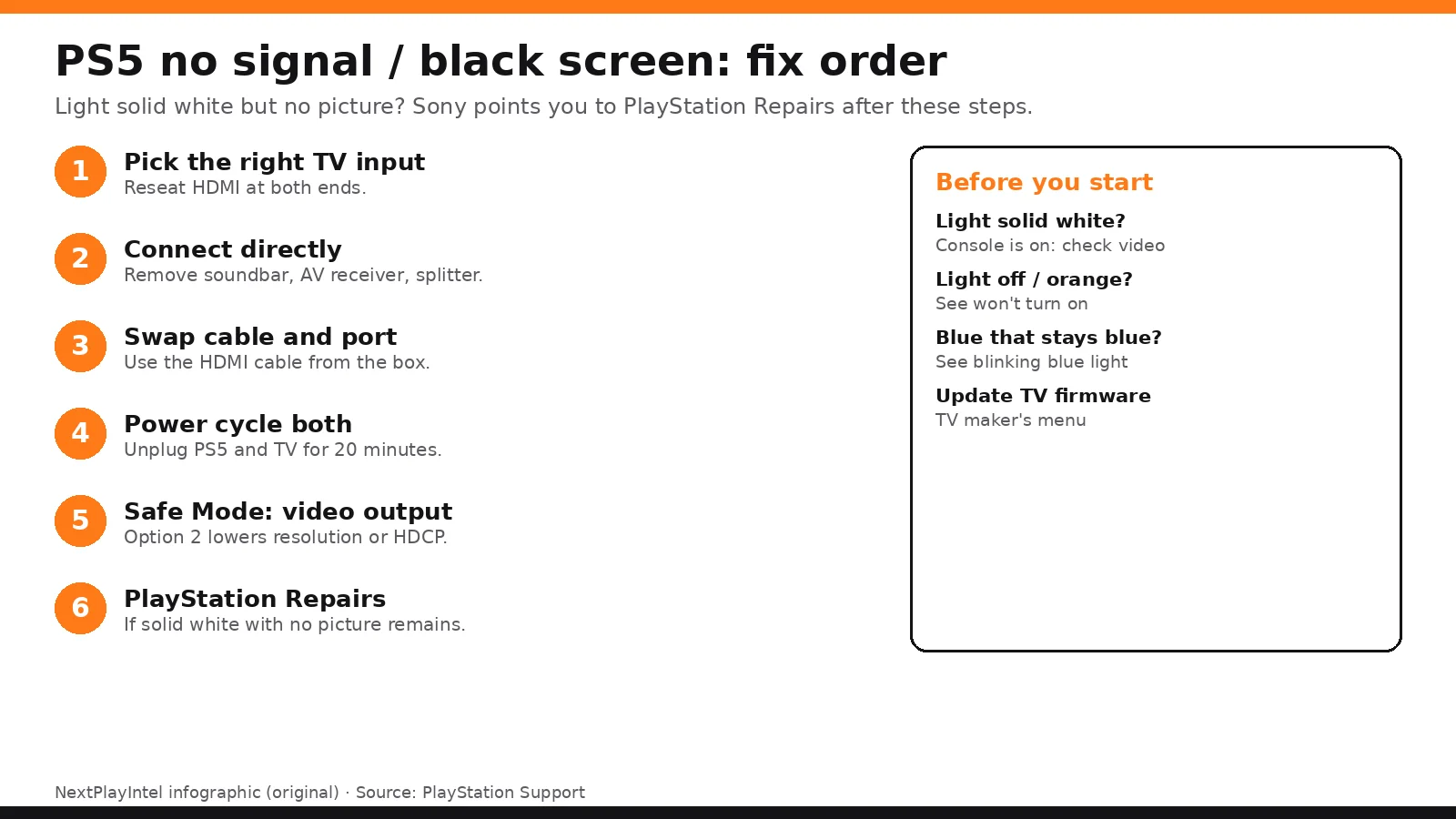
Problem: The console is on (solid white) but the TV shows no signal, flickers or has no sound.
Likely causes: a loose or faulty HDMI cable or port, a soundbar or splitter in the chain, an HDCP or resolution mismatch, or old TV firmware.
Fixes, easiest to hardest:
Reseat the HDMI cable at both ends and choose the right TV input.
Connect the console directly to the TV, removing any soundbar, AV receiver or splitter.
Try a different HDMI cable and a different HDMI port on the TV.
Turn off and unplug both the console and the TV for 20 minutes, then try again.
Update the TV's firmware.
Start in Safe Mode and choose Change Video Output to lower the resolution or change the HDCP mode (Safe Mode options).
Pro Tip: Test with the cable that came in the box before you buy a new one.
How you know it worked: The PS5 home screen shows on the TV and the picture stays stable.
When to contact official support: Follow Sony's picture and sound guide, then PlayStation Repairs if the light is solid white with no picture.
Step 3: Cool down an overheating or loud console
Problem: You see a high-temperature warning, the fan is loud or the console shuts down.
Likely causes: blocked vents, a cramped cabinet, carpet or soft surfaces, dust, or an M.2 SSD without the correct heat-dissipation part.
Fixes, easiest to hardest:
Turn the console off as soon as the warning appears and let it cool.
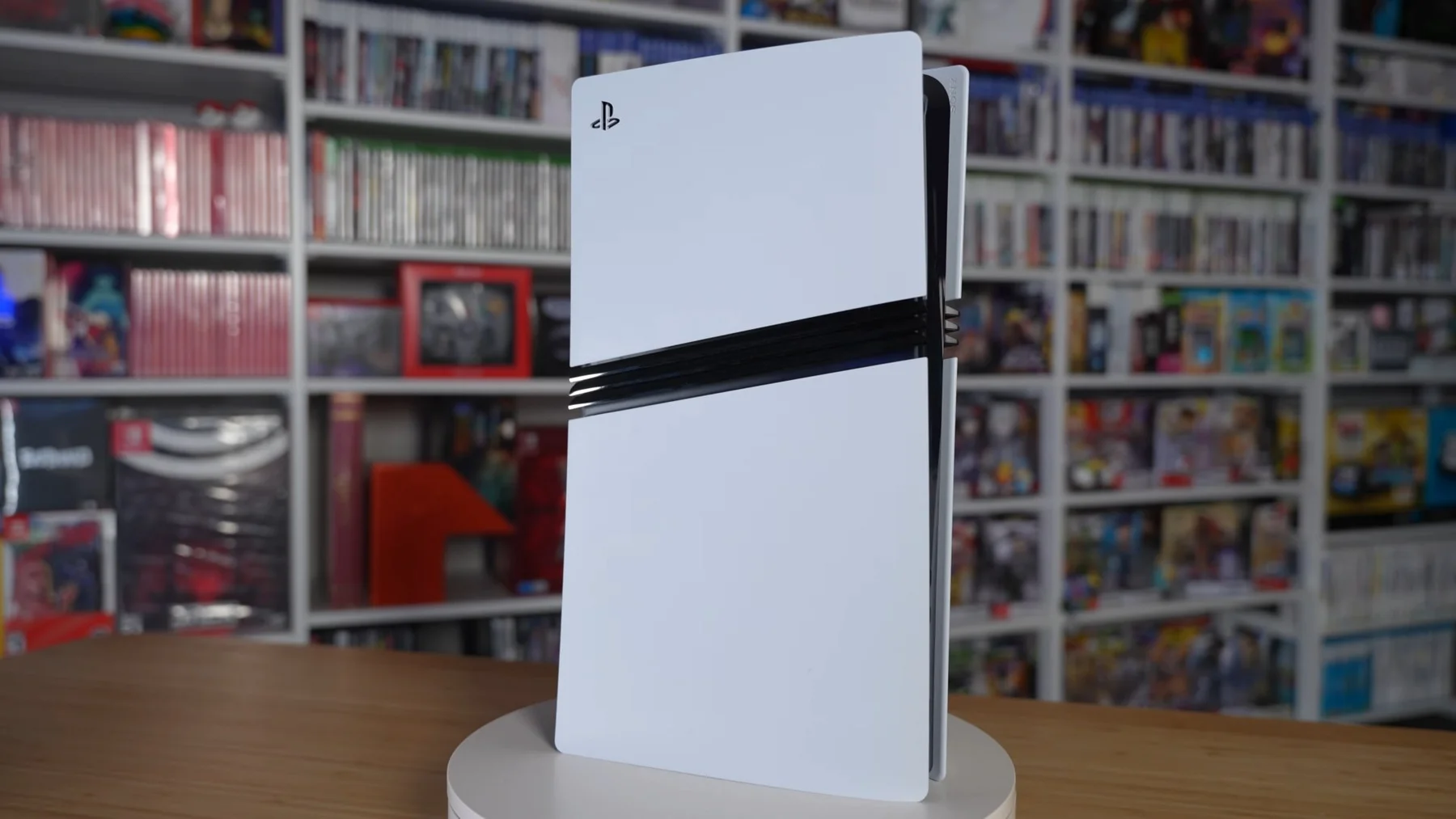
Leave about 10 cm of space around the console. Don't place it on carpet or in a closed cabinet.
With the power cable unplugged, vacuum dust from the vents.
If you added an M.2 SSD, check that a heatsink or heat-dissipation structure is fitted (our M.2 guide).
If it still shuts down, contact PlayStation Repairs.
Look out for: Repeated shutdowns while the vents are clear point to hardware. Stop using the console and request service.
How you know it worked: Normal fan noise and no warning during a long play session.
When to contact official support: See Sony's console noise guide and PlayStation Repairs.
Step 4: Fix Wi-Fi, PlayStation Network and NAT problems
Problem: The console can't connect, the speed is slow, or you see CE-, NW- or WS- network errors.
Likely causes: a PSN outage, router problems, Wi-Fi interference, an IPv6-only network, DNS problems or blocked ports.
Fixes, easiest to hardest:
Check the PlayStation Network status page first.
Restart the console and the router.
Use a LAN cable if you can, then go to Settings > Network > Settings > Set Up Internet Connection.
Sony notes that the PS5 can't connect to IPv6-only networks. Ask your ISP for IPv4 or dual-stack.
For WS-116420-4, Sony suggests a static IP or DNS and asking your ISP about ports.
The PS5 Pro (CFI-7000) supports Wi-Fi 7 Multi-Link Operation (MLO). Sony suggests trying the connection with MLO both on and off.
How you know it worked: Settings > Network > Test Internet Connection succeeds and you can sign in to PSN.
When to contact official support: See Sony's connection guide. For outages, wait for PSN to recover. For router or ISP issues, contact your provider.
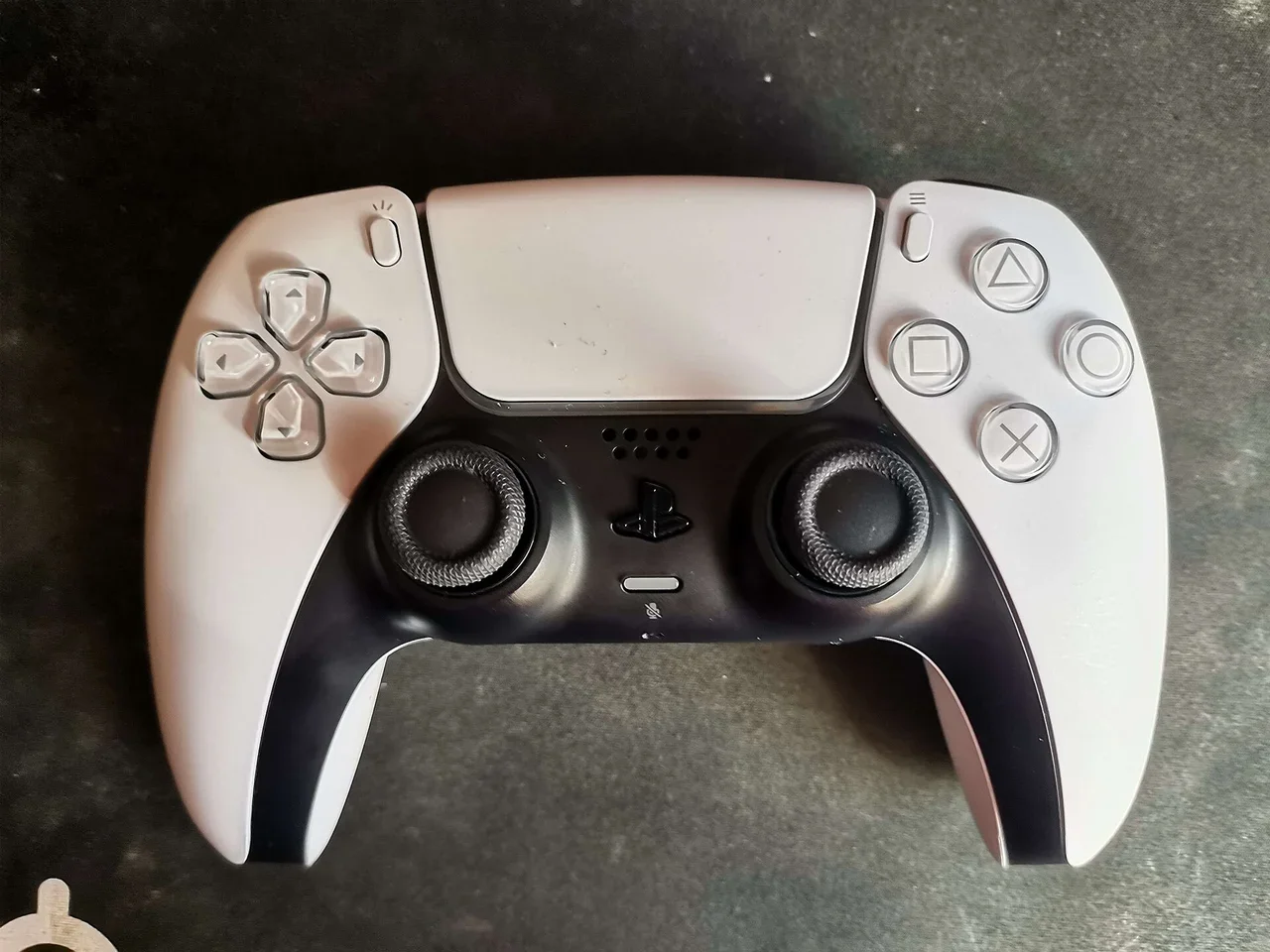
Step 5: Re-pair or reset a DualSense that won't connect or drifts
Problem: The controller won't pair, keeps disconnecting, or the cursor moves without input (drift).
Likely causes: a flat battery, a bad pairing, outdated controller firmware, or stick wear.
Fixes, easiest to hardest:
Charge the controller with a USB cable connected to the console.
With the cable connected, press the PS button to pair again.
Reset the controller using the reset hole on the back, then pair again (our step-by-step).
Update the controller firmware from Settings > Accessories.
If drift continues after a reset and update, request a controller repair.
How you know it worked: The player indicator lights up and the stick stays centred in menus.
When to contact official support: Use PlayStation Repairs for the controller. The PC and mobile pairing guide covers other devices.
Step 6: Get a disc to read (or eject)
Problem: You see CE-110551-3 or CE-110555-7, the disc isn't recognised, or it won't eject.
Likely causes: a dirty or damaged disc, an unsupported disc type, a corrupted database or a drive fault.
Fixes, easiest to hardest:
Check that the Disc Drive is attached and paired: Sony says the drive is for CFI-2000 and CFI-7000 consoles and needs an internet connection the first time (official setup page).
Clean the disc with a soft cloth, wiping from the centre outwards, then try a different retail PS5 or PS4 disc.
Remember that burned discs and audio CDs are not supported.
Rebuild the database in Safe Mode (our walkthrough).
If a disc is stuck, follow Sony's manual eject steps (a #1 Phillips screwdriver, turned clockwise) or contact PlayStation Repairs.
How you know it worked: The game tile appears and the game starts from the disc.
When to contact official support: See Sony's disc reading guide. Contact Repairs if no discs read at all.
Step 7: Free up storage and clear update errors
Problem: Storage is full, a download or update is stuck, or you see CE-108262-9 or WS-116522-7.
Likely causes: a full SSD, corrupted downloads, server or network problems, or an interrupted system update.
Fixes, easiest to hardest:
Go to Downloads/Uploads, select the item, then View Error Info and Try Again (our download guide).
Free up space in Settings > Storage, or move games to USB extended storage, which needs SuperSpeed USB 5 Gbps or faster (our USB guide). PS5 games must be copied back to play.
Delete the affected game and reinstall it.
Update system software by USB: on a FAT32 or exFAT drive, put the file at PS5\UPDATE\PS5UPDATE.PUP (about 1.1 GB for an update or 1.2 GB for a reinstall) and use Safe Mode option 3 (Sony steps).
Look out for: Use only the file from playstation.com. The reinstall file erases the console.
How you know it worked: The update finishes and the game launches without the error.
When to contact official support: See Sony system software and extended storage.
Step 8: Use Safe Mode: rebuild the database, then reset as a last resort
Problem: The console freezes, games glitch or errors repeat after the earlier fixes.
Likely causes: a corrupted cache or database, corrupted system software, or bad settings.
Fixes, easiest to hardest:
Turn the console off fully. Hold the power button until the second beep, then connect the controller with USB.
Try options in order of risk: 1 Restart, 2 Change Video Output, 3 Repair Console Storage (no data loss), 4 Update System Software, 5 Restore Default Settings (keeps games and saves).
Choose 6 Clear Cache and Rebuild Database (our walkthrough).
Back up your saves, then use 7 Reset PS5 only if nothing else works. Option 8, Reset PS5 (Reinstall System Software), erases everything.
Pro Tip: Upload your saves to PS Plus cloud storage or copy them to USB before options 7 or 8.
How you know it worked: The console boots normally and the error doesn't come back.
When to contact official support: See Sony's Safe Mode guide. Request a repair if Safe Mode itself won't load.
Official PS5 error code table
Look up any code in Sony's PS5 error code search. The codes below were checked on their official pages:
Code | Meaning | Official fix |
|---|---|---|
Error reading system software or app data | Update system software; delete the game in Settings > Storage and reinstall. | |
The game or app can't load | Delete and reinstall the game or app. | |
Error loading or updating an app | Restart the console; update system software and the game. | |
A game or app hit an error | Update the game; if it keeps happening, use PlayStation Repairs. | |
Unable to connect to the server | Check PSN status; restart; try a wired connection; set up the connection again. | |
Unable to connect to the server | Same as CE-105799-1: status page, restart, wired connection. | |
Error connecting to PlayStation Network | Check PSN status; try a wired connection. | |
Unable to connect to PlayStation Network | Check status; wired connection; static IP/DNS; ask your ISP about ports. | |
System software update failed | Use wired; switch the router off for 5 minutes; update from USB or a clean game disc. | |
Failed to read the disc | Restart; clean the disc; try another disc. | |
Disc can't be read or isn't supported | Try other discs; clean the disc. |
Repair, warranty and cost
Sony's PS5 hardware warranty is 1 year from purchase (see the warranty). In-warranty repairs go through PlayStation Repairs. Out-of-warranty fees are quoted in the official repair portal after diagnosis. We did not find a published Sony price list, so cost in USD, GBP, EUR and INR is unconfirmed.
Region | Where to start | Repair cost |
|---|---|---|
Global/US | Quoted by Sony (unconfirmed) | |
UK/EU | PlayStation Support for your country | Quoted by Sony (unconfirmed) |
India | Quoted by Sony (unconfirmed) |
Buying in India: support notes
Buy from Sony-authorised retailers and keep the GST invoice, because service needs proof of purchase.
Start service from PlayStation Support India, which lists the India support options.
Imported consoles may not be covered by local service. Ask the seller before you buy.
Use a stable wall socket. Sony's power steps (unplug for 3 minutes) still apply. The PS5 Pro has no disc drive in the box; buy the official Disc Drive separately if you need one.
Why these problems happen
The PS5 Pro uses the same system software, Safe Mode and storage design as the standard PS5, so it fails the same ways. Its higher video output (4K at up to 120Hz, with VRR) makes HDMI handshake problems more likely through older soundbars, receivers and cables.
Blue lights and crashes usually come from system or game data that didn't load. Repair Console Storage and Rebuild Database fix that without deleting games.
Blue light and no signal: what the symptoms tell you
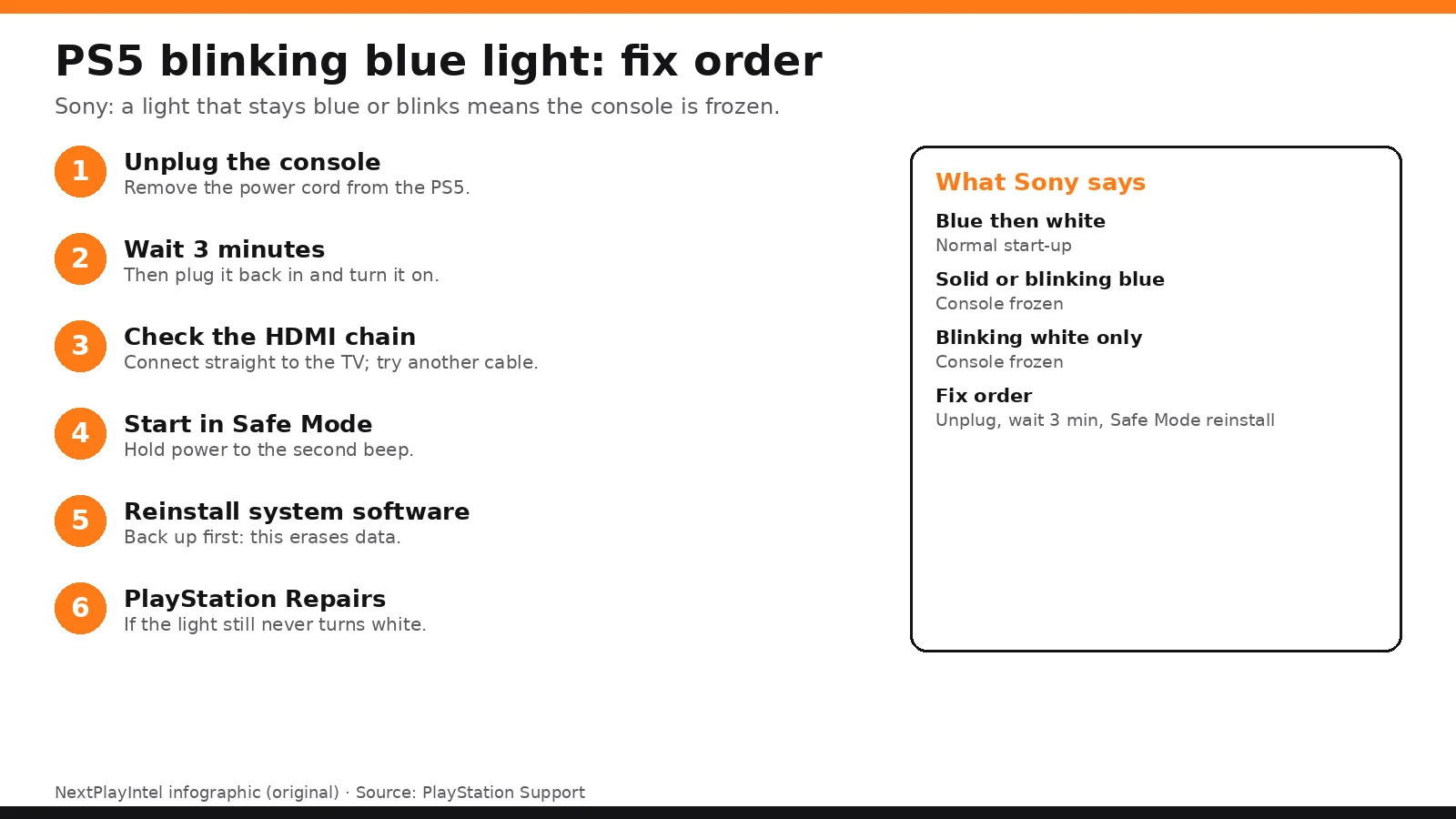
Blinking blue that never turns white means the console started but didn't finish booting. Sony's power-light page says unplug for 3 minutes, then reinstall the system software from Safe Mode if it repeats. Before that, try Repair Console Storage in Safe Mode, which doesn't delete data.
Solid white light but the TV says No signal means the console is running and the problem is the HDMI chain. Sony's picture troubleshooting says connect straight to the TV (no soundbar or receiver), try another cable and TV port, and unplug both for 20 minutes. If you can see Safe Mode, use Change Video Output.
No light at all is a power problem: check the outlet and cable first, as in Step 1.
It beeps, then turns off or won't start: one beep means the console received the power command. If the light then blinks blue and goes out, treat it like the blue-light case above: unplug for 3 minutes, then use Safe Mode. Holding the power button until a second beep is how you enter Safe Mode, so don't confuse that second beep with a fault.
Fixes users report working (user-reported, not NextPlayIntel testing)
These are what individual owners said worked for them in public threads. They are not official advice and not NextPlayIntel testing; each links to its source.
Blinking blue light that won't reach Safe Mode: one owner unplugged every cable, held the power button for about 30 seconds unplugged, reconnected only power and HDMI, then entered Safe Mode and chose Repair Console Storage, which brought the console back (user-reported, r/playstation). Another owner in the same thread found an installed M.2 SSD was the cause.
No signal: owners report that reseating the HDMI cable at both ends fixed a picture lost mid-game or after rest mode (user-reported, r/PS5HelpSupport, r/PS5). If that fails, the Safe Mode option Change Video Output (lower resolution, HDCP change) is the next step.
Random crashes with CE-108262-9: turning off HDMI Device Link stopped them for one owner (user-reported, r/PS5HelpSupport). Full details are in our CE-108262-9 guide.
Common Mistakes to Avoid
Assuming the Pro has a disc drive. It ships without one; the add-on drive must be paired online.
Leaving MLO untested. Some routers behave differently with MLO on.
Unplugging during an update. Risks a reinstall.
Resetting before rebuilding the database. Unnecessary data loss.
Related NextPlayIntel guides
Frequently asked questions
Does the PS5 Pro have a disc drive?
No, it ships without one. Sony's add-on Disc Drive works with CFI-2000 and CFI-7000 consoles and needs internet to pair.
Why won't my PS5 Pro hold Wi-Fi?
Try with Multi-Link Operation on and off, as Sony suggests for CFI-7000. A LAN cable rules Wi-Fi out.
Is PS5 Pro Safe Mode the same as PS5?
Yes, it has the same eight Safe Mode options. Hold power until the second beep.
How much storage does PS5 Pro have?
Sony lists a 2TB SSD. You can add USB extended storage or an M.2 SSD.
What does a PS5 Pro repair cost in India?
Sony quotes it after diagnosis, so it is unconfirmed. Start from PlayStation Support India.
Sources & verification
Sources last verified on . This article covers published information, not hands-on testing.
- PlayStation Support: Power indicator lights
- PlayStation Support: Safe Mode
- PlayStation Support: Picture and sound issues
- PlayStation Support: Console noise
- PlayStation Support: Disc reading problems
- PlayStation Support: Eject a stuck disc
- PlayStation Support: Connect to the internet
- PlayStation Support: System software
- PlayStation Support: USB extended storage
- PlayStation Support: Power issues / Repairs
- PlayStation Support: Reinstall system software
- PlayStation Support India
- PS5 limited warranty
- PlayStation Support: Disc Drive setup
- PlayStation Support: PS5 Pro compatibility
- Reddit r/playstation: PS5 blinking blue light (user reports)
- Reddit r/PS5HelpSupport: TV says No signal (user reports)
- Reddit r/PS5: no display after rest mode (user reports)
- Reddit r/PS5HelpSupport: CE-108262-9 (user reports)
Editorial & update notes
Updated 29 Oct 2026: added a 'Try this first' recommendation, why these problems happen, fixes users report working (with links to the threads), an AI-assistance note, and expanded symptom sections.