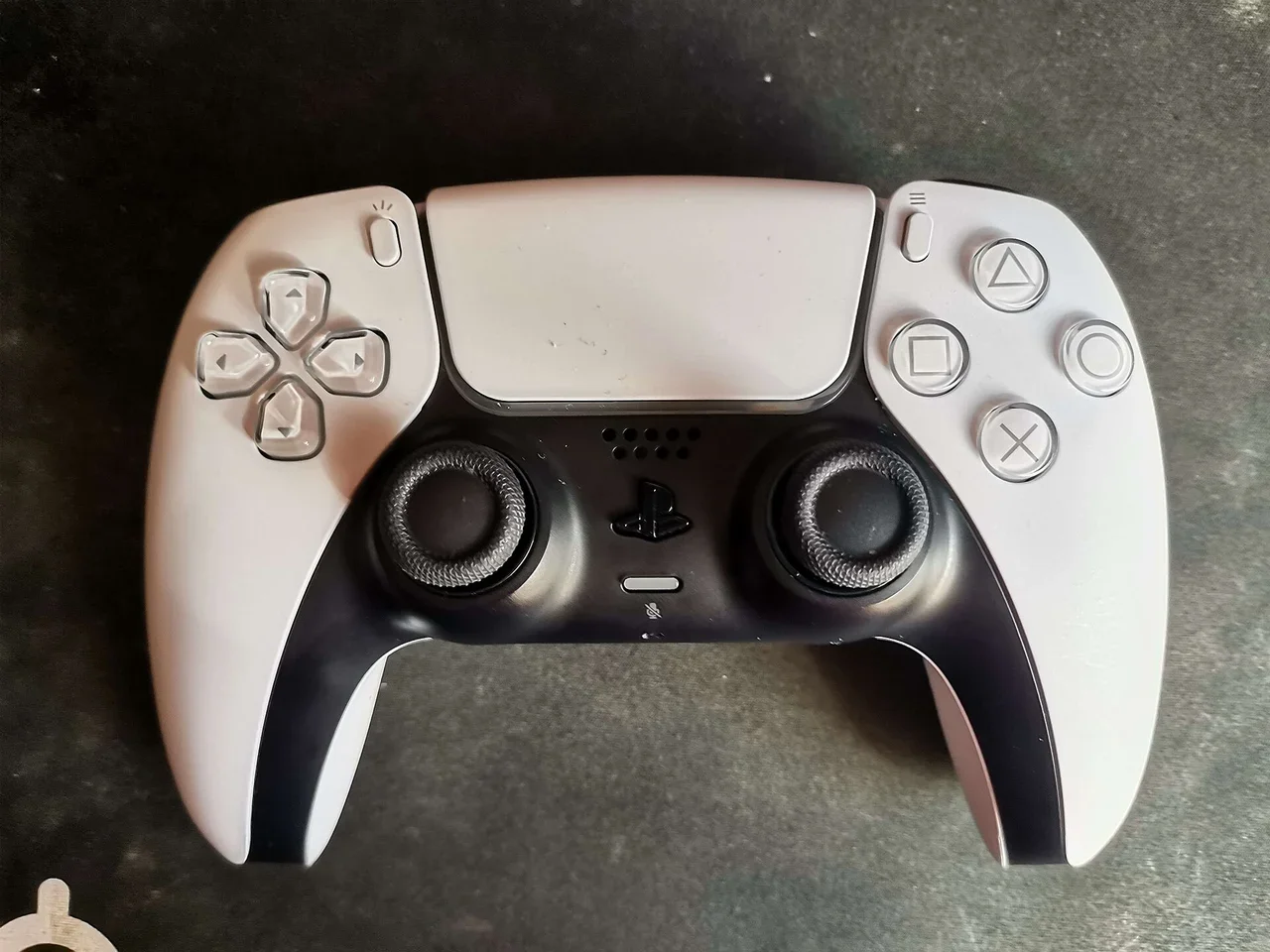
Try this first: in Steam, right-click the game > Properties > Controller and change the Steam Input override to the opposite of what it is now (Disable if the game has native PlayStation support, Enable if it doesn't). Why first: when the controller works in Windows or Steam menus but not in the game, the usual cause is Steam Input and the game's own DualSense support fighting over the controller, and this per-game switch settles it without affecting other games.
If the controller doesn't work anywhere on the PC, it's a pairing problem instead: start at Step 1.
How this page was made: drafted with AI assistance from the official support pages and the user threads linked on this page, checked on 29 October 2026, and published under Tulasiram Pemmadi's byline. NextPlayIntel did not test these fixes on hardware; fixes marked user-reported come from the linked threads.
Quick Answer: Summary of Steps
Check the PC sees the controller. Pair by Bluetooth or USB as Sony describes.
Check the game's controller support. The Steam store page shows Full or Partial support.
Change the per-game Steam Input override. Properties > Controller.
Check the global PlayStation setting. Steam Settings > Controller.
Use USB for haptics. Sony says haptics may need USB on PC.
Close other remapping tools. One translator at a time.
Prerequisites & Materials Needed
Required tools & items
DualSense or DualSense Edge — with a charged battery
USB-C data cable — not a charge-only cable
Windows 10 (64-bit) or Windows 11 PC — Sony's supported minimum
Steam (if the game is on Steam) — to change Steam Input
Estimated time
Preparation: 2 minutes
Execution: 5–15 minutes
Step-by-Step Instructions
Sony's official steps come first; the Steam Input steps are based on Steam's own settings and user reports linked below.
Step 1: Make sure Windows sees the controller
Problem: Nothing happens in any app when you press buttons.
Likely causes: The controller is paired to another device (it pairs with only one at a time) or the cable only charges.
Fixes, easiest to hardest:
Turn the controller off: hold the PS button until the player light goes off, and unplug any cable.
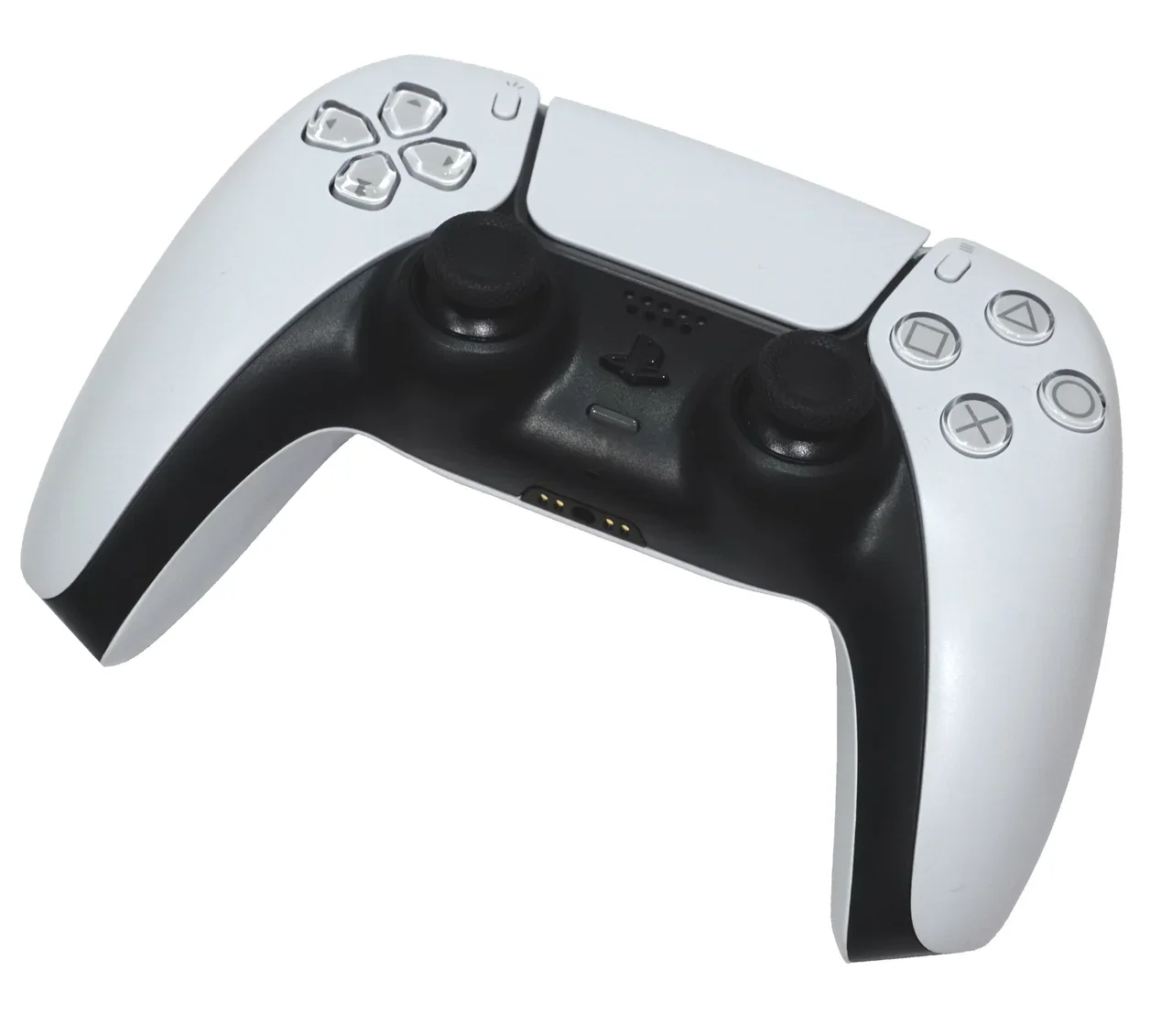
Hold Create and the PS button together until the light bar blinks.
On the PC, open Bluetooth settings and select the controller. Or connect a USB-C data cable instead.
Pro Tip: If a cable charges the controller but Windows shows nothing, try another cable; many only carry power.
How you know it worked: The light bar stays lit and Steam Settings > Controller lists a DualSense.
When to contact official support: If no PC or console detects it, use the PlayStation Repairs diagnostic.
Step 2: Check what the game supports
Problem: The controller works in Steam but not in one game, or works without prompts and haptics.
Likely causes: Support varies by game. Sony notes adaptive triggers, haptics, speaker and mic only work when the game supports them.
Fixes, easiest to hardest:
Open the game's Steam store page and read Controller Support (Full or Partial).
Check the game's own settings for a controller or input device option.
How you know it worked: You know whether the game supports DualSense natively.
When to contact official support: For a game bug, contact the game's publisher.
Step 3: Change the Steam Input override for that game
Problem: The game ignores the controller, shows Xbox prompts, or inputs are doubled.
Likely causes: Steam Input translates the controller. A game with its own DualSense support may conflict with that; a game without it needs it.
Fixes, easiest to hardest:
In the Steam Library, right-click the game > Properties > Controller.
Set the override to Disable Steam Input for games with native PlayStation support.
Set it to Enable Steam Input for games without it.
Restart the game.
Pro Tip: Change one setting at a time and relaunch, so you know which one worked.
How you know it worked: Buttons respond and prompts match the controller.
When to contact official support: If neither setting works, check the game's Steam forum for a known issue.
Step 4: Check the global PlayStation setting in Steam
Problem: The per-game setting seems ignored.
Likely causes: Steam has a global PlayStation Controller Support setting as well as the per-game override.
Fixes, easiest to hardest:
Open Steam > Settings > Controller.
Look at PlayStation Controller Support and note its value.
Try the per-game override again after changing it, and restart Steam.
How you know it worked: Steam no longer warns that it is translating a controller the game supports.
When to contact official support: None needed.
Step 5: Connect by USB for haptics and the headset jack
Problem: Basic controls work but haptics or the headset jack don't.
Likely causes: Sony says haptic feedback may require a USB connection on PC, and the headset jack needs a wired connection.
Fixes, easiest to hardest:
Connect the controller with a USB-C data cable.
Relaunch the game.
How you know it worked: Haptics or audio through the controller work in a supported game.
When to contact official support: None needed.
Step 6: Close other remapping tools
Problem: Inputs are doubled or the controller acts like two pads.
Likely causes: Two translators (for example Steam Input and a third-party tool) are both active.
Fixes, easiest to hardest:
Close third-party controller tools you have running.
Test the game with only Steam Input or only the game's native support.
How you know it worked: One action per button press.
When to contact official support: None needed.
Why this happens
Windows doesn't treat the DualSense the same as an Xbox controller. Games either support it natively, or rely on Steam Input to translate it into something they understand. When both happen at once, or neither does, the controller seems 'connected but not working'.
Features like haptics and adaptive triggers only exist in games that support them, and Sony says haptics may need a USB connection on PC, so 'not working' is sometimes 'not supported in this game or over Bluetooth'.
Fixes users report working (user-reported, not NextPlayIntel testing)
These come from public forum threads. They are what individual owners said worked for them, not official advice and not something we tested. Each links to the thread it came from.
Setting Steam's PlayStation Controller Support to disabled made the controller work natively in Ghost of Tsushima, which the poster calls unintuitive (user-reported, r/ghostoftsushima).
A user who kept seeing Steam's warning about translating a DualSense fixed it by changing the per-game controller setting under the game's Properties, not only the global setting (user-reported, Steam Community).
An owner playing Horizon Forbidden West on PC over USB reports only some DualSense features working, showing that feature support can vary even in PlayStation games (user-reported, r/Dualsense). No fix was confirmed in that thread.
Common Mistakes to Avoid
Using a charge-only cable. The controller charges but the PC never sees it.
Changing several settings at once. You won't know which one fixed it.
Expecting haptics in every game. They depend on the game and may need USB.
Related NextPlayIntel guides
Frequently asked questions
Why does my PS5 controller work in Steam but not in the game?
Usually Steam Input and the game's own DualSense support conflict. Change the per-game Steam Input override in the game's Properties > Controller.
Do haptics work over Bluetooth on PC?
Sony says haptic feedback may require a USB connection on PC, and only in games that support it.
Which Windows versions support the DualSense?
Sony lists Windows 10 (64-bit) and Windows 11.
Sources & verification
Sources last verified on . This article covers published information, not hands-on testing.
Editorial & update notes
New page published 29 Oct 2026.