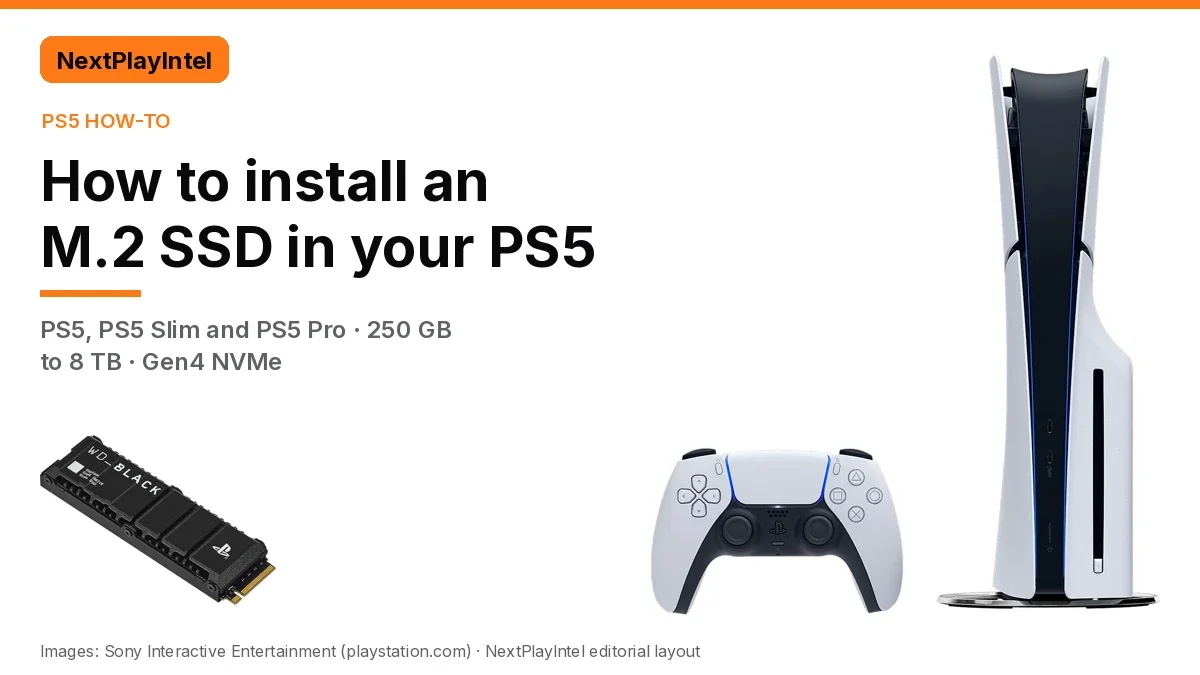
Short answer: every PS5 model (the original PS5, the slimmer CFI-2000 model and the PS5 Pro) has one M.2 slot. Sony supports PCIe Gen4 NVMe drives from 250 GB to 8 TB, and the drive must have a heatsink or heat transfer sheet. All you need is a #1 Phillips screwdriver. The steps differ between the original PS5 and the newer models, so check your model number first.
With GTA VI's PS5 pre-load window coming before the 19 November 2026 launch, a lot of PS5 owners in India are trying to free up space. This guide uses only PlayStation Support's own M.2 instructions (the US and India pages are identical), checked on 29 October 2026. We don't quote drive prices, because no official store we could check sells drives for both markets.
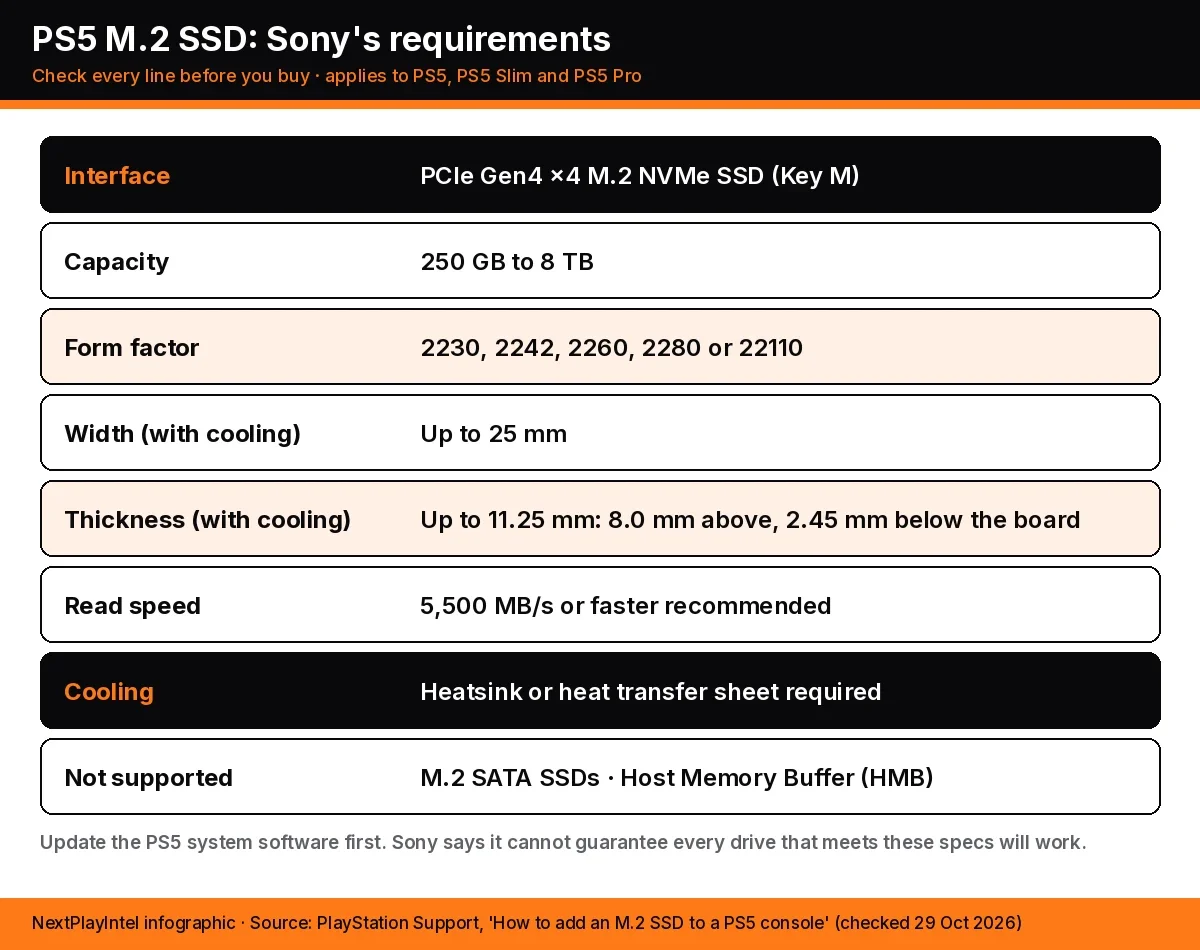
PS5 M.2 SSD requirements (Sony's spec)
Sony says you should update the PS5 system software before installing a drive. It also warns that it can't guarantee every drive meeting the spec will work, so check the drive maker's details before buying.
Requirement | Sony's specification |
|---|---|
Interface | PCIe Gen4 x4 M.2 NVMe SSD (M Key) |
Socket | Socket 3 (Key M) |
Capacity | 250 GB to 8 TB |
Form factor | M.2 type 2230, 2242, 2260, 2280 or 22110 |
Width with cooling | Up to 25 mm |
Thickness with cooling | Up to 11.25 mm in total: up to 8.0 mm above the board, up to 2.45 mm below it |
Sequential read | 5,500 MB/s or faster recommended |
Cooling | Heatsink or heat transfer sheet required (single- or double-sided) |
Not supported | M.2 SATA SSDs; Host Memory Buffer (HMB) |
Most bare drives in those lengths fit. Heatsinks are what usually cause trouble: Sony says their sizes “vary greatly”, and on the original PS5 an oversized heatsink stops the slot cover from closing. Single-sided heatsinks are easier to fit. If your drive already has a heatsink, don't add a second one.
Which PS5 do you have? Check the model group
Sony's instructions are split by model group. The model number starts with CFI- and is printed on the bottom of the console when it stands vertically. Remove the base first if one is attached.
Model group | Console | How you reach the M.2 slot |
|---|---|---|
CFI-1000 | Original PS5 and PS5 Digital Edition (launch design) | Remove the base and lift off the side cover |
CFI-2000 | Slimmer PS5 and PS5 Digital Edition | Remove the small triangle cover |
CFI-7000 | PS5 Pro | Remove the small triangle cover (same steps as CFI-2000) |
Before you start
Update the PS5 system software.
Get a #1 Phillips (cross-head) screwdriver.
Fit the heatsink to the drive first, following the heatsink's own instructions.
Turn off the PS5 fully (not Rest Mode), unplug the power cord and all cables, and let it cool.
Put the console on a flat surface with a soft cloth under it.
Touch a grounded metal object to discharge static. Sony warns static can damage the drive or the console.
Never turn on or play the PS5 with the cover off.
How to install an M.2 SSD in PS5 Slim and PS5 Pro (CFI-2000/7000)
Turn off and unplug the console, remove the feet if attached, then remove the triangle cover.
Remove the screw from the expansion slot cover and lift the cover off.
Remove the screw and the spacer, then move the spacer to the hole that matches your drive length (for example 2280).
Hold the drive by its edge, line it up with the notch in the connector, tilt it diagonally upward and push it firmly all the way in.
Tilt the drive down and fasten it with the screw.
Refit the expansion slot cover and its screw, then put the triangle cover back on.
Reattach the feet, reconnect the power cord and cables, and turn the PS5 on. The formatting guide appears; follow it to format the drive.
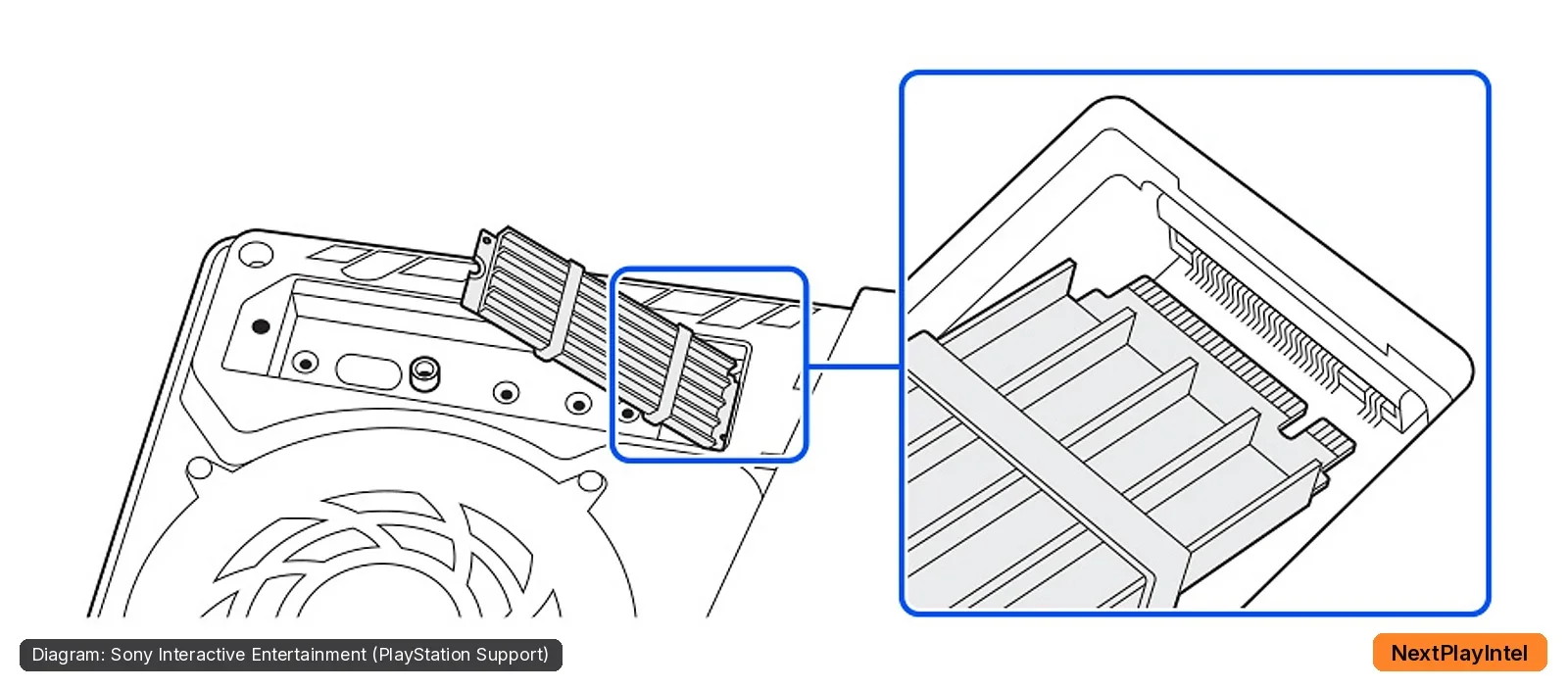
Diagram: Sony Interactive Entertainment (PlayStation Support), CFI-2000 model group.
How to install an M.2 SSD in the original PS5 (CFI-1000)
Turn off the PS5, remove all cables and devices, and let it cool.
Lay it on a protected flat surface and remove the base. Place it with the PS logo facing down and the power button towards you.
Grip the top-left corner of the cover, pull it slightly up and to the right, then slide it off while holding the console steady.
Remove the screw (A) on the long rectangular expansion slot cover and take the cover off.
Remove screw B and move spacer C to the groove for your drive's length.
Line the drive up with the notch, insert it diagonally and push it fully in. The board should rest flat on the spacer, with nothing from the heatsink in the way.
Tilt the drive down and fasten it to the spacer with screw B.
Refit the slot cover. If it won't close, Sony says the cooling structure is probably too big.
Slide the side cover back on from about 2 cm (3/4 inch) below the top edge until it clicks. Reattach the base and cables, power on, and follow the formatting guide.
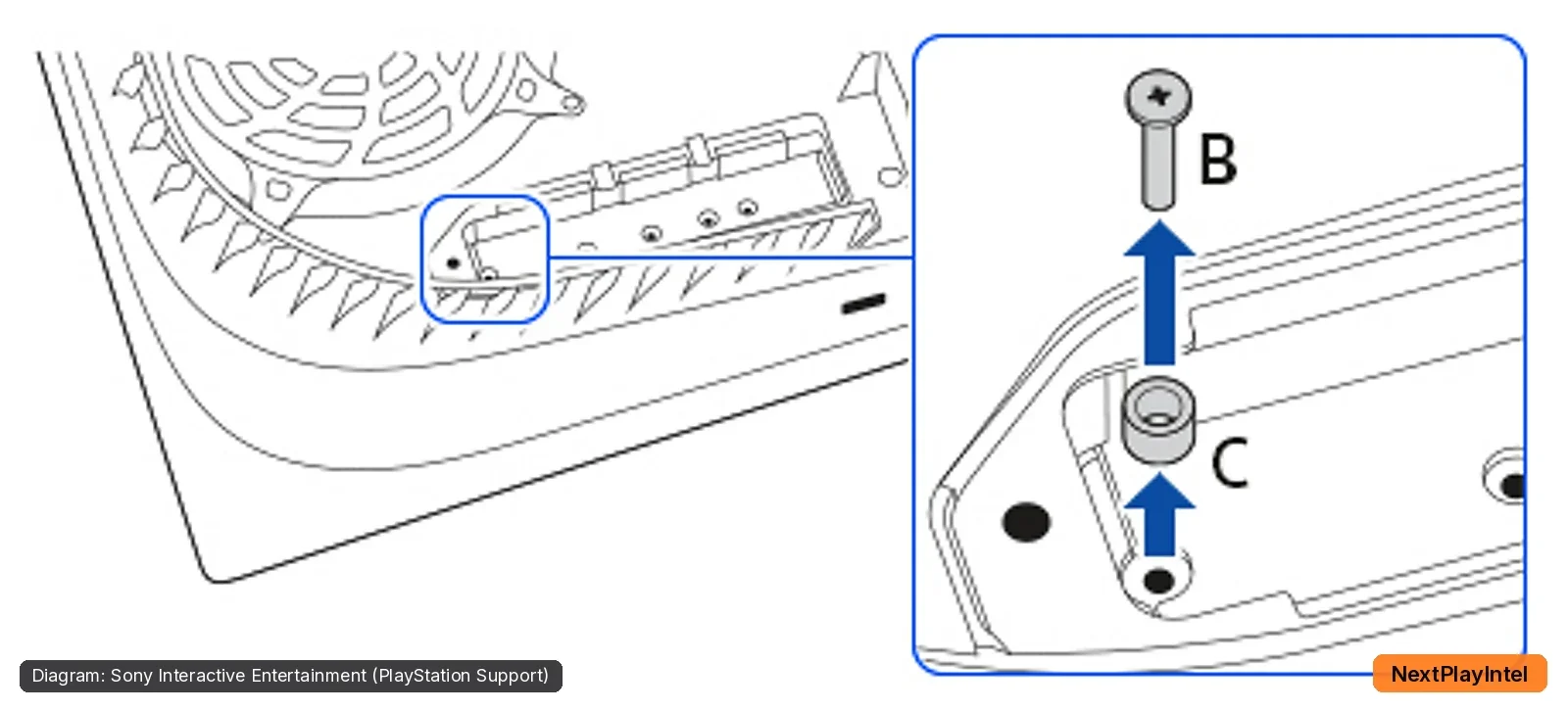
Diagram: Sony Interactive Entertainment (PlayStation Support), CFI-1000 model group.
Format the drive, then install or move games
When you first use a drive on a PS5, you have to format it, and the whole drive is formatted. Formatting erases everything on it, so back up anything you need first. Don't switch off the console while it's formatting or saving data.
Download new games to M.2: Settings > Storage > Installation Location.
Move installed games: Game Library, highlight a game, press Options > Move Games and Apps, tick the games you want, then select Move. If you also use USB extended storage, open the Movable to M.2 SSD Storage tab.
Check space: Settings > Storage > M.2 SSD Storage.
A single game can't be split across drives; all of its data must be in one place. Saved data always stays on console storage (or PS Plus cloud storage), not on the M.2 drive.
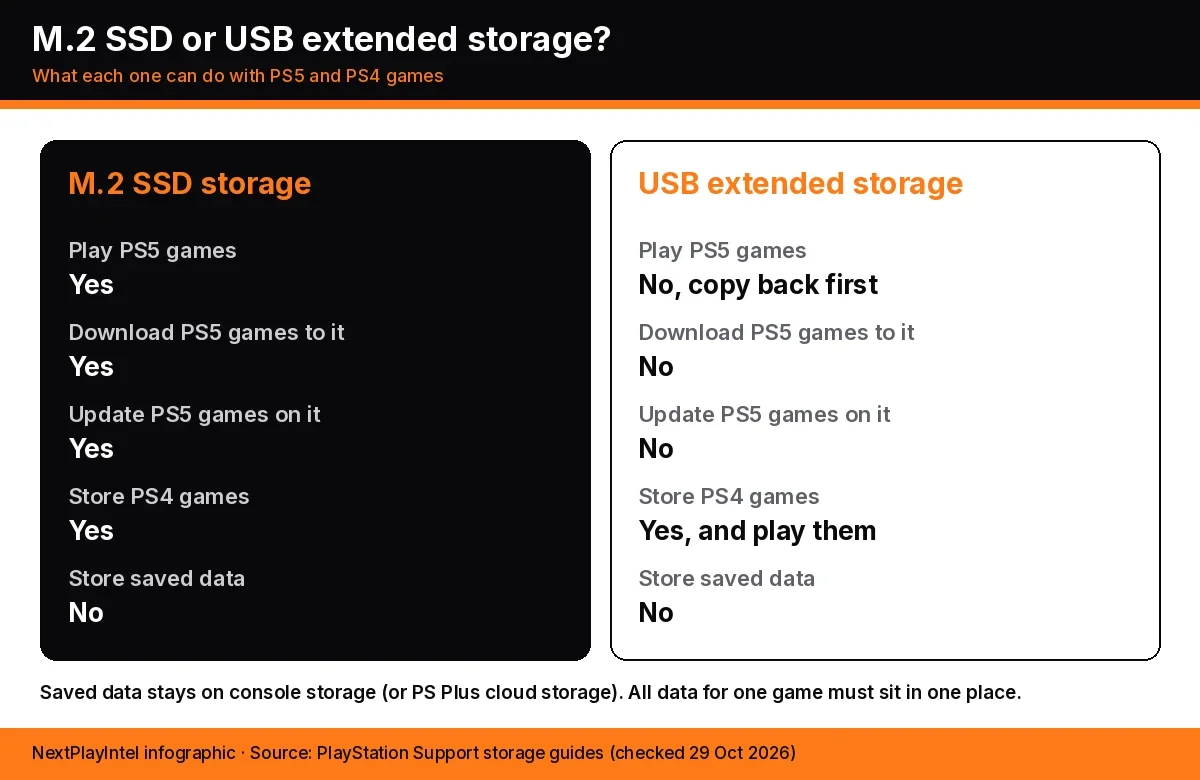
M.2 SSD vs USB extended storage
What you want to do | M.2 SSD storage | USB extended storage |
|---|---|---|
Play PS5 games from it | Yes | No, move back first |
Download or update PS5 games on it | Yes | No |
Store and play PS4 games | Yes | Yes |
Store saved data | No | No |
Drive requirement | PCIe Gen4 NVMe, 250 GB to 8 TB, with cooling | SuperSpeed USB 5 Gbps or faster, 250 GB to 8 TB, no USB hub |
A USB drive is an easy way to park games you're not playing. If you want more space to actually play PS5 games, you need an M.2 drive. Our PS5 USB storage guide covers the USB side.
Common mistakes and fixes
Slot cover won't close (original PS5): the heatsink is too tall. Sony's limit is 8.0 mm above the board.
Drive not detected: make sure it's fully in the connector and lying flat on the spacer, and that it's an NVMe drive. M.2 SATA drives aren't supported.
Stutter in a game on M.2: Sony suggests pausing downloads under Downloads/Uploads in the control center and letting disc installs finish. If that doesn't help, move the game back to console storage.
Sending the PS5 for repair: Sony says to remove the M.2 drive first.
Moving the drive to another PS5: remove it safely, install it in the new console and sign in with the same account. No reformat is needed.
What this means for GTA VI on PS5
PlayStation Store India lists Grand Theft Auto VI for PS5 with a 7-day pre-load ahead of its 19 November 2026 launch. Once your M.2 drive is set as the installation location, the pre-load can go straight to it. Rockstar hasn't published a final install size yet; see our GTA VI file size page for the latest. For other installs, see how to install games on PS5 and how to transfer games and saves to a new PS5.
What we couldn't confirm
Sony doesn't publish a list of approved drives, so we can't vouch for any particular model. Check the maker's spec sheet against the table above.
Drive prices in India and the US change often, and we couldn't verify them from an official store, so we haven't listed any.
The final GTA VI install size hasn't been announced by Rockstar or shown on the PS Store.
FAQ
Which M.2 SSD works with PS5?
Sony requires a PCIe Gen4 x4 M.2 NVMe SSD (Key M) of 250 GB to 8 TB in form factor 2230, 2242, 2260, 2280 or 22110, at most 25 mm wide and 11.25 mm thick including cooling, with 5,500 MB/s read speed recommended.
Do I need a heatsink for a PS5 M.2 SSD?
Yes. Sony says an M.2 SSD must not be used without a heat-dissipation mechanism such as a heatsink or heat transfer sheet. If the drive already has a built-in heatsink, Sony recommends against adding another.
Does installing an M.2 SSD void the PS5 warranty?
Sony says warranty coverage should generally not be affected if the drive meets the specifications and you follow the official instructions. Damage caused by an incorrect install is not covered.
Can I play PS5 games from an M.2 SSD?
Yes. PS5 games can be downloaded to, updated on and played from M.2 SSD storage. USB extended storage can only hold PS5 games; they must be moved back to console or M.2 storage to play.
Do I have to format the M.2 SSD?
Yes, on first use with a PS5. Formatting erases everything on the drive and the whole drive must be formatted. Formatting is not needed when moving an already-formatted drive to another PS5 signed in to the same account.
Can I install GTA VI on a PS5 M.2 SSD?
Any PS5 game can be installed to a compatible M.2 SSD by setting it as the installation location. Rockstar has not published a final GTA VI install size, so we cannot say how much space it needs yet.
Verified against PlayStation Support (US and India) and PlayStation Store India on 29 October 2026 by Tulasiram Pemmadi.
Frequently asked questions
Which M.2 SSD works with PS5?
Sony requires a PCIe Gen4 x4 M.2 NVMe SSD (Key M) of 250 GB to 8 TB in form factor 2230, 2242, 2260, 2280 or 22110, at most 25 mm wide and 11.25 mm thick including cooling, with 5,500 MB/s read speed recommended.
Do I need a heatsink for a PS5 M.2 SSD?
Yes. Sony says an M.2 SSD must not be used without a heat-dissipation mechanism such as a heatsink or heat transfer sheet. If the drive already has a built-in heatsink, Sony recommends against adding another.
Does installing an M.2 SSD void the PS5 warranty?
Sony says warranty coverage should generally not be affected if the drive meets the specifications and you follow the official instructions. Damage caused by an incorrect install is not covered.
Can I play PS5 games from an M.2 SSD?
Yes. PS5 games can be downloaded to, updated on and played from M.2 SSD storage. USB extended storage can only hold PS5 games; they must be moved back to console or M.2 storage to play.
Do I have to format the M.2 SSD?
Yes, on first use with a PS5. Formatting erases everything on the drive and the whole drive must be formatted. Formatting is not needed when moving an already-formatted drive to another PS5 signed in to the same account.
Can I install GTA VI on a PS5 M.2 SSD?
Any PS5 game can be installed to a compatible M.2 SSD by setting it as the installation location. Rockstar has not published a final GTA VI install size, so we cannot say how much space it needs yet.
Sources & verification
Sources last verified on . This article covers published information, not hands-on testing.
- PlayStation Support (US): How to add an M.2 SSD to a PS5 console
- PlayStation Support (India): How to add an M.2 SSD to a PS5 console
- PlayStation Support (US): How to manage PS5 console storage space
- PlayStation Support (India): USB extended storage on PS5 consoles
- PlayStation Support: internet connection guide (PS5 model groups incl. CFI-7000 PS5 Pro)
- PlayStation Store India: Grand Theft Auto VI
Editorial & update notes
Published 29 Oct 2026 from PlayStation Support's official M.2 SSD instructions.