Quick route
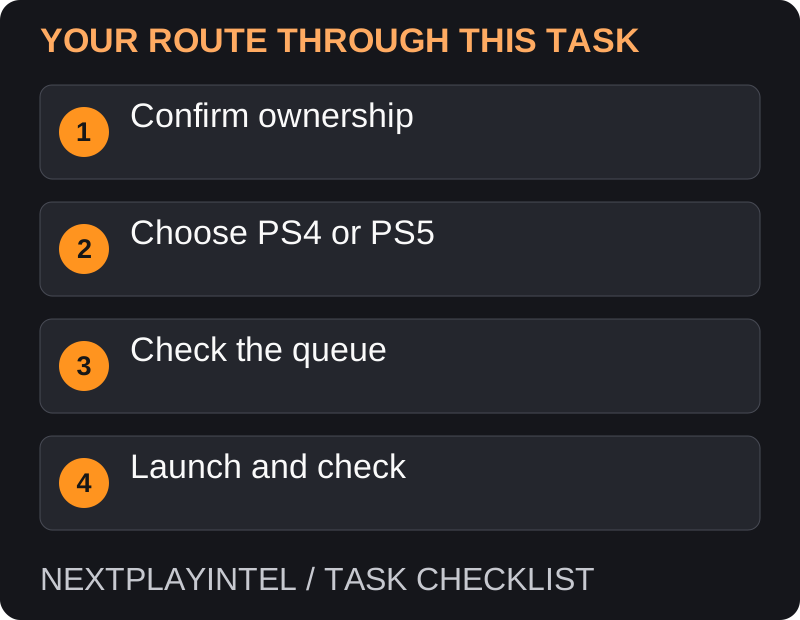
First, confirm ownership, then follow the steps below in order. If the result differs from what is described, use the symptom-specific troubleshooting before repeating a purchase, deleting data or starting another download.
Before starting
Identify your purchase: a disc, a digital game, a voucher, or subscription access. A product listing or a game icon alone is not proof that your account owns the game.
Check that your console has a compatible disc drive if you intend to use discs. Update the console, connect it to the internet and check available storage before a large download.
Install a digital purchase
Sign in to the account that bought or redeemed the game. On the Games home screen, open Game Library and Your Collection.
Open the game and select Download. If offered multiple versions, select the version intended for your console before starting.
Open Downloads/Uploads to monitor progress. Wait for required game data and updates before judging whether the installation works.
Launch the game from Games home. Complete any publisher sign-in requested by the game, checking the account identity before linking it.
Install from a disc
Insert the game disc into the compatible drive. If a boxed release contains separate data and play discs, follow its on-screen disc prompts.
Select the game tile and allow installation to finish. Connect to the internet for available updates rather than assuming the disc contains the latest build.
Keep the required play disc available. An installed disc-based game does not automatically become a standalone digital purchase.
Download, installation or licence problem?
Read the tile and queue before changing anything. A padlock points you toward ownership checks; a paused download points toward the queue; a game that opens but refuses a mode may still be installing that mode. Write down which of these happens. It prevents a licence problem from turning into an unnecessary full download.
If several games stop downloading at the same time, check PlayStation service status and the console connection first. If just one title fails repeatedly, keep its error code and edition name. Compare available storage with the space requested by that installation, not only the advertised download size.
A disc installs but the game still will not start
Check whether the console is asking for the play disc, an update, or a licence. With a two-disc package, follow the labels and on-screen prompts rather than repeatedly swapping discs at random. If another supported disc works but this one does not, report that distinction to the seller or support; it helps separate a damaged disc from a drive fault.
A PS4 disc installation and a PS5 upgrade can leave two similar tiles. Open the version selector before deleting either installation. Test the version you actually intend to use, including its save and required content.
When a repair is worth trying
After ownership, storage and service checks, follow PlayStation’s game-troubleshooting page for software updates and repair steps. Do not jump from an installation error to a factory reset. Preserve the error text and your save backup first. If support asks you to reinstall, confirm that you are removing application data rather than saved progress.
Check the result
The right edition should launch to its main menu without an ownership error. Then confirm that any expected story or multiplayer component is present. Installing a base game does not necessarily install every optional pack.
Official help for this task
PlayStation: download games and add-ons
Use the official page for the current interface wording and any account-specific support. Keep the error, product edition and the step that failed together when asking for help.
Sources & verification
Sources last verified on . This article covers published information, not hands-on testing.
Editorial & update notes
Reviewed 25 October 2026: detailed troubleshooting and official help links, with a distinct featured illustration. Real screenshots are identified and credited where reuse rights were verified; remaining task diagrams are original instructional graphics. No hands-on testing is claimed.
Related devices and next steps
- PlayStation 5 hardware guide
- PlayStation 5 Pro hardware guide
- GTA V game hub
- GTA Trilogy – Definitive Edition game hub
- PS5 download stuck or queued? Check these fixes in order
- Can you play PS5 games from a USB drive?
- How to install games on Xbox Series X and Series S
- How to redeem a PS5 game code and download the game