Quick route
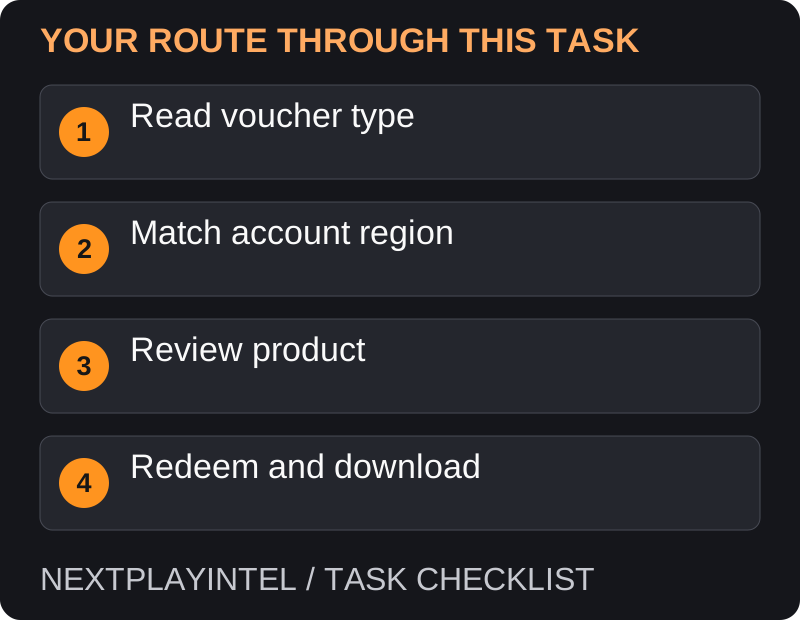
First, read voucher type, then follow the steps below in order. If the result differs from what is described, use the symptom-specific troubleshooting before repeating a purchase, deleting data or starting another download.
Before entering the code
Confirm that the voucher is for PlayStation and identify what it grants: a game, add-on, wallet funds or membership. A console serial number is not a Store voucher.
Check the voucher’s region, expiry wording and purchase conditions against your account. An imported console does not automatically make every imported voucher compatible.
Use the account that should retain the purchase. Keep the original receipt and voucher private until redemption is confirmed.
Redeem on your PS5
Sign in and open PlayStation Store. Open its more-options menu and choose Redeem Code.
Enter the voucher carefully and continue to the product confirmation. Compare the displayed game or credit with the packaging.
Confirm redemption only when the product and account are correct. Record the successful confirmation for your own reference.
If prompted, download the game. Otherwise locate it in your library on the same account.
Use the PlayStation App instead
In the app, open the Store menu and its redeem-code option, enter the voucher and review the result. You can initiate a download to a linked console afterward. A successful account redemption and a remote console download are separate events.
If the code fails
Invalid: check character entry and that you entered the redeemable voucher rather than another number on the receipt.
Already redeemed: inspect the library and transaction history of the account used previously. Do not repeatedly switch accounts hoping to reuse a one-use voucher.
Region mismatch or expired offer: preserve the error message and ask the retailer or PlayStation Support about that specific voucher. Do not change account details blindly to force redemption.
Invalid, used or expired: choose the right next step
For an invalid-code message, compare each character with the original voucher and confirm that it is a PlayStation voucher rather than a retailer order number. For an already-used message, check the accounts that may have redeemed it. For expiry or offer restrictions, preserve the printed terms and purchase receipt. These messages require different evidence.
Do not post the full voucher in a forum asking strangers to test it. If the retailer says the code was not activated at checkout, the retailer needs to resolve that purchase record; changing console settings will not activate a retail card.
Imported bundles and account region
Check the account country and the voucher’s stated country before confirming. The location of the console or your current IP address is not a substitute for compatible account and voucher regions. Do not change unrelated account details or buy wallet credit as an experiment.
If you have not redeemed it and the region is wrong, contact the seller with the listing and voucher region. If you have already redeemed successfully, troubleshoot the receiving account and product rather than continuing to treat it as an unused code.
Successful redemption but no game
Read the confirmation: funds increase a wallet, an add-on needs its base game, and a membership provides subscription benefits. Only a full game entitlement should be expected to appear as that game. Check the purchasing account’s library and the download queue before repeating the code.
For support, record the confirmation date, exact item, account country and error. Keep the code itself private. Do not pay for another copy while the original successful redemption is still being investigated.
If the game is still missing
First check whether the confirmation granted wallet funds or DLC rather than the full game. Then compare the account used in the app with the account signed in on the console. If an order or redemption confirmation exists but the game is unavailable, supply that evidence privately to support before purchasing it again.
Official help for this task
PlayStation: redeem Store vouchers
Use the official page for the current interface wording and any account-specific support. Keep the error, product edition and the step that failed together when asking for help.
Sources & verification
Sources last verified on . This article covers published information, not hands-on testing.
Editorial & update notes
Reviewed 25 October 2026: detailed troubleshooting and official help links, with a distinct featured illustration. Real screenshots are identified and credited where reuse rights were verified; remaining task diagrams are original instructional graphics. No hands-on testing is claimed.