The short answer: storage is not the same as playback
You can keep PS5 game files on USB extended storage, but cannot play those PS5 versions directly from that drive. Copy them back to playable storage first. Compatible PS4 games can run from USB extended storage on a PS5.
This distinction matters when two editions share a name. For example, check whether your installed GTA V copy is the PS4 or PS5 version before diagnosing a USB launch problem. Buying a faster external USB SSD does not change the PS5-version playback rule.
Choose the right storage job
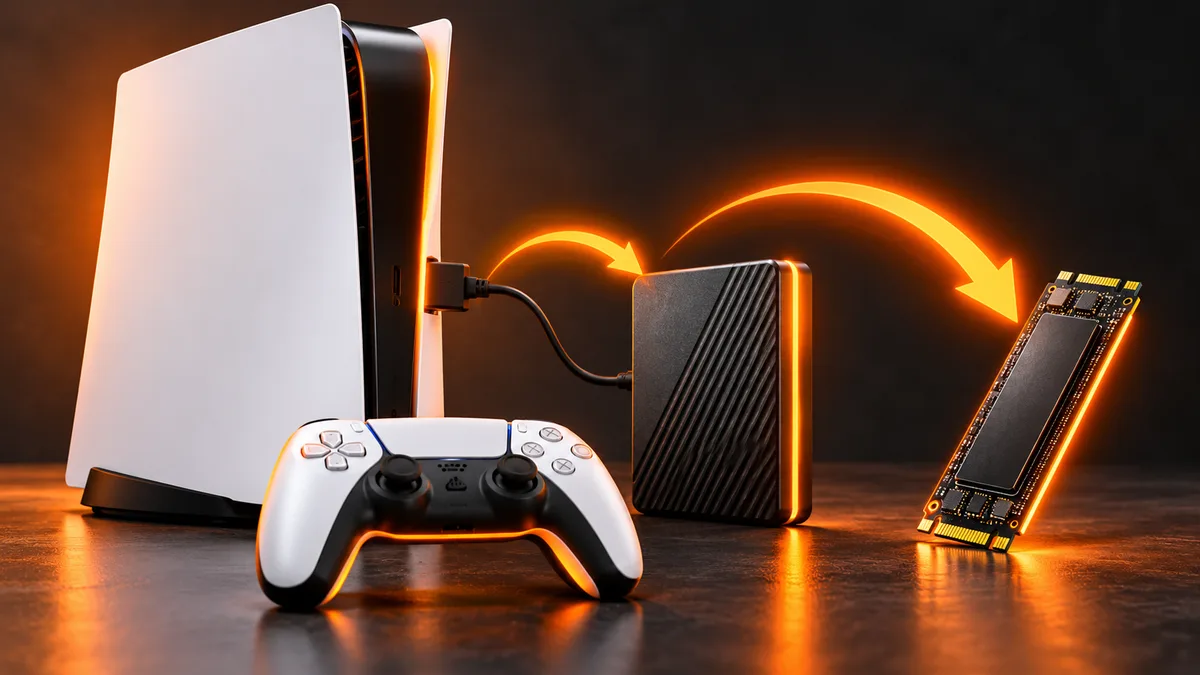
Console storage is the simplest destination when you want to play a PS5 game. A compatible internal M.2 SSD is a separate expansion option; it is not the same as placing an SSD in an external USB enclosure. Follow Sony’s M.2 requirements and installation instructions before buying hardware.
Use USB extended storage when you want to move installed games out of the console’s limited space while retaining their files. Think about the next game you intend to play before filling the internal drive: a stored PS5 title still needs room to return.
A full-console backup is another task. Sony says games on USB extended storage or M.2 storage are not included in that backup, and the differently formatted extended-storage drive cannot also be used as the backup destination. Do not assume “I copied the game” means “I backed up my progress.”
Move a stored PS5 game back before launching
Connect the USB extended-storage drive correctly and make sure it is recognised. Do not reformat an existing working PS5 extended-storage drive just to reconnect it.
Check that console storage has enough free space for the game you want to restore. Use Storage management to review installed titles before deleting anything.
From Game Library, find the PS5 game stored on USB and choose the copy option. Let the transfer finish before trying to launch or disconnecting the drive.
Open the intended PS5 edition and check that it launches. If you own it on disc, keep the required disc available; moving installation files does not create a new licence.
If the USB drive is not recognised
Sony’s extended-storage requirements specify SuperSpeed USB 5 Gbps or later and capacity from 250 GB to 8 TB. Not every drive is guaranteed to work. Connect it directly rather than through a USB hub, and check Sony’s port guide for your PS5 model.
Formatting as USB extended storage erases existing contents. Back up anything needed elsewhere before using that option. If the drive already contains a working library from PS4 or another PS5, Sony says it does not need reformatting merely for connection to this console.
Write down the exact drive error. “Not recognised” is not the same issue as a recognised drive containing a PS5 game that cannot run over USB. Repeating formats cannot remove the platform’s playback restriction.
Protect saves and disconnect safely
Check the saved-data and backup options separately from the installed-game list. The files that make a game launch and the progress tied to your player account serve different purposes. Use Sony’s backup guide if your goal is to protect console data before maintenance.
Finish transfers and use the console’s safe-removal route before unplugging extended storage. Pulling a drive during activity risks corrupted data. If a transfer was interrupted, record what happened and confirm which copy is complete before removing either installation.
Quick decisions before buying another drive
Want more space for directly playable PS5 games? Research a compatible M.2 SSD. Want a place to keep PS5 installations between sessions? USB extended storage can serve that purpose. Want to play compatible PS4 games without using internal space? USB can do that too.
If your game still fails after it is back on playable storage, check its edition, licence and any new error. Our installation and restore-licences guides cover those next steps. This article explains Sony’s documented storage rules; it is not a benchmark or a review of a tested drive.
Related devices and next steps
Install PS5 games · PS5 download stuck · Restore licences · PS5 hardware guide · PS5 Pro · GTA V editions
Sources & verification
Sources last verified on . This article covers published information, not hands-on testing.
Editorial & update notes
Checked against the official sources below on 25 October 2026. Researched troubleshooting guidance; no hands-on test is claimed.
Related devices and next steps
- PlayStation 5 hardware guide
- PlayStation 5 Pro hardware guide
- GTA V game hub
- GTA Trilogy – Definitive Edition game hub
- PS5 download stuck or queued? Check these fixes in order
- How to install games on PS5: discs and downloads
- How to redeem a PS5 game code and download the game
- How to move Steam games to another drive without redownloading