Quick route
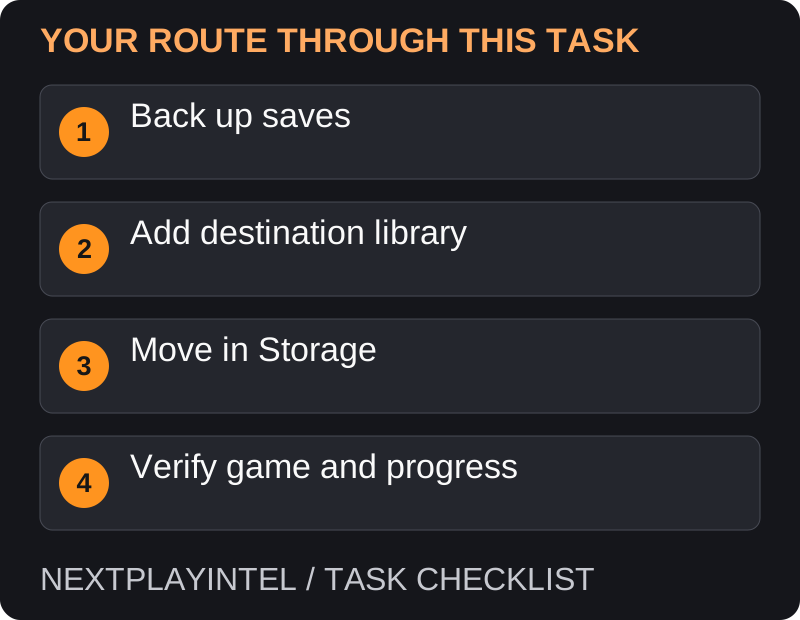
First, back up saves, then follow the steps below in order. If the result differs from what is described, use the symptom-specific troubleshooting before repeating a purchase, deleting data or starting another download.
Plan the move
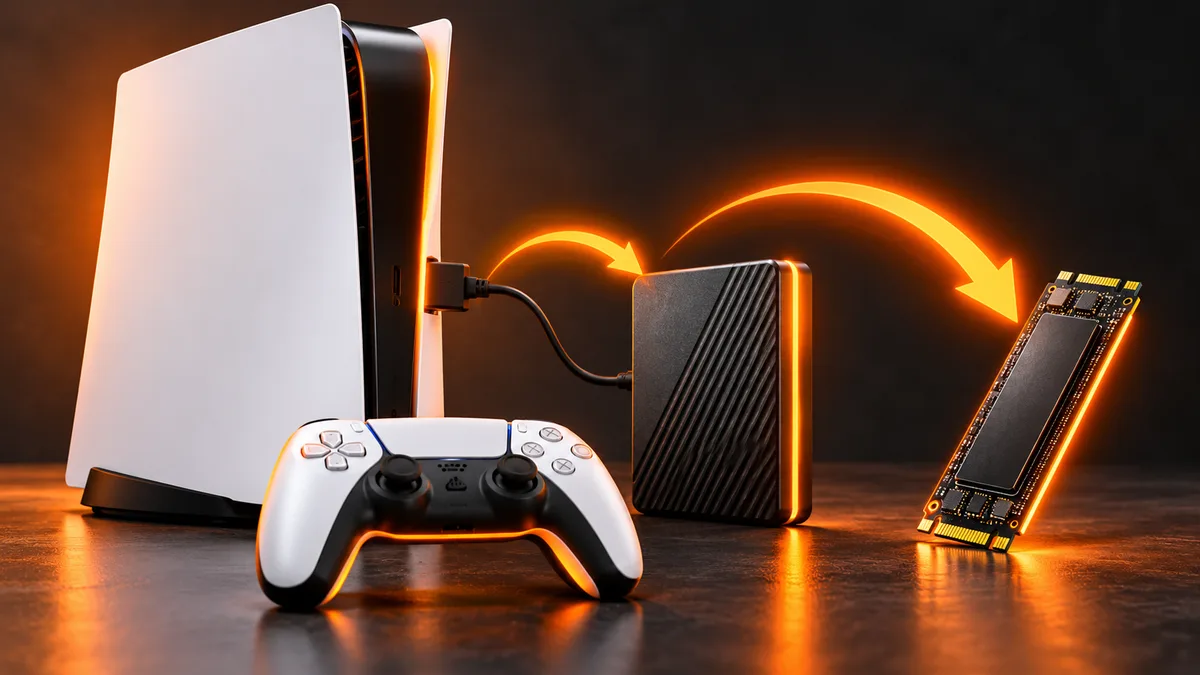
This procedure moves installed games within Steam on the same computer. It is not an account transfer, a licence transfer, or a guarantee that every save file moves with the game.
Connect the destination drive and check its free space. Close the game and finish pending save synchronisation. Keep the old drive intact until the moved game has been launched successfully.
Move using Steam Storage
Open Steam Settings and select Storage. Add the destination library using the add-drive/library control if it is not already listed.
Select the source drive and tick the games to move.
Choose Move, select the destination and let Steam complete the operation. Do not manually move folders at the same time.
Return to Library and launch one moved game. Confirm that Steam recognises the installation before disconnecting or cleaning the original drive.
Protect saves and settings
Steam explains that non-cloud saves may live outside the installation, including Documents or publisher-specific locations. Use the game publisher’s instructions to identify and back them up rather than assuming the game directory contains everything.
For GTA or another title using a second launcher, confirm the same publisher account opens afterward. A successful file transfer does not resolve a separate account-linking problem.
If Steam wants to download again
Check that the destination appears in Steam Storage. A folder copied somewhere else is not automatically a registered library.
Check that the drive is connected and accessible under the expected location. Avoid starting a duplicate installation before locating the existing files.
Use the separate “installed game appears uninstalled” recovery guide if the files remain but Steam has lost track of them.
Updates or repairs can still download data. “Without redownloading” means using existing files for the move, not preventing every future update.
The destination is not offered
Confirm that your operating system can read the drive and that Steam lists it under Storage. Add a library there using Steam’s control before attempting the move. Check available space against the selected games. If the drive disappears intermittently, resolve that first rather than repeatedly restarting a large transfer.
Do not mix a manual folder move with Steam’s move operation. Decide which copy is the source and leave it intact until the destination is verified. Keep any independent save backup outside the directories being moved.
The move finishes but Steam downloads more
A move can preserve installed data while the next launch still needs an update or repair. Inspect the download description and destination before assuming Steam is downloading the entire game again. A different branch or edition can require different files.
If the game is recognised but will not launch, use Properties > Installed Files > Verify integrity of game files. Let verification finish before judging the result. If the game is not recognised at all, use the missing-installation recovery guide instead.
Saves, mods and a second computer
A storage move is not a complete backup of everything associated with a game. Confirm the publisher’s save location and retain a separate copy of files you need. Keep mod installation notes too; repairing official game files is not a promise to preserve every modified file.
On a different computer you must also install required launchers, sign into the owning accounts and recover supported saves. Before erasing the original drive, load the latest progress and create a new save successfully. A working game shortcut alone is insufficient verification.
Finish safely
Verify your most recent save, settings and any required DLC. Only then reclaim old installation space. If changing computers rather than drives, plan account sign-in, save backup and publisher launcher installation as separate tasks.
Official help for this task
Steam: verify integrity of game files
Use the official page for the current interface wording and any account-specific support. Keep the error, product edition and the step that failed together when asking for help.
Sources & verification
Sources last verified on . This article covers published information, not hands-on testing.
Editorial & update notes
Reviewed 25 October 2026: detailed troubleshooting and official help links, with a distinct featured illustration. Real screenshots are identified and credited where reuse rights were verified; remaining task diagrams are original instructional graphics. No hands-on testing is claimed.