Quick route
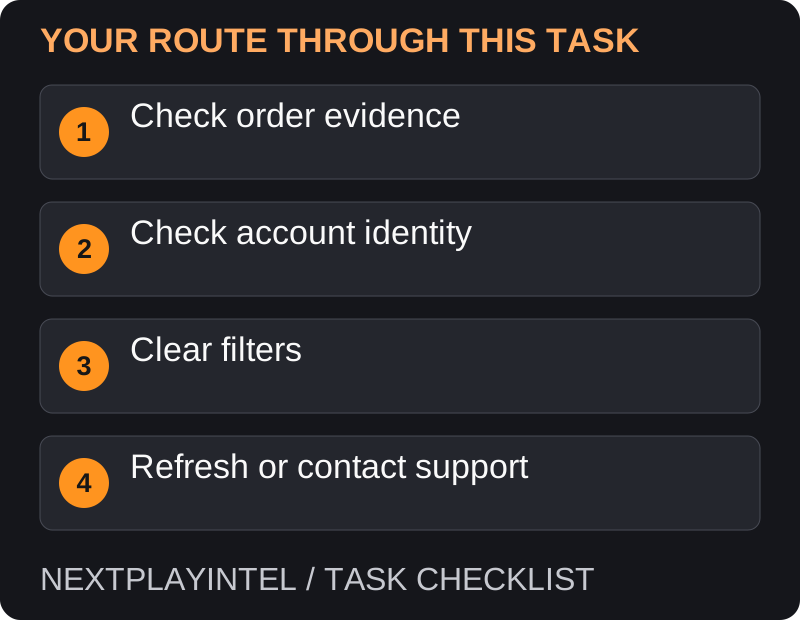
First, check order evidence, then follow the steps below in order. If the result differs from what is described, use the symptom-specific troubleshooting before repeating a purchase, deleting data or starting another download.
Start with proof of ownership
Find the purchase or free-claim confirmation. Note the exact title, platform and receiving account. A screenshot of a giveaway announcement shows that an offer existed; it does not show that your claim completed.
If your game appears with an Install button, it is not missing from your account. If it appears but will not run, treat that as an installation or launch problem instead.
Check accounts and filters
Confirm the Epic account currently signed into the launcher. Compare it with the confirmation, not just the display name you remember.
If you previously used an external login such as Google, use that original sign-in method to reach the existing account. Do not create a replacement account.
Open Library, clear search text and restrictive filters, and search for the base game title. A bundled extra may not appear as its own game.
Check whether the claimed product supports your current operating system and whether it was redeemed for the correct platform.
Refresh the launcher
Restart the launcher and reopen Library. First close any running game and let its save synchronisation finish.
If the problem persists, follow Epic’s linked support page to its cache-clearing instructions for your operating system. Do not delete arbitrary folders or saved games.
Reopen the launcher, sign in to the verified account and search again. Keep a copy of the exact error if one appears.
Distinguish missing ownership from missing installation
If the title appears with Install, your next task is downloading it. If it appears with Launch but fails, collect the launch error. If the title is absent altogether, keep investigating the account and library. Reinstalling the game or launcher before making that distinction can consume time without addressing the actual problem.
Compare the order’s exact product to what you are searching for. DLC, currency and bundled extras can be represented under a base game rather than by a separate cover tile. An order for an add-on is not proof that the base game was purchased.
Use the original sign-in route carefully
Check which Epic account your usual external sign-in actually opens. A familiar console or Google login is a route to an account, not a guarantee that every route reaches the same account. Avoid unlinking accounts or creating new ones as a troubleshooting experiment.
If the receipt and signed-in account differ, resolve access to the purchasing account first. Supply order evidence privately to Epic support if you cannot recover it. Cache clearing cannot move purchases from another account.
Refresh only after the entitlement checks
Close the launcher normally after the game and any save sync finish, reopen it and clear library search filters. If official support directs you to clear the launcher cache, use its instructions for your launcher version and operating system. Do not delete a folder merely because its name contains Epic.
A useful support report states whether the order still appears, whether the game was refunded, what platform it supports and whether the issue affects other titles. Include a redacted image of the missing-library result and the order reference, not your login credentials.
Escalate with useful evidence
Contact Epic through its official support page with the order reference, title, platform, approximate claim date and error. Explain which account checks you have already made. Never put passwords, recovery codes or full payment details in a public forum post.
Official help for this task
Epic: games missing from the library
Use the official page for the current interface wording and any account-specific support. Keep the error, product edition and the step that failed together when asking for help.
Sources & verification
Sources last verified on . This article covers published information, not hands-on testing.
Editorial & update notes
Reviewed 25 October 2026: detailed troubleshooting and official help links, with a distinct featured illustration. Real screenshots are identified and credited where reuse rights were verified; remaining task diagrams are original instructional graphics. No hands-on testing is claimed.