Quick route
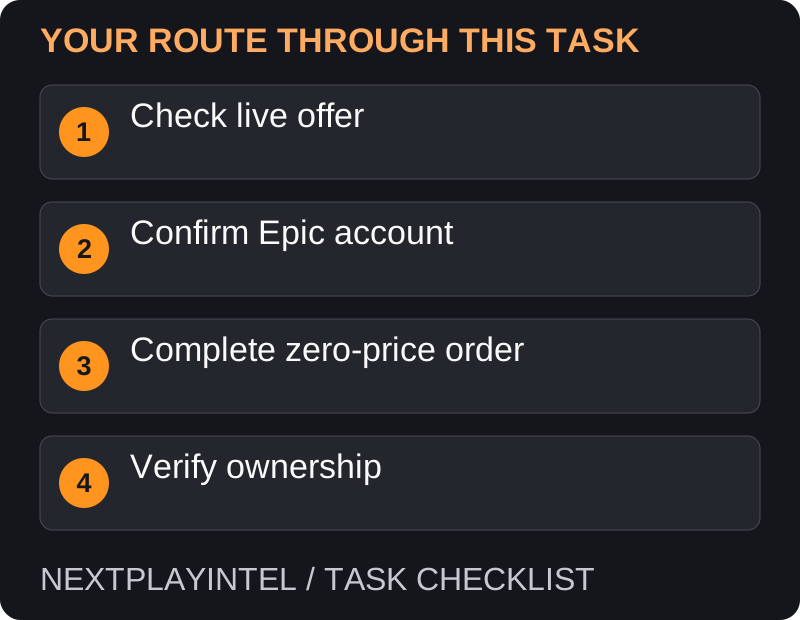
First, check live offer, then follow the steps below in order. If the result differs from what is described, use the symptom-specific troubleshooting before repeating a purchase, deleting data or starting another download.
Check the current offer
Open Epic’s official free-games page, linked below, rather than relying on an old giveaway article. A title that was once free is not necessarily free today. This guide does not claim that GTA V is currently included.
Read the offer deadline, supported platform and edition. Distinguish a limited-time claim-to-keep promotion from a free weekend, a demo or a permanently free-to-play title.
Claim the game
Sign in to the Epic account where you want the game. Check the account identity before continuing, particularly if you use a Google, console or other linked sign-in.
Open the game from the current free-games listing. Check that the offer is active in your region.
Choose the claim/get action. If a checkout is shown, inspect its total and product before completing the zero-price order. Stop if an unexpected paid total appears.
Wait for ownership confirmation and check your library or account transaction record. Do not treat an unfinished checkout as a completed claim.
Install now or later
Epic says claimed free games remain in your library after the giveaway closes. Claiming therefore does not require immediately downloading a large installation. Later, sign in to the same account and use the launcher library to install the compatible version.
A mobile offer and a PC offer may have different requirements. Read the actual product page rather than assuming that claiming on one platform grants every version.
Common claim problems
Wrong account: verify the login method that holds your existing purchases. Avoid creating a second account simply because the library looks empty.
Expired promotion: use the live offer page. An old social post cannot extend a store deadline.
Claim button unavailable: check account setup, age/parental restrictions and the error text. Follow Epic’s own verification flow when requested.
Claimed but missing: check library filters and transaction history before repeating checkout. Use the linked missing-library guide for recovery.
A free offer opens with a price
Recheck the live giveaway page and exact edition. A free promotion for a base game does not imply that its deluxe upgrade or DLC is also free. Check the deadline and supported region on the current offer, then return to the product from that listing. Stop if the final order total is not the amount you intended.
A store page bookmarked during a previous promotion does not preserve its old price. Similarly, a free weekend may grant temporary play rather than permanent ownership. Read the offer wording instead of relying only on the word free.
Claiming on a phone versus installing on a PC
You can use the appropriate store web flow to claim an eligible offer, but installation still depends on the product’s supported platform. Check whether the offer grants a PC game, mobile game or specific edition. Do not assume that a mobile giveaway adds an unrelated PC version to the same library.
Keep the account identity and order confirmation. If you normally sign in through a linked provider, verify that it reaches your established Epic account before claiming. A second account can make a successful claim look missing later.
No confirmation after checkout
Check the account’s transaction history before starting another order. If an order exists, troubleshoot the library. If none exists and the offer is still active, return through the official offer page and review the checkout again. A button click or browser loading screen is not proof of a completed order.
If verification or parental approval blocks checkout, follow the account’s official flow. Record the error and offer deadline for support. Do not use a paid purchase as a diagnostic step for a claim you expected to be free.
Keep a useful record
Save the confirmation with the game name, claim date and account identity. It helps distinguish an actual completed order from a bookmark or reminder, especially when troubleshooting months after the promotion.
Official help for this task
Epic: weekly free game information
Use the official page for the current interface wording and any account-specific support. Keep the error, product edition and the step that failed together when asking for help.
Sources & verification
Sources last verified on . This article covers published information, not hands-on testing.
Editorial & update notes
Reviewed 25 October 2026: detailed troubleshooting and official help links, with a distinct featured illustration. Real screenshots are identified and credited where reuse rights were verified; remaining task diagrams are original instructional graphics. No hands-on testing is claimed.