Quick route
First, locate original files, then follow the steps below in order. If the result differs from what is described, use the symptom-specific troubleshooting before repeating a purchase, deleting data or starting another download.
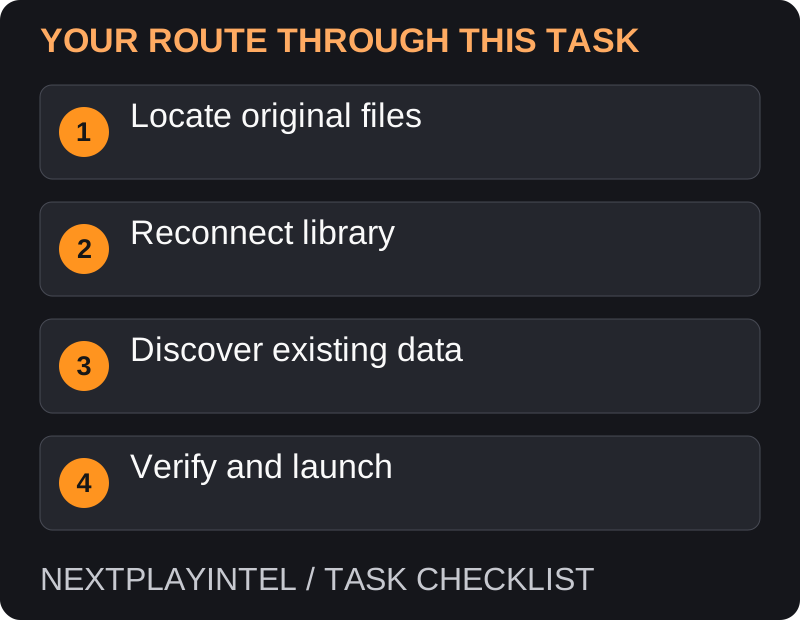
Confirm the files still exist
An Install button can mean Steam lost track of an installation; it does not prove the files were deleted. First check the drive where you installed the game. Do not empty that folder, format the drive or run a cleanup tool while investigating.
If the drive is disconnected, reconnect it and confirm your operating system can read it. Note whether its path changed. If the files are genuinely absent, you will need a normal download rather than discovery.
Reconnect the library
Open Steam Settings and Storage. Inspect the registered library locations.
Add the existing alternate library if it is missing, selecting the library location that contains the installed files.
Return to Library and check the game again. Keep the correct purchasing Steam account signed in.
Let Steam discover existing files
If the game still shows Install, start the installation process and select the library that already contains its files.
Allow Steam to check existing content. Do not cancel merely because it begins a verification or update phase.
Review the remaining download size and let required missing or changed files finish.
Launch the game and verify your save before deleting any duplicate directories.
When discovery is not enough
A different edition or store build may not match the files Steam expects. Do not assume a Rockstar-launcher or Epic installation is interchangeable with a Steam installation.
An interrupted update may also leave files requiring repair. Steam’s recovery procedure can reduce unnecessary downloading, but it cannot reconstruct data that is no longer present.
Select the library root, not an arbitrary folder
Inspect the drive before starting. If you see the existing Steam library structure, add that library through Steam Storage. Do not create a second nested library inside the game’s folder. Note the original path so you can tell which location Steam is using afterward.
If an external drive has a new path or is disconnected, restore access to it before asking Steam to discover files. An inaccessible drive and deleted files are different situations. Avoid cleanup tools while you are still establishing what remains.
Discovery still needs a download
Allow the discovery or verification phase to finish. Steam may need missing files, changed files or updates even when most of the installation survives. Compare the requested edition and library with the original installation before cancelling.
If Steam finds none of the files, confirm that they came from the same Steam product rather than another storefront or edition. Do not edit manifest files based on an unrelated forum workaround before the official library recovery has been tried.
The game is recognised but errors continue
Now the problem has changed from discovery to repair. Use the game’s Properties > Installed Files verification option and preserve the error if launch still fails. For install or write errors, Steam’s troubleshooting page also covers repairing the library folder.
If several files cannot be read or the drive vanishes, stop treating this as a library display issue. Back up readable personal data and investigate storage health. Repeated downloads onto failing storage do not establish a reliable installation.
Keep saves separate
Before uninstalling anything as a last resort, identify and back up the game’s save location using publisher guidance. The application files and progress files may be in different places.
If a drive repeatedly disappears or reports read errors, address that storage problem before attempting more installations. Keep the exact error and affected drive details for support rather than repeatedly copying the same failing files.
Official help for this task
Steam: verify integrity of game files
Use the official page for the current interface wording and any account-specific support. Keep the error, product edition and the step that failed together when asking for help.
Sources & verification
Sources last verified on . This article covers published information, not hands-on testing.
Editorial & update notes
Reviewed 25 October 2026: detailed troubleshooting and official help links, with a distinct featured illustration. Real screenshots are identified and credited where reuse rights were verified; remaining task diagrams are original instructional graphics. No hands-on testing is claimed.