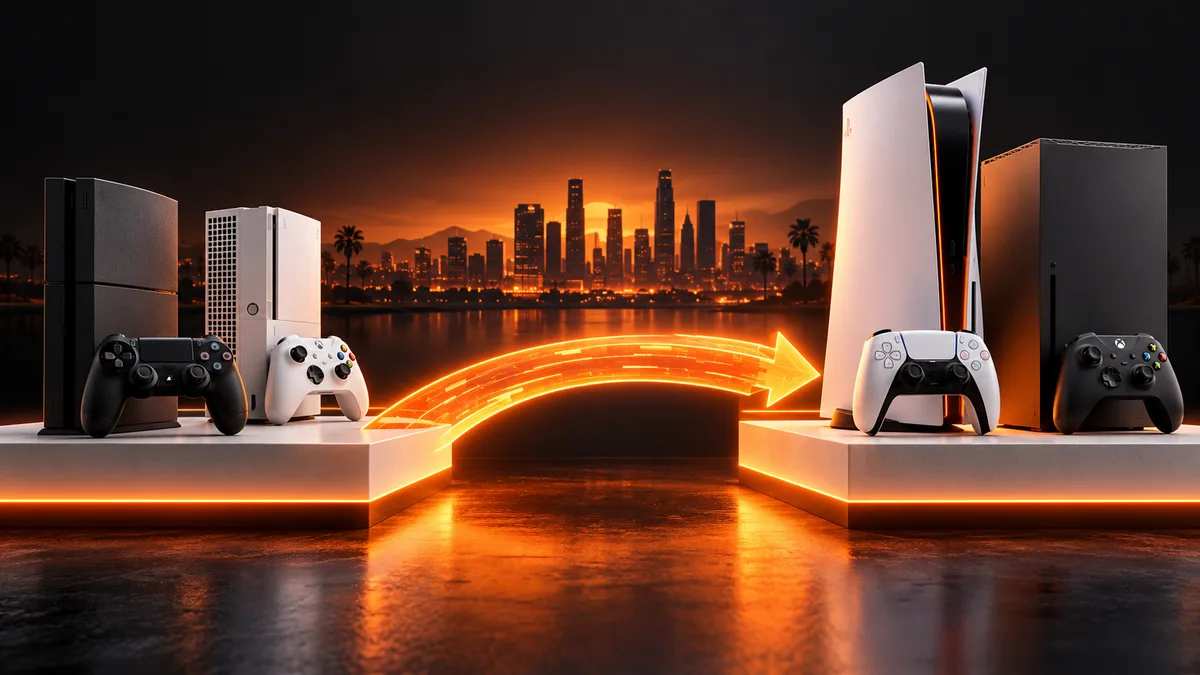
Quick route
First, check rockstar eligibility, then follow the steps below in order. If the result differs from what is described, use the symptom-specific troubleshooting before repeating a purchase, deleting data or starting another download.
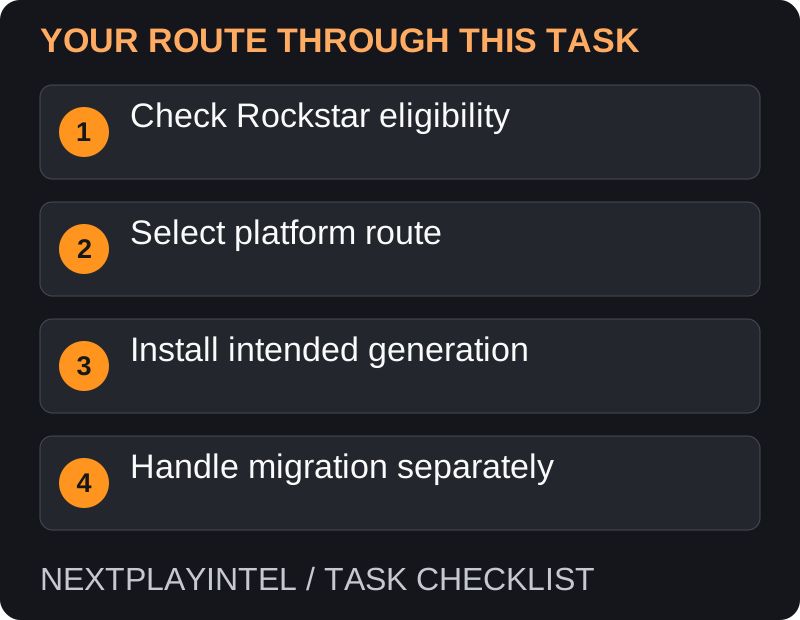
Check the current Rockstar offer
Rockstar’s linked support article, updated 18 June 2026, describes a free console upgrade for qualifying GTA V owners. This is a specific publisher offer, not a rule that every game or every physical purchase upgrades for free.
Read the eligibility before starting: Rockstar lists PS4 physical and digital ownership for PlayStation, but digital Xbox One ownership for Xbox. Its article excludes Xbox physical-disc owners from this digital-upgrade route.
PlayStation route
Sign in on PS5 with the relevant account. If qualifying through a PS4 disc, insert it in a compatible PS5 drive.
Open the PS5 GTA V product page and locate the eligible upgrade. Review the confirmation before accepting any price.
Download the PS5 version and keep the qualifying disc available if that is how access is verified.
Xbox route
Sign in with the account holding the qualifying Xbox One digital purchase.
Check My games & apps > Full library > Owned games for the Series X|S entitlement. Rockstar’s article names Grand Theft Auto Online (Xbox Series X|S) in this console route.
Select Install. Compare the resulting product and included content with your ownership; use Rockstar’s linked Xbox-store route if you need to inspect the full bundle.
Do not confuse upgrade with migration
Obtaining a new console version is separate from transferring story saves or an online profile. Before deleting the old version, use Rockstar’s migration documentation for your exact source and destination.
Verify that you launch the intended generation. A backward-compatible copy of the older game and the native new-console edition may coexist, making it easy to choose the wrong tile.
Check the offer before assuming a universal free upgrade
The linked Rockstar article describes its June 2026 offer. Check that current page before acting because a game-specific offer can change. Its PlayStation route includes qualifying PS4 digital and disc ownership; its Xbox digital route does not include Xbox physical-disc owners. Do not replace those rules with a general backwards-compatibility assumption.
If the store shows a paid bundle, compare the eligible product and purchasing account before accepting. A similarly named edition or storefront landing page may not be the route described in the offer.
Xbox installs an Online-labelled item
Rockstar’s console instructions identify Grand Theft Auto Online (Xbox Series X|S) in the owned-library route. Inspect the included entitlement and mode access instead of assuming that every Online-labelled tile proves the same Story Mode ownership.
If Story Mode is the part you are trying to access, compare the original order and the current bundle contents. Give support those exact product names if the resulting access differs from what the offer says you should receive.
Keep installation and migration separate
Verify the intended generation before opening a migration process. Keep the source installation and saves until the official migration procedure and its limits have been reviewed. An upgrade appearing in your library does not mean an online profile or story save has already moved.
For a failed claim, collect ownership and offer evidence. For a failed migration, record source and destination editions and the migration message. These are different support cases; reinstalling the upgraded software should not be assumed to repair either entitlement history or profile transfer.
Final verification
Confirm the correct edition launches and that the expected modes are available. Keep your original installation and saves until any separate migration succeeds. This article is based on published instructions, not a report of a completed upgrade on our own hardware.
Official help for this task
Rockstar: GTA V console upgrade eligibility
Use the official page for the current interface wording and any account-specific support. Keep the error, product edition and the step that failed together when asking for help.
Sources & verification
Sources last verified on . This article covers published information, not hands-on testing.
Editorial & update notes
Reviewed 25 October 2026: detailed troubleshooting and official help links, with a distinct featured illustration. Real screenshots are identified and credited where reuse rights were verified; remaining task diagrams are original instructional graphics. No hands-on testing is claimed.
Related devices and next steps
- PlayStation 5 hardware guide
- PlayStation 5 Pro hardware guide
- Xbox Series X hardware guide
- Xbox Series S hardware guide
- Xbox One hardware guide
- GTA V game hub
- How to upgrade eligible PS4 games and select the PS5 version
- How to find and install purchased game DLC
- How to upgrade a supported game to Nintendo Switch 2 Edition