Quick route
First, check disc or digital, then follow the steps below in order. If the result differs from what is described, use the symptom-specific troubleshooting before repeating a purchase, deleting data or starting another download.
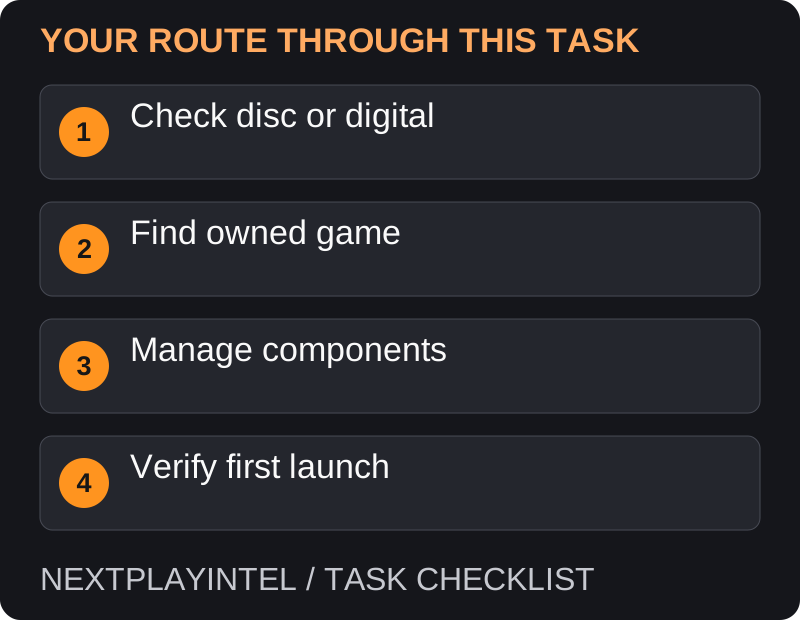
Choose the correct installation route
Use your own purchasing Microsoft account. A console bundle may require a Digital Direct claim first; a retail code must be redeemed before the corresponding product appears. If the receipt lists only currency or a subscription, it is not a separate purchase of every game advertised alongside it.
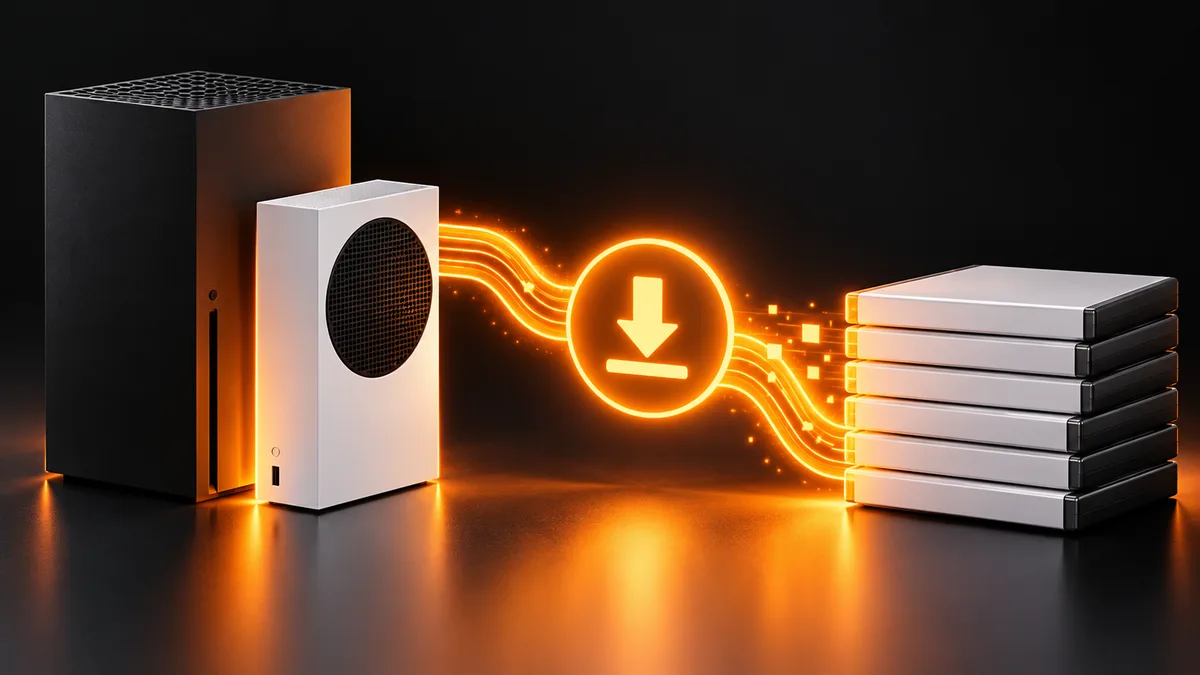
Xbox Series S is a digital console. Do not buy a disc expecting to insert it into that model. Also check whether your particular Series X model includes a drive.
Download from your library
Open My games & apps, then Full library and the owned-games section. Find the title associated with your account.
Select Install all to obtain the available package, or Manage to choose components. Read each item before allocating storage.
Use the installation queue to check progress and errors. Leave the console connected while required data downloads.
Once complete, launch the game. If DLC is missing, open its installation management screen, select the owned add-ons and save the changes. Fully quit and reopen the game after installation.
Disc and edition checks
On a model with a disc drive, insert a supported game disc and follow its installation prompts. Backward compatibility is game-specific: an old Xbox disc is not automatically supported by every newer Xbox.
Look at the title and platform shown on the store receipt. Two similarly named products may represent different generations, a standalone online mode, or a bundle. Compare those details before downloading another large copy.
Choose the fix from the symptom
If the game is absent from Full library, investigate the account or entitlement. If it is listed but the queue says installation stopped, inspect that queue entry and destination drive. If it launches but an expansion is absent, inspect the game’s managed components. These are separate failures; downloading everything again is not the first fix for all three.
Keep the original order and compare its platform label with the library item. A PC purchase bearing an Xbox-related logo is not sufficient evidence of console ownership; cross-device entitlement depends on the actual product.
Storage and interrupted downloads
Confirm that the chosen drive is connected and appears in storage settings. If it repeatedly disconnects, stop moving or reinstalling games onto it until the connection problem is resolved. Before formatting any drive, establish what data it contains and whether you have another copy; formatting is not a harmless troubleshooting shortcut.
Inspect the queue for a paused item or a specific error before cancelling it. Record the failed item, target drive and available space. If multiple installations fail on one drive but another destination works, include that comparison in your support request.
Disc installation versus digital access
On a console with a compatible drive, the installed files do not replace the disc entitlement. Retain the disc and use the requested play disc when launching. On a digital-only model, redeeming a separate valid digital purchase is a different route; connecting an arbitrary external disc drive does not establish support.
After installation, check both the base game and purchased components. A title reaching its opening screen is not enough to prove that the campaign, multiplayer pack or DLC you wanted has finished downloading.
When to contact support
If the order exists but installation still asks for payment, record the exact product name, order reference and error. Send those through the official support channel; keep full redemption codes and account details out of public comments.
Official help for this task
Dovetail Games: Xbox installation and add-ons
Use the official page for the current interface wording and any account-specific support. Keep the error, product edition and the step that failed together when asking for help.
Sources & verification
Sources last verified on . This article covers published information, not hands-on testing.
Editorial & update notes
Reviewed 25 October 2026: detailed troubleshooting and official help links, with a distinct featured illustration. Real screenshots are identified and credited where reuse rights were verified; remaining task diagrams are original instructional graphics. No hands-on testing is claimed.
Related devices and next steps
- Xbox Series X hardware guide
- Xbox Series S hardware guide
- Xbox One hardware guide
- GTA V game hub
- GTA IV game hub
- How to install games on PS5: discs and downloads
- How to claim the game included with your Xbox
- How to redownload Switch games and use virtual game cards
- How to install GTA V on PC through your owning store