Quick route
First, identify owning storefront, then follow the steps below in order. If the result differs from what is described, use the symptom-specific troubleshooting before repeating a purchase, deleting data or starting another download.
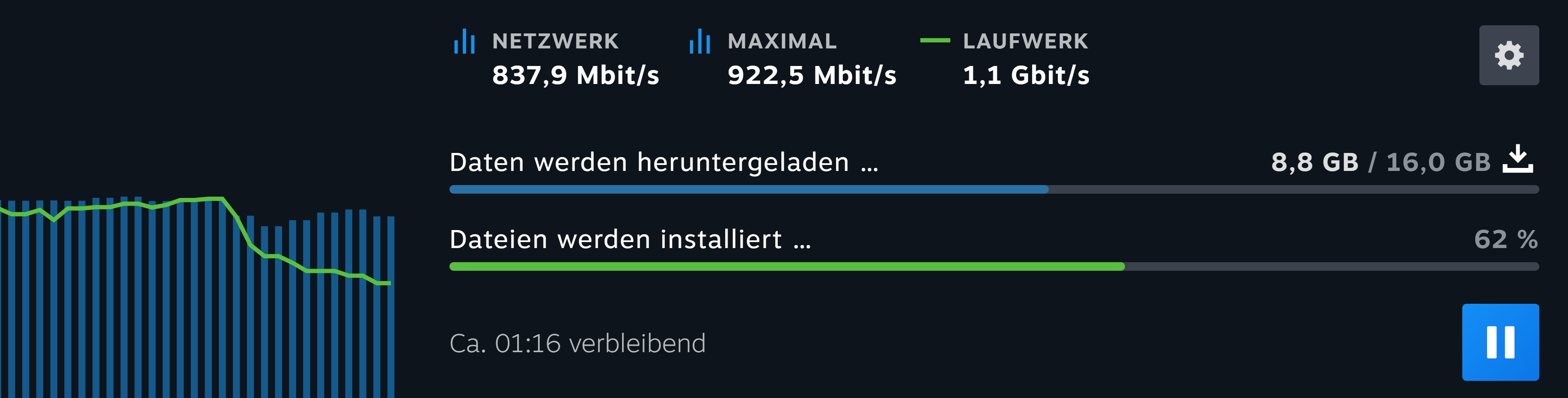
Screenshot source and public-domain details · Open full-resolution screenshot
Reading this example: Netzwerk means network activity, Laufwerk means drive activity, Daten werden heruntergeladen means data is downloading, and Dateien werden installiert means files are being installed. The two bars show different work. These example speeds and sizes are not GTA V requirements.
Identify your purchase and edition
Find the receipt and determine whether your PC copy belongs to Steam, Epic or Rockstar Games Launcher. A console purchase should not be assumed to include a PC licence.
Check the exact PC edition in your library and read its current system requirements. Enhanced and Legacy are not interchangeable hardware targets. Use the listed requirements for the version you are about to install rather than an old GTA V requirements article.
Install from the owning launcher
Download the official launcher for the store on your receipt and sign in with the purchasing account.
If you have a retail key, redeem it only in the store specified by the seller. Existing owners should locate the game in Library or Games instead.
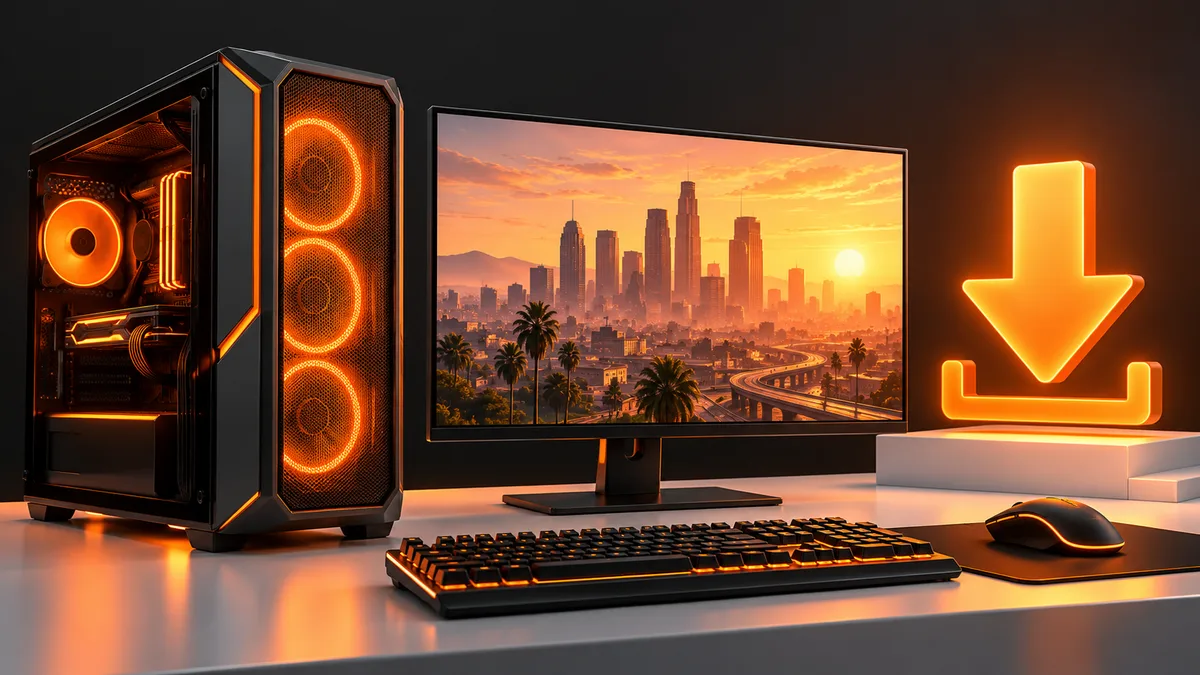
Choose the GTA V edition you intend to play and select Install. Choose a drive with sufficient free space for installation and supporting components.
Let the download and setup complete. Keep enough additional working space; Rockstar notes that installation also needs room for extracted files and supporting software.
Launch through the owning store and follow the Rockstar account prompts. Confirm the account identity before linking or accepting activation.
Store-specific checks
On Epic, start from Library and choose the installation location offered by the launcher. Steam purchases should be installed from Steam Library; Rockstar activation-code purchases should appear under Games in Rockstar Games Launcher.
If the game already appears as owned, do not buy another copy because a different storefront shows a price. Stores do not universally share ownership just because they sell the same title.
If installation fails
Check the free space on the target drive and read the specific error. Compare the current edition’s requirements with your PC.
If the launcher asks you to buy the game, verify the purchasing account and store before changing drivers or reinstalling.
If a supporting installer fails, use Rockstar’s installation-error article and preserve its error details. Avoid downloading replacement system files from unrelated sites.
If files already exist in Steam but it shows Install, use our recovery guide rather than deleting them immediately.
Legacy and Enhanced are different installation targets
Read the current requirements for the edition you selected. Do not use the original GTA V launch requirements to judge a newer edition. Record the edition name shown in the library and the destination drive before starting a large download.
If your goal is to continue existing progress, review the applicable Rockstar migration instructions first. Installing the newer edition is not itself confirmation that your story save or online profile has migrated. Keep the older installation until the intended progress is verified.
Steam or Epic owns the game, but Rockstar asks for access
Start through the storefront that holds your purchase and check the Rockstar account prompted by that flow. Do not redeem an unrelated code or unlink accounts as an experiment. Keep the owning-store receipt and the exact account-linking error for support.
If a different store displays a price, that alone is not a fault. Compare the library where the purchase was actually made. Storefront ownership and the additional publisher sign-in are separate parts of the launch process.
Installation finished but the game fails to start
Classify the error: missing files, supporting installer, account access or hardware compatibility. For files, use the owning launcher’s verification control. For a supporting-component error, follow Rockstar’s installation guidance and retain the component name.
Do not download individual system DLLs from unrelated sites or buy another copy to test a launch failure. Give support the edition, launcher, operating system, error and verification result. Remove personal account details from any public screenshot.
Before playing
Launch the expected mode and verify your existing save or profile where applicable. Installing a different edition is not itself a promise of save migration; follow Rockstar’s dedicated migration guidance before removing the older version.
Official help for this task
Steam: verify integrity of game files
Use the official page for the current interface wording and any account-specific support. Keep the error, product edition and the step that failed together when asking for help.
Sources & verification
Sources last verified on . This article covers published information, not hands-on testing.
Editorial & update notes
Reviewed 25 October 2026: detailed troubleshooting and official help links, with a distinct featured illustration. Real screenshots are identified and credited where reuse rights were verified; remaining task diagrams are original instructional graphics. No hands-on testing is claimed.