Quick route
First, find purchasing user, then follow the steps below in order. If the result differs from what is described, use the symptom-specific troubleshooting before repeating a purchase, deleting data or starting another download.
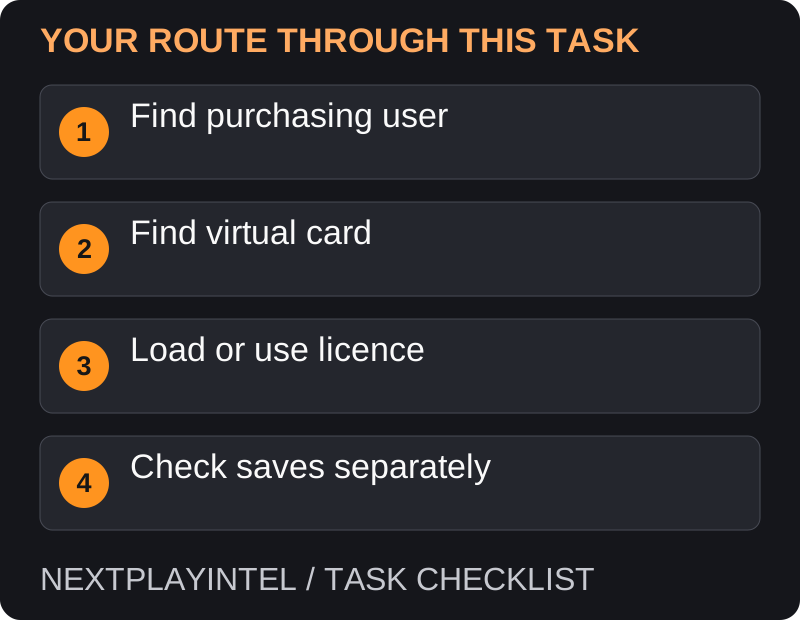
Choose the right recovery task
This guide is for a game already purchased or redeemed. If you have only a new download code, redeem it first. If the game is installed but your progress is missing, redownloading the software is not the same operation as restoring a save.
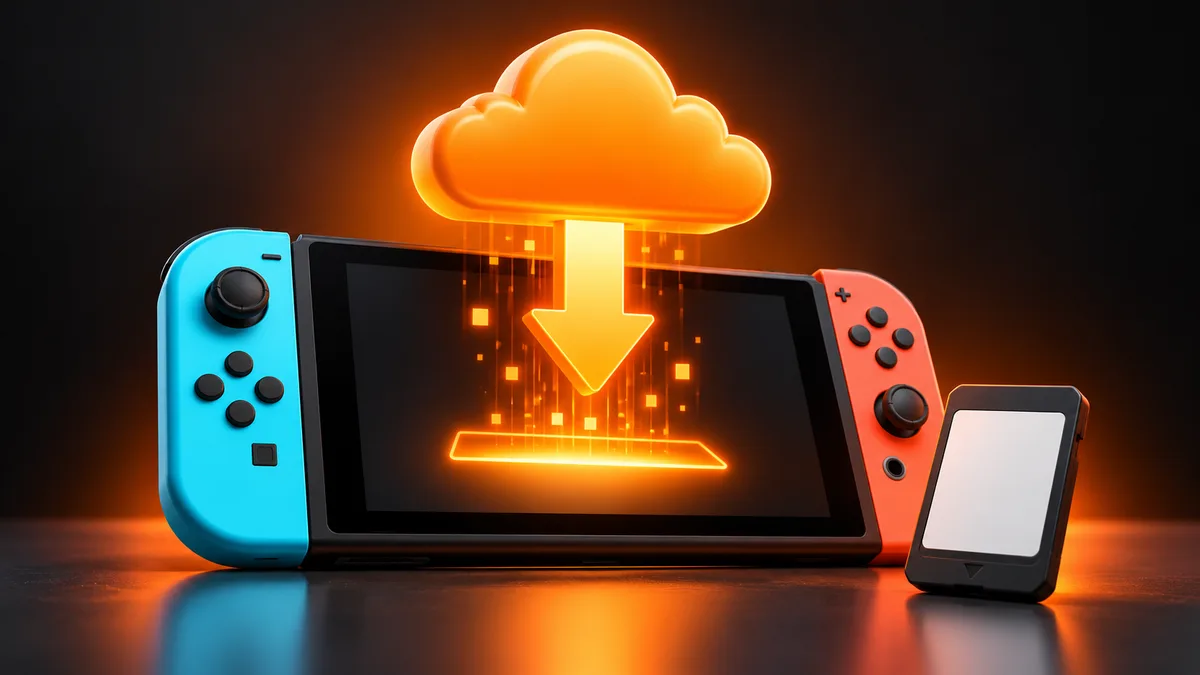
Redownload purchased software
Connect to the internet. If the game already appears on HOME, select its icon and the download option.
If no icon is present, open Virtual Game Cards and select the purchasing user. Complete identity verification if requested.
Select the relevant game and follow the loading or download prompts. Check HOME for progress before starting another installation.
For supported use without a loaded virtual game card, Options > Download Data downloads the files; online-licence settings are then relevant to playing them.
Understand which console can play
A loaded virtual game card allows supported offline play after setup. An online licence needs internet checks and is associated with the purchasing account. Downloading the same files to another console does not grant another account ownership.
Nintendo limits which systems can load an account’s virtual game cards. If pairing is requested, follow the official setup for your two systems; do not delete users or reset hardware merely to clear a pairing message.
Demos, trials and subscription software
Some content is outside Virtual Game Cards. Find demos through their eShop listings; use the Nintendo Switch Online section for the relevant membership software and benefits. Check that your entitlement is active before treating a download button as a permanent purchase.
If the library looks empty
Check the Nintendo Account that originally bought the game, including other family users. The local nickname is not enough to identify the purchasing account.
Remove search assumptions: look for the exact game and edition rather than a bundle’s marketing name.
If a completed download does not appear, restart the console and recheck. For an entitlement issue, collect the purchase email and error before contacting Nintendo.
Check hidden cards before assuming a lost purchase
In Virtual Game Cards, use “Can’t find specific software?” and then “View Hidden Virtual Game Cards” if the game is absent. Complete account verification when requested. Nintendo’s current redownload guide also explains how to queue several cards and how to download data without loading a card.
A download-only action is useful preparation, but it does not by itself make every user eligible to play. Decide whether this console will use a loaded card or the purchasing user’s online licence before testing access.
Files downloaded, but the other console cannot play
Nintendo allows virtual game cards to be loaded between two paired consoles. An online licence has different internet and user requirements. Do not infer a licence problem from file size alone: record the user, where the card is loaded and whether the launch was online.
If the game opens for the purchasing user but not a different profile, investigate that access arrangement before removing software. If it opens but shows no progress, move to save recovery; a virtual game card does not carry the save.
Recovery after replacing a console
List your priorities separately: recover the account, load the software entitlement, download the game and restore supported saves. Finish each stage before resetting the old device. A successful redownload is not evidence that saved progress has been copied.
If the old console is unavailable, review Nintendo’s account and pairing support rather than pretending a nearby transfer can run without it. For saves, check the individual game’s backup support and existing backup, not merely whether your membership is active.
Protect your progress
Virtual game card movement does not move saves. Use the save-transfer or supported cloud-backup process separately. Confirm your latest save loads on the destination before erasing, selling or resetting the original console.
Official help for this task
Nintendo: redownload games and DLC
Use the official page for the current interface wording and any account-specific support. Keep the error, product edition and the step that failed together when asking for help.
Sources & verification
Sources last verified on . This article covers published information, not hands-on testing.
Editorial & update notes
Reviewed 25 October 2026: detailed troubleshooting and official help links, with a distinct featured illustration. Real screenshots are identified and credited where reuse rights were verified; remaining task diagrams are original instructional graphics. No hands-on testing is claimed.
Related devices and next steps
- Nintendo Switch hardware guide
- Nintendo Switch – OLED Model hardware guide
- Nintendo Switch Lite hardware guide
- Nintendo Switch 2 hardware guide
- GTA Trilogy – Definitive Edition game hub
- Why does my Switch download keep pausing?
- How to install games on PS5: discs and downloads
- How to install games on Xbox Series X and Series S
- How to redeem a Nintendo Switch or Switch 2 game code