
Quick route
First, prepare both consoles, then follow the steps below in order. If the result differs from what is described, use the symptom-specific troubleshooting before repeating a purchase, deleting data or starting another download.
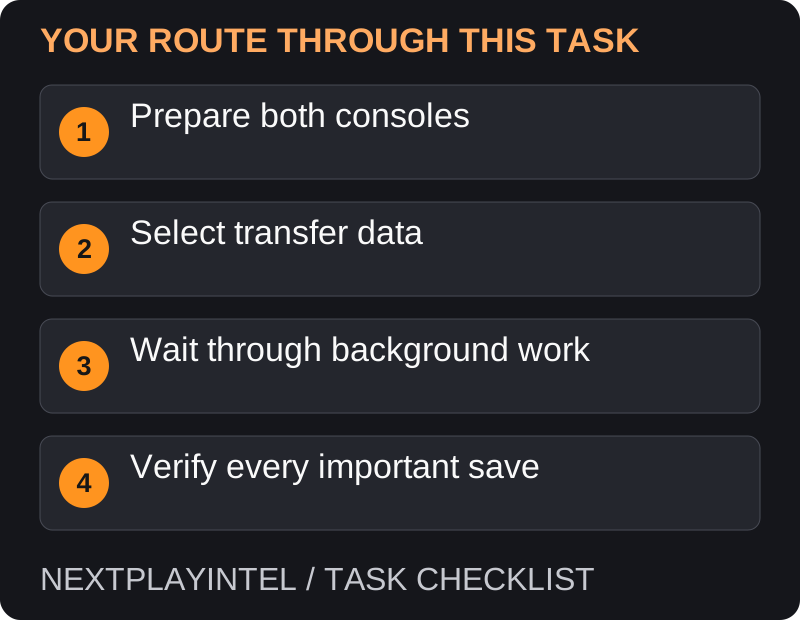
Prepare both consoles
Update the source and destination consoles and sign in with the same account. Keep both powered and connected to the same network for the console transfer.
Identify what you need: installed game data, user settings and saved progress are different items. Make a list of the games and saves you intend to verify afterward.
Do not reset or sell the source console until the destination has been checked.
Use the PS5 transfer flow
On the destination PS5, open Settings > System > System Software > Data Transfer and follow the guided preparation.
Identify the correct source console. Follow any pairing or power-button confirmation shown by the console.
Select the supported data you need and review available storage. The transfer choices can differ between initial setup and a later transfer.
Start the transfer and leave the systems connected. Follow the console’s instructions about completion and restarts rather than unplugging a system when the first progress stage ends.
Other ways to recover games
Digital software can also be downloaded again from the purchasing account’s library. Disc games can be installed from supported discs on a console with the appropriate drive. This can be simpler when only a few titles are needed.
Existing compatible extended-storage game data may be usable by connecting the drive to the destination; follow PlayStation’s storage guidance. Do not format a populated drive simply because it has not appeared immediately.
Handle saved data separately
With eligible PlayStation Plus cloud storage, check the save upload and download status for the correct game generation. PS4 and PS5 save categories are separate. Compare the time of the save before overwriting a newer local file.
A console data transfer does not guarantee that a PS4 save converts into a native PS5 game save. Use that publisher’s migration procedure when changing editions.
The destination restarted: is transfer complete?
Do not assume a restart ends every stage. Check Downloads/Uploads for background work before switching off the source or disconnecting the network. Follow the console’s completion messages. Keep a written list of important titles so one successful launch does not stand in for checking all your progress.
If the transfer pauses, record the stage and error. Avoid immediately resetting either console. Determine what has already arrived and whether the official transfer flow can resume before starting over.
Data was not offered or did not move
PlayStation’s supported selections differ between initial setup and later transfers. Existing destination data can also affect what transfers. Compare the same user and game generation on both devices instead of assuming every absent item was lost.
For PS4 saves, an appropriate USB route may be available. Do not assume PS5 saves support the same individual USB-copy method. Consult the official transfer and cloud-storage guides for the data type you actually have.
A transferred PS4 save does not open in a PS5 game
First test the original game version where appropriate. Moving a save between consoles and converting it to another edition are different operations. Follow the publisher’s migration instructions before removing the source installation.
Before selling the old console, open each important game on the destination, check the latest checkpoint and verify required DLC. Confirm a new save can be made. If any title remains unverified, retain the old device or a supported backup until that title is resolved.
Verify before erasing anything
Launch each important title with the correct user and edition. Check the most recent progress, not merely whether the game starts.
Check required DLC, settings and account links. Record any item that still needs a download or migration.
Only after those checks should you prepare the old console for sale or reset. Keep a backup plan for any save that has not been confirmed.
Official help for this task
PlayStation: transfer games and saved data
Use the official page for the current interface wording and any account-specific support. Keep the error, product edition and the step that failed together when asking for help.
Sources & verification
Sources last verified on . This article covers published information, not hands-on testing.
Editorial & update notes
Reviewed 25 October 2026: detailed troubleshooting and official help links, with a distinct featured illustration. Real screenshots are identified and credited where reuse rights were verified; remaining task diagrams are original instructional graphics. No hands-on testing is claimed.