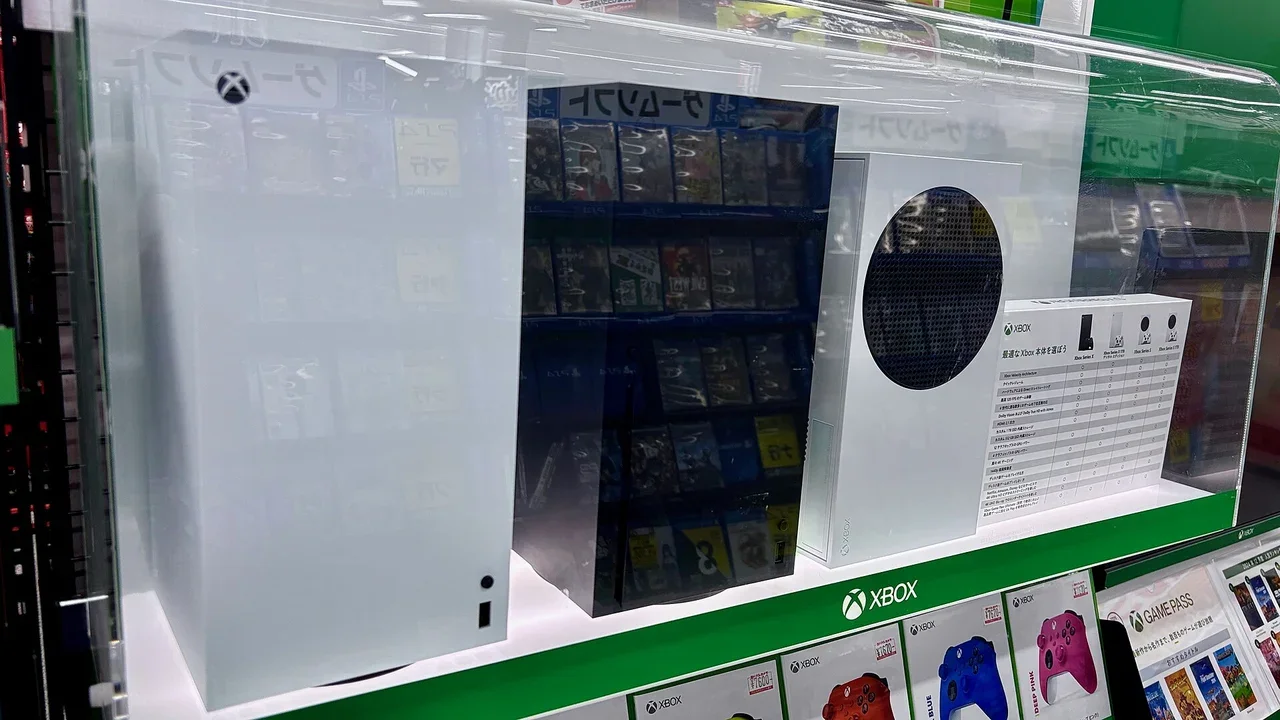
Fix Xbox Series X and Series S problems in order, from power and blank screens to NAT, controllers, discs, storage, updates and startup errors, using Microsoft's official steps.
This guide summarises official PlayStation, Xbox and Nintendo support pages checked on 29 October 2026. NextPlayIntel did not test these fixes on hardware; follow the linked official page if anything differs.
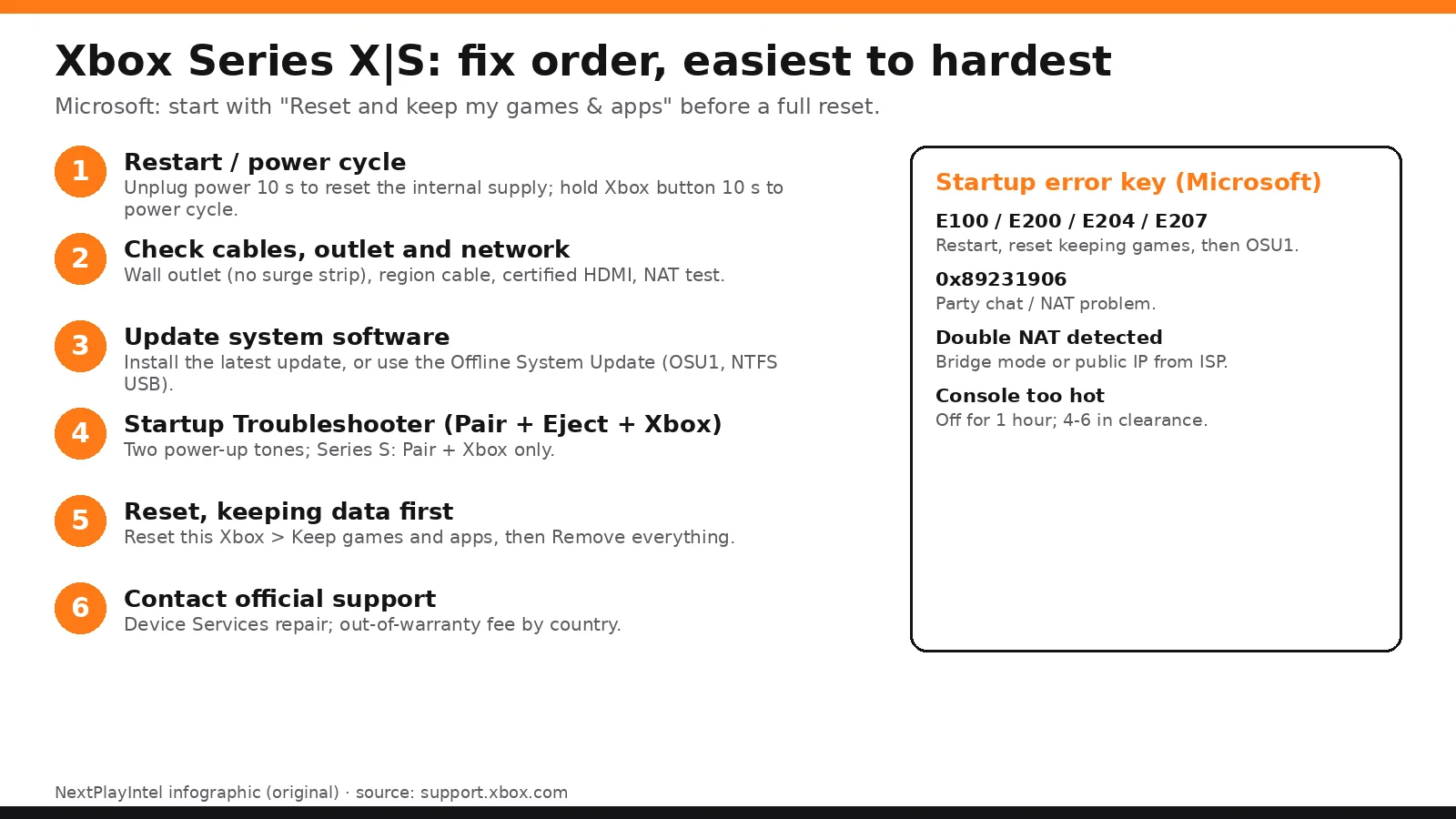
Try this first: if the console won't turn on, unplug it for 10 seconds and plug it back in; if it's on but there's no picture, do the display reset (hold power and eject, or power and pair on digital models, until the second beep). Why first: Microsoft says power problems are often the internal power supply resetting after a surge, and the display reset forces a safe 640×480 output any TV accepts.
How this page was made: drafted with AI assistance from official manufacturer support pages and the public user threads linked on this page, checked on 29 October 2026, and published under Tulasiram Pemmadi's byline. NextPlayIntel did not test these fixes on hardware; anything marked user-reported comes from the linked thread.
Quick Answer: Summary of Steps
Reset the power supply. Unplug for 10 seconds.
Fix a blank screen. Use a low-resolution boot with Xbox + Eject (Series S: Xbox + Pair).
Test NAT. Enable UPnP and avoid Double NAT.
Update and recalibrate the controller. Using the Xbox Accessories app.
Clear storage or run OSU1. For update failures.
Run the Startup Troubleshooter. For E100, E200, E204 and E207.
Prerequisites & Materials Needed
Required tools & items
Controller with USB-C cable — for wired pairing and updates
HDMI cable — the one in the box
NTFS USB drive (6 GB+) — for an Offline System Update
Paper clip — for a manual eject on Series X
Xbox Accessories app — for recalibration
Estimated time
Preparation: 5 minutes
Execution: 10 minutes to 1 hour
Step-by-Step Instructions
Follow the steps in order; each runs from easiest to hardest.
Step 1: Get a console that won't power on running again
Problem: Nothing happens when you press the Xbox button, or the console turns off on its own.
Likely causes: the internal power supply needs a reset, a faulty outlet or cable, overheating, or the auto power-off setting.
Fixes, easiest to hardest:
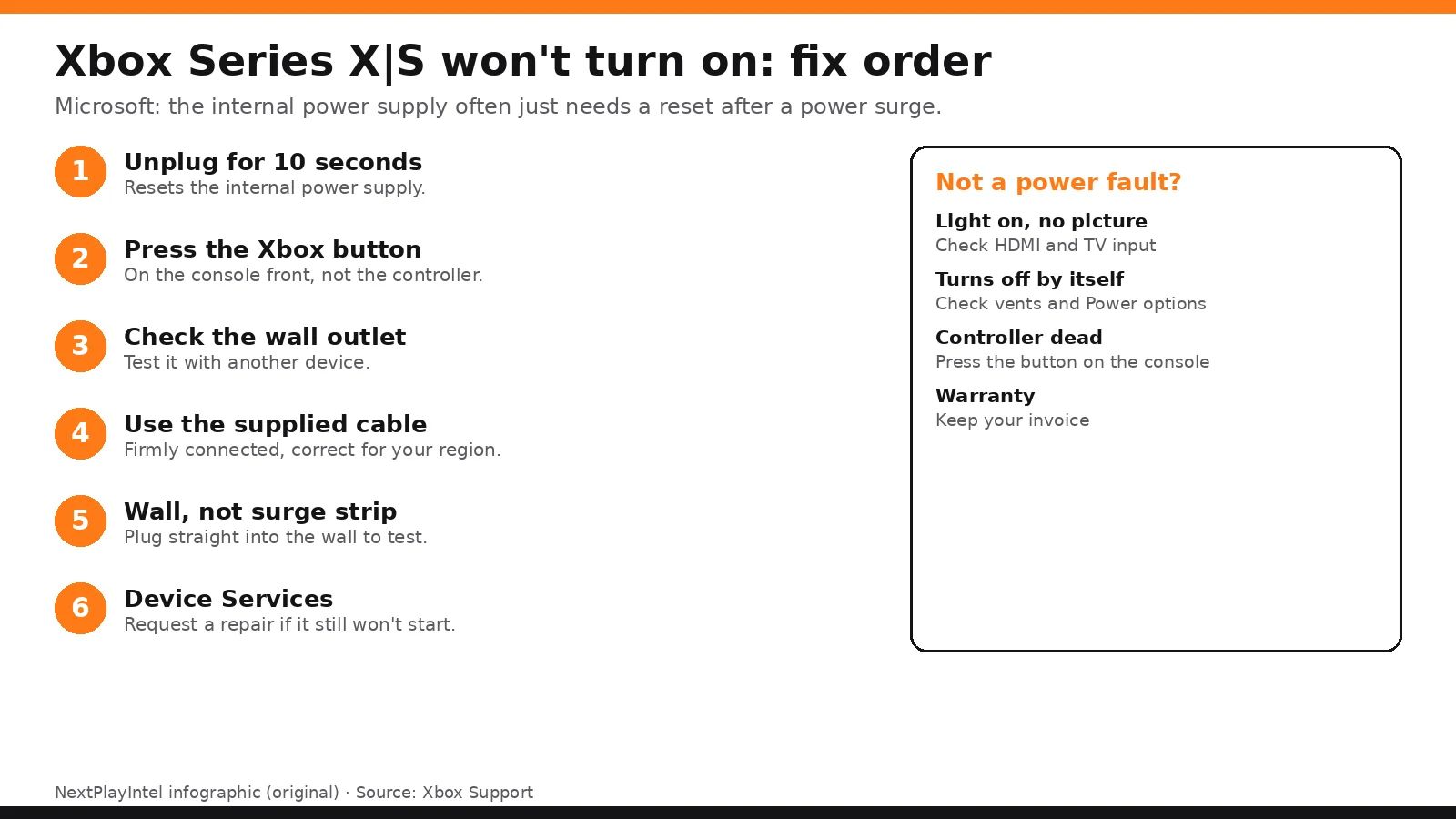
Unplug the power cable from the console for 10 seconds to reset the internal power supply, then plug it in and press the Xbox button.
Plug straight into a wall outlet, not a surge strip, and try another outlet and the correct cable for your region.
If it turns off by itself, check Settings > General > Power options and choose "Don't turn off automatically".
If it shut down from heat, turn it off and wait 1 hour before turning it on again.
If shutdowns continue, unplug any external storage and reset the console to factory defaults (keep games and apps).
Look out for: Repeated shutdowns while the console is well ventilated point to a hardware fault.
How you know it worked: The console powers on and stays on through normal play.
When to contact official support: See won't power on and turns off unexpectedly, then request repair through Device Services.
Step 2: Fix a blank screen or HDMI problem
Problem: The console is on but the TV is black or says no signal.
Likely causes: a resolution the TV can't display, the HDMI chain, AV receiver power-on order, or peripherals.
Fixes, easiest to hardest:
Power cycle: hold the Xbox button for 10 seconds, unplug for 10 seconds, then turn it on again.
Check the HDMI cable and port. Series X ships with an Ultra High Speed HDMI cable; Series S ships with a High Speed HDMI cable.
Start in low resolution (640×480): with the console off, hold Xbox + Eject (Series S: Xbox + Pair) until it beeps twice.
If you use an AV receiver, turn on the TV, then the receiver, then the console.
Disconnect all other peripherals and test again.
How you know it worked: The Home screen appears. Then set the resolution in TV & display options.
When to contact official support: See blank screen guide. If it is still blank, use Device Services.
Step 3: Stop overheating with better ventilation
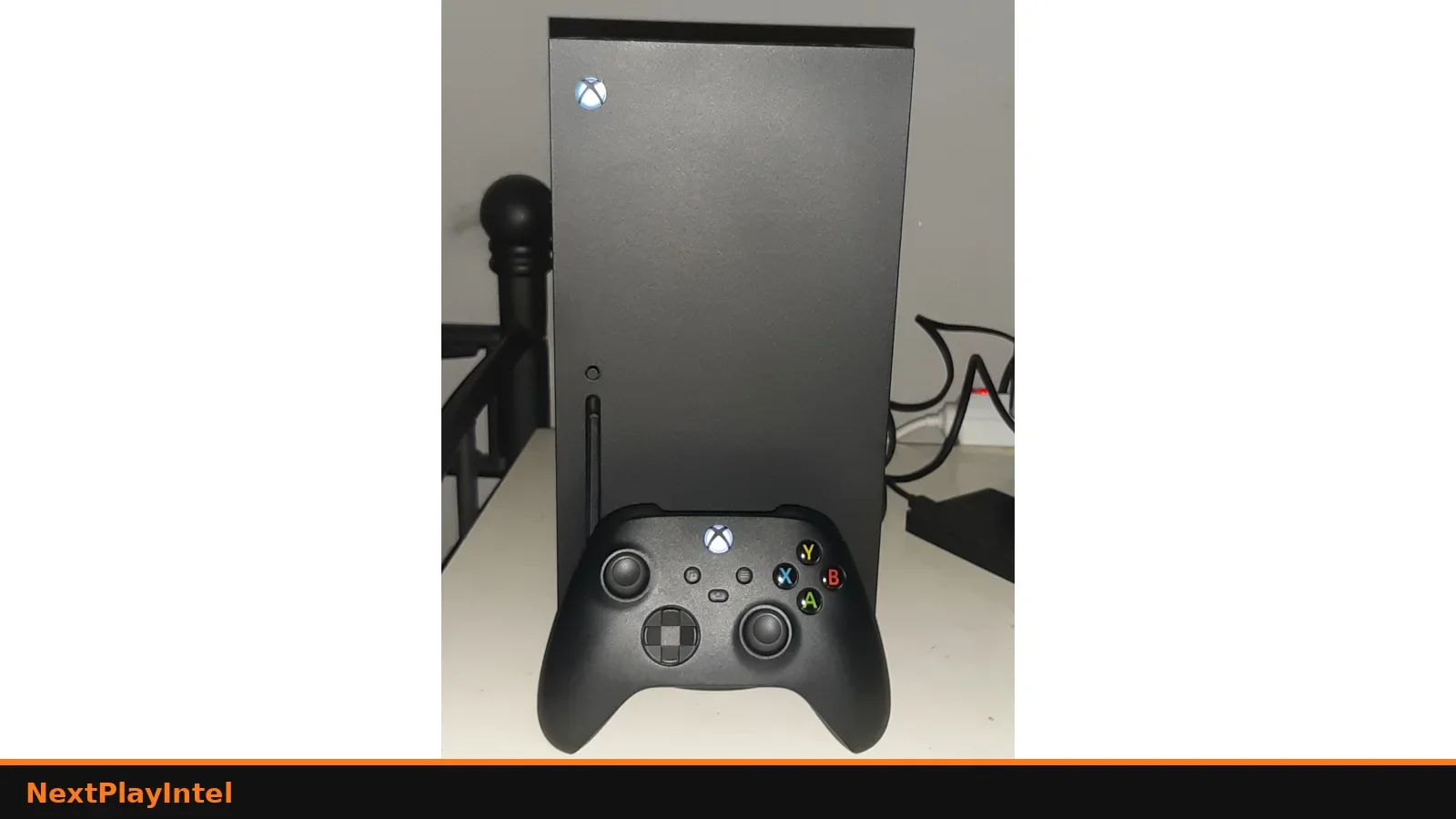
Problem: The console is hot, loud or shuts down.
Likely causes: an enclosed cabinet, blocked vents or dust.
Fixes, easiest to hardest:
Leave 4–6 inches (10–15 cm) of clearance and avoid enclosed cabinets.
Keep the vents clear of objects and dust.
After a heat shutdown, wait 1 hour before restarting.
How you know it worked: No heat shutdowns in long sessions.
When to contact official support: See position and ventilate.
Step 4: Fix network and NAT type issues
Problem: Party chat or multiplayer fails, or the NAT type is Strict, Moderate or Unavailable.
Likely causes: router UPnP or port settings, a Double NAT (two routers), a Teredo failure or a network outage.
Fixes, easiest to hardest:
Go to Settings > General > Network settings and run Test network connection, then Test NAT type.
Restart the router and the console.
Make sure UPnP is enabled on the router (see Microsoft's NAT guide).
If you see Double NAT, put one device in bridge mode, or ask your ISP for a public IP.
Error 0x89231906 relates to party chat; follow the NAT steps on Microsoft's page.
How you know it worked: The NAT type shows Open and party chat works.
When to contact official support: See NAT errors and network connection. Contact your ISP for router or ISP issues.
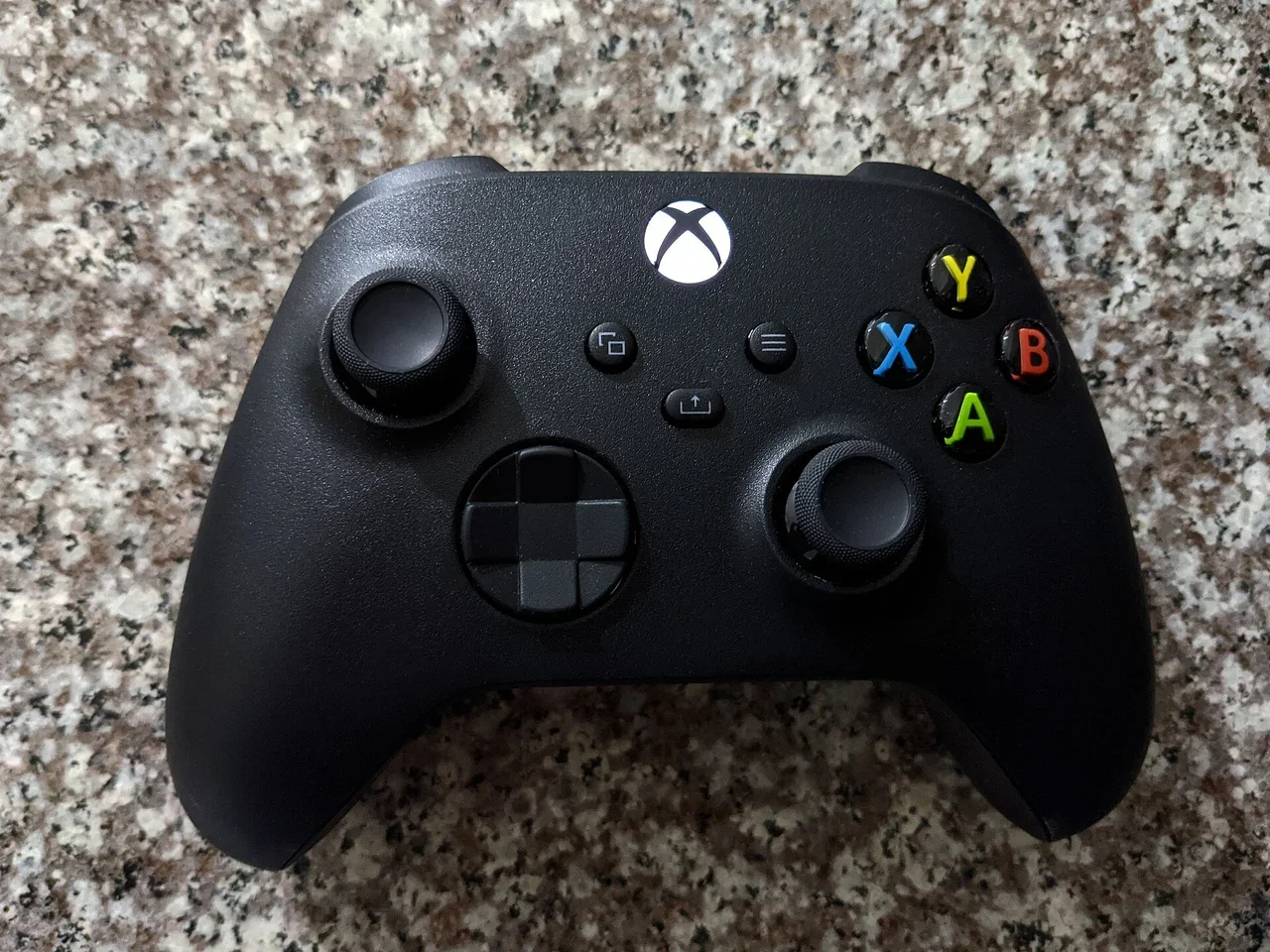
Step 5: Fix controller pairing and stick drift
Problem: The controller won't connect, keeps disconnecting, or a stick drifts.
Likely causes: flat batteries, a lost pairing, old firmware, the need for calibration, or physical wear.
Fixes, easiest to hardest:
Replace or charge the batteries.
Hold the Xbox button on the controller for 5–10 seconds to turn it off, then turn it on again.
Power cycle the console, unplugging it for 30 seconds.
Connect with USB-C, then update the controller firmware in Settings > Devices & connections > Controllers & headsets.
For drift, open the Xbox Accessories app > "…" > Recalibration options. Microsoft says this won't fix wear-and-tear drift.
Request a replacement or repair if drift continues.
How you know it worked: The controller connects and the stick returns to centre.
When to contact official support: See controller solution and calibration tool.
Step 6: Eject or read a disc (Series X disc model)
Problem: A disc won't read or eject. The Series S and all-digital consoles have no drive.
Likely causes: a dirty disc, a stuck mechanism or a software glitch.
Fixes, easiest to hardest:
Restart the console, then press Eject.
On Home, highlight the game and press the X button (Eject).
Manual eject on Series X: insert a straightened paper clip (about 2 in / 5 cm) into the hole on the bottom near the stand.
Clean the disc and try another one.
How you know it worked: The disc ejects or the game starts.
When to contact official support: See manual eject. Request repair if no discs work.
Step 7: Fix storage and update errors
Problem: Storage is full, or a system update fails.
Likely causes: not enough space, network issues or corrupted update files.
Fixes, easiest to hardest:
Check space in Settings > System > Storage devices. Games Optimized for Series X|S must run from the internal SSD or the Storage Expansion Card (our install guide).
Move or uninstall games you don't need.
Restart and try the update again with a wired connection.
If the update still fails, use the Offline System Update (OSU1) on an NTFS USB drive of at least 6 GB, with the $SystemUpdate folder at the root (official).
How you know it worked: The update installs and games launch.
When to contact official support: See manage storage and system update.
Step 8: Use the Startup Troubleshooter and reset options
Problem: Error E100, E200, E204 or E207 at start-up, or the console won't get past boot.
Likely causes: a failed update or corrupted system files.
Fixes, easiest to hardest:
Choose Restart this Xbox on the error screen.
Open the Startup Troubleshooter: unplug for 30 seconds, hold Pair + Eject (Series S: Pair only), press the Xbox button and wait for two tones.
Choose Reset this Xbox > Keep games and apps.
Use the Offline System Update (OSU1) from USB.
As a last resort, choose Reset this Xbox > Remove everything (this erases local data; sync saves first).
If it still fails, request a repair.
Pro Tip: Cloud saves sync when you're online. Let them sync before you choose Remove everything.
How you know it worked: The console reaches Home.
When to contact official support: See startup errors, factory reset and servicing.
Official Xbox error code table
Code / message | Meaning | Official fix |
|---|---|---|
E100, E200, E204, E207 | Startup errors after a failed update | Restart → Startup Troubleshooter → OSU1 → Reset → repair |
0x89231906 | Party chat blocked by network or NAT | Microsoft NAT guide; check UPnP |
Double NAT detected | Two routers performing NAT | Bridge mode, or a public IP from your ISP |
Teredo unable to qualify | IPv6 tunnelling blocked | Restart the router; enable UPnP (NAT guide) |
NAT type Strict or Unavailable | Restricted multiplayer or party chat | Enable UPnP; restart; follow the NAT guide |
Repair, warranty and cost
Repairs are free in warranty. Microsoft lists these out-of-warranty fees on its servicing page (checked 29 Oct 2026):
Region | Series S | Series X 1TB Disc | Series X 1TB All-Digital | Series X 2TB | Elite Series 2 controller |
|---|---|---|---|---|---|
US | $239.00 | $299.00 | $359.00 | $449.00 | $79.00 |
UK | £213.72 | £267.42 | £321.06 | £401.52 | £70.68 |
Germany | €244.66 | €306.07 | €367.47 | €459.58 | €80.86 |
France | €246.72 | €308.64 | €370.56 | €463.44 | €81.54 |
India | ₹22,871 | ₹28,613 | not listed | not listed | ₹7,560 |
Buying in India: support notes
Microsoft lists India out-of-warranty fees in INR (₹22,871 for Series S and ₹28,613 for the Series X 1TB disc model).
Request service through Device Services with your India-registered console, and keep the invoice.
Buy from authorised retailers; grey imports may not get local service.
Why these problems happen
Series X|S consoles have an internal power supply that can lock up after a surge or power cut. Unplugging it for 10 seconds resets it, which is why that's Microsoft's first fix. Accessories charging from USB can also drain it, so unplug them while you test.
Black screens are usually an HDMI handshake problem: the console is asking for a mode (4K, 120Hz, VRR, HDR) the TV or soundbar won't accept. Error codes such as 0x80832003 more often mean the Xbox network or a profile's data, which is why Xbox Status is worth checking first.
Won't turn on vs no signal: tell them apart
No light and no sound: a power problem. Unplug for 10 seconds, check the outlet with another device, and use the supplied cable straight into the wall.
Xbox logo lit but the TV shows nothing: the console is on; the issue is video. Try another HDMI port and cable, then the display reset described above, then Settings > General > TV & display options once you have a picture.
Won't turn on after a power outage: Microsoft says power problems are often caused by the internal power supply resetting after a surge. Unplug the console for 10 seconds, plug it straight into a working wall outlet (not a surge strip while testing) and press the Xbox button. See Microsoft's won't-turn-on steps.
Won't download anything: check the Xbox Status page first, since a store or download outage stops every download. If Status is green, check free space in Settings > System > Storage devices, restart the console from the guide, then follow Step 7.
Fixes users report working (user-reported, not NextPlayIntel testing)
These are what individual owners said worked for them in public threads. They are not official advice and not NextPlayIntel testing; each links to its source.
An owner whose Xbox was stuck at 640p with no sound fixed it with a hard power off, then the power + eject display reset until the second chime, then setting the resolution again (user-reported, r/XboxSupport).
iFixit's community guide notes the console won't start without a working display and that USB accessories can drain the internal power supply (iFixit).
For 0x80832003, owners report removing and re-adding the profile fixed it; see our 0x80832003 guide.
Common Mistakes to Avoid
Using a surge strip while troubleshooting power. Microsoft says to use a wall outlet.
Choosing Remove everything first. Keep games and apps is the safer reset.
Ignoring Double NAT. Multiplayer and party chat stay limited.
Expecting recalibration to fix wear. Microsoft says it won't.
Formatting the USB as FAT32 for OSU1. The drive must be NTFS.
Related NextPlayIntel guides
Frequently asked questions
Why won't my Xbox Series X turn on?
Unplug it for 10 seconds to reset the internal power supply, then try a wall outlet. If it still won't start, request service.
How do I fix a blank screen on Xbox?
Boot in low resolution by holding Xbox + Eject (Series S: Xbox + Pair) from off. Then set the resolution in TV & display options.
How do I fix Strict NAT on Xbox?
Enable UPnP on your router and remove any Double NAT. Then run Test NAT type.
Does Xbox controller recalibration fix drift?
It can help with calibration issues, but Microsoft says it won't fix wear-and-tear drift.
How much is an Xbox repair in India?
Microsoft lists ₹22,871 for Series S and ₹28,613 for the Series X 1TB disc model out of warranty.
Sources & verification
Sources last verified on . This article covers published information, not hands-on testing.
- Xbox Support: power
- Xbox Support: off
- Xbox Support: vent
- Xbox Support: blank
- Xbox Support: eject
- Xbox Support: ctrl
- Xbox Support: cal
- Xbox Support: nat
- Xbox Support: netc
- Xbox Support: stor
- Xbox Support: start
- Xbox Support: upd
- Xbox Support: osu
- Xbox Support: reset
- Xbox Support: svc
- Reddit r/XboxSupport: HDMI output and display reset (user reports)
- iFixit: Xbox Series X won't turn on
Editorial & update notes
Updated 29 Oct 2026: added a 'Try this first' recommendation, why these problems happen, fixes users report working (with links to the threads), an AI-assistance note, and expanded symptom sections.