Last updated 28 October 2026 · Prices checked 28 Oct 2026 · Menu names from PlayStation Support
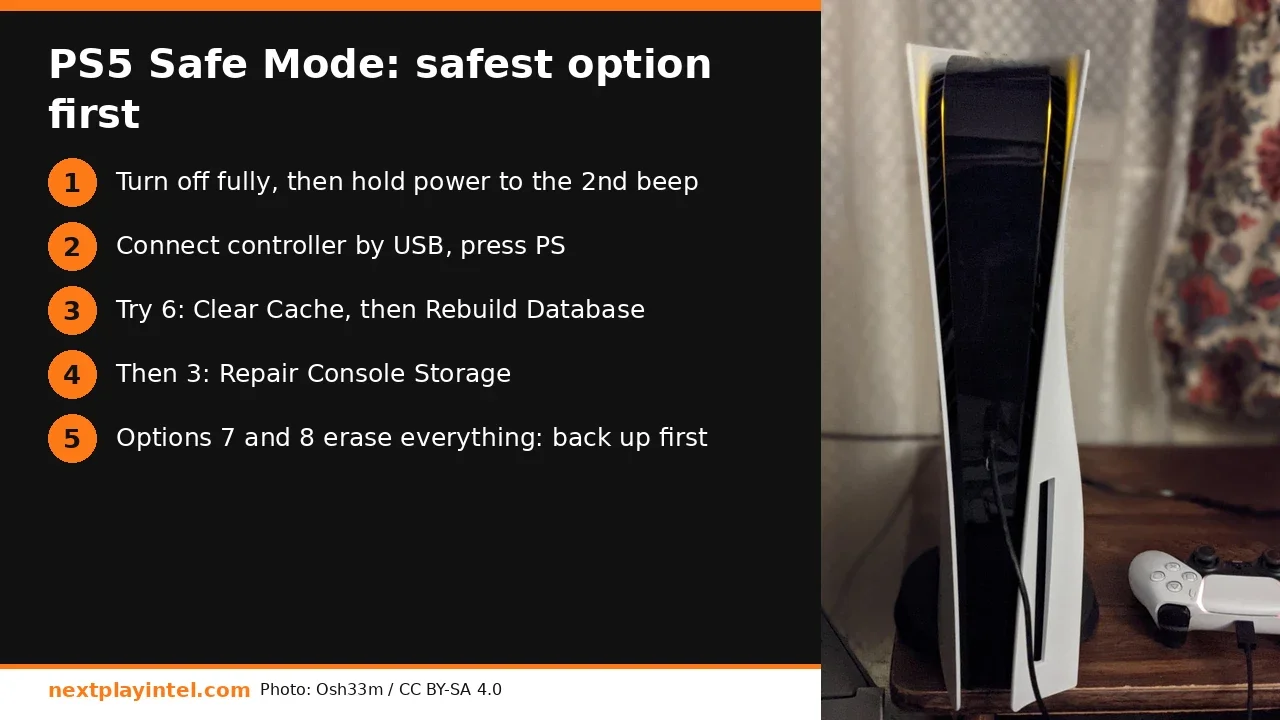
Short answer: To get into PS5 Safe Mode, turn the console off fully. Then hold the power button and let go after the second beep, about 7 seconds. Connect the controller with a USB cable and press PS. Start with option 6, Clear Cache and Rebuild Database. Run Clear System Software Cache first, then Rebuild Database. Neither one deletes games or saves. Options 7 and 8 erase everything on the console, so back up before you go near them.
When Safe Mode is the right tool
Safe Mode starts the PS5 with only basic functions running. Use it when the normal menus can't fix the problem:
A game icon stays on Home after you deleted the game, or your library shows the wrong content.
The console is slow, menus stutter, or system features hang after an update.
You get a blank screen after changing resolution or plugging in a new TV or AV receiver.
Errors such as CE-108262-9, where Sony's own fix list includes Rebuild Database.
The PS5 won't start normally, or keeps restarting into Safe Mode by itself.
How to start a PS5 in Safe Mode
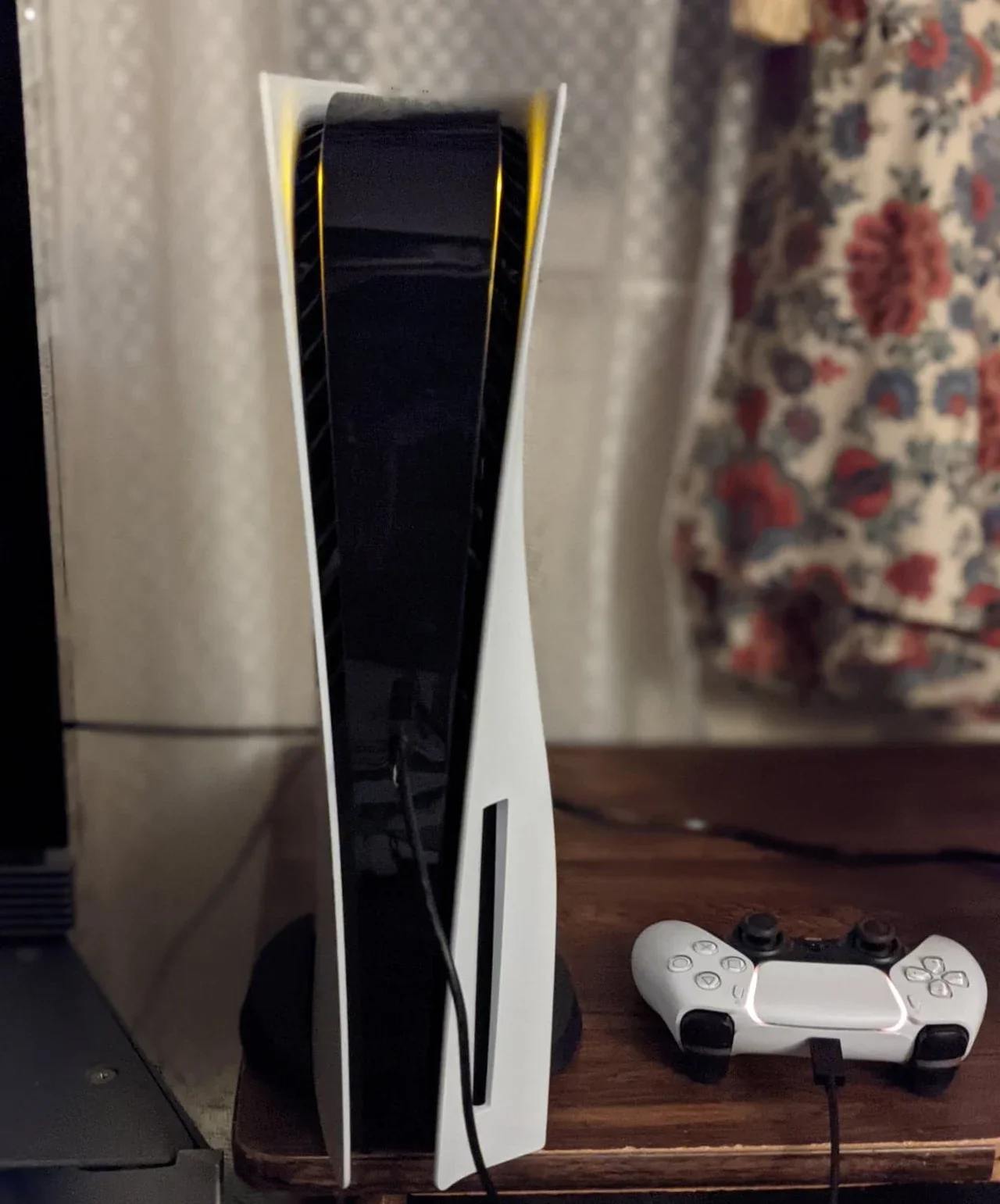
Turn the PS5 off completely: hold PS on the controller, choose Power > Turn Off PS5, or press the console's power button for about 3 seconds. Wait until the power light stops blinking and goes out. Safe Mode won't open from rest mode.
Press and hold the power button on the console. You hear one beep straight away. Keep holding until the second beep, about 7 seconds later, then let go.
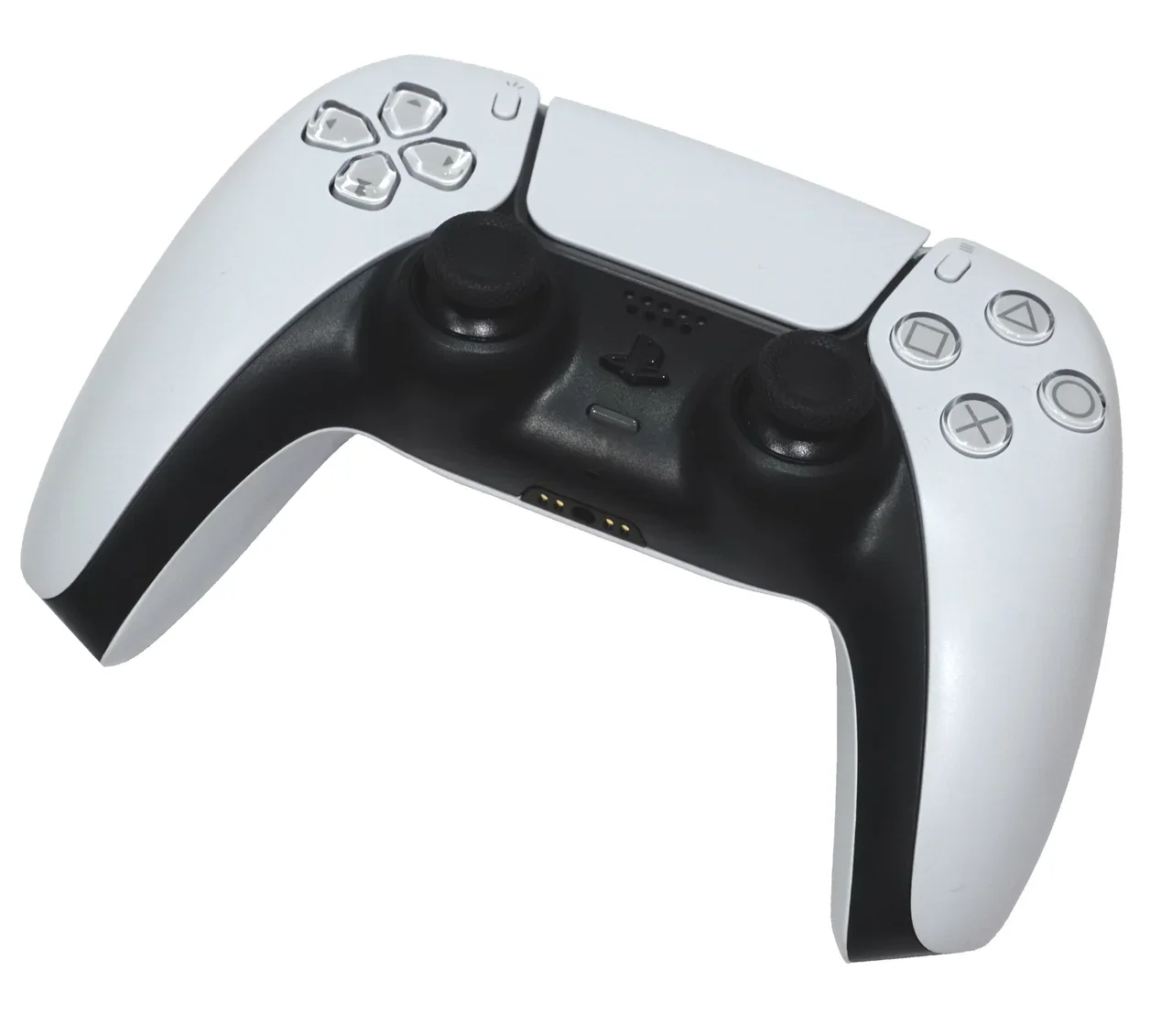
Connect the DualSense with a USB cable that carries data. Safe Mode doesn't accept a Bluetooth controller.
Press the PS button. The Safe Mode menu appears.
If the menu never appears, Sony's troubleshooting page says to try another HDMI, USB or power cable. If that doesn't help, hold the power button until the console turns off, unplug it for 20 minutes, and try again.
All 8 PS5 Safe Mode options, and what each one does to your data
This is Sony's current list, with the numbers as they appear on screen. The data column matters most.
# | Option | What it does | Deletes data? |
|---|---|---|---|
1 | Restart PS5 | Leaves Safe Mode and boots normally | No |
2 | Change Video Output | Change Resolution or Change HDCP Mode, for blank-screen fixes | No |
3 | Repair Console Storage | Checks and repairs storage when the PS5 won't start properly | No |
4 | Update System Software | Updates by internet download or from a USB drive | No |
5 | Restore Default Settings | Resets settings to factory defaults | Settings only (games, saves and captures stay) |
6 | Clear Cache and Rebuild Database | Clear System Software Cache, or scan the drive and rebuild the content database | No |
7 | Reset PS5 | Restores the console to its original state | Yes, all user data |
8 | Reset PS5 (Reinstall System Software) | Erases everything and removes the system software. You then install it from USB | Yes, all user data |
The order we recommend
Option 6 > Clear System Software Cache. This is the quickest fix for slow menus and features that hang. Confirm with OK. The console may restart by itself.
Option 6 > Rebuild Database. This takes a few minutes to well over an hour, depending on how full the SSD is. Don't unplug the console. It fixes ghost icons, missing games and corrupted library views.
Option 3 > Repair Console Storage. Use this if the console still won't start normally or reports storage errors.
Option 4 > Update System Software. Use this if an update failed partway.
Option 2 if your problem is a blank screen. Try a lower resolution or HDCP off, then switch back later.
Options 7 and 8 only as a last resort, after you back up.
Back up before option 7 or 8
Saves: with PlayStation Plus, turn on automatic save uploads (Settings > Saved Data and Game/App Settings). Without it, copy saves to a USB drive formatted exFAT or FAT32.
Games: you can download them again from your library. If your internet is slow, moving them to a USB extended-storage drive first saves hours (see our USB storage guide).
Reinstall (option 8): you need a USB drive with the full PS5 reinstallation file from playstation.com in a folder called
PS5/UPDATE. Name the filePS5UPDATE.PUP.
Stuck in a Safe Mode loop
Sony's official fix: hold the power button until the console beeps and turns off, unplug the power cable for 20 minutes, then plug it back in and turn the console on. If it still boots into Safe Mode, choose Clear Cache and Rebuild Database > Clear System Software Cache. If it keeps looping after that, try option 4 with a USB update file, then contact PlayStation support. The PS5 has a one-year warranty in India when you buy it from an authorised Sony seller.
Related NextPlayIntel guides
Buying in India
USB drives for backup or reinstall: India (₹) and US ($)
The full reinstallation file is several GB, so a 32 GB or larger USB drive is the minimum. For backing up games, a 1-2 TB USB 3.x drive is better value. Prices checked 28 October 2026.
Item | India price (₹) | US price (USD), checked 28 Oct 2026 |
|---|---|---|
32-64 GB USB 3.x pendrive (for option 4 or 8 files) | Unconfirmed (typical street ₹400-₹900) | Unconfirmed |
Seagate Game Drive for PlayStation 2 TB (HDD, game backup) | Unconfirmed | $139.99 at Best Buy US |
Samsung T7 1 TB portable SSD | Unconfirmed | $229.99 at Best Buy US |
We only list prices we could confirm on a named store page today. Everything else is marked unconfirmed.
Frequently asked questions
Does rebuilding the database on PS5 delete games?
No. Sony says Clear Cache and Rebuild Database doesn't delete games, apps, screenshots, video clips or saved data. It re-scans the drive and builds a new content index.
How long does Rebuild Database take on PS5?
It can take a few minutes on a nearly empty console, or much longer on a full 1-2 TB SSD. Leave it running and don't unplug the console.
Why won't my PS5 controller work in Safe Mode?
Safe Mode only accepts a controller connected by a USB cable that carries data. Plug it in and press PS. Bluetooth isn't available there.
What is the difference between Reset PS5 and Restore Default Settings?
Restore Default Settings only resets settings and keeps your games, saves and captures. Reset PS5 deletes all user data.
How do I get out of PS5 Safe Mode?
Choose option 1, Restart PS5. If it keeps coming back, unplug the console for 20 minutes, then try Clear System Software Cache.
Sources & verification
Sources last verified on . This article covers published information, not hands-on testing.
Editorial & update notes
New guide published 28 Oct 2026 with official support citations and INR + USD prices checked 28 Oct 2026.