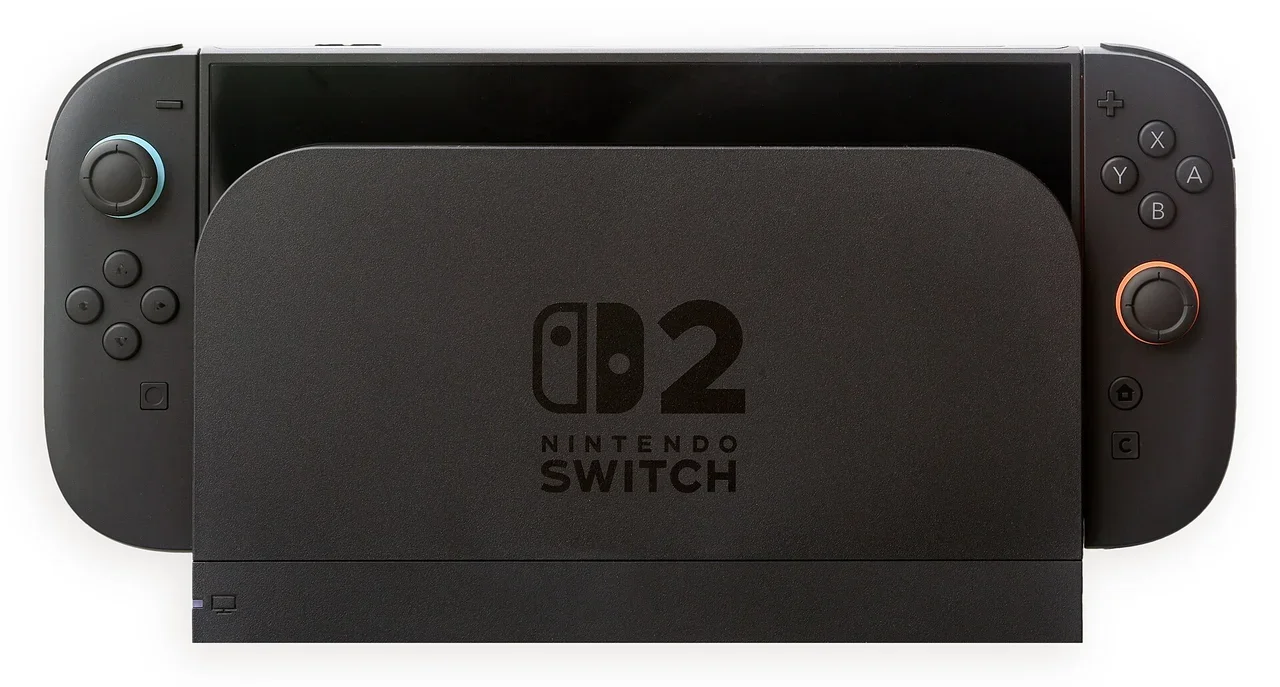
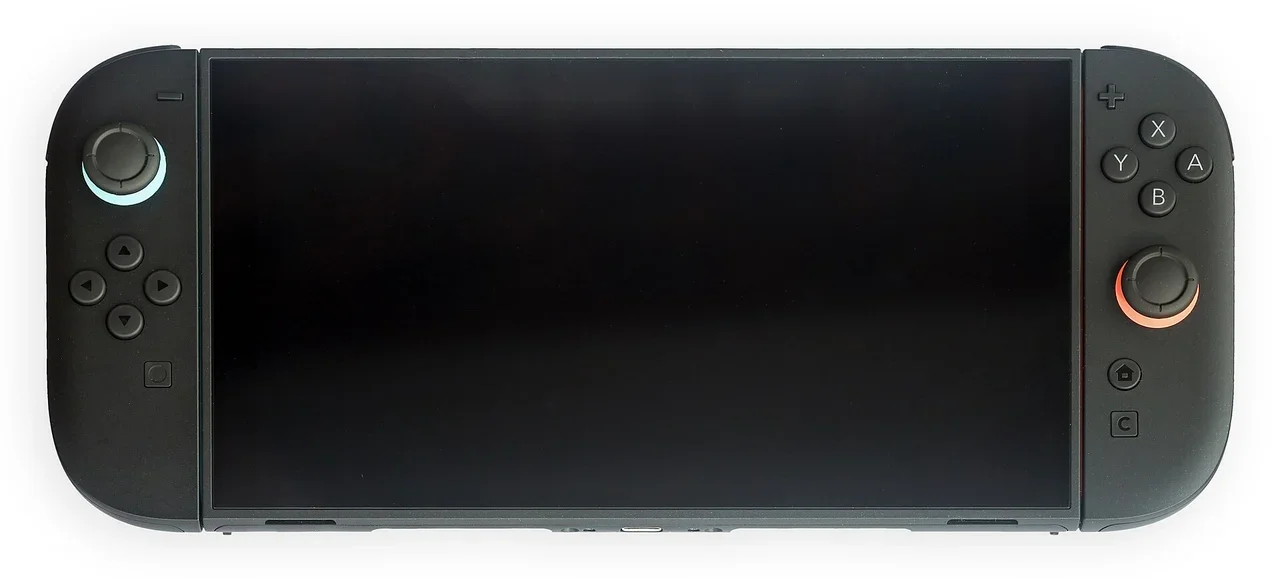
Try this first: log in to your router, turn off Smart Connect (band steering) and give the 5GHz band its own name. Then set that 5GHz band to 80MHz channel width on channel 36–48. Why first: it fixes the most likely cause, a combined SSID or a 160MHz/upper-channel setup the Switch 2 cannot use, and it doesn't affect your other devices much.
Switch 2 supports 2.4GHz and 5GHz Wi-Fi (802.11 a/b/g/n/ac/ax), so a missing 5GHz network is almost always a router setting rather than a faulty console.
How this page was made: drafted with AI assistance from the official support pages and the user threads linked on this page, checked on 29 October 2026, and published under Tulasiram Pemmadi's byline. NextPlayIntel did not test these fixes on hardware; fixes marked user-reported come from the linked threads.
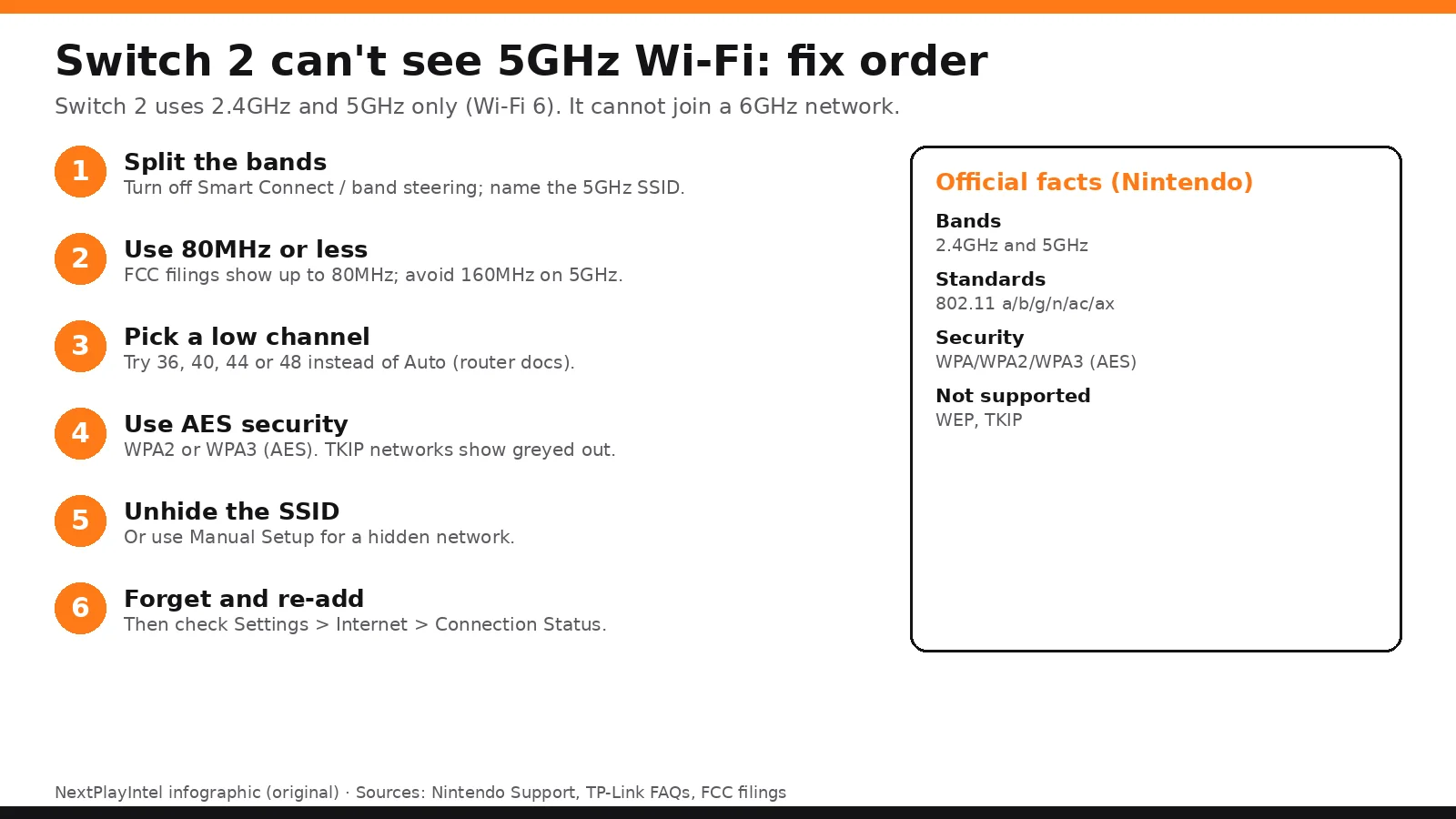
Quick Answer: Summary of Steps
Split the bands. Turn off Smart Connect or band steering and rename the 5GHz SSID.
Set 80MHz or less. Avoid 160MHz on the 5GHz band.
Pick channel 36–48. Instead of Auto or a DFS/upper channel.
Use WPA2/WPA3 with AES. TKIP networks appear greyed out.
Unhide the SSID. Or add it with Manual Setup.
Forget and re-add the network. Then check Connection Status.
Prerequisites & Materials Needed
Required tools & items
Router admin login — printed on the router or from your ISP
Phone or PC — to open the router settings page or app
Switch 2 within 2–3 m of the router — Nintendo's suggested distance while testing
LAN cable (optional) — the Switch 2 dock has a LAN port
Estimated time
Preparation: 5 minutes
Execution: 10–20 minutes, including a router restart
Step-by-Step Instructions
Start with the router changes, because that's where this problem nearly always is. Every step goes from easiest to hardest.
Step 1: Confirm what the Switch 2 can see
Problem: Your phone shows a 5GHz network but the Switch 2 doesn't, or it always joins on 2.4GHz.
Likely causes: The router shows one combined name for both bands; the console is far from the router; or the 5GHz network is set up in a way the console cannot use.
Fixes, easiest to hardest:
Move the console 2–3 m from the router, as Nintendo suggests.
Go to System Settings > Internet > Internet Settings and press Y to search again.
Once connected, check Connection Status to see which band you are on.
Pro Tip: If your router uses one name for both bands, you can't choose 5GHz from the console at all. Step 2 fixes that.
How you know it worked: A separate 5GHz network name shows in the list.
When to contact official support: Not yet; this is a router setting.
Step 2: Turn off band steering (Smart Connect) and split the SSIDs
Problem: One network name covers 2.4GHz and 5GHz, and the router keeps steering the console to 2.4GHz.
Likely causes: Band steering ("Smart Connect" on TP-Link) decides the band for each device. TP-Link notes that turning it off does not rename the bands, so they still look like one network until you rename one.
Fixes, easiest to hardest:
Open your router app or web page and find Wireless settings.
Turn off Smart Connect / band steering (TP-Link's steps: wireless settings FAQ, Smart Connect FAQ).
Rename the 5GHz network, for example "Home-5G", and save.
On the Switch 2, join "Home-5G".
Look out for: Other devices may drop off while the router restarts. Rejoin them afterwards.
How you know it worked: The Switch 2 joins the 5GHz name and Connection Status shows 5GHz.
When to contact official support: Contact your router maker or ISP if your router has no option to split the bands.
Step 3: Set the 5GHz band to 80MHz and channel 36–48
Problem: The 5GHz network is split out, but the Switch 2 still can't see it.
Likely causes: FCC filings reported by Nintendo Life show the Switch 2 Wi-Fi tested up to 80MHz channel width. Nintendo does not publish a channel-width limit. A 160MHz setting, or an Auto channel the router places high (149+) or on a DFS channel, can hide the network from some devices, as TP-Link's community guide explains.
Fixes, easiest to hardest:
Set 5GHz channel width to 80MHz (or 20/40/80) instead of 160MHz.
Set the 5GHz channel manually to 36, 40, 44 or 48 instead of Auto.
Set the wireless mode to include 802.11ac/ax, not 802.11a only.
Save, restart the router and search again on the Switch 2.
Pro Tip: If you need 160MHz for a PC, keep it on the 6GHz band (if you have one) and leave 5GHz at 80MHz.
Look out for: Available channels depend on your country. Use one your router offers.
How you know it worked: The 5GHz network shows up and stays connected after sleep.
When to contact official support: Contact your router maker if the settings are locked by your ISP.
Step 4: Check security type, hidden SSID and 6GHz-only networks
Problem: The network is listed but greyed out, or doesn't appear at all.
Likely causes: Nintendo says greyed-out networks probably use TKIP encryption, which Switch 2 does not support. Hidden (stealth) SSIDs are not listed. Switch 2 has no 6GHz support, so a 6GHz-only network will never show.
Fixes, easiest to hardest:
Set the 5GHz security to WPA2-PSK (AES) or WPA3-SAE (AES).
If the SSID is hidden, use Manual Setup at the bottom of the network list, or unhide it.
Make sure you are not trying to join a 6GHz-only network.
How you know it worked: The network is no longer greyed out and connects.
When to contact official support: If no network connects at all, use Nintendo's connection troubleshooting or a wired LAN connection through the dock.
Step 5: Forget the network, restart and contact Nintendo if needed
Problem: Settings are correct but the console still won't join 5GHz.
Likely causes: A saved network profile may keep the old band setting. If every 5GHz network fails, the console's Wi-Fi may need service.
Fixes, easiest to hardest:
In Internet Settings, delete the saved network, then restart the console.
Re-add the 5GHz network.
Test another 5GHz network, such as a phone hotspot on 5GHz.
Use the dock's LAN port as a stable alternative.
If no 5GHz network ever works, contact Nintendo Support.
How you know it worked: Connection Status shows a 5GHz connection after a restart.
When to contact official support: When no 5GHz network works anywhere: start at Nintendo Support.
Why this happens
Most modern routers broadcast one name for 2.4GHz and 5GHz and choose the band themselves. That's fine for phones, but when the router chooses 2.4GHz for the Switch 2 you can't override it from the console.
Routers also often default the 5GHz band to the widest setting (160MHz) or pick a channel automatically. Nintendo doesn't publish a channel-width limit, but FCC filings reported by Nintendo Life show the Switch 2 radio tested up to 80MHz. A wide or high channel the console doesn't handle well can make the network disappear, while newer phones see it fine.
Finally, Switch 2 is Wi-Fi 6, not Wi-Fi 6E, so it has no 6GHz band at all. A tri-band router's 6GHz network will never appear.
Fixes users report working (user-reported, not NextPlayIntel testing)
These come from public forum threads. They are what individual owners said worked for them, not official advice and not something we tested. Each links to the thread it came from.
Clearing all saved Wi-Fi networks, restarting, then re-adding the network made the console join 5GHz (user-reported, r/NintendoSwitch thread).
Setting the 5GHz band to 802.11ac, 40MHz and channels 36–48 worked on a test router, while channels 149–161 did not for that user (user-reported, same thread). Your router and region may differ.
Owners of Eero 6E routers report the console only sees 2.4GHz and 5GHz, never 6GHz, which matches the Wi-Fi 6 spec (user-reported, same thread).
Official specs: what Switch 2 supports
Item | Switch 2 | Source |
|---|---|---|
Bands | 2.4GHz and 5GHz | |
Wi-Fi modes | 802.11 a/b/g/n/ac/ax | |
Security | WPA-PSK/WPA2-PSK (AES), WPA3-SAE (AES); no WEP | |
6GHz (Wi-Fi 6E) | Not listed | |
Max channel width | Not published by Nintendo; FCC filings show up to 80MHz |
Common Mistakes to Avoid
Leaving band steering on. You can't pick 5GHz from the console while both bands share one name.
Assuming the console is faulty. Nintendo lists 5GHz support; the router setting is the usual cause.
Using a 6GHz-only network. Switch 2 has no 6GHz support.
Keeping TKIP security. TKIP networks show greyed out.
Related NextPlayIntel guides
Frequently asked questions
Does Nintendo Switch 2 support 5GHz Wi-Fi?
Yes. Nintendo lists 2.4GHz and 5GHz support with 802.11 a/b/g/n/ac/ax.
Does Switch 2 support 6GHz or Wi-Fi 6E?
No. Nintendo lists only 2.4GHz and 5GHz, so 6GHz networks never appear.
Why does my Switch 2 only connect to 2.4GHz?
Usually because band steering combines both bands under one name. Turn it off and give the 5GHz band its own name.
Should I use 160MHz for Switch 2?
Nintendo doesn't publish a limit, but FCC filings show up to 80MHz. Set 5GHz to 80MHz if the console can't see it.
Why is my network greyed out on Switch 2?
Nintendo says greyed-out networks likely use TKIP. Switch to WPA2 or WPA3 with AES.
Sources & verification
Sources last verified on . This article covers published information, not hands-on testing.
- Nintendo Support: Compatible wireless modes and security types
- Nintendo Support: Switch 2 Internet Connection FAQ
- Nintendo Support (Japan): Wireless connection troubleshooting
- TP-Link FAQ: Change wireless settings (Smart Connect)
- TP-Link FAQ: Smart Connect explained
- TP-Link Community: 5GHz channels and 160MHz width
- Nintendo Life: Switch 2 FCC filings show Wi-Fi 6
- Reddit r/NintendoSwitch: Switch 2 stuck on 2.4GHz (user reports)
Editorial & update notes
New page published 29 Oct 2026.