Fix original Nintendo Switch, Switch OLED and Switch Lite problems, from no power and dock output to heat, Wi-Fi, Joy-Con drift, game cards, storage and Maintenance Mode, using Nintendo's official steps.
This guide summarises official PlayStation, Xbox and Nintendo support pages checked on 29 October 2026. NextPlayIntel did not test these fixes on hardware; follow the linked official page if anything differs.
Try this first: for a console that seems dead, charge it with the official adapter for 30 minutes, then hold POWER for 12 seconds and press it again. Why first: most 'won't turn on' cases on Switch, OLED and Lite are a fully drained battery or a frozen console, and this fixes both without deleting anything.
How this page was made: drafted with AI assistance from official manufacturer support pages and the public user threads linked on this page, checked on 29 October 2026, and published under Tulasiram Pemmadi's byline. NextPlayIntel did not test these fixes on hardware; anything marked user-reported comes from the linked thread.
Quick Answer: Summary of Steps
Hard reset. Unplug for 30 seconds, hold POWER for 20 seconds, then charge.
Check the dock order. Not on the Lite, which has no TV mode.
Test the connection. Power cycle the router.
Calibrate the Joy-Con. Update first.
Free up storage. Archive software or add microSD.
Use Maintenance Mode. Initialize without deleting saves.
Prerequisites & Materials Needed
Required tools & items
Official AC adapter (HAC-002) — for power and the dock
Dock HDMI cable — for TV mode
microSD card — for extra storage
Wi-Fi access — for updates
Estimated time
Preparation: 5 minutes
Execution: 10–45 minutes
Step-by-Step Instructions
These steps apply to the original Switch, Switch OLED and Switch Lite; differences are noted.
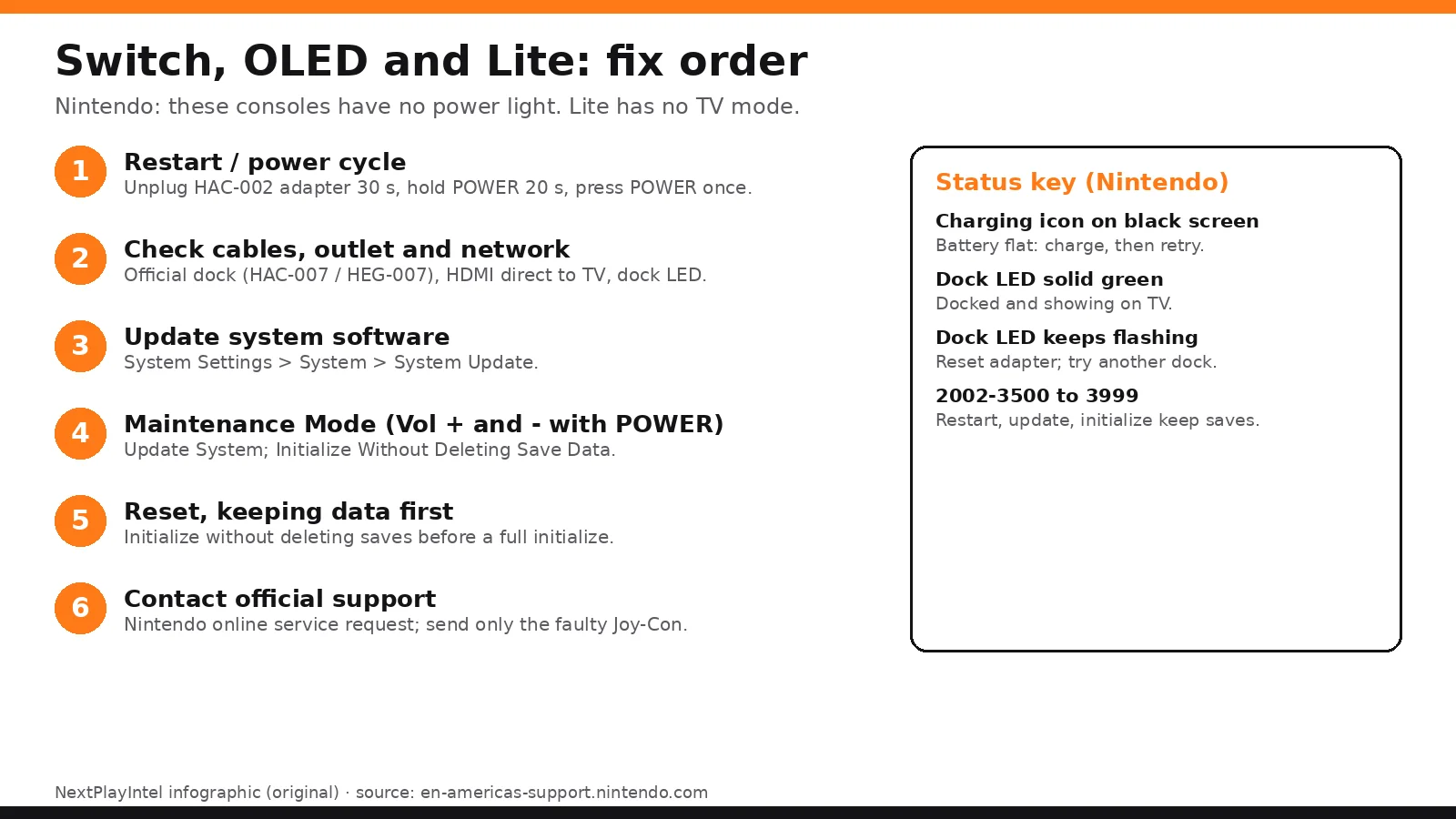
Step 1: Revive a console that won't turn on (there is no power light)
Problem: The Switch screen stays black when you press POWER.
Likely causes: a fully drained battery, a frozen system, the wrong adapter, or a hardware fault.
Fixes, easiest to hardest:
Nintendo states that Nintendo Switch systems do not have a power light. Judge by the screen, not by an LED.
Unplug the AC adapter from the wall for 30 seconds, then plug it straight into the console (not the dock).
Hold POWER for 20 seconds, then press POWER once. If a charging icon appears on a black screen, the battery is empty, so leave it charging.
Use the official AC adapter (HAC-002). The Lite charges by USB-C only.
Charge for at least an hour before you try again.
If it still won't start, request a repair.
How you know it worked: The Nintendo logo appears.
When to contact official support: See Nintendo's no-power steps.
Step 2: Fix no TV output in the dock
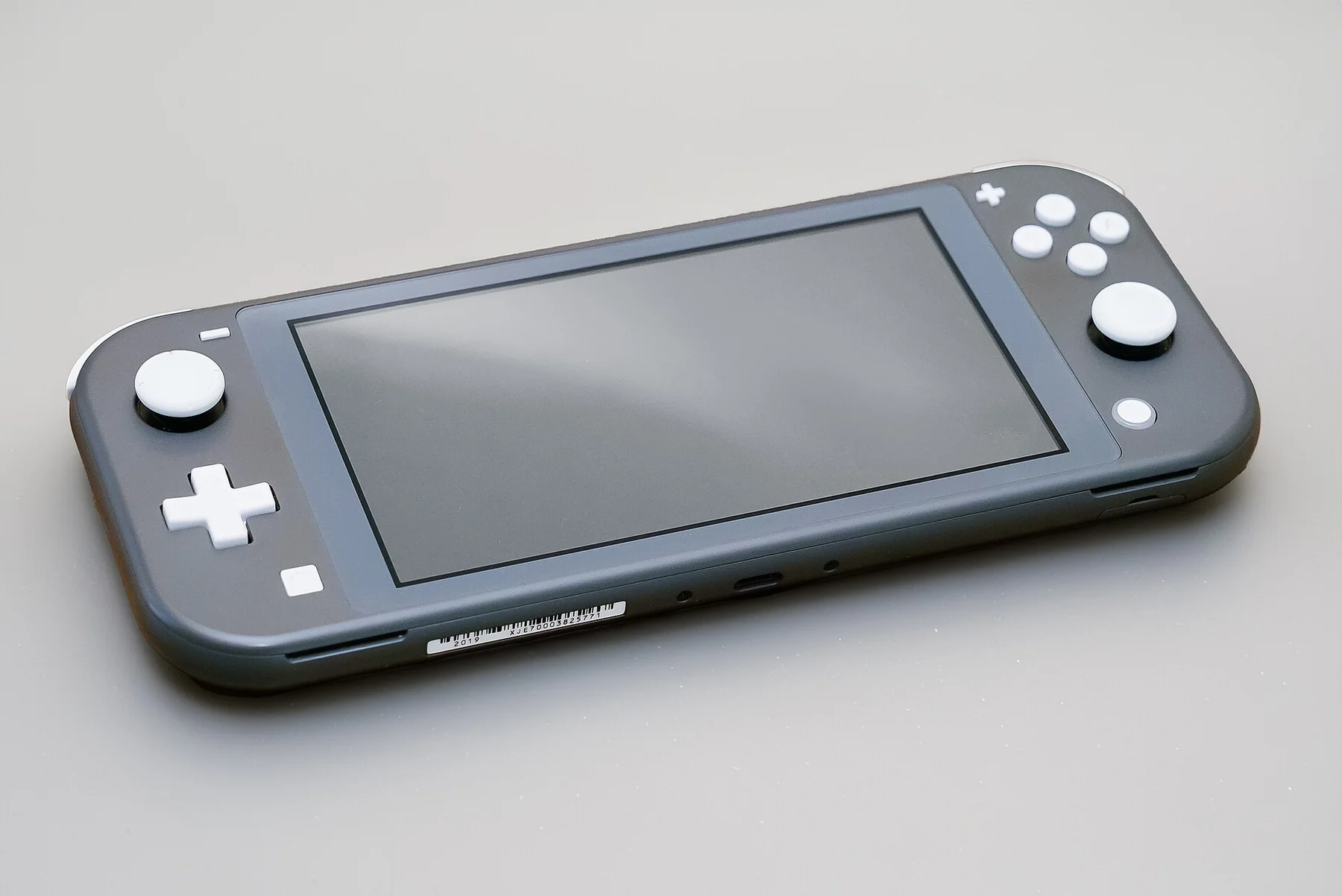
Problem: The console works handheld but there is no picture on the TV. (Switch Lite has no TV mode.)
Likely causes: the dock's power or HDMI chain, the adapter, or a splitter or receiver.
Fixes, easiest to hardest:
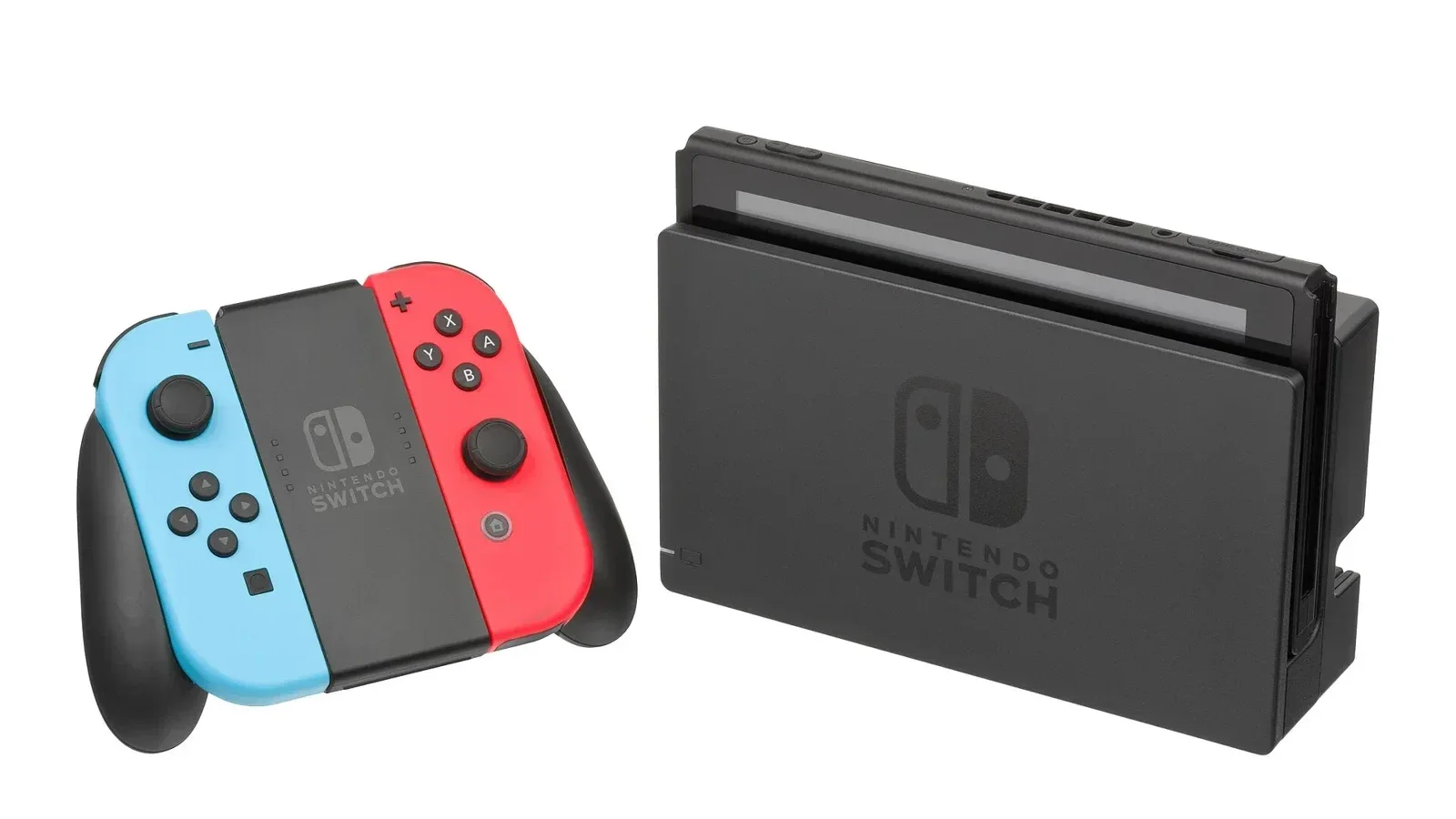
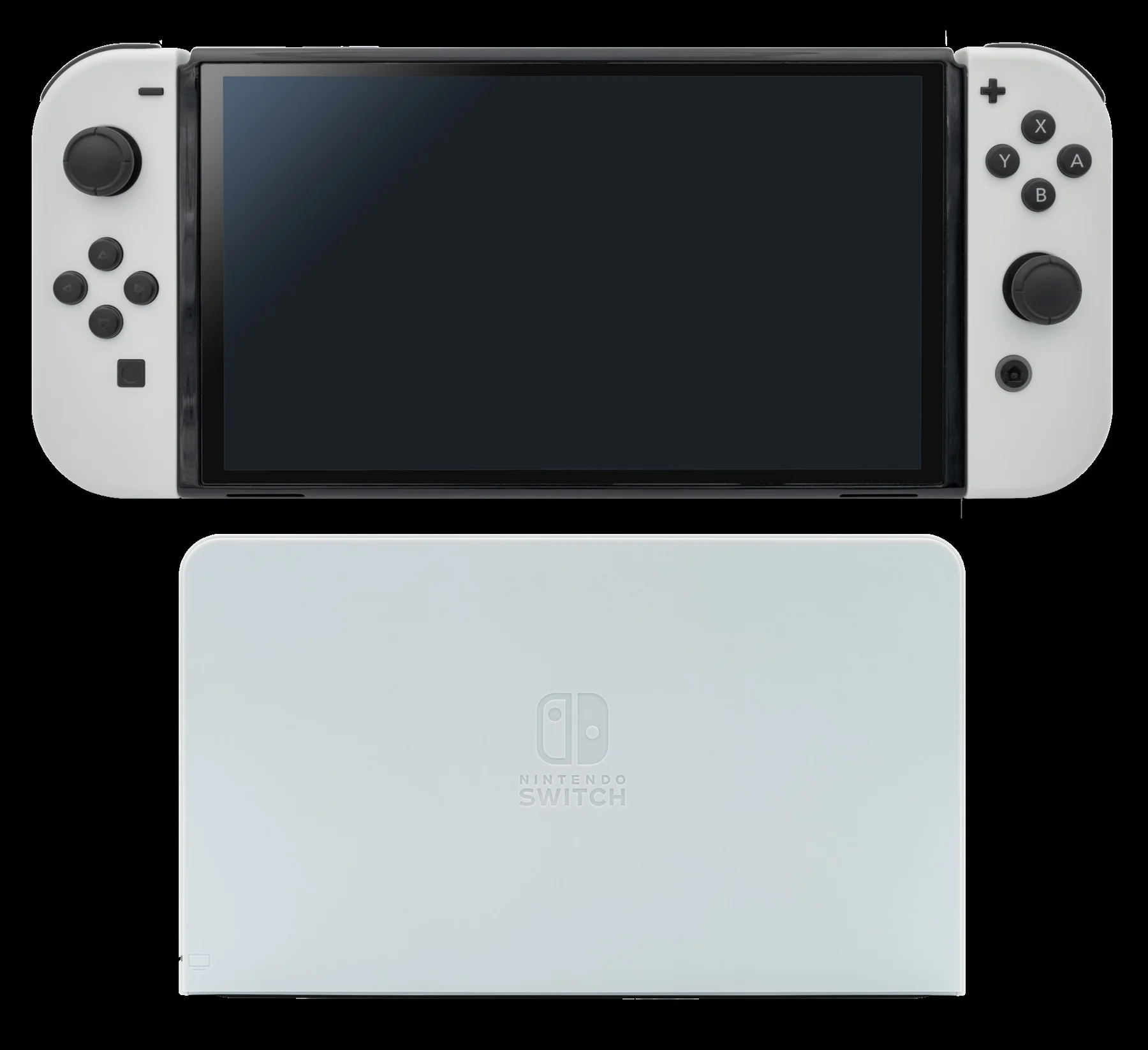
Connect the adapter to the dock first, then HDMI to the TV, then dock the console. Check the order shown on Nintendo's page.
Use the official adapter (Switch 2: 54W or higher) and the included HDMI cable (Switch 2: Ultra High Speed HDMI).
Unplug the adapter for 30 seconds, then try again.
Remove any splitters or receivers and connect directly to the TV.
The dock LED can flash when plugged in, which is normal. When docked, it should be solid green.
Try another TV input or another TV.
How you know it worked: The picture shows on the TV and the dock LED is solid green.
When to contact official support: See Nintendo's TV output and dock pages: 22264, dock LED.
Step 3: Keep it cool when docked
Problem: The console is hot, the fan is loud, or it freezes or shuts down.
Likely causes: blocked vents, a covered dock, or heat buildup.
Fixes, easiest to hardest:
Keep the vents clear. Don't use the console on a bed or soft surface.
Give the dock open space.
If it freezes, hold POWER for 12 seconds to force it off, then restart.
If it shuts off from heat repeatedly, request service.
How you know it worked: It stays stable in long sessions.
When to contact official support: See console freezes.
Step 4: Fix Wi-Fi and online errors
Problem: The console can't connect, or you see 2110-xxxx or 2123-0102.
Likely causes: Wi-Fi interference, router problems, DNS or a Nintendo server issue.
Fixes, easiest to hardest:
Check Nintendo's network status.
Restart the console and power cycle the modem and router.
Move closer to the router and away from microwaves or cordless phones.
Go to System Settings > Internet > Test Connection.
Change DNS or try another network, such as a phone hotspot, to isolate the problem.
How you know it worked: Test Connection succeeds.
When to contact official support: See the 2110 range and 2123-0102 pages.
Step 5: Fix Joy-Con drift and pairing
Problem: A stick drifts or a controller won't connect.
Likely causes: button remapping, old firmware, calibration, or stick wear.
Fixes, easiest to hardest:
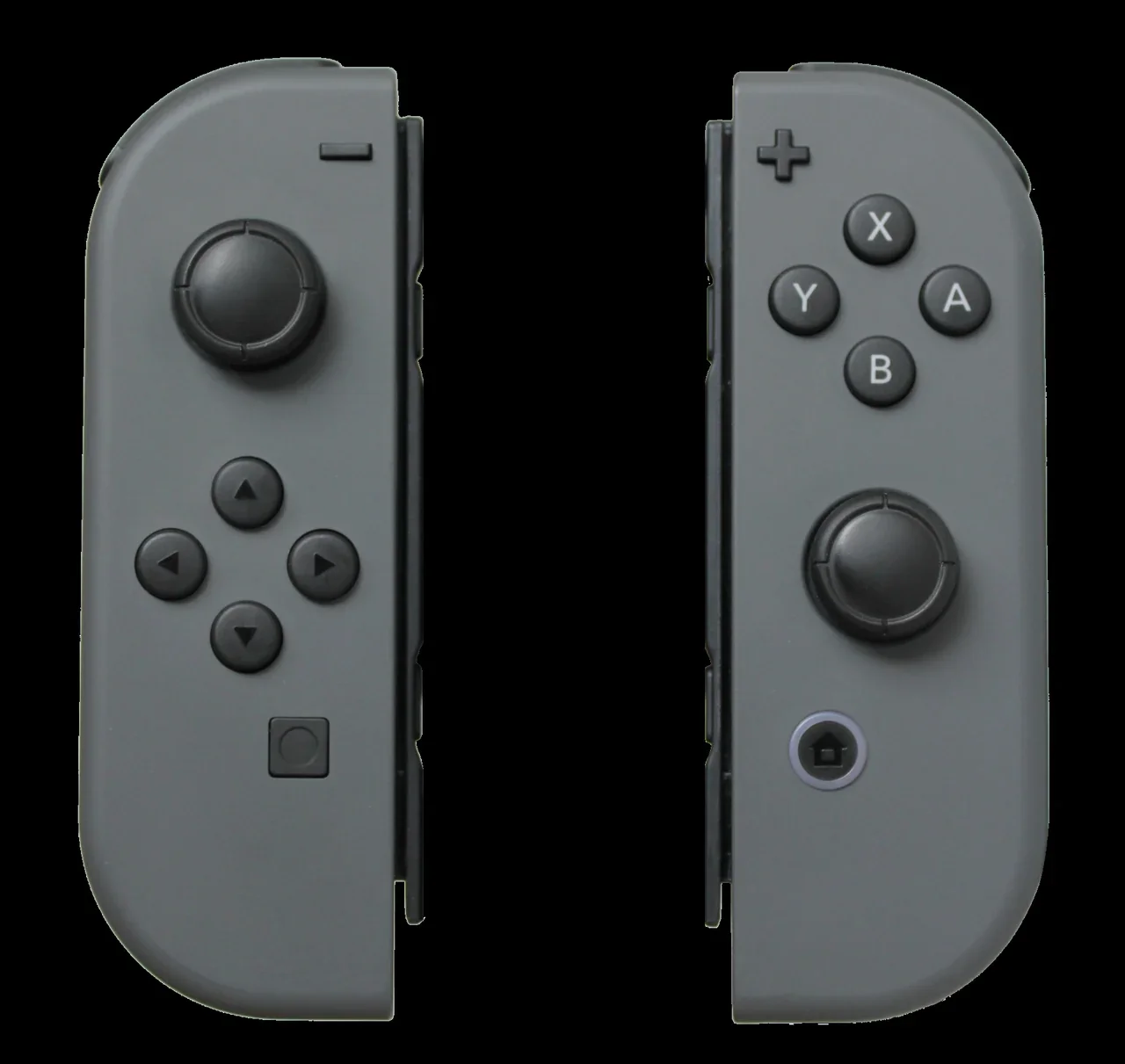
Check System Settings > Controllers and Sensors > Change Button Mapping and reset it to the default.
Update the controllers in Controllers and Sensors.
Calibrate the control sticks in the same menu.
Follow our Joy-Con drift guide.
If drift continues, Nintendo says to send only the controller for service, not the console.
How you know it worked: The stick reads centred in the calibration screen.
When to contact official support: Official pages: Joy-Con, Joy-Con 2.
Step 6: Get a game card to read
Problem: A game card isn't recognised.
Likely causes: dirty contacts, a damaged card, or a slot fault.
Fixes, easiest to hardest:
Remove and reinsert the card with the console powered off.
Try a different game card.
Update system software.
If several cards fail, the console needs service. Nintendo asks for two cards to be sent with it.
How you know it worked: The game icon appears.
When to contact official support: See game card issues.
Step 7: Free up storage and fix update or download errors
Problem: Storage is full, a download pauses, or the system update fails.
Likely causes: a full system memory or microSD card, network drops, or corrupted data.
Fixes, easiest to hardest:
Go to System Settings > Data Management to archive or delete software (our redownload guide).
Resume paused downloads (our download guide).
Add a microSD card for more space.
Run System Settings > System > System Update.
How you know it worked: The update completes and the software launches.
When to contact official support: See maintenance mode update.
Step 8: Use Maintenance Mode to update or initialize without losing saves
Problem: The console crashes at start-up, or error 2002-3500 keeps appearing.
Likely causes: corrupted system data.
Fixes, easiest to hardest:
Hold POWER to turn the console off completely.
Hold Volume + and Volume −, then press POWER, and keep the volume buttons held until the menu appears.
Choose Update System first.
Next, choose Restore Factory Settings Without Deleting Save Data.
Use a full Initialize Console only as a last resort. It erases save data that hasn't been backed up to the cloud.
How you know it worked: The console boots to HOME.
When to contact official support: See maintenance mode and initialize. Then request a repair.
Official Nintendo error code table
Nintendo lists Switch 2 codes on its error code topic. The main codes shared by Switch and Switch 2:
Code | Meaning | Official fix |
|---|---|---|
Network connection error | Restart; move closer to the router; power cycle network equipment; test the connection | |
Couldn't connect to the server | Wait and retry; restart; reduce interference; change DNS; try another network | |
Software or system error | Restart; update; initialize keeping save data; service | |
System error | Restart and update; service if it continues | |
Download or storage error (listed by Nintendo) | Check storage; redownload; see Nintendo's error topic |
Repair, warranty and cost
Nintendo handles repairs through its online service portal. The fee is quoted during the request, so cost in USD, GBP, EUR and INR is unconfirmed here. Nintendo says Joy-Con can be sent without the console.
Buying in India: support notes
We did not find an official Nintendo India support or repair site. Nintendo's online repair process covers the US and Canada; other regions use their local Nintendo site.
Keep the invoice and ask the seller or importer who handles warranty before you buy.
India pricing for repairs is unconfirmed.
microSD card not read, and a battery that won't hold a charge
microSD card not recognised: Nintendo's steps are: power off, remove the card and check the card and slot for dirt, confirm the card type is supported (microSD, microSDHC or microSDXC; microSDXC needs a system update), update the system, then format the card in System Settings if it still isn't detected. Formatting erases the card. If a second card also fails, the console needs service.
Battery doesn't last: Nintendo's battery life page lists expected ranges by model, for example 4.5–9 hours for the OLED model. Lower brightness and turning off wireless when not needed extend it. If a fully charged console falls well short of its model's range, Nintendo says to request service.
Why these problems happen
A Switch that's been left unused can drain the battery so far that the screen stays dark for a while even on charge. A frozen console looks the same, which is why the forced power-off is the first fix.
Dock problems usually come down to power order and the adapter: the dock needs the official Switch AC adapter to output to a TV. Joy-Con drift on the original Switch is usually wear or debris in the analogue stick.
Fixes users report working (user-reported, not NextPlayIntel testing)
These are what individual owners said worked for them in public threads. They are not official advice and not NextPlayIntel testing; each links to its source.
Owners report a little electrical contact cleaner under the stick cover, while tilting the stick, reduced original Joy-Con drift (user-reported, r/NintendoSwitch). Do this at your own risk; it may affect warranty repair, and Nintendo's repair service is the official option.
For Switch 2 dock problems, owners report the original Switch adapter can't power Switch 2 TV mode (user-reported, r/NintendoSwitchHelp).
Common Mistakes to Avoid
Looking for a power light. Switch has none.
Trying TV mode on a Lite. The Lite can't output to a TV.
Initializing fully first. You can lose save data that isn't in the cloud.
Sending the console for Joy-Con drift. Send only the controller.
Related NextPlayIntel guides
Frequently asked questions
Does the Nintendo Switch have a power light?
No, Nintendo says Switch systems have no power light. If the screen is black, charge it and hold POWER for 20 seconds.
Why is the dock light flashing?
The dock TV LED can flash at plug-in, which is normal. It should be solid green when the console is docked.
How do I open Switch Maintenance Mode?
Power off, hold Volume + and Volume −, and press POWER. Choose Initialize Console Without Deleting Save Data if needed.
Can a Switch Lite connect to a TV?
No, the Switch Lite has no TV mode.
Where do I get a Switch repaired in India?
We found no official Nintendo India support site. Ask the seller or importer; cost is unconfirmed.
Sources & verification
Sources last verified on . This article covers published information, not hands-on testing.
- Nintendo Support: article 22502
- Nintendo Support: article 22264
- Nintendo Support: article 22622
- Nintendo Support: article 22523
- Nintendo Support: article 22263
- Nintendo Support: article 70915
- Nintendo Support: article 27005
- Nintendo Support: article 27167
- Nintendo Support: article 46903
- Nintendo Support: article 48044
- Nintendo Support: article 28135
- Nintendo Support: article 22347
- Reddit r/NintendoSwitch: Joy-Con drift and contact cleaner (user reports)
- Reddit r/NintendoSwitchHelp: Switch 2 could not connect to TV (user reports)
Editorial & update notes
Updated 29 Oct 2026: added a 'Try this first' recommendation, why these problems happen, fixes users report working (with links to the threads), an AI-assistance note, and expanded symptom sections.