Quick route
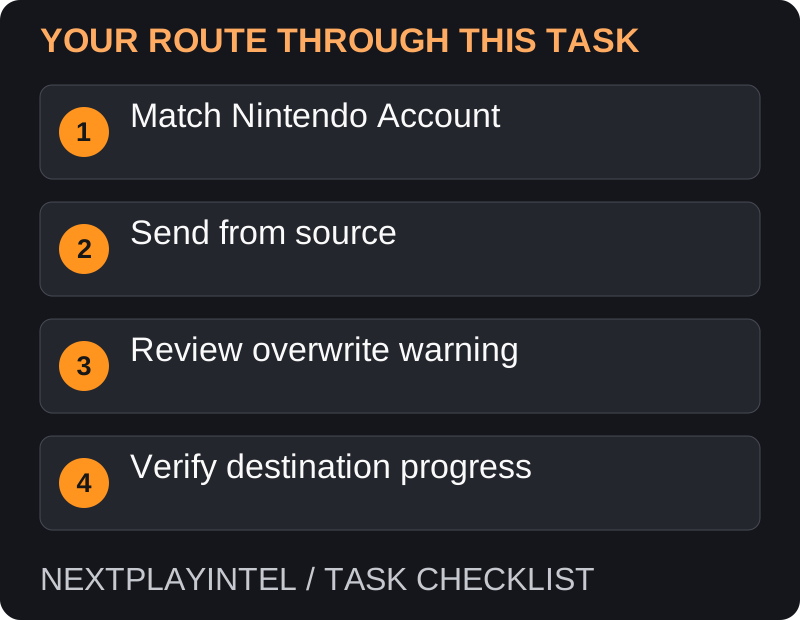
First, match nintendo account, then follow the steps below in order. If the result differs from what is described, use the symptom-specific troubleshooting before repeating a purchase, deleting data or starting another download.
Read this before transferring
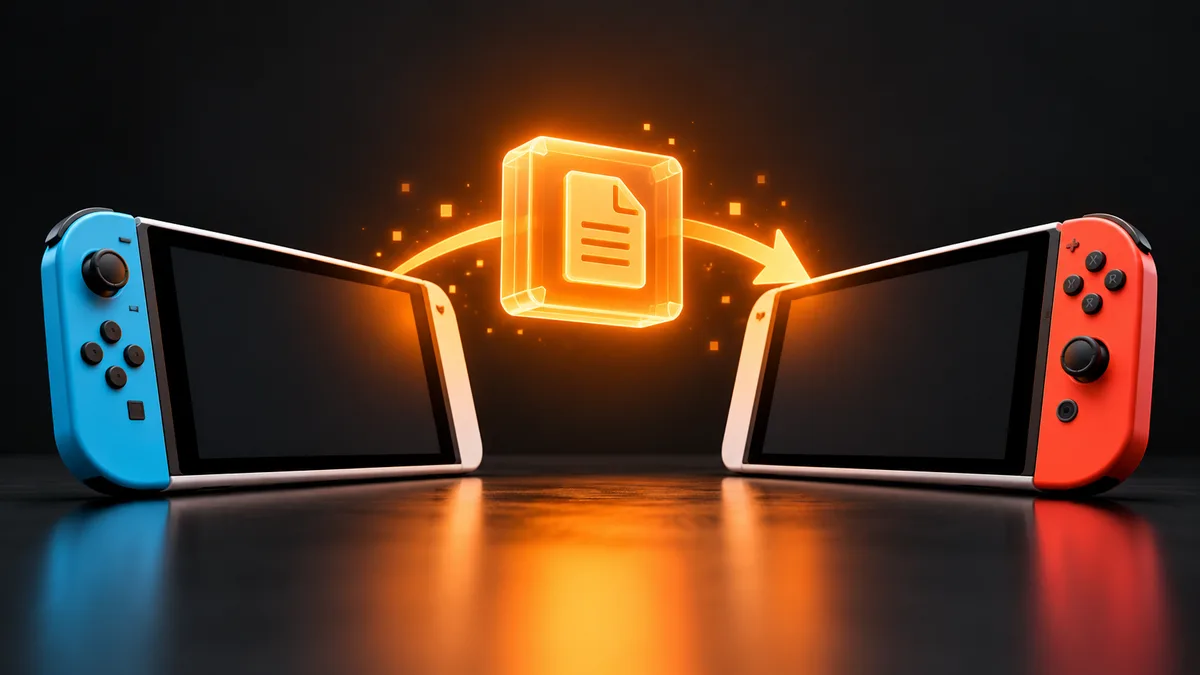
Nintendo’s nearby save transfer moves the selected save; it is not a second backup copy. The source save is removed after a successful move, and existing destination data may be replaced. Review the confirmation screens carefully.
You need both consoles nearby, online and updated, with the same Nintendo Account linked to the relevant user on each. This method does not require a Nintendo Switch Online membership.
Send and receive a save
Close the game on both systems. On the source, open System Settings > Data Management > Transfer Your Save Data.
Choose Send Save Data to Another Console. On Switch 2, follow the additional destination-console selection if shown.
Select the correct user and game save, then continue. Double-check the title when selecting multiple items.
On the destination, open the matching Transfer Your Save Data menu and choose the receiving option.
Review any overwrite warning and confirm only if the source is the progress you want to keep. Keep both consoles connected until completion.
Install the game separately
Moving a save does not supply the game itself. Make the supported game available on the destination through the appropriate card, purchase or virtual game card before trying to load the transferred progress.
Not every game or edition has identical save-transfer support. For titles with a special transfer tool or publisher migration process, follow that method rather than assuming the generic menu applies.
If the consoles cannot find each other
Confirm both are online and physically near one another, then check system updates.
Confirm the linked Nintendo Account is the same; a matching local user name is not enough.
Check that the selected game is compatible with the destination. If a new edition uses different save handling, review its publisher documentation.
Avoid overwriting the progress you meant to keep
Open the game on each console before starting, if available, and identify which progress belongs on the destination. A later-looking console clock is not as useful as recognising the actual checkpoint or play session. Close the game again before transferring.
If the destination already contains progress you want to retain, stop at the overwrite warning. This transfer moves the selected save and removes it from the source after success; it is not a method for keeping two independent copies of that progress.
The consoles cannot pair or the save is unavailable
Confirm the same linked Nintendo Account on both users, not just matching nicknames. Keep the devices nearby, connected and updated. On Switch 2, choose the correct destination-console type when prompted.
If a particular game does not support the ordinary route, use its dedicated official procedure. Do not conclude that all saves are transferable just because another title worked. A Switch 2-only game also cannot be made playable on an older console by moving data.
After the transfer, the game is missing or asks to buy
The save transfer does not transfer ownership or install the application. Provide access to the matching game separately through its card or digital entitlement. Then launch with the user linked to the receiving account.
If the original console is broken or lost, the nearby transfer cannot recover it. Check whether the specific game already had a supported cloud backup or recovery option. Do not pay for a new membership assuming it can recreate a backup that was never uploaded.
After completion
Launch the destination game with the intended user and verify your latest progress. Do this before resetting either system. If cloud backup is supported and you use it instead, inspect which save is newer before accepting a download.
For a lost or broken source console, nearby transfer is not an available recovery method. Check whether that particular game has an existing supported cloud backup or a separate official recovery process.
Official help for this task
Nintendo: transfer saves to a nearby console
Use the official page for the current interface wording and any account-specific support. Keep the error, product edition and the step that failed together when asking for help.
Sources & verification
Sources last verified on . This article covers published information, not hands-on testing.
Editorial & update notes
Reviewed 25 October 2026: detailed troubleshooting and official help links, with a distinct featured illustration. Real screenshots are identified and credited where reuse rights were verified; remaining task diagrams are original instructional graphics. No hands-on testing is claimed.
Related devices and next steps
- Nintendo Switch hardware guide
- Nintendo Switch – OLED Model hardware guide
- Nintendo Switch Lite hardware guide
- Nintendo Switch 2 hardware guide
- GTA Trilogy – Definitive Edition game hub
- Why does my Switch download keep pausing?
- Can you play PS5 games from a USB drive?
- How to redeem a Nintendo Switch or Switch 2 game code
- How to redownload Switch games and use virtual game cards