Quick route
First, identify save location, then follow the steps below in order. If the result differs from what is described, use the symptom-specific troubleshooting before repeating a purchase, deleting data or starting another download.
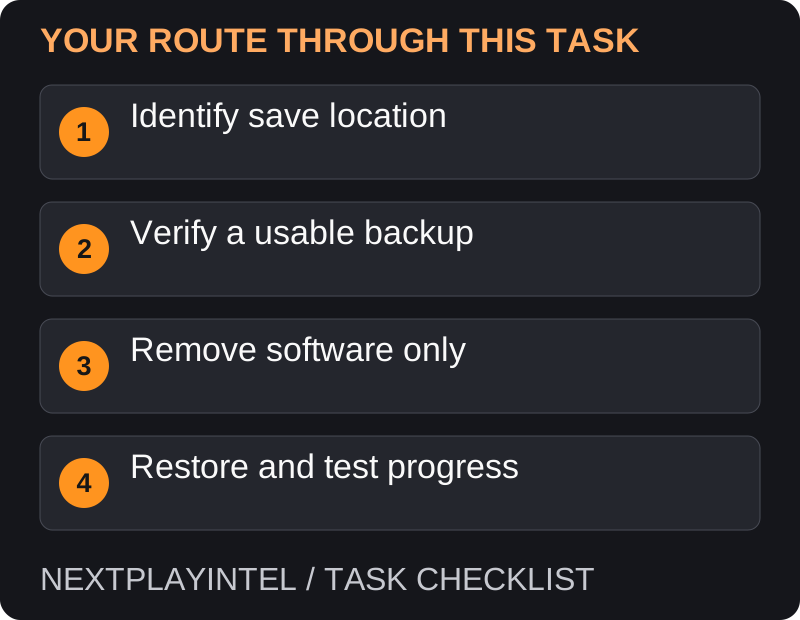
Back up before removing software
Do not start by deleting everything with the game’s name. Installed software, local saves, cloud saves and account-held online progress are separate data types. The safe procedure depends on your platform and game.
Write down the game edition, purchasing account and last known save date. If you are reinstalling to fix a problem, record the error first; otherwise you may lose useful evidence without solving the cause.
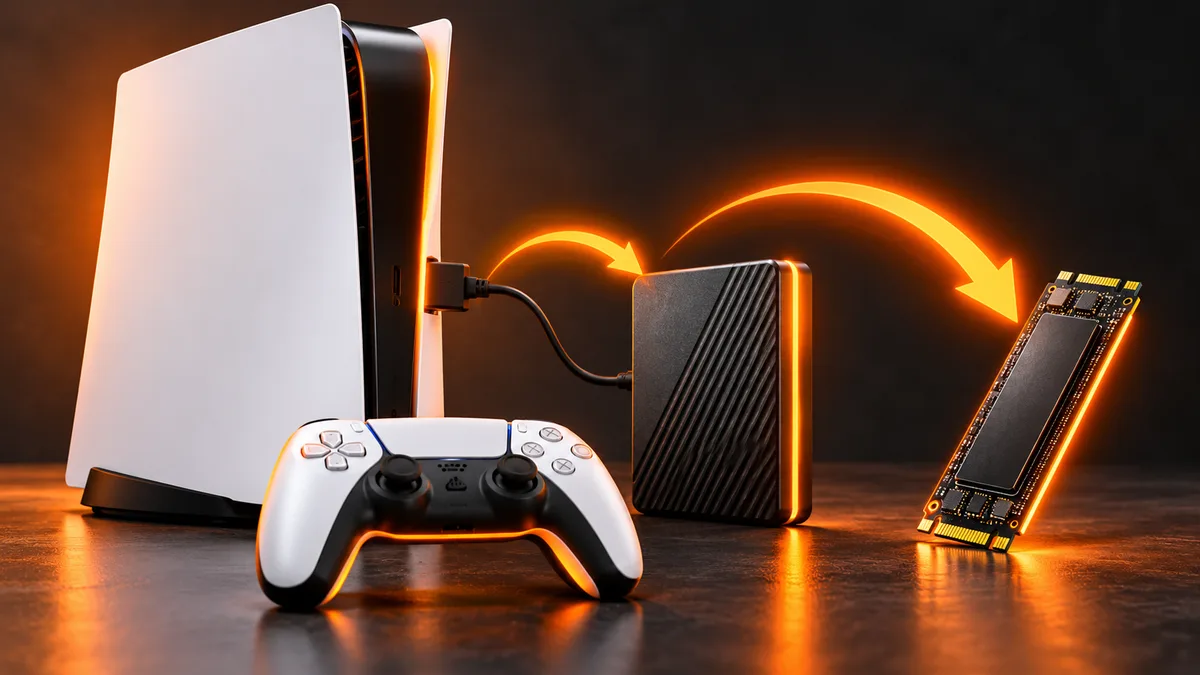
PlayStation checklist
Check Saved Data and Game/App Settings for the appropriate PS4 or PS5 data. If using Plus cloud storage, verify that the relevant upload or sync completed.
Remove only the game software through storage management. Do not select save-data deletion as part of routine space clearing.
Reinstall the same edition from your library or supported disc, then launch with the same user. Confirm progress before overwriting any backup.
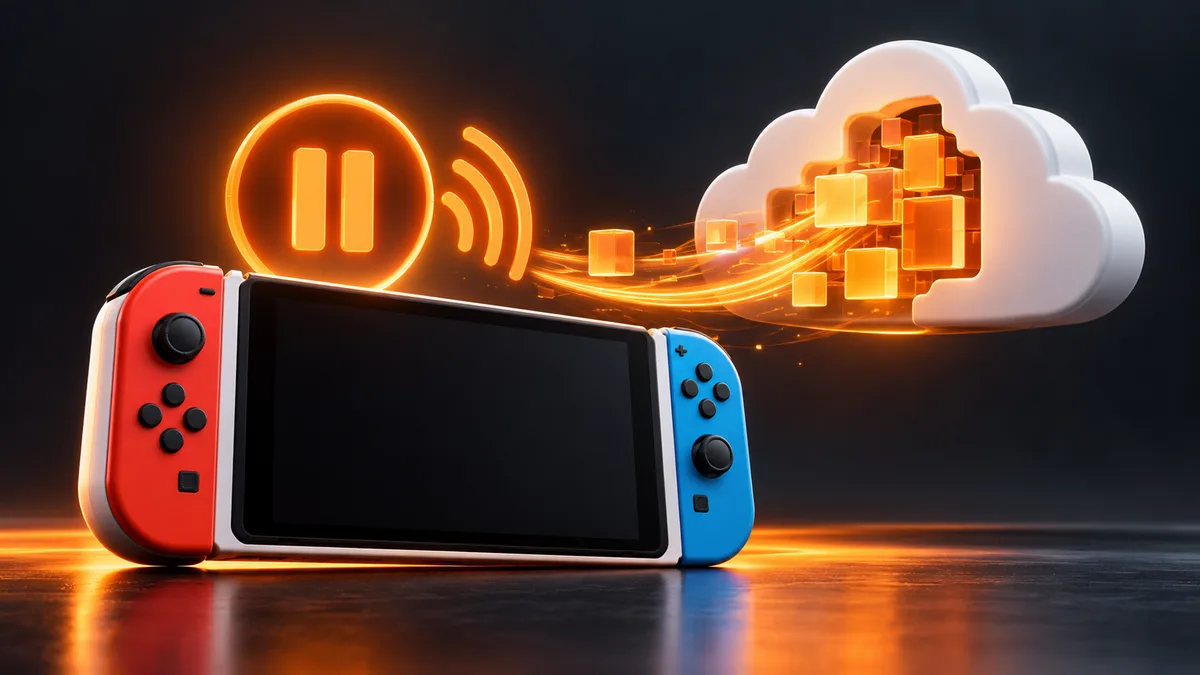
Nintendo checklist
Switch save data is stored in system memory, not on the physical game card. Do not select Delete Save Data when the goal is to recover software. Reinstall or redownload the game separately and keep the original user account.
If moving to another console, save transfer or a supported cloud restore is a separate task; redownloading alone will not recover progress from the old device.
PC and Xbox checks
On PC, use the publisher’s save-location instructions and make a separate backup before uninstalling. Saves can be outside the game folder. Do not assume launcher cloud support covers every file or every game.
On Xbox, distinguish removing installed software from deleting saved data. If you cannot confirm your backup or synchronisation status, stop before any save-deletion action and consult the game’s official support.
Reinstall and verify
Install through the original owning storefront and select the same game generation or edition.
Wait for the required files and updates. Sign into the same publisher account if requested.
Check the last save, purchased content and settings. If a cloud conflict appears, compare timestamps and progress before choosing a copy.
Keep your independent backup until normal play and saving work.
Decide whether a reinstall will address the error
For damaged application files on PC, try the owning launcher’s verification tool first. For a missing licence, recover access first. For unsupported hardware, reinstalling the same game will not change its requirements. Record the symptom so you can judge whether the reinstall actually helped.
Before removing anything, distinguish local story progress from account-held online progress and configuration files. They may use different storage and recovery paths even within the same title.
Cloud sync is not a guaranteed historical backup
Check whether this game supports cloud saves and whether the latest intended progress actually uploaded. If a conflict appears, compare the sessions represented by the local and cloud copies. Do not automatically choose the newest timestamp if you know it belongs to an unwanted new game.
Where supported, keep an independent copy identified using the publisher’s save-location instructions. Put it outside the game directory being removed. Do not rename or overwrite the only surviving copy while troubleshooting.
Verify the reinstall before cleaning up
Install the matching edition, sign into the same required accounts and inspect the actual progress. If the game opens at a new-game screen, stop before creating or synchronising unwanted progress over the copy you need.
Keep the backup until you have loaded the expected save and successfully saved again. If support is needed, provide the game edition, account, backup method and last known good session. No reinstall procedure can promise recovery of a save deleted from every location.
When reinstalling will not help
A wrong account, expired subscription or unsupported hardware is not repaired by downloading the same files again. Resolve those conditions first. No general guide can promise recovery of progress that was deleted everywhere and never backed up.
Official help for this task
Steam: cloud saves and conflicting copies
Use the official page for the current interface wording and any account-specific support. Keep the error, product edition and the step that failed together when asking for help.
Sources & verification
Sources last verified on . This article covers published information, not hands-on testing.
Editorial & update notes
Reviewed 25 October 2026: detailed troubleshooting and official help links, with a distinct featured illustration. Real screenshots are identified and credited where reuse rights were verified; remaining task diagrams are original instructional graphics. No hands-on testing is claimed.
Related devices and next steps
- PlayStation 5 hardware guide
- PlayStation 5 Pro hardware guide
- Nintendo Switch hardware guide
- Nintendo Switch – OLED Model hardware guide
- Nintendo Switch Lite hardware guide
- Nintendo Switch 2 hardware guide
- Xbox Series X hardware guide
- Xbox Series S hardware guide
- Xbox One hardware guide
- GTA V game hub
- GTA IV game hub
- GTA Trilogy – Definitive Edition game hub
- Can you play PS5 games from a USB drive?
- How to move Steam games to another drive without redownloading
- How to transfer games and saves from PS4 or PS5 to a new PS5
- How to transfer Nintendo Switch saves to another console