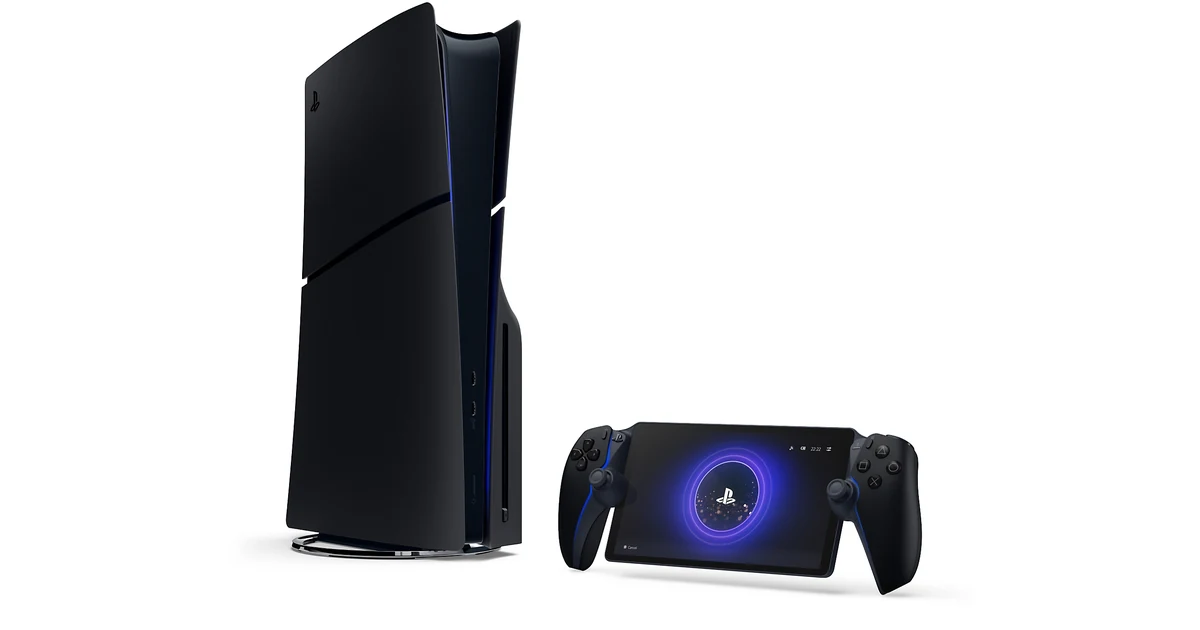
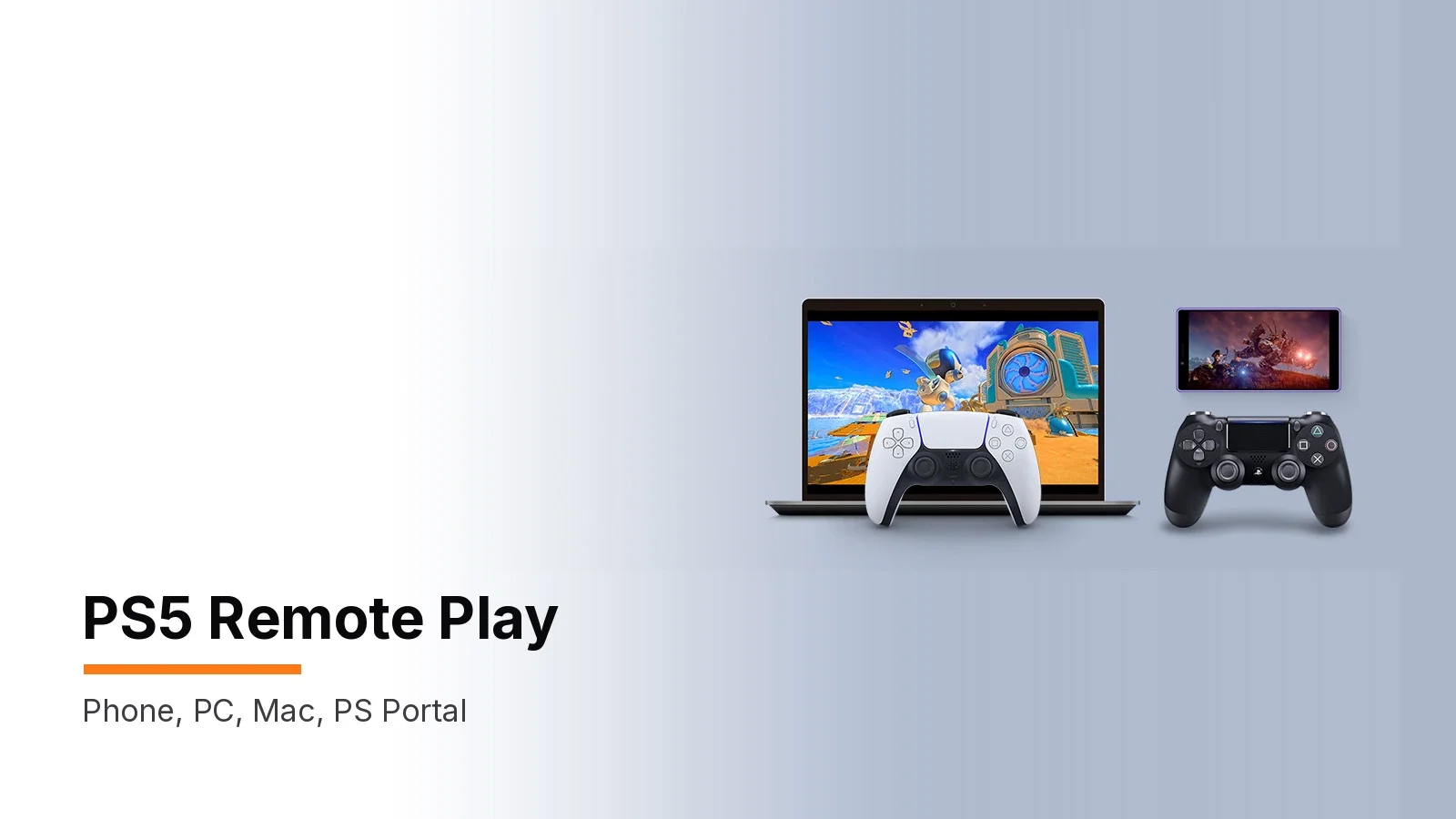
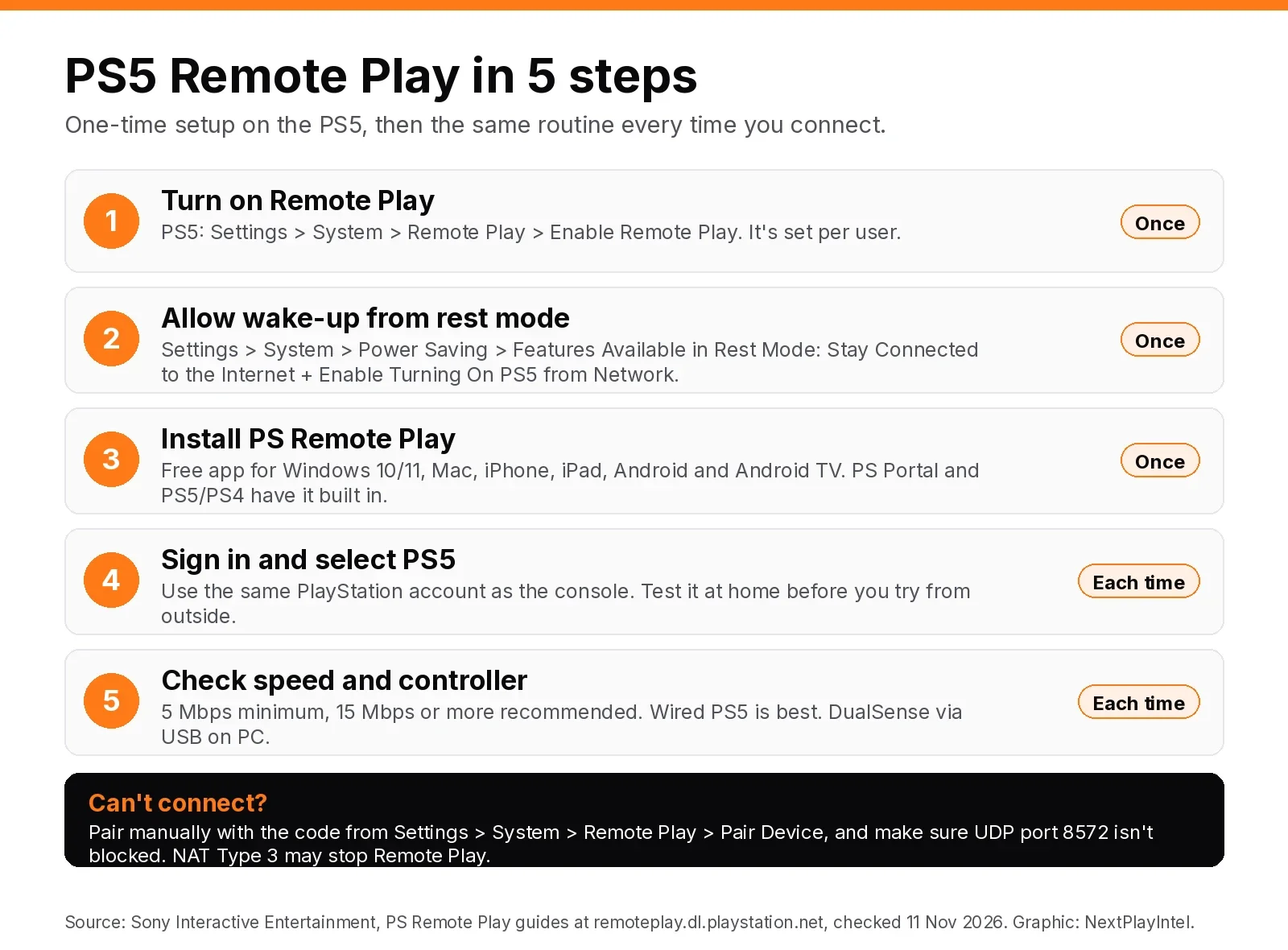
Short answer: on your PS5, go to Settings > System > Remote Play and turn on Enable Remote Play. Then install the free PS Remote Play app on your phone, PC, Mac or tablet, sign in with the same PlayStation account and select PS5. You need at least 5 Mbps, and Sony recommends 15 Mbps or faster.
Remote Play streams your own console to another screen, so the game still runs on the PS5 at home. That makes it useful for playing in another room, or away from home, without a second console. This guide follows Sony's own PS Remote Play setup pages, which we checked on 11 November 2026. Menu names can shift a little between system and app updates, so follow your screen if a label differs.
What you need for PS5 Remote Play
Item | What Sony asks for |
|---|---|
Console | A PS5 or PS5 Digital Edition (PS5 Pro included) on the latest system software, connected to the internet |
Account | The same account for PlayStation on the console and in the app |
Internet | At least 5 Mbps upload and download; 15 Mbps or faster recommended |
App | PS Remote Play, free, on the device you want to play on |
Controller | DualSense, DualSense Edge or DUALSHOCK 4, unless you use touch controls on a phone or a PlayStation Portal |
Games that need PS VR2, PS VR, PlayStation Camera or other peripherals don't work over Remote Play, and some games don't support it at all.
Step 1: Set up your PS5 (one time)
From the home screen, go to Settings > System > Remote Play and turn on Enable Remote Play. Sony notes this is set per user, so each person on the console turns it on for their own profile.
To start Remote Play while the console is asleep, go to Settings > System > Power Saving > Features Available in Rest Mode and turn on Stay Connected to the Internet and Enable Turning On PS5 from Network.
Make sure the system software is current: Settings > System > System Software > System Software Update and Settings.
If you share the console, Sony shows a Remote Play connected message to anyone else who logs in while you're streaming. You can hide it with Settings > System > Remote Play > Hide Remote Play Connection Status.
Step 2: Install PS Remote Play on your device
The app is free on every platform below. You only install it once, and the same app connects to a PS5 or a PS4.
Device | Minimum system | Controller support |
|---|---|---|
Windows PC | Windows 10 (64-bit) or Windows 11, 7th-gen Intel Core or later, 2 GB RAM, 100 MB free | DualSense, DualSense Edge or DUALSHOCK 4 over a USB cable |
Mac | macOS Monterey, Ventura, Sonoma, Sequoia or Tahoe, 2 GB RAM, 40 MB free | DualSense over USB or Bluetooth (macOS 11.3+); DualSense Edge over Bluetooth needs macOS 13.3+ |
iPhone and iPad | iOS 14 or later from the App Store | DUALSHOCK 4 (iOS 14+), DualSense (iOS 14.5+), or touch controls |
Android phone or tablet | Android 9 or later from Google Play | Touch controls; DUALSHOCK 4 on Android 10+; DualSense on Android 12+ |
Android TV | Chromecast with Google TV or Sony BRAVIA XR A95L, Android TV OS 12+ | DualSense or DUALSHOCK 4 |
PS Portal | Built in; pair it with your PS5 | Its own built-in controls |
Sony's Mac app (version 9.5.0) dropped support for macOS Big Sur. On Windows, the installer may ask to download extra software it needs; follow the on-screen prompts.
Step 3: Connect to your PS5
Turn on your PS5 or put it in rest mode.
On PC, connect your controller with a USB cable. On a phone, pair a controller over Bluetooth or use the touch controls.
Open PS Remote Play and select Sign In. Use the same account as your PS5.
Select PS5. The app finds your console and connects automatically. If it finds more than one PS5, pick yours.
Your PS5 screen appears on the device and you can play. Next time, you can select the console you used before.
Sony's advice is to do your first connection at home, near the console. The app can fail to find your PS5 from outside if it's been a while since you last signed in, so test it before you travel.
Video quality: on PC and Mac you can set resolution and frame rate under the app's Settings. For PS5, Sony says video quality adjusts automatically to your network. HDR works on PC when the PS5 is set to HDR, the display supports it, Windows has Play HDR games and apps turned on, Microsoft's HEVC Video Extension is installed, and you tick Enable HDR in the app.
Playing on mobile data
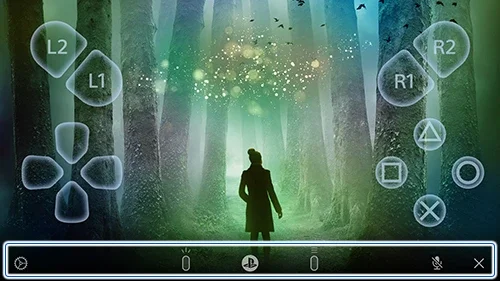
Remote Play works on mobile data, but you have to switch it on: in the app, open Settings > Mobile Data > Use Mobile Data. Sony warns that Remote Play uses a lot more data than most video streaming services, so watch your data cap. You can lower Video Quality for Streaming to use less, and turn on Notify Me When Using Mobile Data as a reminder. If your phone is on Wi-Fi, it stays on Wi-Fi.
On iPhone and iPad, Background Streaming lets you switch apps for up to 5 minutes before Remote Play closes. On Android, you can shrink Remote Play into a picture-in-picture window.
Remote Play from another console or a PS Portal
Play on | How it works | Controller |
|---|---|---|
Another PS5 | Open the Remote Play app on the second PS5's home screen; both consoles must use the same account and a wired home network | DualSense |
A PS4 | Open PS5 Remote Play on the PS4 home screen and select Find Your PS5; same account on both | DUALSHOCK 4 |
PlayStation Portal | Pair it with your PS5; it streams games installed on that PS5 over Wi-Fi | Built in |
For PS Portal, Sony says the PS5 must be connected to the internet, fully on or in rest mode, and paired with the Portal. Sony lists the same 5 Mbps minimum and 15 Mbps recommendation.
What doesn't work during Remote Play
Games that need PS VR2, PS VR, PlayStation Camera or other peripherals.
Share Play, and streaming games from PlayStation Plus Premium.
Playing a Blu-ray Disc or DVD, playing music, or watching video services.
On a PS5 Pro outputting 8K to a TV, Share Screen and broadcasting also can't run during Remote Play.
Some controller features, such as haptics or controller audio, may be limited depending on the device. On Android TV, DualSense haptics, adaptive triggers, controller audio and the built-in mic aren't supported.
PS5 Remote Play not working? Fixes in order
Check the basics first: the PS5 is online (Settings > Network > Connection Status), signed in to PlayStation, on the latest system software, and the app is updated.
If the app can't find your PS5, pair it manually. On the PS5, go to Settings > System > Remote Play > Pair Device. A number appears; enter it in the app on your other device, with both on the same network.
Check that UDP port 8572 isn't blocked. Remote Play uses it to connect. If your router blocks it, Sony suggests setting up port forwarding to the console, then contacting your internet provider (or mobile carrier) if it still fails.
Check your NAT Type in the app (Settings > Information on Windows, Preferences on Mac, Settings > NAT Type on mobile). If the app can't get a NAT Type, your network won't support Remote Play. NAT Type 3 may stop you connecting.
For a laggy or unstable stream, use a wired connection for the PS5 and your PC or Mac, run Settings > Network > Connection Status > Test Internet Connection on the PS5, and pause big downloads or video streams on the same network.
If your controller won't connect to your PC or phone, our PS5 controller connection fixes and DualSense on PC guide cover pairing and resets. For wider console problems, start with the PS5 troubleshooting guide.
Can you play GTA VI with Remote Play?
Yes, going by Rockstar. Its 10 November 2026 pre-load post lists Remote Play among Grand Theft Auto VI's console features ahead of the 19 November launch. As with any game, quality depends on your connection, and the game still runs on your PS5, so it targets the same 30fps there. Our GTA VI PS5 vs PS5 Pro vs Xbox breakdown has the full feature list.
Related guides
Frequently asked questions
Is PS5 Remote Play free?
Yes. The PS Remote Play app is free, and Sony doesn't list a PlayStation Plus requirement for it. You need your own PS5 and an account for PlayStation.
Can I use PS5 Remote Play away from home?
Yes, over Wi-Fi or mobile data, as long as you have at least 5 Mbps (15 Mbps recommended). Sony advises testing the connection at home first, and Remote Play on mobile data can use a lot of data.
Why can't PS Remote Play find my PS5?
Check that Remote Play is enabled for your user, the PS5 is online and updated, and both use the same account. If it still can't find it, pair manually with the code from Settings > System > Remote Play > Pair Device, and check UDP port 8572 isn't blocked.
Can I start Remote Play when my PS5 is in rest mode?
Yes, if you turn on Stay Connected to the Internet and Enable Turning On PS5 from Network under Settings > System > Power Saving > Features Available in Rest Mode.
Can I use a DualSense with Remote Play on PC?
Yes, over a USB cable on Windows 10 or 11. On a Mac running macOS 11.3 or later it also works over Bluetooth.
Sources & verification
Sources last verified on . This article covers published information, not hands-on testing.