Try this first: on the phone, turn the hotspot off and on, keep the hotspot settings screen open, then on the PS5 go to Settings > Network > Settings > Set Up Internet Connection and pick the hotspot from the list. On an iPhone, also turn on Maximize Compatibility in Settings > Personal Hotspot. Why first: Apple's own fix for a hotspot that other devices can't join is to restart it and turn on Maximize Compatibility, and many phones stop broadcasting the hotspot name a short time after no device is connected, so the PS5 never sees it.
How this page was made: drafted with AI assistance from Sony, Apple and Google support pages and the user thread linked below, checked on 30 October 2026, and published under Tulasiram Pemmadi's byline. NextPlayIntel did not test these fixes on hardware.
Quick Answer: Summary of Steps
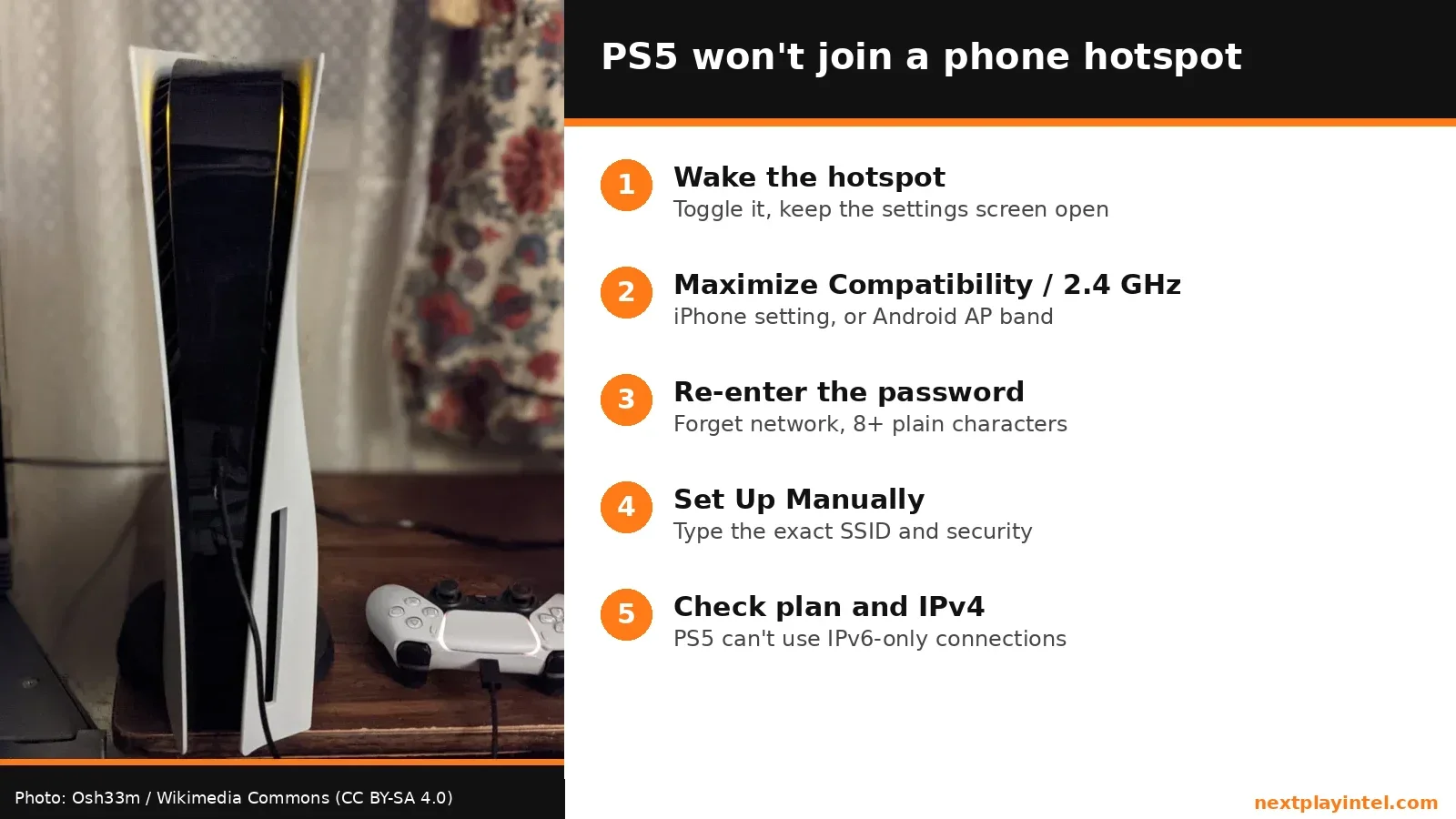
Wake the hotspot. Toggle it off and on and keep the settings screen open while the PS5 scans.
Turn on Maximize Compatibility (iPhone) or pick 2.4 GHz (Android). It widens which devices can join.
Re-enter the password. Use a simple 8+ character ASCII password.
Set it up manually. Use Set Up Manually on the PS5 if the name doesn't appear.
Check IPv4 and the data plan. PS5 can't use an IPv6-only connection, and some plans block tethering.
Prerequisites & Materials Needed
Required tools & items
A PS5, PS5 Digital Edition or PS5 Pro — the console you're connecting
A phone with mobile data — and a plan that allows hotspot (tethering)
The hotspot password — shown in the phone's hotspot settings
Estimated time
Preparation: 2 minutes
Execution: 5–15 minutes
Problem and Likely Causes
Problem: the PS5 doesn't list your phone's hotspot, fails when you enter the password, or connects but then says it can't reach the internet or PlayStation Network.
Likely causes, most common first: the phone stopped broadcasting the hotspot; the hotspot is on a band or mode the console isn't picking up well at that distance; a mistyped or unusual password; a carrier plan that doesn't allow tethering; or a connection that hands out IPv6 only, which Sony says PS5 doesn't support.
What you see | Most likely cause | Go to |
|---|---|---|
Hotspot name isn't in the PS5 list | Phone stopped broadcasting, or band/distance | Steps 1 and 2 |
"Can't connect" after entering the password | Wrong password or security type | Step 3 |
Connected, but internet test fails | Plan blocks tethering, or IPv6-only connection | Step 5 |
Internet works, PSN sign-in or online play fails | Mobile network NAT and server checks | Step 5 and "Why this happens" |
Step-by-Step Instructions
The steps run from easiest to hardest. Sony's, Apple's and Google's documented steps come first; the user-reported tip is labelled.
Step 1: Wake the hotspot and scan again
Phones save battery by hiding or switching off a hotspot that nobody is using, so the PS5's scan can miss it.
Execute the action: on iPhone open Settings > Personal Hotspot and turn on Allow Others to Join; on Android swipe down and tap Hotspot. Stay on that screen. Apple tells you to stay on the Personal Hotspot screen until the other device has connected.
On the PS5 go to Settings > Network > Settings > Set Up Internet Connection and wait for the list to refresh.
Pro Tip: put the phone within a couple of metres of the console, in front of it rather than behind the TV.
How you know it worked: the phone's name appears in the PS5 network list with a padlock.
Step 2: Turn on Maximize Compatibility or change the hotspot band
Newer phones can run the hotspot on 5 GHz. The PS5 supports both bands, but a 2.4 GHz hotspot reaches further and is the setting Apple points to when a device can't join.
Execute the action (iPhone): Settings > Personal Hotspot > turn on Maximize Compatibility. Apple lists this in its "If Personal Hotspot isn't working" advice.
Execute the action (Android): touch and hold Hotspot, open its settings and, if your phone shows an AP band or "Extend compatibility" option, choose 2.4 GHz or turn it on. The wording differs by phone maker.
Look out for: 2.4 GHz is usually slower than 5 GHz. That's fine for setup and online play; large downloads are better done on home Wi-Fi.
How you know it worked: the hotspot shows up and connects on the next scan.
Step 3: Re-enter or simplify the password
A password typed with the wrong case, or one with unusual symbols, is the most common reason a visible hotspot still refuses the PS5.
Execute the action: on the PS5, highlight the hotspot, press Options and choose Forget, then select it again and type the password slowly.
If it still fails, change the hotspot password on the phone to 8 or more plain letters and numbers. Apple asks for ASCII characters only.
Look out for: Sony lists WPA, WPA2, WEP and WPA3 as supported security types. If your phone offers a WPA2/WPA3 mixed mode, use it rather than WPA3-only while testing.
How you know it worked: the PS5 shows "Connected" for the hotspot.
Step 4: Use Set Up Manually
If the name never appears, you can still connect by typing it in.
Execute the action: in Set Up Internet Connection, scroll down, select Set Up Manually, and enter the hotspot's exact name (SSID), security method and password.
Pro Tip: rename the phone's hotspot to something short with no emoji or apostrophes first. On iPhone the hotspot name is the phone's name in Settings > General > About > Name.
How you know it worked: the connection saves and the internet test runs.
Step 5: Check the plan, IPv4 and PSN
If the PS5 joins the hotspot but the internet test fails, the problem is the mobile connection, not the console's Wi-Fi.
Execute the action: on the PS5 run Settings > Network > Connection Status > Test Internet Connection.
Confirm your plan includes hotspot. Apple notes that Personal Hotspot needs a carrier that supports it and may cost extra; Google warns some carriers limit or charge for tethering.
Sony says PS5 supports IPv6 but not IPv6-only connections. If your carrier's hotspot gives out only IPv6 addresses, ask the carrier whether IPv4 is available for tethering.
Check the PlayStation Network status page before changing anything else.
When to contact official support: if the PS5 connects to other Wi-Fi networks but fails on every phone hotspot, contact PlayStation Support; if no device can use the hotspot, contact your carrier.
What it costs
Prices and plan terms checked 30 October 2026.
Item | Cost | Note |
|---|---|---|
All fixes on this page | $0 | Settings changes only |
Hotspot / tethering on your mobile plan | Unconfirmed — varies by carrier | Apple and Google both say carriers may charge extra |
Mobile data used by a game download | Unconfirmed — depends on your plan | Modern PS5 games are often tens of gigabytes; download at home if you can |
Buying in India
Indian prepaid plans usually allow hotspot from the same daily data pack, but daily caps run out fast with PS5 updates. Check your operator's app for remaining data before starting a download, and pause automatic downloads in Settings > System > Power Saving > Features Available in Rest Mode if you are on a capped plan. If you're shopping for a console, our PS5 buyer's guide lists current prices in USD and INR.
Why this happens
A phone hotspot is a small access point with tighter limits than a home router. To save battery, phones stop advertising it, change channel, or turn it off when no device is attached, which is why the PS5 often can't "see" it. Newer phones may also default to 5 GHz, which has shorter range. Maximize Compatibility on iPhone trades some speed for wider device support.
Once connected, mobile networks behave differently from home broadband. Many carriers share one public address between many customers, so online features that need incoming connections may be limited, and some carriers hand out IPv6-only connections that Sony says the PS5 can't use. That's why "connected to Wi-Fi but no internet" is a carrier question, not a console fault.
Fixes users report working (user-reported, not NextPlayIntel testing)
In an Apple Community thread about an iPhone hotspot that other devices couldn't join, a high-level community member said that on iPhone 12 and later, Maximize Compatibility switches the hotspot to 2.4 GHz, which is more compatible with older devices, and suggested resetting network settings as a later step. That reply is general advice for any device, not PS5-specific.
Common Mistakes to Avoid
Leaving the hotspot screen before the PS5 connects. The phone may stop broadcasting and the scan fails again.
Resetting the PS5 first. A console reset won't fix a phone or carrier setting.
Downloading big updates on a capped plan. You can use a month's data on one game.
Using a password with emoji or special symbols. Apple asks for ASCII characters only.
Related NextPlayIntel guides
Frequently asked questions
Why can't my PS5 find my phone hotspot?
Usually the phone has stopped broadcasting it. Turn the hotspot off and on, keep its settings screen open, and scan again on the PS5.
Does PS5 work with an iPhone hotspot?
Yes. If it won't join, Apple suggests turning on Maximize Compatibility in Settings > Personal Hotspot.
Why does my PS5 connect to the hotspot but have no internet?
Your plan may block tethering, or the carrier may hand out IPv6 only, which Sony says PS5 doesn't support.
Is it OK to download PS5 games over a hotspot?
It works, but games and updates are large and can use your whole data allowance quickly.
Sources & verification
Sources last verified on . This article covers published information, not hands-on testing.
Editorial & update notes
New page published 30 Oct 2026.