
Quick route
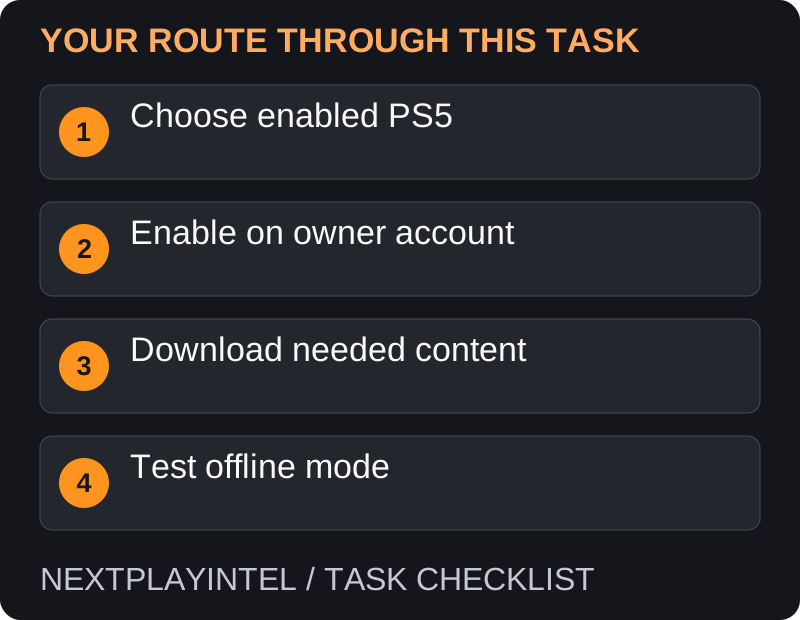
First, choose enabled ps5, then follow the steps below in order. If the result differs from what is described, use the symptom-specific troubleshooting before repeating a purchase, deleting data or starting another download.
What this setting does
Console Sharing and Offline Play lets other users on the enabled PS5 access the account’s downloaded purchases and some membership benefits. It does not turn an online-only game into an offline game.
Choose the console deliberately. PlayStation permits this setting on one PS5 at a time for an account; switching it can affect access on the previous console.
Enable the feature
Sign in on the intended PS5 with the account that owns the purchases.
Open Settings > Users and Accounts > Other > Console Sharing and Offline Play.
Choose Enable. If another PS5 is enabled, review the need to turn it off there before switching.
Download the game and all required updates while connected. Launch it once to complete any initial publisher setup.
Check offline access
Confirm the game includes a genuinely offline mode. For example, a story mode and its online service should be treated separately.
Close the game, temporarily disconnect networking through the console settings and launch the intended offline mode.
If it opens, confirm your expected save. Reconnect afterward for updates and synchronisation. This is a suggested check for your device, not a claim that we tested it.
Sharing with another local user
After setup, use the other local user’s own profile rather than sharing the owner’s password. Some Plus benefits are shareable; personal account benefits do not all transfer. Read the linked PlayStation benefit list for the specific feature you need.
Having downloaded game files on two consoles does not remove the one-enabled-PS5 limit. A family arrangement needs to respect the account and console rules rather than relying on disconnecting devices to bypass them.
The game works online but not offline
First determine whether the specific mode supports offline play. An online service, streaming session or publisher-dependent mode may still need a connection even when console sharing is configured correctly. Test the intended local mode rather than treating the game’s online landing screen as the offline test.
Check that required files and first-run setup finished while connected. If only one title fails, follow that publisher’s requirements. If several owned digital titles are locked, verify the enabled console and account licences.
The owner can play, but another local user cannot
Check that Console Sharing and Offline Play was enabled by the account that actually owns the purchase. Enabling the feature on a different family member’s account does not share a purchase that account does not own.
Identify the benefit you are trying to share. PlayStation shares some Plus benefits, but not every personal membership feature. Use the official benefit list rather than assuming cloud saves or account-specific rewards become shared entitlements.
Changing the enabled console
An account can enable this feature on one PS5 at a time. Before switching, consider who uses the previous console and which games they rely on. For a device you no longer have, use the official remote-deactivation guidance and read its current limits.
Do not provide your password to someone else to perform the change. Complete account actions yourself through the official service. Afterward, verify the intended local user and offline mode, then reconnect for updates and save synchronisation.
Troubleshooting and moving consoles
If the setting cannot be enabled, check which PS5 is currently active for it. For a console you no longer possess, use PlayStation’s account-management deactivation process and read its limits before proceeding.
If only one title fails offline, investigate that title’s requirements. If purchased games are locked generally, check the owning account and restore licences using the separate access-recovery guide.
Official help for this task
PlayStation: Console Sharing and Offline Play
Use the official page for the current interface wording and any account-specific support. Keep the error, product edition and the step that failed together when asking for help.
Sources & verification
Sources last verified on . This article covers published information, not hands-on testing.
Editorial & update notes
Reviewed 25 October 2026: detailed troubleshooting and official help links, with a distinct featured illustration. Real screenshots are identified and credited where reuse rights were verified; remaining task diagrams are original instructional graphics. No hands-on testing is claimed.