Try this first: update the game. Highlight it on the Home screen, press Options and select Check for Update, then try again. Why first: Sony's only listed fix for CE-108255-1 is "Try updating your game", and an out-of-date or half-installed game is behind most of the start-up errors on this page. If the code is CE-100095-5 or CE-107891-6, go straight to deleting and reinstalling the game (Step 3).
How this page was made: drafted with AI assistance from PlayStation Support's error-code and game-launch pages, checked on 30 October 2026, and published under Tulasiram Pemmadi's byline. NextPlayIntel did not test these fixes on hardware.
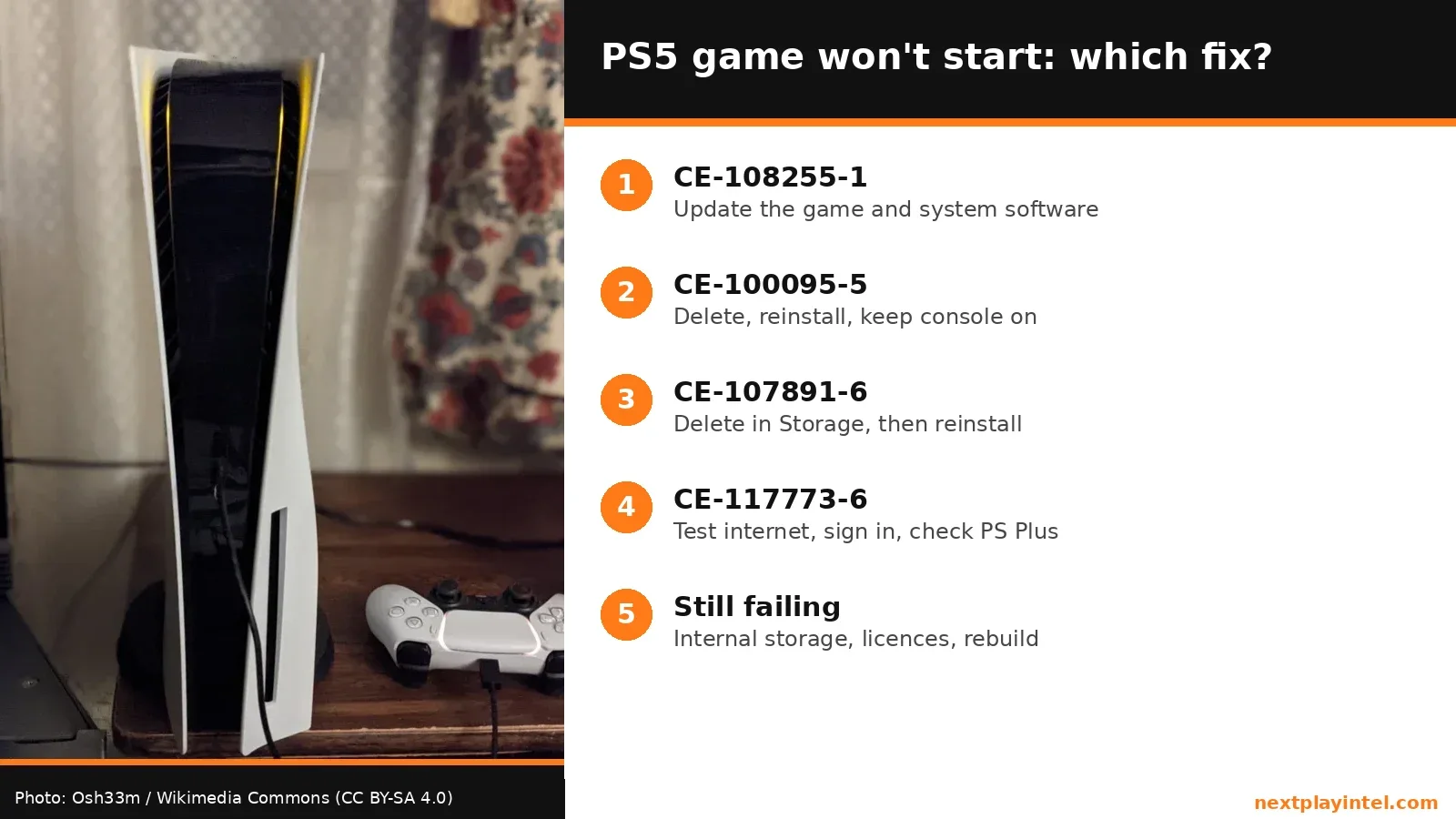
Quick Answer: Summary of Steps
Read the exact code. Each code points to a different fix.
Update the game and the PS5. Sony's fix for CE-108255-1.
Delete and reinstall the game. Sony's fix for CE-100095-5 and CE-107891-6.
Check sign-in and PS Plus. Sony's fix for CE-117773-6.
Move it off USB, restore licences, rebuild. Sony's general game-launch steps.
Prerequisites & Materials Needed
Required tools & items
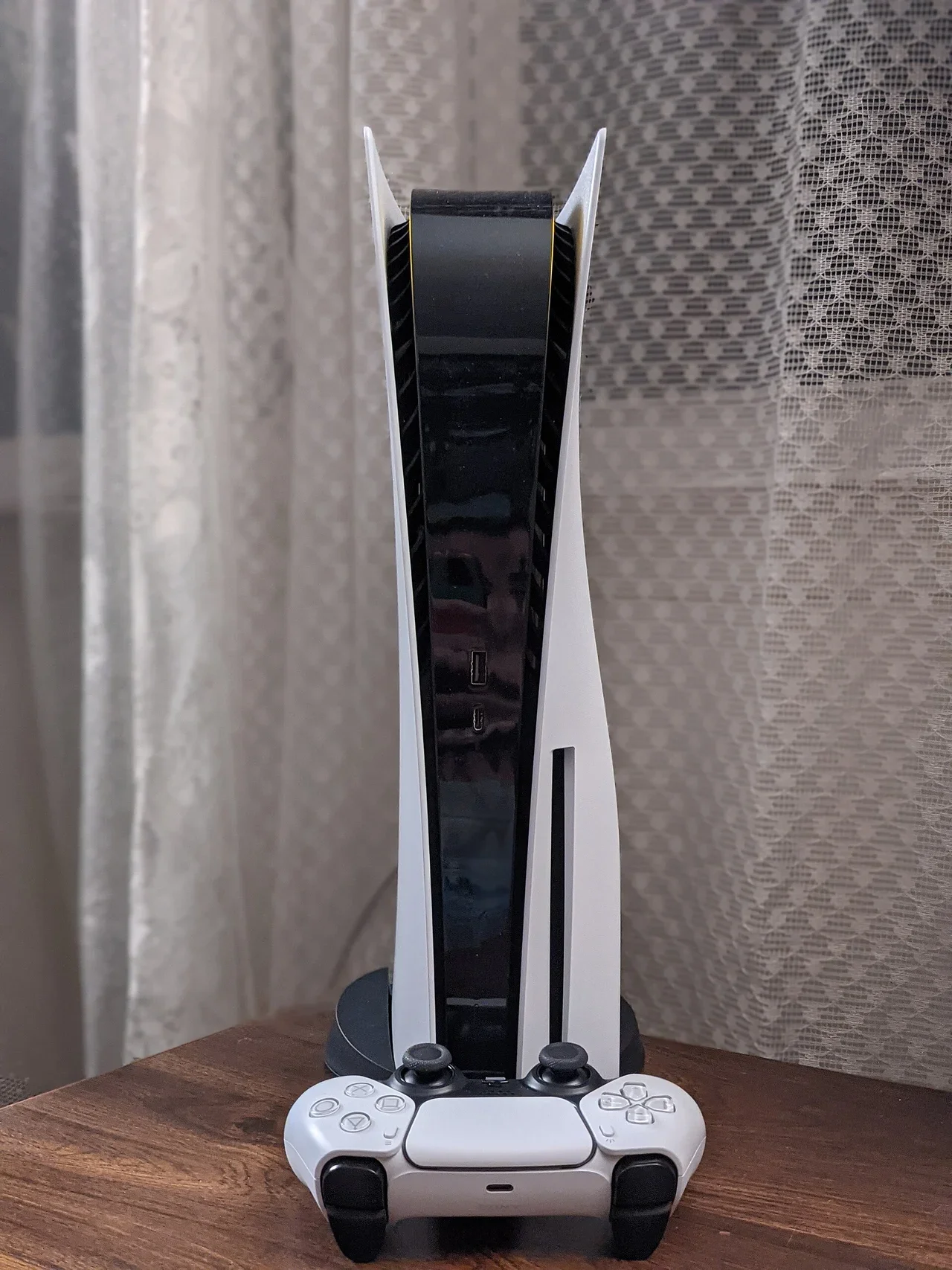
Your PS5, PS5 Digital Edition or PS5 Pro — signed in to the account that owns the game
An internet connection — for updates and the reinstall
Cloud or USB save backup — before deleting a game, if you're unsure saves are synced
Estimated time
Preparation: 5 minutes
Execution: 10 minutes to several hours (a full reinstall depends on game size and speed)
Problem and Likely Causes
Problem: a game won't start, crashes back to the Home screen, or won't finish installing, and the PS5 shows one of the codes below. These four codes look alike but Sony gives each a different fix, so one page with a code table is more useful than four near-identical pages.
Code | What Sony says | Sony's fix | Go to |
|---|---|---|---|
CE-108255-1 | An error occurred with the game/application | Update the game | Step 1 |
CE-100095-5 | There was an issue when starting the application | Delete, then reinstall with the console left on | Step 2 |
CE-107891-6 | Content isn't installing properly | Delete the game in Storage, then reinstall | Step 2 |
CE-117773-6 | An error has occurred on your PS5 | Test internet, sign in, update, check PS Plus | Step 3 |
Step-by-Step Instructions
Step 1: Update the game and system software (CE-108255-1)
A game that crashes with CE-108255-1 is often missing a patch the developer has already released.
Execute the action: highlight the game, press Options > Check for Update. Then Settings > System > System Software > System Software Update and Settings.
Pro Tip: turn on automatic updates for games so a fix lands before you next play.
How you know it worked: the game starts and stays running past the point where it crashed.
Look out for: if the same game crashes at the same spot after updating, Sony points to PlayStation Repairs; report it to the game's publisher too.
Step 2: Delete and reinstall the game (CE-100095-5, CE-107891-6)
Both codes point to a broken install. Deleting the game removes the damaged files; your save data is kept separately.
Execute the action: highlight the game, press Options > Delete. Or Settings > Storage > Console Storage > Games and Apps, select it and delete.
Reinstall from the Game Library or the disc. Sony says to keep the console powered on while the install runs; don't put it in rest mode mid-install for this fix.
Look out for: deleting the game doesn't delete its saves, but if you also delete Saved Data, unsynced progress is gone. Upload saves to cloud storage first if you have PS Plus.
Pro Tip: use a wired connection for the redownload if you can; Sony suggests it in its game-launch guide.
How you know it worked: the install completes and the game opens.
Step 3: Check sign-in, network and PS Plus (CE-117773-6)
Sony's steps for CE-117773-6 are about your connection and subscription, not the install.
Execute the action: Settings > Network > Connection Status > Test Internet Connection.
Make sure you're signed in to PlayStation Network, and that system software is current.
Check whether your PlayStation Plus subscription has expired if the game is from the PS Plus catalogue or needs online play.
How you know it worked: the test passes and the game launches. Sony says that if you can sign in and PS Plus is active, the issue is likely temporary; try again later.
Step 4: Move it off USB, restore licences, rebuild the database
If the game still won't start, follow Sony's general game-launch checklist, in this order.
If the game is on USB extended storage, move it to internal storage.
Restart the PS5 from Power > Restart PS5.
Restore licences: Settings > Users and Accounts > Other > Restore Licenses.
Start the PS5 in Safe Mode and choose Clear Cache and Rebuild Database.
When to contact official support: if the same code appears in several games after all of this, or you're asked to reinstall system software, back up first and contact PlayStation Support with the code, what you were doing, and a screenshot if possible.
What it costs
Prices checked 30 October 2026.
Item | US price (USD) | Note |
|---|---|---|
All fixes on this page | $0 | Updates, reinstall and Safe Mode are free |
PlayStation Plus (needed for cloud saves and catalogue games) | Unconfirmed here — see PlayStation's PS Plus page for your region | Only relevant for CE-117773-6 and save backups |
Out-of-warranty repair | Unconfirmed — quoted by PlayStation Repairs | Rarely needed for these codes |
Buying in India
If your PS5 was bought from Sony's authorised Indian retailers, warranty support is handled by Sony India's service network; keep the invoice. Imported consoles can still use these software fixes, since they don't depend on region. Current PS5 and PS5 Pro prices in USD and INR are on our PS5 guide and PS5 Pro guide.
Why this happens
CE codes are console-side errors. The ones here fire when a game's files, its licence or its online check fail at launch. A patch the game expects but doesn't have, files damaged by a power cut or a full drive mid-install, or a lapsed subscription all produce a crash rather than a helpful message, so the code is the best clue you get.
That's why the fixes differ: updating repairs a code bug, reinstalling replaces damaged files, and the network and PS Plus checks fix an entitlement problem. Doing them in the wrong order wastes hours of download time.
Fixes users report working (user-reported, not NextPlayIntel testing)
We couldn't open and verify individual user threads for these codes, so no user-reported fixes are quoted here. The fixes above all come from PlayStation Support.
Common Mistakes to Avoid
Reinstalling first for CE-108255-1. Sony's fix is an update; a reinstall costs hours.
Deleting Saved Data with the game. Unsynced progress is lost.
Putting the PS5 in rest mode mid-reinstall. Sony says to keep it powered on.
Jumping to a system software reinstall. It's the last resort and needs a backup.
Related NextPlayIntel guides
Frequently asked questions
What does PS5 error CE-108255-1 mean?
Sony says an error occurred with the game or application. Its fix is to update the game.
How do I fix CE-100095-5 on PS5?
Delete the game and reinstall it, keeping the console powered on during the install, as Sony advises.
Will deleting a PS5 game delete my saves?
No. Saved data is kept unless you delete it separately, but back up to cloud or USB first to be safe.
What is PS5 error CE-117773-6?
A general error Sony links to sign-in, network and PS Plus checks. If all are fine, Sony says it's likely temporary.
Sources & verification
Sources last verified on . This article covers published information, not hands-on testing.
Editorial & update notes
New page published 30 Oct 2026.