Set up a new PS5, PS5 Slim or PS5 Pro in about the order Sony recommends: stand first, cables next, then controller, updates and your account.
This guide summarises Sony's official setup page and Quick Start Guide, checked on 31 October 2026. NextPlayIntel did not test these steps on hardware; follow the linked official page if anything differs.
Quick Answer: Summary of Steps
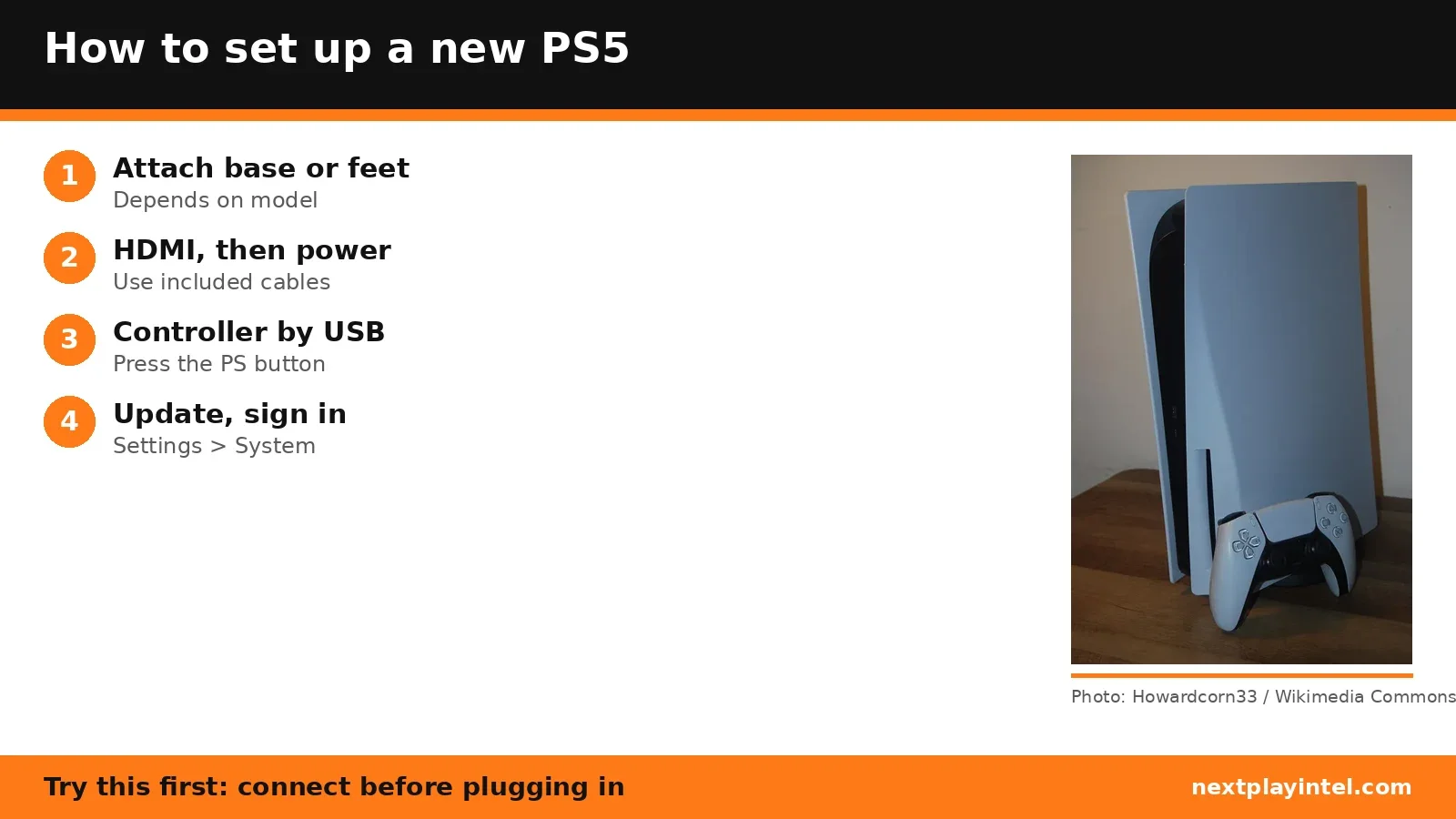
Attach the base (original PS5) or the horizontal feet (Slim and Pro).
Connect the included HDMI cable to the TV, then the AC power cord. Plug into the wall last.
Press the power button. The light blinks blue, then turns white.
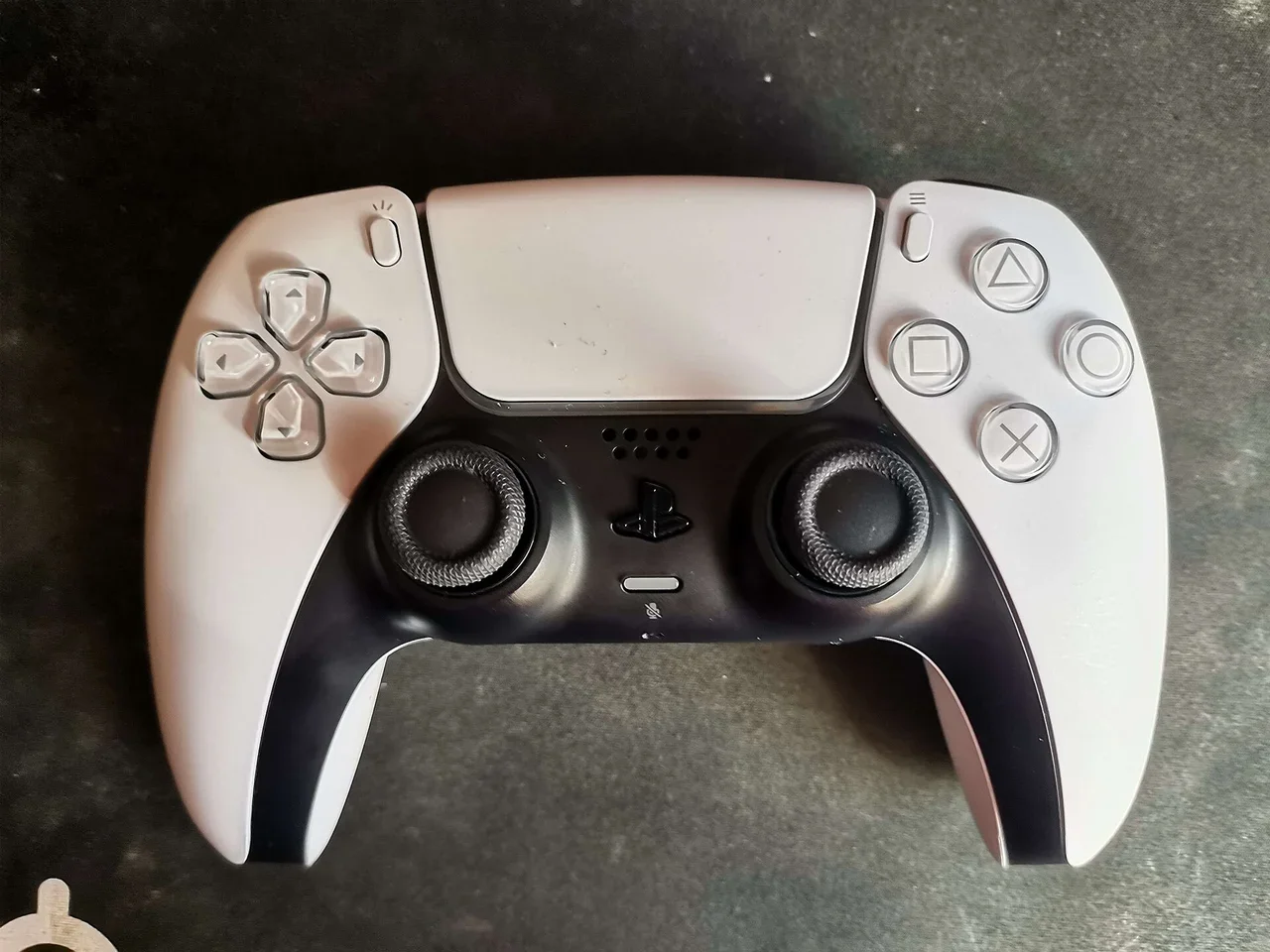
Connect the DualSense with a USB cable and press the PS button.
Follow the on-screen setup, update the system software and sign in to your PlayStation account.
Step 1: Attach the base or feet for your model
Model | What to attach | Vertical? |
|---|---|---|
PS5 Slim (CFI-2000) and PS5 Pro (CFI-7000) | Horizontal feet: long with a disc drive, short without | Needs the vertical stand, sold separately |
Original PS5 (CFI-1000) | The included base, for either position | Yes: rotate the base until it clicks, then fix it with the screw from the base |
Do this on a soft cloth on a flat surface. Sony says always attach the base or feet before use. Check your model number first if you are unsure.
Step 2: Connect HDMI and power
Plug the included HDMI cable into HDMI OUT on the back of the PS5.
Plug the other end into an HDMI input on your TV and select that input.
For wired internet, connect a LAN cable now. For Wi-Fi, leave it out.
Plug the AC power cord into AC IN on the PS5, then into the wall. Sony says to make all connections before plugging into the power supply.
Step 3: Turn on and pair the controller
Press the power button. The light blinks blue, then turns white. Connect the DualSense with the USB cable and press the PS button to pair it. If you leave the console idle for 60 seconds, the screen reader turns on.
Step 4: Finish on-screen setup
Select your language.
Set up your internet connection (later: Settings > Network > Settings > Set up Internet Connection).
Adjust display settings and choose Rest Mode power options.
Read and accept the user agreement.
If you are moving from a PS4, you can transfer data during setup. See transfer games and saves to PS5.
Step 5: Update and sign in
Go to Settings > System > System Software > System Software Update and Settings. "Update Available" appears if there is a newer version. Once up to date, sign in with your PlayStation account or create one. You can also sign in with the PlayStation App on your phone. Setup is done when "Welcome to PlayStation 5" appears.
If something goes wrong
No picture, a blinking light or a controller that will not pair? See the PS5 troubleshooting guide or the PS5 Pro troubleshooting guide, and look up codes in the PS5 error-code directory. To add storage, see the PS5 M.2 SSD install guide.
Frequently asked questions
Do I need to attach the stand to a PS5?
Yes. Sony says always attach the base (original PS5) or the feet (Slim and Pro) before use. Slim and Pro need the separately sold vertical stand to stand upright.
How do I pair a DualSense during PS5 setup?
Connect it to the console with a USB cable and press the PS button.
Can I move my PS4 data during PS5 setup?
Yes. Sony's Quick Start Guide says you can transfer data from a PS4 during setup after signing in.
How do I check for a PS5 system update?
Go to Settings > System > System Software > System Software Update and Settings.
Sources & verification
Sources last verified on . This article covers published information, not hands-on testing.
Editorial & update notes
New guide published 31 Oct 2026, based only on official manufacturer support pages. Not tested on hardware.