Fix the most common PS4 problems in order, from a frozen console or blank screen to stuck discs, full storage and failed updates, using Sony's official steps.
This guide summarises official PlayStation support pages checked on 31 October 2026. NextPlayIntel did not test these fixes on hardware; follow the linked official page if anything differs.
Quick Answer: Summary of Steps
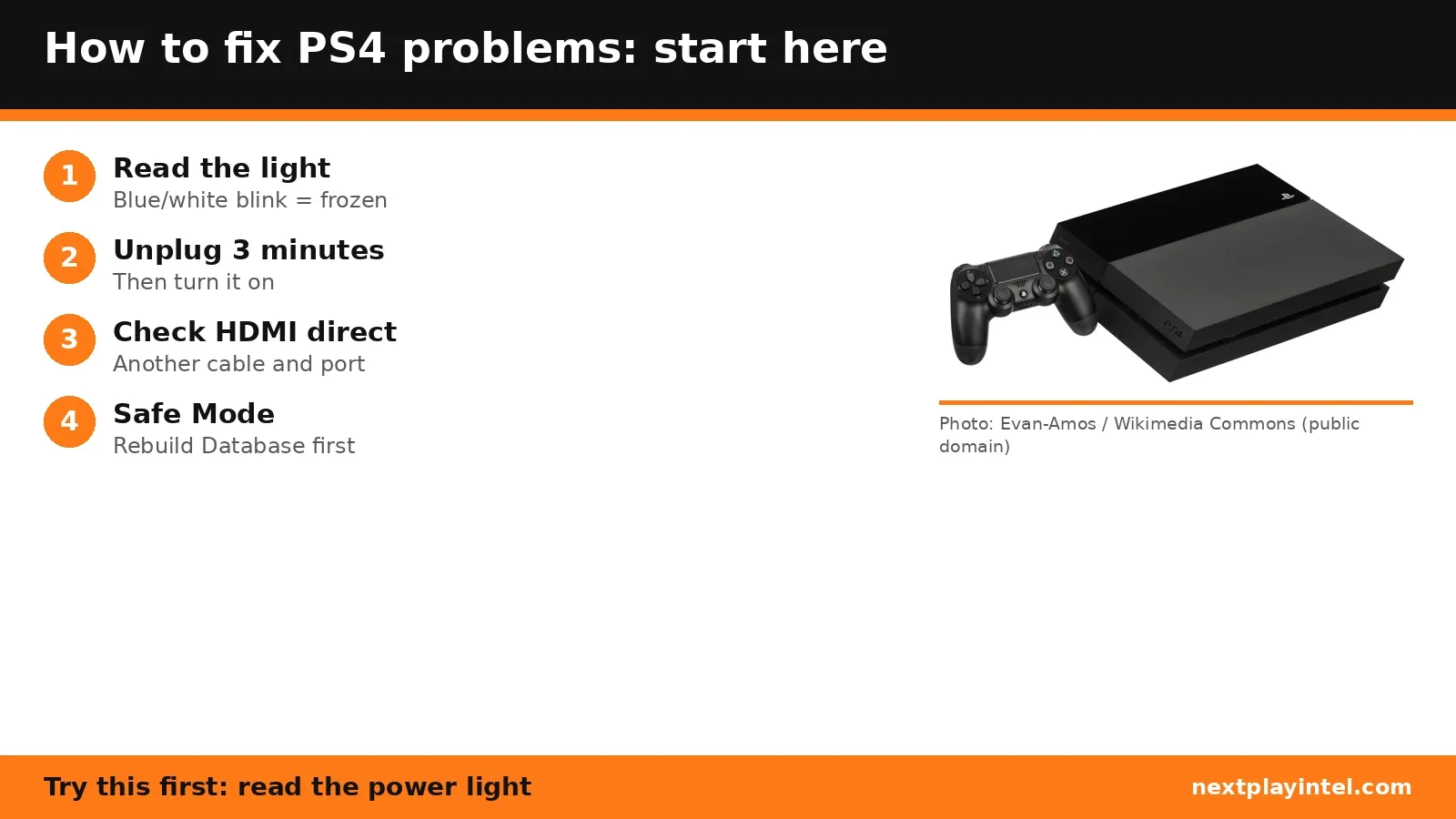
Check the power indicator colour and match it to the table below.
If the console is frozen, unplug it, wait 3 minutes, plug it back in and turn it on.
For no picture, check the HDMI cable, try another cable and another TV HDMI port.
If it overheats (pulsing red), turn it off, let it cool and move it somewhere well ventilated.
Update the system software, or use Safe Mode if the PS4 will not start normally.
Look up any error code in the NextPlayIntel error-code directory or on Sony's PS4 error-code page.
What the PS4 power light means
Light | Meaning | What to do |
|---|---|---|
Blinking white, or stays blue | Console is frozen | Unplug, wait 3 minutes, plug in and turn on. If it repeats, reinstall the software in Safe Mode. |
Pulses white, then off | Powering off | Normal. While off it cannot charge controllers or download. |
Solid orange | Rest mode | Normal. Hold the PS button on a paired controller to wake it. |
Pulsing red | Overheating | Turn off, let it cool, move to a ventilated spot, keep vents clear. |
No light | Powered off | Turn it on with the power button. |
Source: Power indicator lights on PS5 and PS4 consoles. If overheating continues, Sony points you to PlayStation Repairs.
No picture or no sound
Make sure the HDMI cable is firmly connected to both the PS4 and the screen.
Try a different HDMI cable. Sony says it should be a high-speed or premium high-speed HDMI cable.
If your TV has several HDMI ports, try another one and make sure the right input is selected.
Still blank? Start Safe Mode and choose Change Resolution, which restarts the PS4 at 480p.
Source: PS4 picture and sound issues.
How to start the PS4 in Safe Mode
Turn the console off by holding the power button for three seconds. The light blinks, then goes off.
Press and hold the power button again.
Release it after the second beep. One beep sounds when you press, the second about seven seconds later.
Connect the controller with a USB cable and press the PS button.
Which Safe Mode option to pick
Option | Deletes data? | Use it when |
|---|---|---|
Restart System | No | To leave Safe Mode |
Change Resolution | No | Blank screen; restarts at 480p |
Update System Software | No | Updates by download, USB or disc |
Restore Default Settings | No (keeps games and saves) | Settings problems |
Rebuild Database | No | Slow menus, or a deleted game icon still shows |
Initialize PS4 | Yes, all user data | Last resort; back up first |
Initialize PS4 (Reinstall System Software) | Yes, data and firmware | Only when told to reinstall |
Set HDCP Mode (PS4 Pro) | No | No picture on a 4K TV without HDCP 2.2 |
Back up to a USB drive or PS Plus cloud storage before any option that deletes data. Source: Safe Mode on PS5 and PS4.
Update the system software from USB
On a PC or Mac, format a USB drive as FAT32 or exFAT.
Create a folder named PS4, and inside it a folder named UPDATE.
Download the update file from Sony and save it in UPDATE as PS4UPDATE.PUP.
Plug the drive into the PS4 and choose Update System Software in Safe Mode.
Source: How to update PS4 system software.
Disc stuck in the drive
Turn off the PS4 and unplug the power, HDMI and other cables. Sony shows a manual eject screw hole, but its position depends on the model (for example CUH-1200 and CUH-2015 consoles differ), so follow the diagram for your model on Sony's stuck-disc page. Turn the screw anti-clockwise to release the disc, then reconnect the cables and power on.
Storage full or save data problems
Go to Settings > Application Saved Data Management to move saves between system storage, USB storage and PS Plus online storage. Source: Manage PS4 storage space.
Back up, add storage and move to PS5
Sony gives four ways to protect or move PS4 data. Pick by what you need: more space, a full safety copy, just your saves, or a move to PS5.
Add USB extended storage
Needs PS4 system software 4.50 or later and an external drive of 250 GB to 8 TB on SuperSpeed USB 5 Gbps or faster.
Only games, apps and add-ons go on it. Saved data, themes, screenshots and clips stay on the console.
Use one extended storage drive at a time, plugged straight into the PS4 (not through a USB hub).
Format it: Settings > Devices > USB Storage Devices, pick the drive, then Format as Extended Storage. This erases the drive.
Install new games there: Settings > Storage, press OPTIONS, then Application Install Location > Extended Storage.
Move existing games: Settings > Storage, pick the storage, Applications, press OPTIONS, then Move to Extended Storage.
Before unplugging it with the PS4 on, choose Stop Using Extended Storage from the quick menu.
Source: USB extended storage on PS4 consoles.
Make a full backup to USB
A full backup copies games and apps, saved data, screenshots, clips and settings (not trophies). You need a FAT32 or exFAT USB drive with at least twice the space of the backup. Restoring erases everything on the PS4 first.
Sync trophies: Trophies, press OPTIONS, Sync Trophies With PSN.
Insert the USB drive.
Go to Settings > System > Back Up and Restore and select Back Up.
Choose what to include, name the backup and select Back Up. Don't turn the PS4 off while it runs.
If you've never signed in to PSN, saved data can only be restored to the same PS4. Source: How to back up and restore PS4 console data.
Copy just your saves (USB or cloud)
To USB: Settings > Application Saved Data Management > Saved Data in System Storage > Copy to USB Storage Device, pick the game and saves, then Copy. Use Saved Data on USB Storage Device > Copy to System Storage to bring them back. Source: How to manage PS4 console storage space.
To the cloud (PlayStation Plus): turn on Stay Connected to the Internet in Settings > Power Saving Settings > Set Features Available in Rest Mode, then Enable Automatic Uploads under Settings > Application Saved Data Management > Auto-Upload. You can also upload or download single saves there. PS Plus holds up to 100 GB of PS4 saves (1,000 files). Source: PlayStation Plus online storage for PS4 consoles.
Moving to a PS5
Transfer over your home network from the PS5 (during or after setup), plug your PS4 extended storage drive into the PS5 to play the PS4 games on it, or download saves from PS Plus cloud storage. Our PS4 and PS5 transfer guide has the steps. Source: Transfer data from a PS4 console to your PS5 console.
Internet problems
Follow Sony's set up an internet connection guide and check PlayStation Network status before changing settings.
DualShock 4 controller not working
If the controller won't pair, keeps disconnecting, or its buttons, sticks, vibration or battery misbehave, Sony's first step is to reset it:
Turn off and unplug the PS4.
Unplug the DualShock 4 from its USB cable.
Find the tiny reset hole on the back of the controller.
Press and hold the button inside it with an unfolded paper clip for at least five seconds.
Connect the controller to a front or rear USB port on the PS4 with the official USB cable.
Press the PS button to pair it.
If it still fails after a reset, Sony's page has separate checks for buttons and sticks, vibration, pairing, disconnects and the battery, then points to PlayStation Repairs. Source: How to troubleshoot DUALSHOCK 4 wireless controller issues.
Error codes
Search the NextPlayIntel error-code directory or Sony's PS4 error-code list. For newer consoles, see the PS5 troubleshooting guide.
Common PS4 codes with Sony fixes: PS4 error-code directory.
When to contact Sony
If the PS4 still fails after Safe Mode, or it keeps overheating with clear vents, use PlayStation Support for repair options.
Frequently asked questions
What does a blinking blue light on PS4 mean?
If the light stays blue or only blinks white, Sony says the console is frozen. Unplug it, wait 3 minutes, then plug it back in and turn it on.
How do I get into Safe Mode on PS4?
Turn the PS4 off, then hold the power button and release it after the second beep, about seven seconds later. Connect the controller by USB and press the PS button.
Does Rebuild Database delete my games?
No. Sony says Rebuild Database scans the drive and builds a new content database. Initialize PS4 is the option that deletes user data.
What does a pulsing red light on PS4 mean?
The console is overheating. Turn it off, let it cool, and move it to a well-ventilated place with the vents clear.
Sources & verification
Sources last verified on . This article covers published information, not hands-on testing.
- PlayStation Support: Power indicator lights
- PlayStation Support: Safe Mode
- PlayStation Support: PS4 picture and sound issues
- PlayStation Support: Eject a stuck PS4 disc
- PlayStation Support: Manage PS4 storage
- PlayStation Support: PS4 system software
- PlayStation Support: Internet connection
- PlayStation Support: PS4 error codes
- PlayStation Support: Troubleshoot DUALSHOCK 4
- PlayStation Support: PS4 extended storage
- PlayStation Support: Back up and restore PS4
- PlayStation Support: PS Plus online storage (PS4)
- PlayStation Support: Transfer PS4 data to PS5
Editorial & update notes
New guide published 31 Oct 2026, based only on official manufacturer support pages. Not tested on hardware.