Fix the most common Xbox One, One S and One X problems in order, from power and picture to controllers, discs and resets, using Microsoft's official steps.
This guide summarises Xbox Support pages checked on 31 October 2026. Many of these pages cover Xbox One and Series X|S together; this guide keeps only the Xbox One details. NextPlayIntel did not test these steps on hardware; follow the linked official page if anything differs.
Quick Answer: Summary of Steps
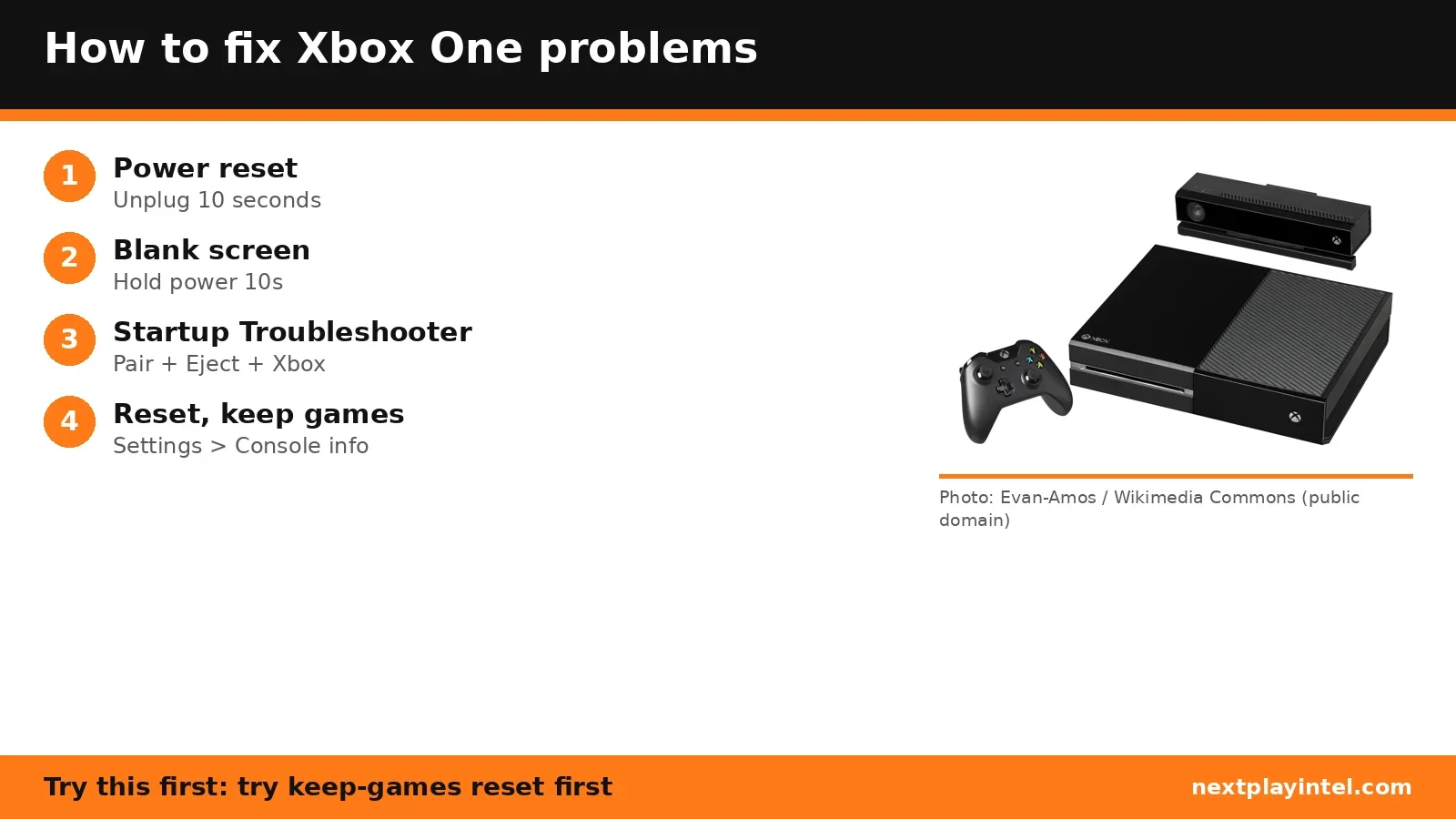
No power: reset the power supply.
Blank screen: check HDMI, hold power 10 seconds, then try low-resolution mode.
Controller problems: fresh batteries, power cycle, then a USB cable.
Stuck disc: restart and eject, then use the manual eject hole.
Still failing: use the Startup Troubleshooter or reset and keep games and apps.
Console will not turn on
Xbox One S and One X have an internal power supply. Unplug the power cord, wait 10 seconds, plug it back in and press the Xbox button. If it still fails, check the outlet and cable, and use the cable that came with the console. The original Xbox One uses an external power supply with its own reset steps, linked from Microsoft's console won't turn on page. If nothing works, request service through Microsoft Device Services.
Blank screen
Check the TV is on the right HDMI input, and that the cable is in the console's "out to TV" port.
Try another TV port, another HDMI cable or another TV.
Hold the power button for 10 seconds to turn off, then turn back on.
Low-resolution mode: eject any disc, turn off with a 10-second hold, then hold Power and Eject until the second beep (about 10 seconds). On the One S All-Digital Edition, hold the Xbox button and Pair instead. The console starts at 640 × 480.
Blank screen with Blu-ray only: turn off Allow 24Hz in Settings > General > TV & display options > Video modes.
Controller will not connect or turn on
Replace the batteries or fully charge the controller.
Hold the Xbox button 5 to 10 seconds to turn it off, then on again.
Power cycle the console: hold its Xbox button about 10 seconds, unplug for 30 seconds, plug back in.
Connect the controller with a USB to micro-USB cable (Xbox One controllers) that supports data.
Update firmware: Settings > Devices & connections > Controllers & headsets, select "…" under the controller.
Disc stuck
Restart the console from the Power Center and press eject. If that fails, unplug all cables and push a large straightened paper clip (it must reach about 5 cm) into the eject hole on the left side of the console. On the original Xbox One it is in plain view below the grille. On the One S, Microsoft says start with the hole second from the right and second from the bottom of the grille, just below the controller pair button.
Startup Troubleshooter and reset
Turn the console off. Hold Pair and Eject and press the Xbox button on the console (One S All-Digital: Pair only).
Keep holding 10 to 15 seconds until two power-up tones sound.
In the Startup Troubleshooter, choose Reset this Xbox > Keep games and apps first.
If the console works, you can reset from Settings > System > Console info > Reset console. "Reset and remove everything" deletes all data; use it only as a last resort or before selling.
If you cannot reach any menu, Microsoft also offers an offline reset and offline system update from a 4 GB+ NTFS USB drive. Follow the official pages exactly.
Error codes and more help
Search the Xbox error-code directory. Newer console? See the Xbox Series X|S troubleshooting guide or the console troubleshooting hub.
Frequently asked questions
How do I reset an Xbox One S power supply?
Unplug the power cord from the console, wait 10 seconds, plug it back in and press the Xbox button. The One S and One X have an internal power supply.
How do I get to the Xbox One Startup Troubleshooter?
Turn the console off, hold Pair and Eject, press the Xbox button, and keep holding 10 to 15 seconds until two power-up tones sound. On the One S All-Digital Edition, hold Pair only.
Will resetting my Xbox One delete my games?
Not if you choose Reset and keep my games & apps. Reset and remove everything deletes all accounts, saves, settings and installed content.
Sources & verification
Sources last verified on . This article covers published information, not hands-on testing.
Editorial & update notes
New guide published 31 Oct 2026, based only on official manufacturer support pages. Not tested on hardware.