Short answer: go to Settings > Storage > Console Storage to see what's using space, then delete games you've finished from Games and Apps. Your purchases stay in your Game Library, so you can download them again later. If you'd rather not delete anything, move games to USB extended storage or add an M.2 SSD, and copy captures and saves off the console first.
Big launches make this urgent. Rockstar says the GTA VI pre-load needs up to 212 GB depending on your device, which is a large slice of any PS5's built-in SSD. This guide puts every official way to make room in one place, in the order we'd try them, using PlayStation Support's US pages, which we checked on 10 November 2026. Menu names can shift slightly between system updates, so follow your screen if a label differs.
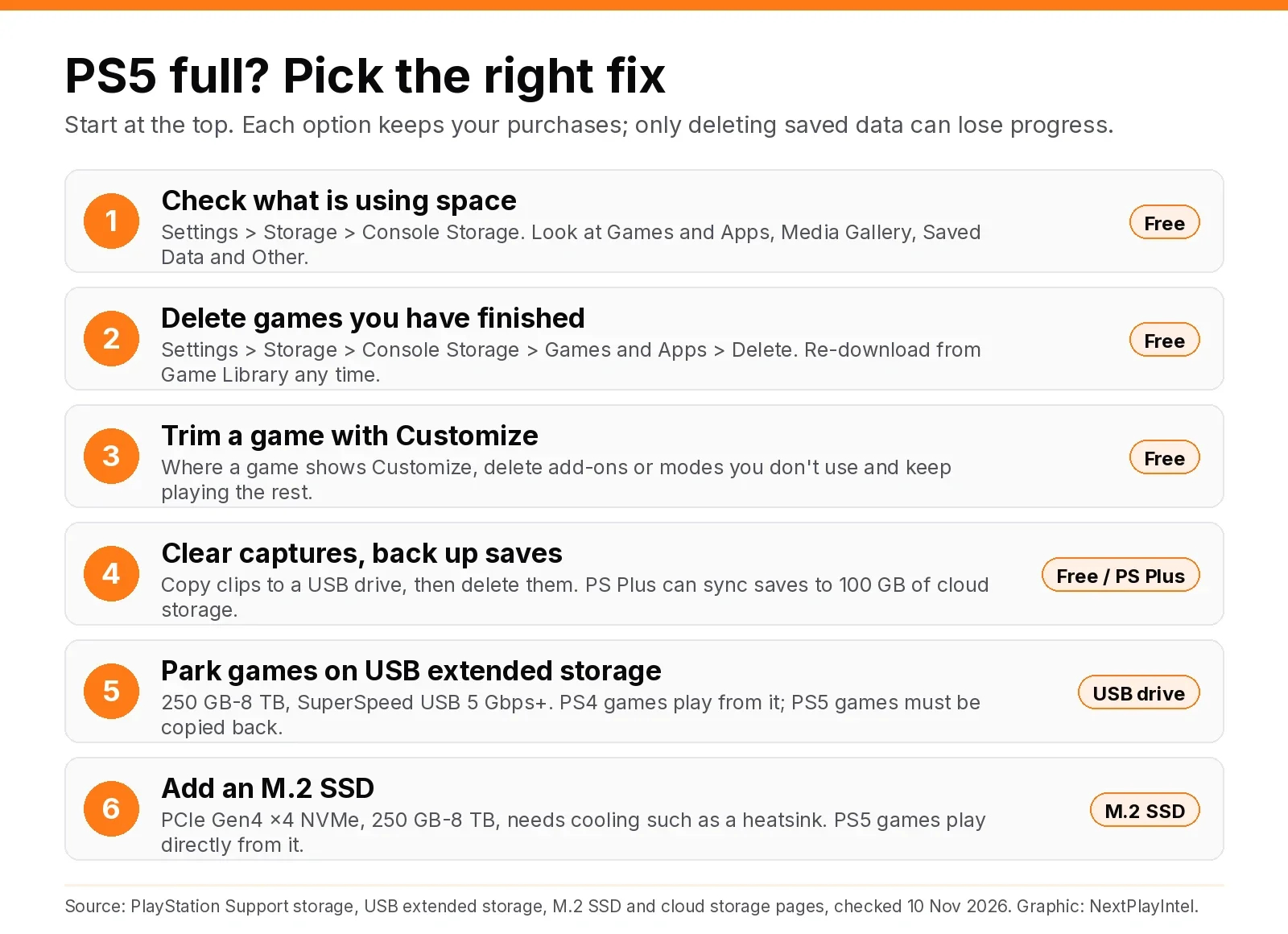
Step 1: See what's using your PS5 storage
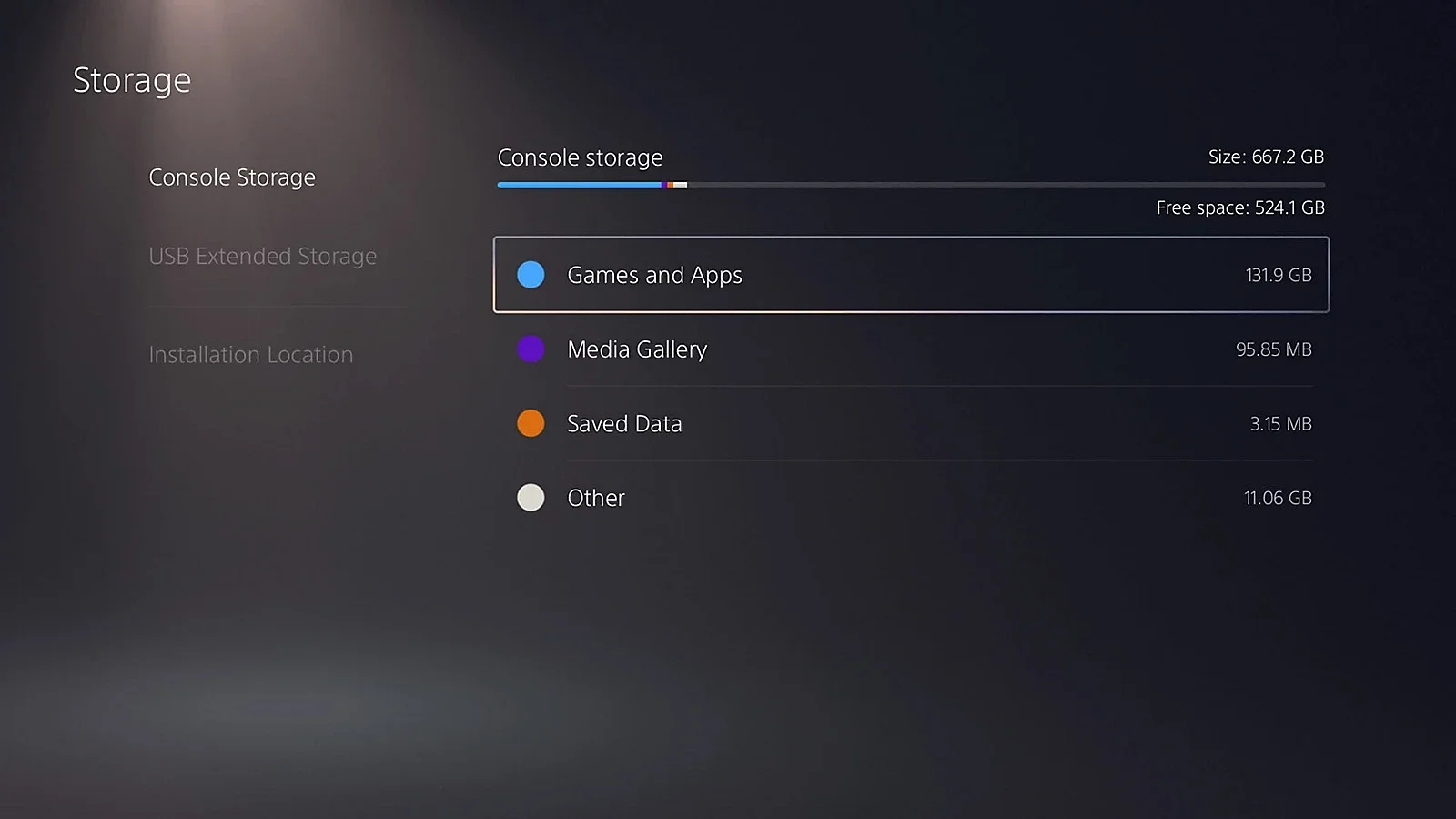
Go to Settings > Storage from the home screen. Console Storage shows the total size, how much is free, and four categories: Games and Apps, Media Gallery (screenshots and video clips), Saved Data and Other. In Sony's own example, Games and Apps takes 131.9 GB while captures and saves take only megabytes, so deleting or moving a single game usually makes the biggest difference.
The total you see is smaller than the number on the box, because some of the SSD is reserved for system software. In the Storage screenshot on PlayStation Support's own page, the console storage size reads 667.2 GB. PlayStation Blog posts list 825 GB for the launch PS5, 1 TB for the slimmer 2023 PS5 and 2 TB for PS5 Pro.
PS5 model | SSD listed by Sony | Expansion options |
|---|---|---|
PS5 launch model (CFI-1000) | 825 GB | M.2 SSD slot, USB extended storage |
PS5 and PS5 Digital Edition, 2023 slim design (CFI-2000) | 1 TB | M.2 SSD slot, USB extended storage |
PS5 Pro (CFI-7000) | 2 TB | M.2 SSD slot, USB extended storage |
Usable space is lower than every figure in this table. Check the exact number on your own console in Settings > Storage. A Japan-only PS5 Digital Edition model (CFI-2200, Japanese language only) ships with 825 GB, according to PlayStation Blog Japan.
Step 2: Delete games you've finished
This is the fastest fix and it's free. PlayStation Support says you won't lose access to deleted games or apps, because you can re-download your purchases from your Game Library whenever you like.
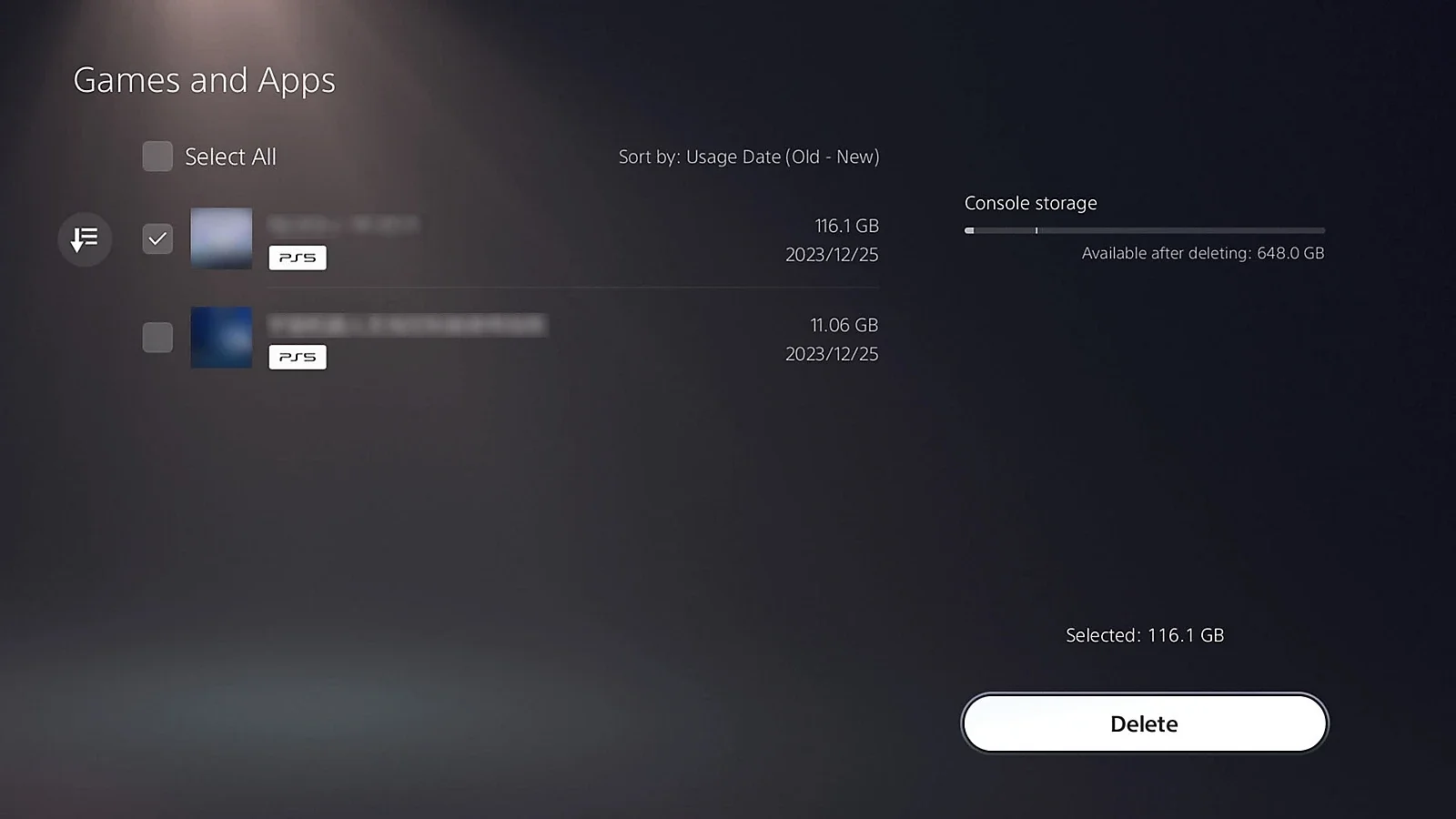
Go to Settings > Storage > Console Storage > Games and Apps.
Tick the games you want to remove. You can sort the list; Sony's example sorts by usage date, oldest first, which puts games you haven't touched in a while at the top.
Select Delete. The screen shows how much space you'll have after deleting before you confirm.
You can also delete straight from the home screen: highlight a game, press the options button and select Delete.
Keep part of a game. When Customize appears next to a game in that list, you can delete only some of its data, such as add-ons you don't use or parts you've already finished, and still play the rest. Not every game offers this.
Disc games still install. Deleting a disc game removes its installed data, not your copy of the game. You'll need the disc to install it again.
Step 3: Clear captures and back up saved data
Screenshots and clips usually take far less room than games, but 4K video adds up. Saved data is tiny, and it's the one thing you can't re-download if it isn't backed up, so handle it carefully.
Data | Where you can put it | Menu path |
|---|---|---|
Screenshots and video clips | USB drive (FAT or exFAT), then delete from the console | Media Gallery > select a capture > More > Copy to USB Drive. Use Select Multiple for several at once |
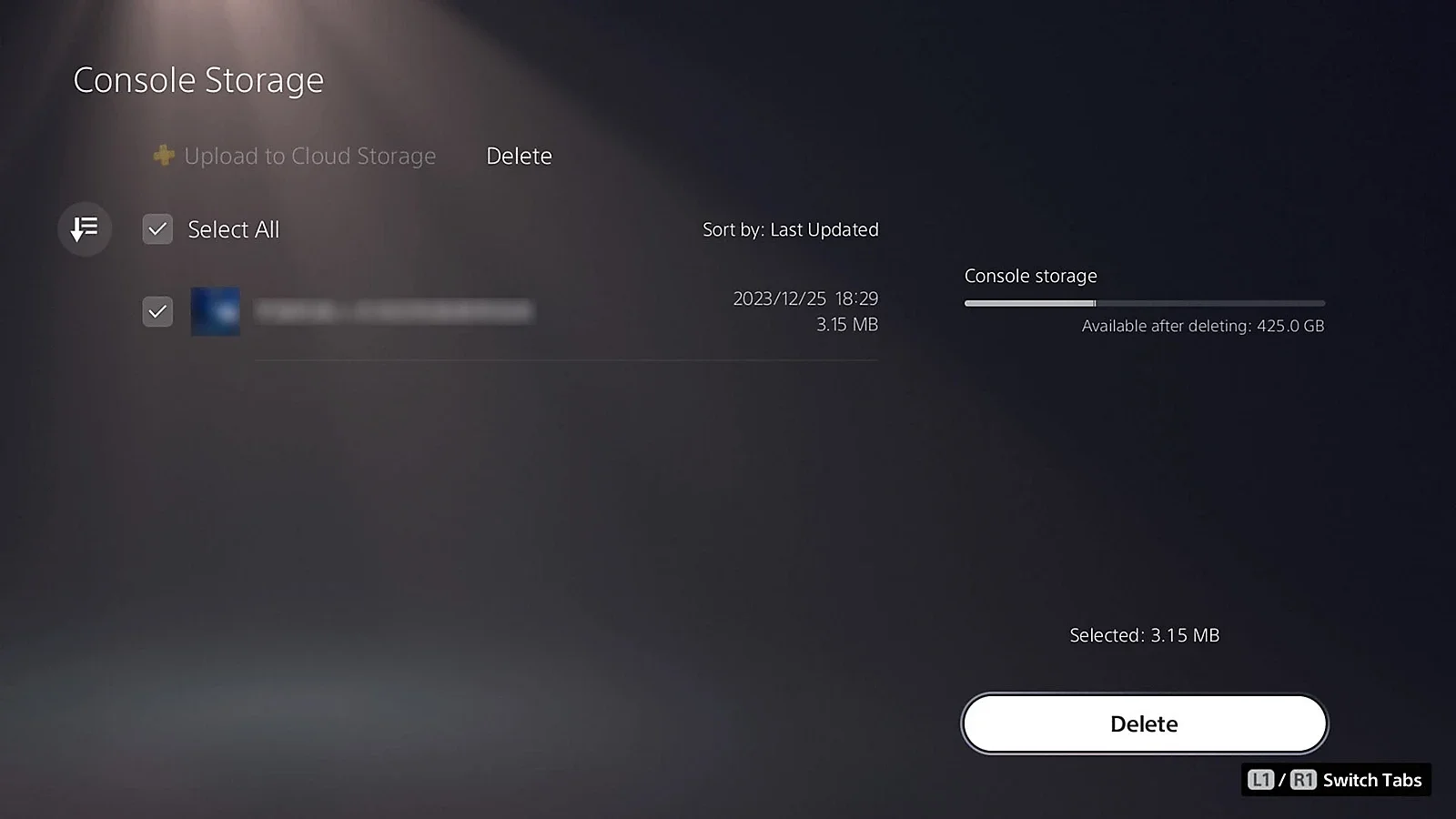
PS5 saved data | PlayStation Plus cloud storage (up to 100 GB) | Settings > Saved Data and Game/App Settings > Saved Data (PS5) |
PS4 saved data | PS Plus cloud storage (up to 100 GB) or a USB drive | Settings > Saved Data and Game/App Settings > Saved Data (PS4) > Upload or Delete from Console Storage |
PlayStation Support's table of storage locations is clear that PS5 saved data can go to cloud storage only, not to a USB drive. Cloud storage needs a PlayStation Plus membership. Don't delete saved data from the console unless you're sure it's in the cloud or you no longer need it.
Step 4: Move games to USB extended storage
A USB drive formatted as USB extended storage is the cheapest way to keep games you'll come back to without re-downloading them. What it can and can't do matters:
PS4 games can be installed to it and played straight from it.
PS5 games can be stored on it, but not played from it. Copy the game back to console storage or an M.2 SSD when you want to play, which is usually much faster than downloading it again.
The drive needs SuperSpeed USB 5 Gbps or faster and a capacity between 250 GB and 8 TB. Don't connect it through a USB hub, and only one extended storage drive works at a time.
Connect the drive to a SuperSpeed USB port on the console.
Go to Settings > Storage > USB Extended Storage > Format as USB Extended Storage. Formatting erases everything on the drive.
Open Game Library, highlight a game, press the options button and select Move Games and Apps. Tick any other games and select Move.
More detail, including which drives to buy, is in our guide to PS5 games on USB storage.
Step 5: Add an M.2 SSD for permanent extra space
If you're always juggling space, an M.2 SSD is the only way to add storage that PS5 games can run from. PlayStation Support says games on M.2 storage can be downloaded, updated and played there, and you can move games freely between console storage, the M.2 SSD and USB extended storage.
Requirement (PlayStation Support) | What it means |
|---|---|
PCIe Gen4 x4 M.2 NVMe SSD (Key M) | M.2 SATA SSDs aren't supported |
250 GB to 8 TB | The supported capacity range |
Sequential read of 5,500 MB/s or faster recommended | Slower drives may not match the internal SSD in every game |
Cooling such as a heatsink or heat transfer sheet | Sony says not to use an M.2 SSD without one |
Form factor 2230, 2242, 2260, 2280 or 22110 | Including the heatsink, it must fit the slot's size limits |
After installing, set Settings > Storage > Installation Location to the M.2 SSD so new downloads go there. One rule catches people out: all data for a game has to sit in one place, so a game can't be split between console storage and the M.2 SSD. Our step-by-step PS5 M.2 SSD install guide covers the hardware side.
Delete games from your phone with PlayStation App
If your PS5 is linked to PlayStation App, open the app and go to Settings > PS5 Storage. It shows free space on console storage and on USB extended storage, if connected, and you can pick games to delete. The app can't move or copy games.
How much free space should you leave for a big game?
More than the download size. PlayStation Support's page for error CE-107872-5, which appears when console storage is too full, says that when installing data it may be necessary to reserve approximately twice the free space required. Updates and day-one patches also need room. So for a large game, aim for a comfortable margin above the size the publisher gives rather than an exact fit.
For GTA VI that means planning around Rockstar's "up to 212 GB" figure plus headroom. Our GTA VI file size and storage guide and how to pre-load a game on PS5 cover the launch timings.
Error or message | What PlayStation says | First thing to try |
|---|---|---|
CE-100028-1 | There is not enough free space on the SSD | Check Settings > Storage, delete data, then retry the download |
CE-107872-5 | There is not enough free space on the console storage | Free more space than the download needs, or use extended storage, then retry |
If a download still won't move after you've made room, see our PS5 download stuck guide.
Which option should you choose?
Option | Cost | Can PS5 games run from it? | Best for |
|---|---|---|---|
Delete games | Free | Not applicable | Games you've finished or rarely play |
Customize (partial delete) | Free | Yes, the rest of the game stays | Big games with modes or add-ons you skip |
USB extended storage | Price of a USB drive | No (PS4 games yes) | Keeping a library without re-downloading |
M.2 SSD | Price of an SSD plus cooling | Yes | Running out of space every month |
PS Plus cloud saves | Included with PlayStation Plus | Not applicable | Protecting saves before you delete |
What we checked
We read PlayStation Support's US pages on managing PS5 storage, USB extended storage, M.2 SSDs, PlayStation Plus cloud storage, the Media Gallery and errors CE-100028-1 and CE-107872-5, plus the PlayStation App support page, on 10 November 2026. SSD capacities come from PlayStation Blog posts announcing each model. The screenshots are Sony's. We haven't measured install space on our own console, so the headroom advice follows PlayStation's wording rather than our own test.
Want to move everything to a new console instead? See how to transfer games and saves to a PS5, and for model specs our PS5 and PS5 Pro pages.
Frequently asked questions
Will deleting a game on PS5 delete my saves?
No. Deleting a game from Games and Apps removes the game data, while saved data is listed separately under Saved Data. Back saves up to PS Plus cloud storage anyway if you're about to clear Saved Data.
Do I have to buy a game again after deleting it?
No. PlayStation Support says you can re-download your purchases from your Game Library whenever you like. Disc games need the disc to reinstall.
Can I play PS5 games from a USB drive?
No. PS5 games can be stored on USB extended storage but must be copied back to console storage or an M.2 SSD to play. PS4 games can be played straight from USB extended storage.
Why is my PS5 storage smaller than advertised?
Part of the SSD is reserved for system software and other features, so the Console Storage total in Settings is lower than the 825 GB, 1 TB or 2 TB listed for each model.
How much space does GTA VI need on PS5?
Rockstar says the pre-load needs up to 212 GB depending on your device. Leave extra room on top for installation and updates.
Sources & verification
Sources last verified on . This article covers published information, not hands-on testing.