

Short answer: create a child account and add it to your family, then go to Settings > Family and Parental Controls > Family Management, pick the child and set an age level, a monthly spending limit and playtime. Finish by setting a console restriction passcode so your child can't undo it. A new child account has a monthly spending limit of 0, so nothing can be bought until you change it.
This guide covers PS5 parental controls from start to finish: adding a child, the preset restriction levels, spending limits, playtime, communication limits, exceptions for a single game and the passcodes that stop a child changing settings. It also explains what the controls mean for a very mature game such as GTA VI, which launches on 19 November 2026. The steps come from PlayStation Support's US and India pages, which we checked on 3 November 2026. Menu names can change with system updates, so follow your screen if it differs slightly.
What you need before you start
A PlayStation account for you, the family manager. There can only be one family manager in a family.
A separate child account for each child, created with their own name and date of birth.
Your child signed in on their console and email verification completed. PlayStation says this is needed for parental controls to work properly.
Optional: the free PlayStation Family app on your phone, which lets you change the same controls and keep an eye on playtime.
How to add a child to your family on PS5
Sign in, then select your profile icon at the top right of the home screen.
Select Switch User > Add User > Get Started.
Select Create an Account.
Follow the on-screen steps to set up the account and choose parental controls.
You can also do this on the web: sign in to Account Management, select Family Management, then Set Up Now > Add a Child. PlayStation's family guide explains the other roles. A parent or guardian is an adult you appoint who can set parental controls and make exceptions. A regular adult member cannot set parental controls for children.
The preset restriction levels
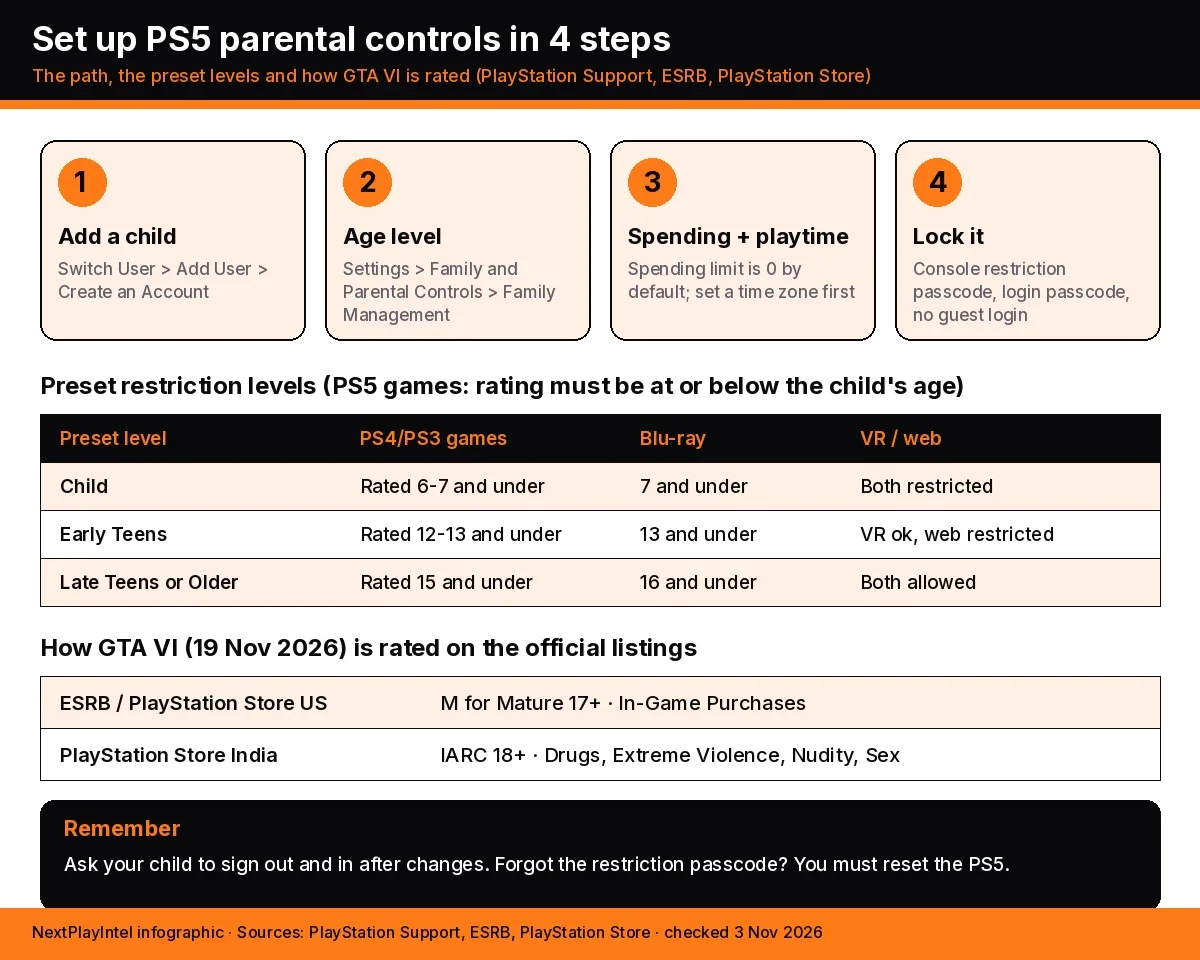
PS5 starts you with a preset level and lets you change individual settings afterwards. If you change one, the level shows as Customise. The table below shows what PlayStation lists for each level.
Setting | Child | Early Teens | Late Teens or Older |
|---|---|---|---|
PS5 games and apps | Start if the age rating is the same as or lower than the child's age | Same rule | Same rule |
PS4 and PS3 games | Rated 6 or 7 and under | Rated 12 or 13 and under | Rated 15 and under |
Blu-ray Disc | Rated 7 and under | Rated 13 and under | Rated 16 and under |
PlayStation VR and VR2 | Restrict | Don't restrict | Don't restrict |
Web browsing | Restrict | Restrict | Don't restrict |
Communication and user-generated content | Restrict | Restrict | Restrict |
Monthly spending limit | 0 | 0 | 0 |
Note that every preset keeps communication restricted and the spending limit at 0. If your teenager plays online with friends or buys games, you'll need to change those two settings yourself.
How to set the age level for games
Go to Settings > Family and Parental Controls > Family Management.
Select your child.
Choose Restriction Level for a preset, or open Age Level for Games and Apps to change that setting on its own.
Save your changes. If your child is playing at that moment, ask them to sign out and back in so the change takes effect.
What the controls mean for GTA VI
GTA VI is the game most parents are asking about this month. It is due on 19 November 2026 on PS5 and Xbox Series X|S (see our GTA VI guide for the latest). The ratings below come straight from the official listings, which we checked on 3 November 2026.
Where | Rating shown | Content descriptors listed |
|---|---|---|
ESRB (US and Canada) | M for Mature 17+ | Blood and Gore, Intense Violence, Mature Humor, Nudity, Strong Language, Strong Sexual Content, Use of Drugs and Alcohol. Also lists In-Game Purchases. |
PlayStation Store US | ESRB Mature 17+ | Same ESRB descriptors, plus In-Game Purchases |
PlayStation Store India | IARC 18+ | Drugs, Extreme Violence, Nudity, Sex. Also lists In-Game Purchases. |
Different regions use different rating systems, so the same game can show a different age on different stores. India has no ESRB or PEGI label on the PlayStation Store listing: it shows an IARC 18+ rating. Check the rating on the store page for your own region.
What this means in practice:
PlayStation says PS5 games can start if their age rating is the same as or lower than the child's age. By that rule a game rated 17+ will not start for a child under 17, and a game rated 18+ will not start for a child under 18. This is our reading of PlayStation's rule, not a statement about GTA VI specifically, so test it on launch day.
A restricted game shows a block screen. Your child can send you a request, and you can allow it as the family manager or an appointed parent or guardian. For a game like GTA VI, think carefully before approving.
Because GTA VI lists in-game purchases, keep the monthly spending limit at 0 unless you are comfortable with what your child can buy. PlayStation says payments come out of the family manager's wallet.
Pre-orders and preloads are tied to the account that bought the game. See our guides to the
and
if you are planning a purchase for the household.
If you want a rating-based overview of the series, our guide to the GTA games covers how earlier titles were rated.
How to set a monthly spending limit
When a child buys something on PlayStation Store, the money comes from the family manager's wallet, so this setting matters more than most.
Go to Settings > Family and Parental Controls > Family Management.
Select your child.
Select Parental Controls > Monthly Spending Limit.
Enter the amount you are happy for them to spend each month and save.
The limit is 0 by default, so change it if your child will ever buy something.
A parent or guardian you appoint can change spending limits too, so tell the family manager if you adjust it.
Prices are shown in your region's currency. For Indian accounts that is rupees, so check the amount you type in.
How to set playtime limits
Playtime is separate from the age level. PlayStation lets family managers and appointed guardians set when, and for how long, each child can play. These steps work on PS5; the PlayStation Family app and the web do the same.
Go to Settings > Family and Parental Controls > Family Management and select your child.
Set a Time Zone. PlayStation says playtime can't be changed until the time zone is set.
Select Playtime Settings.
Choose the playtime duration and playable hours, for every day or for specific days.
Choose what happens when time runs out: Notify Only or Log Out.
Select Save.
Playtime setting | Options |
|---|---|
Restrict Playtime | Restrict or Do Not Restrict |
When Playtime Ends | Notify Only or Log Out |
Duration and playable hours | Set for every day or for specific days of the week |
Change Playtime for Today | Give extra time for one day, from the PS5 or the PlayStation Family app |
As time runs low, a notification appears at the top of the screen. A child can use Ask for More Playtime from a PS5, and you get a notification where you can change the time or decline. Playtime limits also apply if your child plays on a PS4 as well. See PlayStation's playtime page for the PS4 and web steps.
Communication, user-generated content and privacy
Choose Communication and User-Generated Content > Restrict to switch off the following for a child:
sending text messages and voice chat with other players (pre-written in-game messages are still allowed)
sharing the child's own screenshots, clips and broadcasts
seeing other players' user-generated content
linking some third-party services and apps that have communication features
Your child can ask for an exception to use communication features in one game. You can also decide whether a parent or guardian or the child controls the privacy settings. In both cases you're notified when the child changes their settings.
How to stop your child changing the settings
Parental controls only work if your child can't switch them off. PlayStation recommends three steps.
Step | Where to find it | Good to know |
|---|---|---|
Console restriction passcode | Settings > Family and Parental Controls > PS5 Console Restrictions > Change Your Console Restriction Passcode | The default is 0000. If you forget the new passcode you have to reset the PS5. |
Login passcode | Settings > Users and Accounts > Login Settings > Set a PS5 Login Passcode | Ask everyone with an account to set one. Without it a child may be able to avoid the controls. It is not the same as the console restriction passcode. |
Block new users and guest login | Settings > Family and Parental Controls > PS5 Console Restrictions > User Creation and Guest Login > Not Allowed | Stops a child making a new unrestricted account or using the console as a guest. |
While you're at it, protect the family manager account itself. Our guide to turning on 2-step verification and passkeys shows how, and our report on Sony investigating PSN takeovers through child accounts explains why it matters.
Common problems
Problem | What to try |
|---|---|
A new rule isn't working | Ask your child to sign out and back in. Also check they've verified their email and are signed in on their console. |
Your child can't buy anything | The spending limit is 0 by default. Raise it under Monthly Spending Limit. |
A game is blocked | Compare its age rating with the child's age or restriction level. To allow it, approve the request under Allowed Games. |
You forgot the console restriction passcode | PlayStation says you must reset the PS5. |
Settings are greyed out | You need to be signed in as the family manager or an appointed parent or guardian. A regular adult member can't set parental controls for children. |
A control works on one device only | Controls belong to the account. Update the child's account and have them sign in again on the other device. |
Related PS5 guides
How to set up a PS5 covers the first settings to change on a new console.
PS5 console sharing and offline play explains primary console settings if the family shares a PS5.
PS5 game locked? How to restore licenses helps when a game shows a lock icon.
PS5 safe mode and rebuild database is worth knowing before you reset a console.
FAQ
Where are parental controls on PS5?
Sign in as the family manager and go to Settings > Family and Parental Controls > Family Management. Pick your child, then choose the control you want to change. You can do the same on the web in Account Management > Family Management, or in the PlayStation Family app.
Do I need a separate account for my child?
Yes. PlayStation says every child needs their own child account, created with their own name and date of birth, and has to be a member of your family before you can set parental controls or playtime.
What is the default spending limit for a child?
PlayStation says the monthly spending limit is 0 by default, so a child can't buy anything until you raise it. Purchases come out of the family manager's wallet.
My child changed a setting. How do I stop that?
Set a PS5 console restriction passcode (Settings > Family and Parental Controls > PS5 Console Restrictions), set a login passcode on each account, and turn off new user creation and guest login. PlayStation notes that if you forget the console restriction passcode you have to reset the console.
Can my child play GTA VI with parental controls on?
That depends on the age level you set. PlayStation says that on PS5, content can start if its age rating is the same as or lower than the child's age. GTA VI is rated M for Mature 17+ by the ESRB and listed as IARC 18+ on the Indian PlayStation Store, so it is blocked for younger children unless you make a one-off exception, which we don't recommend.
Do changes apply straight away?
Mostly. PlayStation says that if you change parental controls while your child is playing, they need to sign out and back in for the change to take effect. Controls belong to the account, so a change on one device applies on the others.
Can I remove a child from my family?
No. PlayStation says child members cannot be removed from a family. When a child becomes eligible they can upgrade to an adult account, and that can't be reversed.
Is PlayStation VR2 allowed for kids?
PlayStation's own parental-controls page says PlayStation VR and PlayStation VR2 are not for use by children under 12 years.
Frequently asked questions
Where are parental controls on PS5?
Sign in as the family manager and go to Settings > Family and Parental Controls > Family Management. Pick your child, then choose the control you want to change. You can do the same on the web in Account Management > Family Management, or in the PlayStation Family app.
Do I need a separate account for my child?
Yes. PlayStation says every child needs their own child account, created with their own name and date of birth, and has to be a member of your family before you can set parental controls or playtime.
What is the default spending limit for a child?
PlayStation says the monthly spending limit is 0 by default, so a child can't buy anything until you raise it. Purchases come out of the family manager's wallet.
My child changed a setting. How do I stop that?
Set a PS5 console restriction passcode (Settings > Family and Parental Controls > PS5 Console Restrictions), set a login passcode on each account, and turn off new user creation and guest login. PlayStation notes that if you forget the console restriction passcode you have to reset the console.
Can my child play GTA VI with parental controls on?
That depends on the age level you set. PlayStation says that on PS5, content can start if its age rating is the same as or lower than the child's age. GTA VI is rated M for Mature 17+ by the ESRB and listed as IARC 18+ on the Indian PlayStation Store, so it is blocked for younger children unless you make a one-off exception, which we don't recommend.
Do changes apply straight away?
Mostly. PlayStation says that if you change parental controls while your child is playing, they need to sign out and back in for the change to take effect. Controls belong to the account, so a change on one device applies on the others.
Can I remove a child from my family?
No. PlayStation says child members cannot be removed from a family. When a child becomes eligible they can upgrade to an adult account, and that can't be reversed.
Is PlayStation VR2 allowed for kids?
PlayStation's own parental-controls page says PlayStation VR and PlayStation VR2 are not for use by children under 12 years.
Sources & verification
Sources last verified on . This article covers published information, not hands-on testing.
- PlayStation Support (US): How to set parental controls on PlayStation consoles
- PlayStation Support (India): How to set parental controls on PlayStation consoles
- PlayStation Support (India): How to set up your family on PlayStation
- PlayStation Support (India): How to set playtime on PlayStation
- PlayStation Support (India): How to prevent your child from changing parental controls
- ESRB: Grand Theft Auto VI rating summary
- PlayStation Store (US): Grand Theft Auto VI listing, content rating
- PlayStation Store (India): Grand Theft Auto VI listing, content rating
Editorial & update notes
Published 3 Nov 2026 from PlayStation Support's parental controls, family, playtime and prevent-changes pages (US and India), the ESRB listing and the PlayStation Store GTA VI listings.