
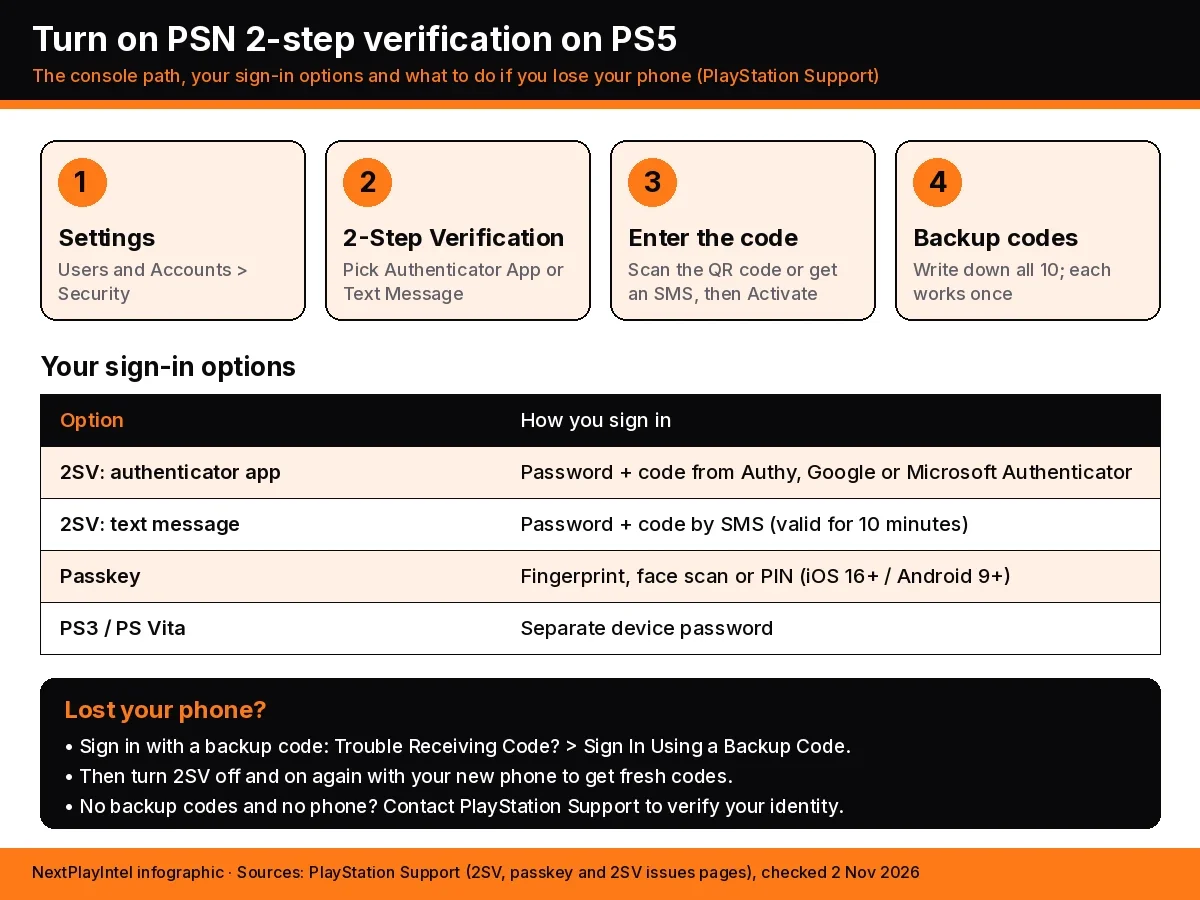
Short answer: on a PS5, go to Settings > Users and Accounts > Security > 2-Step Verification, choose an authenticator app or text message, enter the code you get and select Activate. Then write down your 10 backup codes, because they're how you get back in if you lose your phone. You can also do this on the web through Account Management > Security. If your phone supports it, PlayStation suggests a passkey instead, which lets you sign in with a fingerprint, face scan or screen-lock PIN instead of a password.
This guide covers 2-step verification (2SV) and passkeys on PS5, PS4 and the web, what to do with backup codes, and how to get back in if something goes wrong. It works the same way wherever you live. The steps come from PlayStation Support's pages for the US and India and the Sony account Help Center, which we checked on 2 November 2026. Menu names can change in system updates, so follow what your screen shows if it differs slightly.
2-step verification or a passkey: which should you use?
Both make your PlayStation account harder to break into. 2-step verification keeps your password and adds a short code each time you sign in on a new device. A passkey replaces the password altogether. PlayStation's 2SV pages now open by recommending passkeys, and tell you to use 2-step verification if your device doesn't support them.
Option | How you sign in | What you need | Watch out for |
|---|---|---|---|
2SV with an authenticator app | Password plus a code from the app | An app such as Authy, Google Authenticator or Microsoft Authenticator | Keep your backup codes in case you lose the phone |
2SV with text message (SMS) | Password plus a code sent by SMS | A mobile number on your account | Codes need mobile signal and can take a few minutes to arrive |
Passkey | Fingerprint, face scan or screen-lock PIN on your device | Most phones on iOS 16+ or Android 9+, or the latest Safari, Chrome or Edge | Some hardware keys and some Android-to-Windows combinations may have issues |
How to turn on 2-step verification on PS5
From the home screen, open Settings (the gear icon at the top right).
Go to Users and Accounts > Security > 2-Step Verification.
Choose a method: Authenticator App or Text Message.
For an app, scan the QR code on the screen with your authenticator app. If it won't scan, type the alphanumeric code into the app. For SMS, enter your mobile number.
Enter the code from the app or the text message and select Activate.
Write down your backup codes and keep them somewhere safe, away from the console.
How to turn it on in a web browser
This works on any phone, tablet or computer and is the easiest way to scan the QR code.
Sign in to Account Management on the PlayStation website and select Security (PlayStation's 2SV guide links to it).
Next to 2-step Verification Status, select Edit.
Choose Authenticator App or Text Message.
Scan the QR code with your authenticator app, or enter your mobile number.
Enter the code you receive and select Activate.
Record your backup codes.
The Sony account Help Center says you get an email confirming that your 2-step verification setting changed. If you get one of these emails and didn't make the change, treat it as a warning sign and secure your account.
How to turn it on on PS4
Go to Settings > Account Management > Account Information > Security > 2-Step Verification.
Choose Authenticator App or Text Message, then scan the QR code or enter your number.
Enter the code and select Activate, then record your backup codes.
PS3 and PS Vita work differently: PlayStation says signing in on those systems needs a separate device password, and its 2SV page links to the steps for setting one up.
Backup codes: what they are and where to find them
Backup codes are your way back in if you can't get a code, for example because you lost or changed your phone. You get 10, and each one works once.
Task | Where to do it |
|---|---|
See your backup codes | Account Management > Security > Backup Codes (only while you can still sign in) |
Use a backup code on the web | At the code prompt, select Trouble Receiving Code? > Sign In Using a Backup Code |
Use a backup code on PS5 | Settings > Users and Accounts > Account > Sign In, then enter a backup code on the 2SV screen |
Use a backup code on PS4 | On the 2SV screen, press the triangle button for Trouble Receiving Code? and pick Sign In Using Backup Code |
Get a new set | Turn 2SV off and back on |
If you can't sign in, you can't look up your backup codes online, so note them down the moment you set up 2SV.
When PlayStation asks for a code
Once 2SV is on, you're asked for a code when you:
sign in for the first time after turning it on
sign in again after signing out manually
reset your password
change your sign-in ID (email address) or your online ID
Each code is valid for 10 minutes. If it runs out, select Resend Code.
How to set up a passkey
On PS5: go to Settings > Users & Accounts > Account > Security > Sign in with Passkey, scan the QR code with your phone, select Create a Passkey and follow the steps on your phone.
On the web: sign in to Account Management, go to Security and turn on Sign in with Passkey, select Create a Passkey, then follow the instructions on screen. You get an email once it's created.
Passkey task | Steps (Account Management > Security) |
|---|---|
Add another passkey | Manage Passkeys > Create a Passkey > Create on This Device or Create on Another Device |
Remove a passkey | Manage Passkeys > Remove next to the passkey |
Go back to a password | Turn off Sign in with Passkey, then create a password |
PlayStation's tips: on Android, make sure your Google account works with Google Play services, and don't use a PIN code as the passkey. On phones, use the default camera app to scan the QR code. Some hardware security keys can have problems, so PlayStation suggests synced passkeys on a phone instead. If a passkey won't work, select Can't Sign In with Passkey and sign in by email or QR code. Full details are in PlayStation's passkey guide.
How to turn off 2-step verification
Device | Steps |
|---|---|
PS5 | Settings > Users and Accounts > Security > 2-Step Verification, then set Status to Disabled |
PS4 | Settings > Account Management > Account Information > Security > 2-Step Verification, then set Status to Inactive |
Web | Account Management > Security, then Edit next to 2-Step Verification Status > Deactivate |
To switch from SMS to an app or back, turn 2SV off and turn it on again with the new method.
Problems signing in with 2SV
Problem | What to do |
|---|---|
The SMS code hasn't arrived | Select Resend Code and wait a few minutes. Restart your phone, check aeroplane mode is off and check your signal. |
You lost your phone but have backup codes | Sign in with a backup code, then turn 2SV off and on again with your new phone. |
You have no backup codes and no access to your phone | Contact PlayStation Support to verify your identity and restore access. |
You're getting 2SV codes you didn't ask for | Someone may have your password. If you can't change your sign-in method, contact PlayStation Support. |
Google TV says your password is wrong | You can't sign in on Google TV with 2SV on. Turn it off, sign in, then turn it back on. |
PlayStation lists these fixes on its 2SV issues page. Recent reports of hijacked accounts, covered in our story on Sony investigating PSN takeovers via child accounts, are a good reason to set up 2SV or a passkey now rather than later.
Related PS5 guides
How to set up a PS5 covers signing in and the first settings to change.
How to change your PSN name (online ID) explains the cost and what can break.
PS5 game locked? How to restore licenses helps if games show a lock after you sign back in.
PS5 console sharing and offline play explains which PS5 is your primary console.
FAQ
Where is 2-step verification on PS5?
Go to Settings > Users and Accounts > Security > 2-Step Verification. Pick Authenticator App or Text Message, finish the setup, then write down your backup codes.
Which authenticator apps work with PSN?
PlayStation names Authy, Google Authenticator and Microsoft Authenticator as examples. You scan a QR code from the setup screen. If the QR code doesn't scan, you can type the alphanumeric code into the app instead.
How long does a PSN verification code last?
PlayStation says a code is valid for 10 minutes after you try to sign in. If it runs out, select Resend Code on the sign-in screen.
How many PSN backup codes do I get?
You get 10 backup codes, and each one works only once. If you've used most of them, turn 2-step verification off and back on to get a new set.
Is a passkey better than 2-step verification?
They're different. A passkey replaces your password: you sign in with your phone's fingerprint, face scan or screen-lock PIN. PlayStation recommends passkeys as a quick and secure option and points you to 2-step verification if your device doesn't support them.
What do I need to use a PSN passkey?
PlayStation says passkeys work on most phones running iOS 16 or later or Android 9 or later, and in the latest Safari, Chrome or Edge. You can sign in with one on PS5, PS4, the PlayStation website, the PlayStation App and Remote Play for Mac.
I lost my phone and have no backup codes. What now?
You'll need to contact PlayStation Support to verify your identity and get back in. Without backup codes you can't recover the account online yourself.
Why can't I sign in on Google TV with 2-step verification on?
PlayStation says you can't sign in on Google TV while 2-step verification is on, and you may see a wrong-password message. Turn 2-step verification off, sign in, then turn it back on.
Frequently asked questions
Where is 2-step verification on PS5?
Go to Settings > Users and Accounts > Security > 2-Step Verification. Pick Authenticator App or Text Message, finish the setup, then write down your backup codes.
Which authenticator apps work with PSN?
PlayStation names Authy, Google Authenticator and Microsoft Authenticator as examples. You scan a QR code from the setup screen. If the QR code doesn't scan, you can type the alphanumeric code into the app instead.
How long does a PSN verification code last?
PlayStation says a code is valid for 10 minutes after you try to sign in. If it runs out, select Resend Code on the sign-in screen.
How many PSN backup codes do I get?
You get 10 backup codes, and each one works only once. If you've used most of them, turn 2-step verification off and back on to get a new set.
Is a passkey better than 2-step verification?
They're different. A passkey replaces your password: you sign in with your phone's fingerprint, face scan or screen-lock PIN. PlayStation recommends passkeys as a quick and secure option and points you to 2-step verification if your device doesn't support them.
What do I need to use a PSN passkey?
PlayStation says passkeys work on most phones running iOS 16 or later or Android 9 or later, and in the latest Safari, Chrome or Edge. You can sign in with one on PS5, PS4, the PlayStation website, the PlayStation App and Remote Play for Mac.
I lost my phone and have no backup codes. What now?
You'll need to contact PlayStation Support to verify your identity and get back in. Without backup codes you can't recover the account online yourself.
Why can't I sign in on Google TV with 2-step verification on?
PlayStation says you can't sign in on Google TV while 2-step verification is on, and you may see a wrong-password message. Turn 2-step verification off, sign in, then turn it back on.
Sources & verification
Sources last verified on . This article covers published information, not hands-on testing.
- PlayStation Support (US): How to set up 2-step verification on PlayStation
- PlayStation Support (India): How to set up 2-step verification on PlayStation
- PlayStation Support (US): How to sign in to PlayStation with a passkey
- PlayStation Support (India): How to sign in to PlayStation with a passkey
- PlayStation Support: Help with 2-step verification issues on PlayStation
- Sony account Help Center: How to set up 2-step verification
Editorial & update notes
Published 2 Nov 2026 from PlayStation Support's 2-step verification, passkey and 2SV issues pages (US and India) and the Sony account Help Center.