

PS5 error code
PS5 CE-107891-6: Content Isn't Installing — Fixes
Try this first: go to Settings > Storage, open the storage that holds the broken install, delete that game, then reinstall it from your Game Library or the disc.
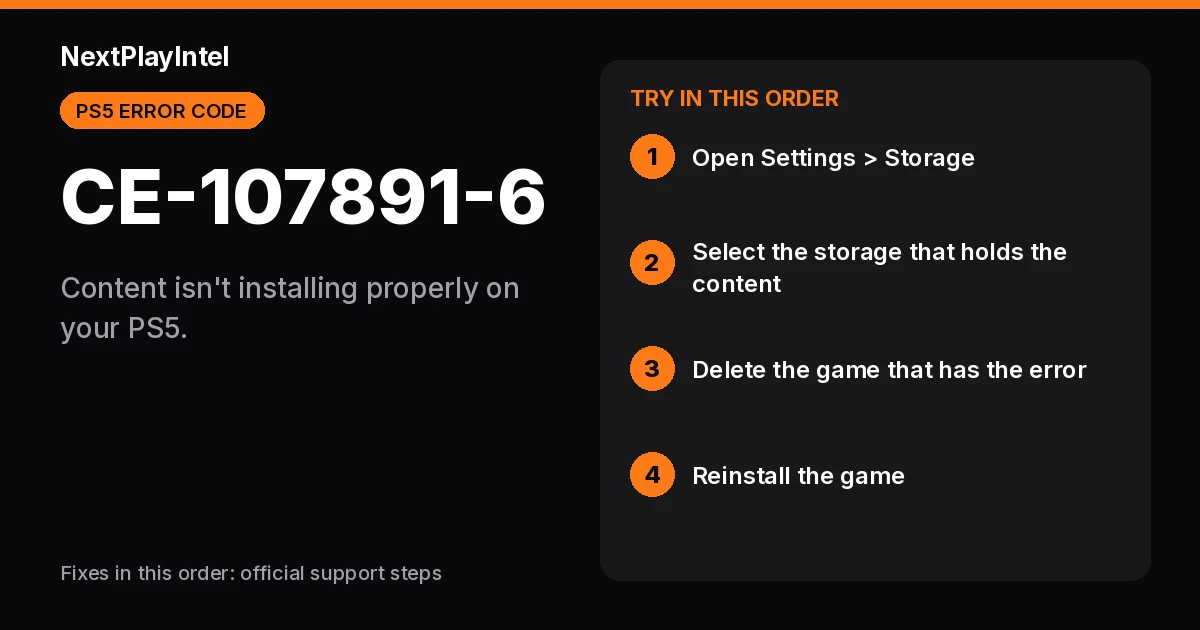
What CE-107891-6 means
PlayStation Support says: “Content isn't installing properly on your PlayStation®5 console.” (official page)
Sony describes content that is not installing properly — an install/integrity failure on the storage that holds the game, not a PSN connect error and not a ban. The official checklist (checked 6 November 2026) is: Settings > Storage → select the storage where you store the content → delete the game that has the error → reinstall → if issues remain, try again later. Storage menu paths are expanded from Sony's manage storage space guide only. For start-up wording see CE-100095-5; for a multi-code hub see PS5 game won't start — do not treat those as rewrites of this code.
Match what you see
Where CE-107891-6 appears tells you where to start. Find the row closest to your situation, then jump to that step.
| What you see | Most likely cause | Start at |
|---|---|---|
| Install progress fails or content won't finish installing with CE-107891-6 | Broken or incomplete content on that storage | Steps 1–4 on this page |
| Game errors on launch with CE-100095-5 instead | Sibling start-up code | CE-100095-5 page (delete + reinstall; keep powered on) |
| Sony asks you to update the game (CE-108255-1) | Missing patch | CE-108255-1 — Options > Check for Update |
| Deleted from Console Storage but game still on M.2/USB | Wrong storage selected | Step 2 — delete from the storage that actually holds it |
| Clean reinstall still returns CE-107891-6 for hours | Temporary issue per Sony's closing note | Step 5 — wait; then PlayStation Support |
Likely causes
- Damaged, incomplete, or corrupted game/application content on the selected storage (Sony's uninstall-and-reinstall instruction).
- An install interrupted mid-download or mid-copy so the title looks present but will not finish installing.
- Wrong storage selected when deleting — broken files still on M.2 or USB extended storage.
- A short-lived store/download/write issue Sony describes as temporary after a clean reinstall still fails.
How to fix CE-107891-6, most likely fix first
Sony's CE-107891-6 page (checked 6 November 2026) lists: Settings > Storage, select the storage where you store the content, delete the game that has the error, reinstall, then try again later if issues remain. We keep that official order and only expand Storage menu paths from Sony's manage-storage guide.
- Open Settings > Storage
From the PS5 home screen open Settings > Storage. Note Console Storage and any M.2 SSD or USB Extended Storage. Sony's CE-107891-6 page starts here. Overview: manage PS5 storage space. - Select the storage that holds the content
Sony: select the storage where you store the content — Console Storage, M.2 SSD Storage, or USB Extended Storage. Open that location's Games and Apps list. Deleting from the wrong drive leaves the broken install in place. - Delete the game that has the error
On Console Storage: Settings > Storage > Console Storage > Games and Apps, choose the title, select Delete. Use the matching Games and Apps path under M.2 or USB Extended Storage if that is where it lives. Sony: purchases remain re-downloadable from your game library. Saved data is managed separately under Saved Data and Game/App Settings — do not confuse install delete with save delete. - Reinstall the game
Reinstall from Game Library (digital) or the disc (physical). Wait for the install to finish before launching. If free space is too low, free space using Sony's storage guide first (separate from this error's primary steps). - Try again later if it is still failing
Sony's closing note: if you are still having issues, try again later. Do not factory-reset or run Safe Mode/Rebuild Database for CE-107891-6 based on unofficial advice — Sony does not list those on this code's page. Sibling CE-100095-5 adds keep-the-console-powered-on during install for that start-up code.
| Code | What Sony says | Main fix |
|---|---|---|
| CE-107891-6 | Content isn't installing properly. | Settings > Storage → delete on correct drive → reinstall → try later |
| CE-100095-5 | Issue when starting the application. | Delete + reinstall; keep console powered on |
| CE-108255-1 | Error with the game/application. | Update the game |
| CE-117773-6 | General error on PS5. | Connection, sign-in, PS Plus checks |
Fixes owners report
From public threads we read. These are individual reports, not official advice, and NextPlayIntel did not test them.
- After a Battlefield 6 update on 28 October 2025, many owners got CE-107891-6 at once. Restarting, restoring licences and deleting parts of the game did not help. Owners who fully uninstalled and reinstalled the game said it then worked, and later replies in December 2025 and 2026 report the same after other updates. (r/Battlefield6, October 2025–2026)
- In February 2026, an owner who had moved from Canada to Asia thought the error was a region lock. Replies said PS5 games are not region-locked, and one owner said a complete reinstall was the only thing that worked. (r/playstation, February 2026)
- In a May 2021 thread, one owner fixed the error on a game by starting the PS5 in Safe Mode and running Rebuild Database. Sony's page for this code doesn't list it, but owners on slow or capped internet may want to try it before a large re-download. (r/modernwarfare, May 2021)
For players in India
- Sony's fix is still delete + reinstall. Prefer off-peak hours for large redownloads if your ISP throttles — that does not change the official steps.
- If the console lost power mid-install, delete the partial install from the correct storage, then reinstall. Sony's closing note if it still fails: try again later.
- Log the CE-107891-6 timestamp in IST and which storage (Console / M.2 / USB) you deleted from when contacting support.
- Sony allows managing console storage from the PlayStation App (PS5 Storage) — same delete intent if the console UI is awkward mid-error.
When to contact support
Retry later first when a clean delete + reinstall still returns CE-107891-6. Contact PlayStation Support when the same title fails after a full delete from the correct storage, a fresh reinstall, adequate free space, and waiting has not cleared it — or when multiple titles fail the same way after clean installs.
Have this ready before you contact support:
- Exact code CE-107891-6 and the time it appeared (include IST if you are in India)
- Game / app name and digital vs disc
- Which storage held it (Console Storage, M.2, USB Extended Storage)
- Free space shown under Settings > Storage before reinstall
- Confirmation you deleted from that storage and reinstalled once already
CE-107891-6 FAQ
What does PS5 error CE-107891-6 mean?
Sony says: content isn't installing properly on your PlayStation 5 console.
How do I fix CE-107891-6?
Sony: uninstall the content causing the problem and reinstall — Settings > Storage → select that storage → delete the game → reinstall. If it still fails, try again later.
Will deleting the game delete my saves?
Sony manages Saved Data under a separate Settings path. Deleting a game/application removes the install; licenses remain in your library for re-download. Use Saved Data and Game/App Settings (and PS Plus cloud upload if you subscribe) before you delete saves on purpose.
Is CE-107891-6 the same as CE-100095-5?
Related, not identical. CE-107891-6 is content isn't installing properly via Settings > Storage. CE-100095-5 is an issue when starting the application, with delete from Options and an explicit keep-the-console-powered-on note. Use the page that matches the on-screen code.
Should I Rebuild Database or use Safe Mode for CE-107891-6?
Not from Sony's CE-107891-6 page. That page only lists Storage delete → reinstall → try later. Do not add Safe Mode steps for this code from unofficial guides.
What if I already reinstalled and it still fails?
Sony: try again later. Then contact PlayStation Support with the storage location, free space, and time (IST if in India).
Do I have to re-download the whole game?
Sony's fix for CE-107891-6 is to delete and reinstall the game. Owners report that restoring licences or deleting only parts of the game didn't help. One owner fixed it with Rebuild Database in Safe Mode, which doesn't delete games, so try that first if your internet is slow or capped.
Sources
Related codes and how they differ
- CE-100095-5: Issue when starting the application. Sony also recommends deleting and reinstalling, with the console kept powered on.
- CE-108255-1: Error with the game/application — Sony's fix is update the game first.
- CE-117773-6: General PS5 error Sony links to connection, sign-in and PS Plus checks.
- PS5 error-code hub: PS5 error-code hub, including CE-107891-6 and other install and launch codes.
- CE-112987-8: Download and purchase issues on PS5.
PS5 troubleshooting guide · All PS5 codes · Error code directory