Quick route
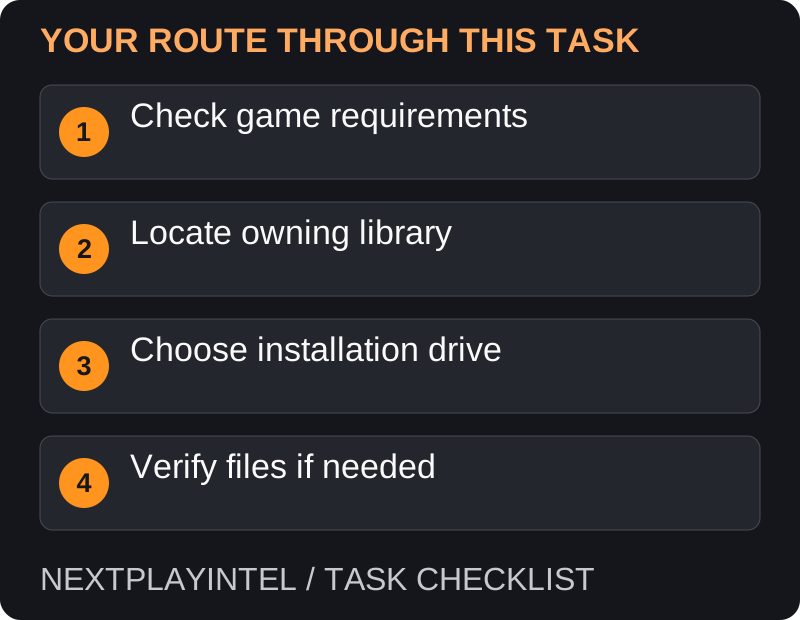
First, check game requirements, then follow the steps below in order. If the result differs from what is described, use the symptom-specific troubleshooting before repeating a purchase, deleting data or starting another download.
Before downloading
Check the game’s supported operating systems and requirements on its official product page. The launcher supporting a device does not mean every game in its catalogue runs on that device.
Confirm that the game is already purchased or claimed on the account you intend to use. A favourite, wishlist entry or free-game announcement is not an installed or owned title.
Install the game
Install Epic Games Launcher from Epic’s official site and sign in to the owning account.
Open Library, locate the game and choose Install.
Review the proposed installation directory. If the launcher presents an installation-settings control, use it to choose the target drive before starting.
Check available storage and confirm installation. Watch download progress and leave the launcher connected until the required files finish.
Launch the game from Library and follow any first-run setup. For publisher-linked games, confirm the publisher account before linking it.
Choose the right folder
Use a stable drive you expect to keep connected. Give large downloads enough room for updates as well as the initial installation. Avoid manually relocating a half-installed directory while the launcher is running.
If you previously installed through another store, do not assume Epic can use that installation unchanged. The store build and ownership checks may differ.
Use the instructions for your launcher version
Epic now documents a legacy interface and a Preview interface. In the legacy launcher, use the game’s three-dot menu in Library, then Manage > Verify. In Preview, open the game, use the three dots beside Play, then Manage > Verify. Verification repairs differing files and does not remove saved data according to Epic.
These verification steps apply to games whose source is Epic Games. If a library entry represents another source, use the owning service’s repair process instead of assuming every visible title is an Epic installation.
A download stops or the drive is unavailable
Read the exact error before cancelling. Confirm that the destination is connected, writable and has room for the installation and update work. If the drive disconnects repeatedly, fix that condition before restarting the download.
If other internet services also fail, investigate the connection. If only the launcher fails, check Epic’s service/support information and preserve its error. Avoid repeatedly deleting the partial installation without learning which stage fails.
The download completes, but launch fails
Use verification before a full reinstall when the error suggests missing or damaged game files. Wait for it to complete, then try the same edition again. If the problem is a publisher-account prompt, verify the account link instead.
For an unsupported operating system or graphics requirement, refer to the game’s product requirements; launcher compatibility does not guarantee game compatibility. Record whether failure occurs before the game starts or after reaching its menu so support can narrow the cause.
Verify the installation
Open the game, reach its menu and check the expected content. If you had previous progress, verify it before accepting any save overwrite. Keep the purchase confirmation until ownership and first launch have both been confirmed.
Official help for this task
Epic: verify game files in legacy and Preview launchers
Use the official page for the current interface wording and any account-specific support. Keep the error, product edition and the step that failed together when asking for help.
Sources & verification
Sources last verified on . This article covers published information, not hands-on testing.
Editorial & update notes
Reviewed 25 October 2026: detailed troubleshooting and official help links, with a distinct featured illustration. Real screenshots are identified and credited where reuse rights were verified; remaining task diagrams are original instructional graphics. No hands-on testing is claimed.