To update an Xbox Series X|S or Xbox One, press the Xbox button, go to Profile & system > Settings > System > Updates and select Console update available. If the console can't update online or won't start, Microsoft's Offline System Update puts the file on a 6 GB NTFS USB drive.
Key facts
Item | Detail |
|---|---|
Online update path | Profile & system > Settings > System > Updates |
Automatic updates | Keep my console up to date (on by default) |
Latest OS (11 Nov 2026) | 10.0.26100.9662 |
Check your version | Settings > System > Console info |
Offline update needs | Windows PC, USB drive with at least 6 GB, formatted NTFS |
Offline update file | $SystemUpdate, copied to the root of the drive |
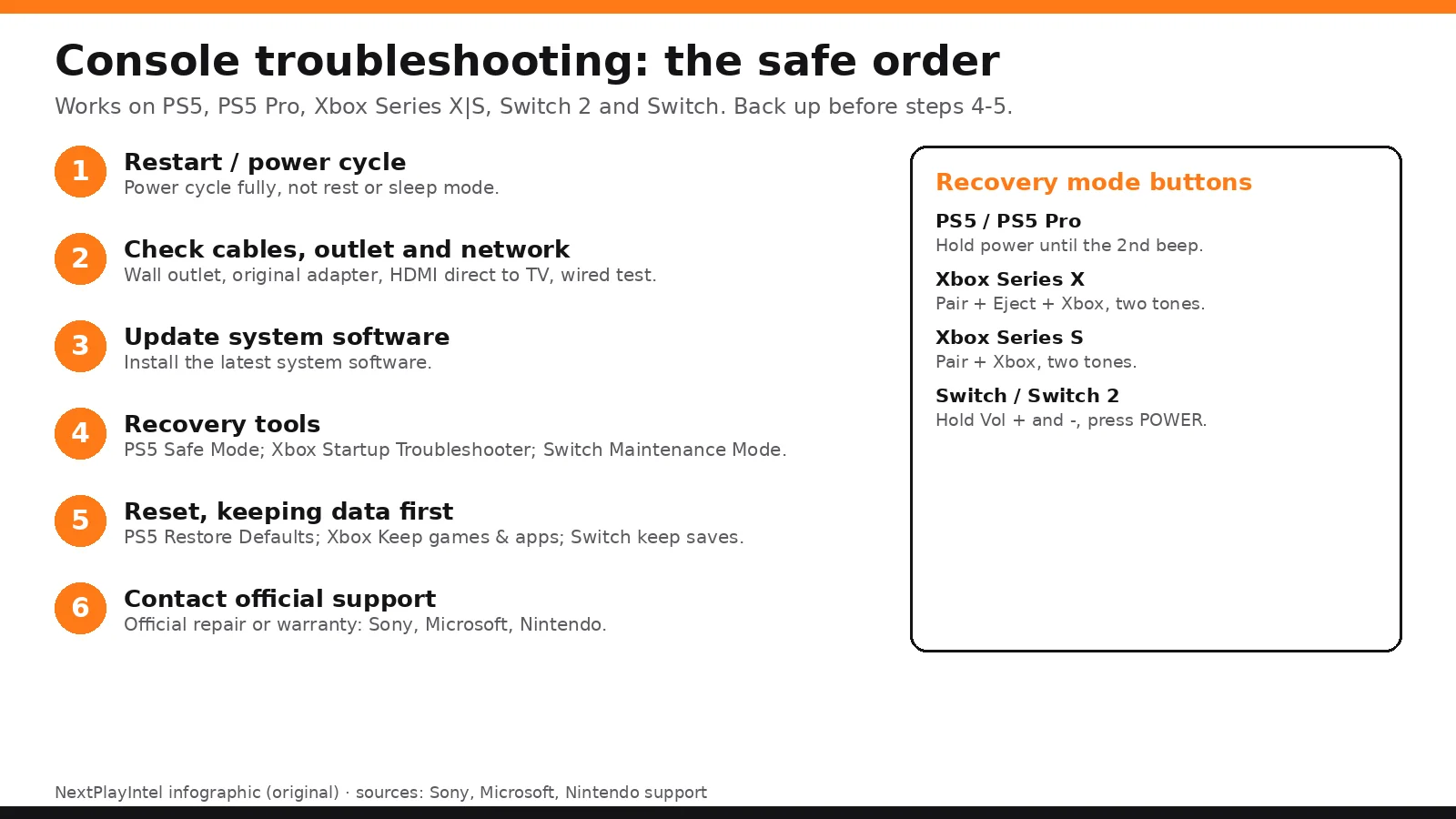
Startup Troubleshooter | Hold Pair and Eject, then press the Xbox button |
Cost | Free, though your internet provider may charge for data |
How to update Xbox from Settings
Connect the console to the internet.
Press the Xbox button to open the guide.
Go to Profile & system > Settings > System > Updates.
Select Console update available. If it says No console update available, you're up to date.
Microsoft sets consoles to update automatically by default. Each night the console checks for updates and installs them when you aren't using it. To check that's on, go to the same Updates screen and tick Keep my console up to date. Keep my games & apps up to date does the same for games.
If you've been offline a while, you may see a mandatory update. Microsoft says you need it to connect to the Xbox network. You can choose Turn off Xbox or Disconnect wireless to stay offline, but online play waits until you update. Microsoft's own GTA VI launch checklist tells players to power up and install the latest system update before they start.
How to check your Xbox OS version
Go to Profile & system > Settings > System > Console info. The OS version is in the second column. Microsoft's latest general release on 19 Nov 2026 is OS 10.0.26100.9662, released on 11 Nov 2026 with achievement support for original Xbox games and stability fixes.
Stuck mid-update? Hold both triggers and both bumpers at the same time. The OS version appears as Build on the second line.
How to update Xbox offline with a USB drive
Use the Offline System Update (OSU) when the console can't download the update, or gets stuck on a black or startup screen.
On a Windows PC, format a USB drive of at least 6 GB as NTFS. This wipes the drive.
Download Microsoft's OSU1 file from its offline system update page and unzip it.
Copy the $SystemUpdate file to the root of the drive. Nothing else should be on it.
Turn off the Xbox and unplug the power cord. Wait 30 seconds and plug it back in.
Hold Pair and Eject, then press the Xbox button. Keep holding Pair and Eject for 10-15 seconds, until you hear the second power-up tone.
On Xbox Series S and Xbox One S All-Digital Edition, which have no Eject button, hold only Pair.
Plug in the USB drive and choose Offline system update in the Xbox Startup Troubleshooter.
The console restarts when it's done, and may take several minutes. If you've never connected it to the internet, you'll still need to go online once during setup.
Original Xbox One only: depending on its OS, it may need an extra update first. Microsoft says build 6.2.9781.0 uses OSU3, other older builds use OSU2, then both finish with OSU1.
Xbox update errors and what they mean
What you see | Microsoft's explanation | First step |
|---|---|---|
8B050033 | An update is required but isn't available right now | Try again later |
800701E7 | No cause given | Offline System Update |
8007019x, 80072xxx, 8019019x, 87DDxxxx | Usually network or cache issues | Test the network, power cycle, then OSU |
Stuck on startup animation 10+ minutes | Update didn't finish | Power cycle, then OSU |
Black screen 10+ minutes | Update didn't finish | Offline System Update |
"Your Xbox is almost full" | Not enough space for a game or app update | Uninstall unused content |
E101, E203, E305 (original Xbox One) | No cause given | Offline System Update |
E100 (original Xbox One) | Hardware issue | Request a repair |
To read the code on the "There was a problem with the update" screen, hold both triggers and both bumpers. Our E100 error page and the Xbox error code list go into specific codes.
If the offline update fails too
From the Something went wrong screen, Microsoft's order is: Restart this Xbox, then Reset this Xbox > Keep games and apps, then Reset this Xbox > Remove everything as a last resort. The last option erases accounts and anything not synced. After that, it's a repair request. Our Xbox Series X|S troubleshooting guide has wider fixes, and more walkthroughs are in our how-to section.
Frequently asked questions
How do I update my Xbox Series X?
Press the Xbox button, go to Profile & system > Settings > System > Updates and select Console update available. The same path works on Xbox Series S and Xbox One.
How do I update my Xbox offline?
Download the Offline System Update file on a Windows PC, copy $SystemUpdate to a 6 GB+ NTFS USB drive, then choose Offline system update in the Xbox Startup Troubleshooter.
Where is the Xbox offline system update file?
On Microsoft's "Perform an offline system update" support page. Most consoles need OSU1; older original Xbox One builds need OSU2 or OSU3 first.
Why is my Xbox offline system update not working?
Check that the drive is NTFS, at least 6 GB, and holds only the $SystemUpdate file at its root. If it still fails, Microsoft says to restart, then reset while keeping games and apps.
Is the Xbox system update free?
Yes. Microsoft says updates are free, though your internet provider may charge for the data.
Sources & verification
Sources last verified on . This article covers published information, not hands-on testing.