

Xbox error code
Xbox E100 Error: Fix the “Something Went Wrong” Screen
Try this first: Match the screen first. If you have an original Xbox One and see a “System Error” message with E100, Microsoft says this indicates a hardware issue — submit a repair request. Microsoft does not list restart, reset or offline-update steps for that screen. If you see the “Something went wrong” screen, use the D-pad and A button to select Restart this Xbox. If you return to the Home screen, the console should work normally. If not, move on.
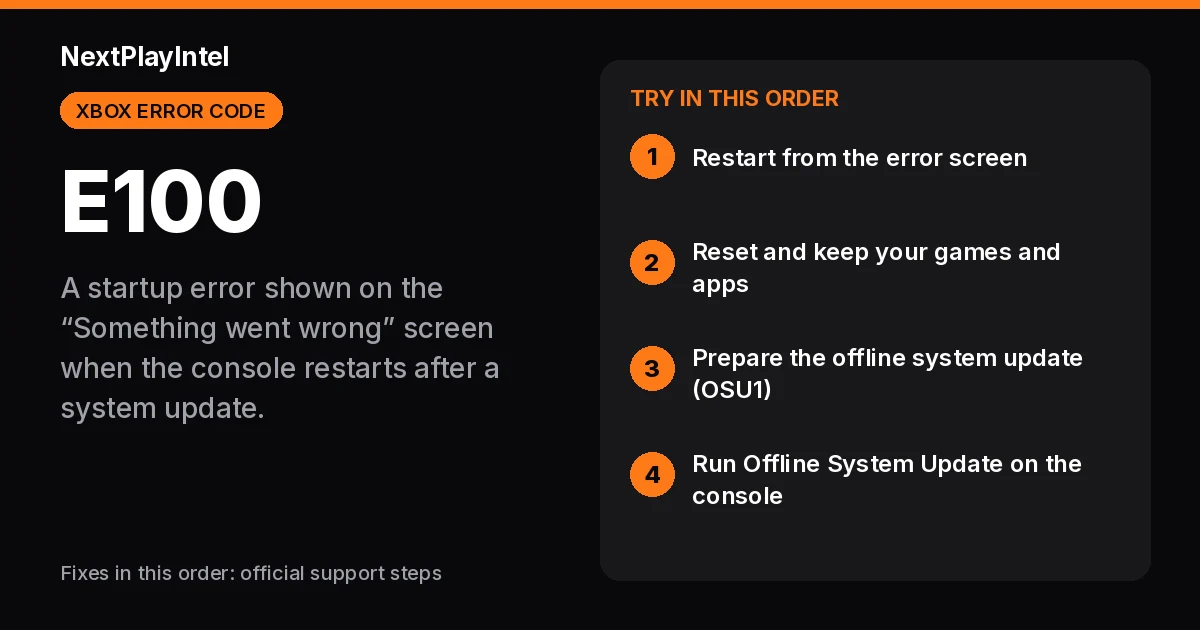
What E100 means
Xbox Support says: “A startup error shown on the “Something went wrong” screen when the console restarts after a system update.” (official page)
Update, 14 Nov 2026: Microsoft’s system-update troubleshooting page says that on an original Xbox One, a “System Error” screen with E100 means a hardware issue, and you need to submit a repair request. That is separate from the “Something went wrong” path. Microsoft lists E100 among the “Something went wrong” startup errors that can appear when an Xbox restarts after a system update. It groups E100 with E200, E204 and E207 and gives them one escalating path: restart, reset while keeping games, offline system update from USB, factory reset, then repair. The last two steps differ sharply in what they delete, so take them in order.
Match what you see
Where E100 appears tells you where to start. Find the row closest to your situation, then jump to that step.
| What you see | Most likely cause | Start at |
|---|---|---|
| Original Xbox One “System Error” screen with E100 after a system update | Microsoft says this indicates a hardware issue | Submit a repair request |
| “Something went wrong” screen with E100 after an update | Startup error after a system update | Select Restart this Xbox |
| Restart does not return you to Home | Microsoft’s next step resets the OS | Reset this Xbox > Keep games and apps |
| Reset does not return you to Home | Microsoft’s next step is an offline update | Run the Offline System Update (OSU1) from USB |
| Still no Home screen after the offline update | Last-resort factory reset | Reset this Xbox > Remove everything |
| Nothing works on the “Something went wrong” path | The console needs repair | Submit a repair request |
Likely causes
- On an original Xbox One “System Error” screen, Microsoft says E100 indicates a hardware issue with the console.
- A problem when the console restarts after a system update (the context Microsoft gives for these E codes).
- Microsoft’s “Something went wrong” page does not explain the extra digits shown after E100 or name a more specific cause.
- If no step on the “Something went wrong” path returns you to the Home screen, Microsoft says the console needs repair.
How to fix E100, most likely fix first
These steps are Microsoft’s path for the “Something went wrong” screen. If you have an original Xbox One and see a “System Error” screen with E100, skip them and submit a repair request instead.
- Restart from the error screen
On the “Something went wrong” screen, use the D-pad and A button to select Restart this Xbox. If you return to the Home screen, the console should work normally. If not, move on. - Reset and keep your games and apps
Select Troubleshoot on the error screen to open the Xbox Startup Troubleshooter, then choose Reset this Xbox > Keep games and apps. Microsoft says this resets the OS and deletes potentially corrupted data without deleting your games or apps. To open the troubleshooter manually: power off, unplug the console, wait 30 seconds and plug it back in. Hold Pair and Eject, press the Xbox button on the console, and keep holding Pair and Eject for 10–15 seconds until you hear the second power-up tone. Xbox Series S and Xbox One S All-Digital Edition have no Eject button, so hold Pair only. - Prepare the offline system update (OSU1)
You need a Windows PC with internet and a USB port, plus a USB flash drive with at least 6 GB formatted as NTFS. Formatting erases the drive, so copy off anything you need first. Download the OSU1 file from Microsoft’s startup-error page and extract the .zip. Copy the $SystemUpdate file to the root of the drive, with no other files on it. - Run Offline System Update on the console
Open the Xbox Startup Troubleshooter the same way as in step 2 and plug in the USB drive. Offline System Update becomes selectable; choose it with the D-pad and A button. The restart can take several minutes. If you use a wired connection, plug the network cable back in. When you reach the Home screen, you can remove the USB drive. - Factory reset only as a last resort
If you still cannot reach Home, open the troubleshooter and choose Reset this Xbox > Remove everything. Microsoft warns this erases all accounts, saved games, settings and home Xbox associations. Anything not synced to the Xbox network is lost, and you will need to download games and apps again.
| Step | What to do | Source |
|---|---|---|
| 1 | Restart from the error screen | Official |
| 2 | Reset and keep your games and apps | Official |
| 3 | Prepare the offline system update (OSU1) | Official |
| 4 | Run Offline System Update on the console | Official |
| 5 | Factory reset only as a last resort | Official |
When to contact support
If you have an original Xbox One and see a “System Error” screen with E100, Microsoft says to submit a repair request through Xbox Device service and repair — it does not list restart, reset or offline-update steps for that screen. If you were on the “Something went wrong” screen and none of the steps above resolved E100, Microsoft also says the console needs repair. Microsoft’s page also offers online chat and live phone support through its partner Asurion. Have the full code on screen and the step where the problem stopped ready when you contact support.
E100 FAQ
What does Xbox error E100 mean?
It depends on the screen. On the “Something went wrong” screen, Microsoft lists E100 as a startup error after a system update. On an original Xbox One “System Error” screen, Microsoft says E100 indicates a hardware issue and you need to request a repair.
Is E100 fixed the same way as E101?
No. Microsoft groups E100 with E200, E204 and E207, starting with a restart. Its E101 steps start with the offline system update.
Will resetting my Xbox delete my games?
Reset this Xbox > Keep games and apps does not delete games or apps. Remove everything deletes all user data, games and apps.
What do I need for the Xbox offline system update?
A Windows PC with internet and a USB port, and a USB flash drive of at least 6 GB formatted as NTFS.
My Xbox Series S has no Eject button. How do I open the troubleshooter?
Hold only the Pair button, then press the Xbox button on the console. Keep holding Pair for 10–15 seconds until the second power-up tone.
Does E100 on an original Xbox One System Error screen need a repair?
Yes. Microsoft’s system-update troubleshooting page, in a section that only applies to the original Xbox One, says E100 on the “System Error” screen indicates a hardware issue and you need to submit a repair request.
Sources
Other Xbox error codes
Xbox troubleshooting guide · All Xbox codes · Error code directory