Set up a new Nintendo Switch 2 in the order Nintendo lists, and do any transfer from your old Switch during setup, because that is the only time it is offered.
This guide summarises Nintendo Support pages checked on 31 October 2026. NextPlayIntel did not test these steps on hardware; follow the linked official page if anything differs.
Quick Answer: Summary of Steps
Connect the USB cable to the AC adapter, plug the adapter into the wall, then plug the USB-C cable into the console.
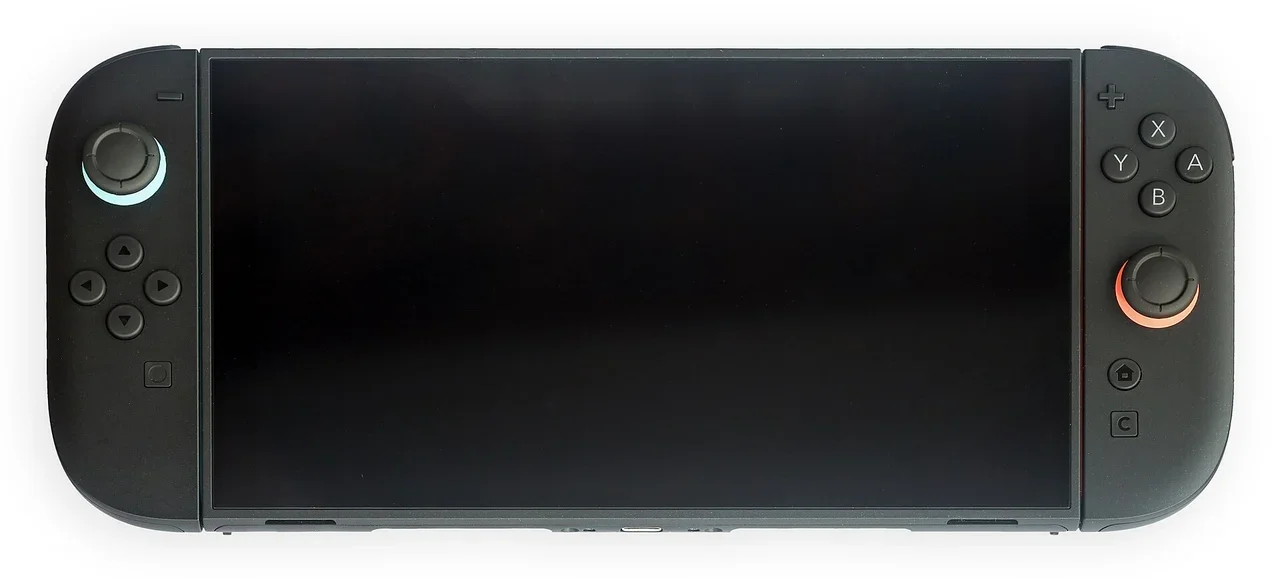
Attach both Joy-Con 2 controllers.
Follow the on-screen prompts: language and region, internet, time zone.
If you have a Switch, do the system transfer now. Nintendo says it can only be done during initial setup.
Create users and link Nintendo Accounts, then set parental controls if needed.
Step 1: Charge and attach the Joy-Con 2
Connect the USB cable to the AC adapter.
Plug the AC adapter into the wall outlet.
Plug the USB-C cable into the USB-C connector on the console.
Attach both Joy-Con 2 controllers to the console.
Step 2: Follow first-time setup
System language and region. Text to Speech can be turned on during setup in supported languages, which may need a system update.
Internet settings. Optional, but required if you want a system transfer.
Time zone.
System transfer from Nintendo Switch.
User registration and Nintendo Account setup.
Parental Controls (optional).
Some of these settings can be changed later.
Step 3: Accounts, users and Nintendo Switch Online
Nintendo recommends a Nintendo Account. You can use the one from your Switch, and you need one for features such as GameChat. Users under 16 must be supervised in a family group to use GameChat. Online multiplayer needs a Nintendo Switch Online membership. GameChat needs a membership and a persistent internet connection. After a system transfer, all users from the old Switch are already added.
Step 4: Connect to a TV with the dock
Use the included Ultra High Speed HDMI cable and the Switch 2 AC adapter (model NGN-01) with the dock. Nintendo says the original Switch AC adapter can charge the Switch 2 when plugged in directly, but it cannot power the Switch 2 dock for TV mode.
If something goes wrong
See the Switch 2 troubleshooting guide, the Switch error-code directory, the microSD Express card guide and Joy-Con drift calibration. Moving saves without a full transfer? See transfer Switch save data.
Frequently asked questions
Can I transfer from my Switch after setup?
Nintendo says a full system transfer from a Nintendo Switch can only be done during initial setup. You can still move individual data later through System Settings.
Do I need internet to set up a Switch 2?
Internet is optional for setup, but Nintendo says it is required if you want a system transfer.
Can I use my old Switch charger with the Switch 2 dock?
No. Nintendo says the Switch AC adapter works plugged straight into the Switch 2, but it cannot power the Switch 2 dock for TV mode. Use the included NGN-01 adapter.
Sources & verification
Sources last verified on . This article covers published information, not hands-on testing.
Editorial & update notes
New guide published 31 Oct 2026, based only on official manufacturer support pages. Not tested on hardware.