

PS5 error code
PS5 CE-108862-5: Unable to Connect to the Server — Fixes
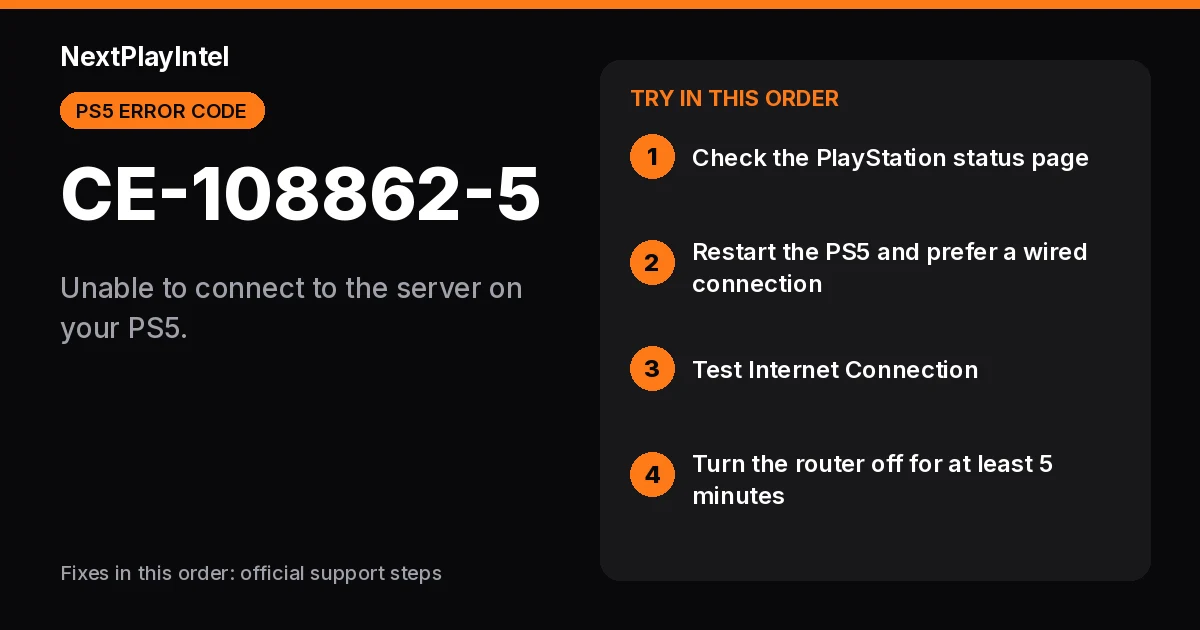
Try this first: check the PlayStation status page; if services are up, restart the PS5, prefer a wired connection, run Settings > Network > Test Internet Connection, then turn the router off for at least 5 minutes.
What CE-108862-5 means
PlayStation Support says: “Unable to connect to the server.” (official page)
Sony describes a server connectivity issue — unable to connect to the server — not a game crash, not a storage/install error, and not a ban. The official checklist (checked 6 November 2026) is: status page → restart the PS5 and use a wired connection if possible → Settings > Network > Test Internet Connection → turn the router off for at least 5 minutes, then restart it → if it remains, Sony says there may be temporary network congestion (try again later). This page does not invent DNS, Safe Mode, Rebuild Database, ports, static IP, or VPN — those are absent from Sony's CE-108862-5 page. For sibling connect wording see CE-113524-6, CE-105799-1, Sony E2-8223b400, and NW-102636-8 — do not treat those as rewrites of this code.
Match what you see
Where CE-108862-5 appears tells you where to start. Find the row closest to your situation, then jump to that step.
| What you see | Most likely cause | Start at |
|---|---|---|
| Status page shows a red/amber service; friends also offline | PSN outage or maintenance | Step 1 — wait it out |
| Status green; CE-108862-5 after wake or sign-in | Local link or short congestion | Steps 2–5 on this page |
| Test Internet Connection fails Internet | Home router or ISP line | Steps 3–4, then Step 5 |
| On-screen code is CE-113524-6 | Sibling Unable to connect to PlayStation (DNS/ISP on Sony's page) | CE-113524-6 page |
| On-screen code is CE-105799-1 | Sibling connect error with ports / static IP / temporary DNS | CE-105799-1 page |
| On-screen code is E2-8223b400 | Congestion-leaning Unable to connect (Sony) | Sony E2-8223b400 page |
| Message says connection timed out (NW-102636-8) | Timeout sibling | NW-102636-8 page |
| CE-108862-5 for hours with green status after wired + router cycle | Temporary congestion per Sony's closing note | Step 5 — wait; then PlayStation Support |
Likely causes
- PlayStation Network failure or maintenance (Sony's first check — status page).
- Stale console session or wireless-only path that needs a restart and a wired link if possible.
- PS5 not actually online — failed or incomplete Test Internet Connection.
- A router that needs a full power cycle of at least 5 minutes.
- Temporary network congestion Sony describes in the closing note.
How to fix CE-108862-5, most likely fix first
Sony's CE-108862-5 page (checked 6 November 2026) lists: check the PlayStation status page; restart the PS5 and connect using a wired connection if possible; Settings > Network > Test Internet Connection; turn off the router and wait at least 5 minutes, then restart it; temporary network congestion — try again after a while. We keep that official order and only expand wired set-up clicks from Sony's internet-connect guide. No DNS/Safe Mode/ports invented.
- Check the PlayStation status page
Open the PlayStation status page. If Account management, Gaming and social, PlayStation Store, or another service you need is down or under maintenance, wait — local network changes will not clear CE-108862-5 until Sony restores service. Status checked 6 November 2026 (IST) at fetch: all listed services were up; always re-check live when the error appears. - Restart the PS5 and prefer a wired connection
Sony: restart your PlayStation 5 console and connect to the Internet using a wired connection if possible. Fully power off, power on, then if you can plug a LAN cable into the PS5 Ethernet port and set up wired LAN under Settings > Network > Settings > Set Up Internet Connection (Sony internet set-up guide). Retry the action that showed CE-108862-5. - Test Internet Connection
Sony: go to Settings > Network > Test Internet Connection and check if you are connected to the Internet. Note whether the Internet line succeeds. If the test fails Internet, fix the home link before chasing PSN-only theories. If the test passes and CE-108862-5 still appears, continue to the router cycle. - Turn the router off for at least 5 minutes
Sony: turn off your router and wait at least 5 minutes, then restart it. If the modem is a separate box, power it off too; bring the modem up first, then the router. Wait until lights are stable before retrying on the PS5 (wired still preferred). - Try again later (temporary congestion)
Sony's closing note: there may be temporary network congestion — please try again after a while. Do not factory-reset or run Safe Mode / Rebuild Database / invent DNS for CE-108862-5 based on unofficial advice — Sony does not list those on this code's page. If the on-screen code changes to CE-105799-1 or CE-113524-6, switch to that code's official checklist.
| Code | What Sony says | Main fix |
|---|---|---|
| CE-108862-5 | Unable to connect to the server. | Status → restart + wired if possible → Test Internet Connection → router ≥5 min → try later |
| CE-113524-6 | Unable to connect to PlayStation. | Status → test → router 5 min → Manual DNS → ISP |
| CE-105799-1 | Unable to connect to the server (error while connecting). | Status → restart/wired → Wi-Fi placement → router → ports → static IP / temporary DNS |
| E2-8223b400 | Unable to connect to the server (may be congestion). | Status → router/modem ≥5 min → PlayStation Repairs |
| NW-102636-8 | Connection to PlayStation timed out. | Status → router off over 5 minutes |
For players in India
- Sony's fix order does not change by region. Prefer checking status.playstation.com first during evening peak hours (roughly 7:00 PM–11:00 PM IST) when both PSN and local ISP congestion are more common.
- Log the CE-108862-5 timestamp in IST, whether you were on Wi-Fi or LAN, and the Test Internet Connection result before contacting support or your ISP.
- A full 5-minute router/modem power cycle still applies on Indian fibre / broadband gateways (JioFiber, Airtel Xstream, ACT, local ISPs) — unplug both ONT/modem and Wi-Fi router if they are separate.
- Large game downloads or simultaneous household streaming can make Sony's 'try again later' the realistic next step after the local checks — that matches the congestion note, not an invented DNS tip.
When to contact support
Retry later first when status is green and restart + Test Internet Connection + a full 5-minute router cycle still return CE-108862-5. Contact PlayStation Support when the same code keeps returning for hours after those official steps — bring wired vs Wi-Fi, the connection-test result, and the time (IST if in India).
Have this ready before you contact support:
- Exact code CE-108862-5 and the time it appeared (include IST if you are in India)
- Wired vs Wi-Fi when the error appeared
- Test Internet Connection result (Internet OK / fail)
- Confirmation the router/modem was off for a full 5+ minutes
- Whether friends on other networks were also offline (points back to PSN)
CE-108862-5 FAQ
What does PS5 error CE-108862-5 mean?
Sony says: Unable to connect to the server. There may be a server connectivity issue.
How do I fix CE-108862-5?
Sony: check the PlayStation status page → restart the PS5 and use a wired connection if possible → Settings > Network > Test Internet Connection → turn the router off for at least 5 minutes, then restart it → if it continues, try again later (temporary congestion).
Is CE-108862-5 the same as CE-113524-6 or CE-105799-1?
Related connect family, not identical. CE-108862-5 is Unable to connect to the server with Sony's five-step list (no DNS/ports on that page). CE-113524-6 adds Manual DNS verification and ISP contact. CE-105799-1 adds Wi-Fi placement, ports, static IP, and temporary public DNS. Use the page that matches the on-screen code.
What about E2-8223b400?
Sony's E2-8223b400 is also Unable to connect to the server and notes possible server congestion, with status → router/modem 5 minutes → PlayStation Repairs. Cross-check if that is the code on screen.
Should I change DNS, use a VPN, or Rebuild Database for CE-108862-5?
Not from Sony's CE-108862-5 page. That page only lists status, restart + wired if possible, Test Internet Connection, router off ≥5 minutes, and try later. DNS appears on sibling codes such as CE-113524-6 / CE-105799-1 — not here.
Why does Sony say try again after a while?
Sony's closing note: there may be temporary network congestion. After the local steps, waiting is the official next action — not factory reset.
Sources
Related codes and how they differ
- CE-113524-6: Unable to connect to PlayStation — Sony adds Manual DNS verification and ISP contact.
- CE-105799-1: Unable to connect / error while connecting — longer Sony checklist (Wi-Fi placement, ports, static IP, temporary DNS).
- E2-8223b400: Unable to connect; may be server congestion. Sony's official page lists the fixes: check status, restart the router for 5 minutes, then contact PlayStation Repairs.
- NW-102636-8: Connection to PlayStation timed out.
- PS5 error codes hub: Every PS5 error code we cover, grouped by problem.
PS5 troubleshooting guide · All PS5 codes · Error code directory