

Switch error code
Switch Error 2137-8056: Fix eShop and Download Errors
Try this first: Open support.nintendo.com/networkstatus and look for Nintendo eShop maintenance or server issues. If there is maintenance, wait it out. If there is no notice and the error persists, Nintendo suggests trying again later.
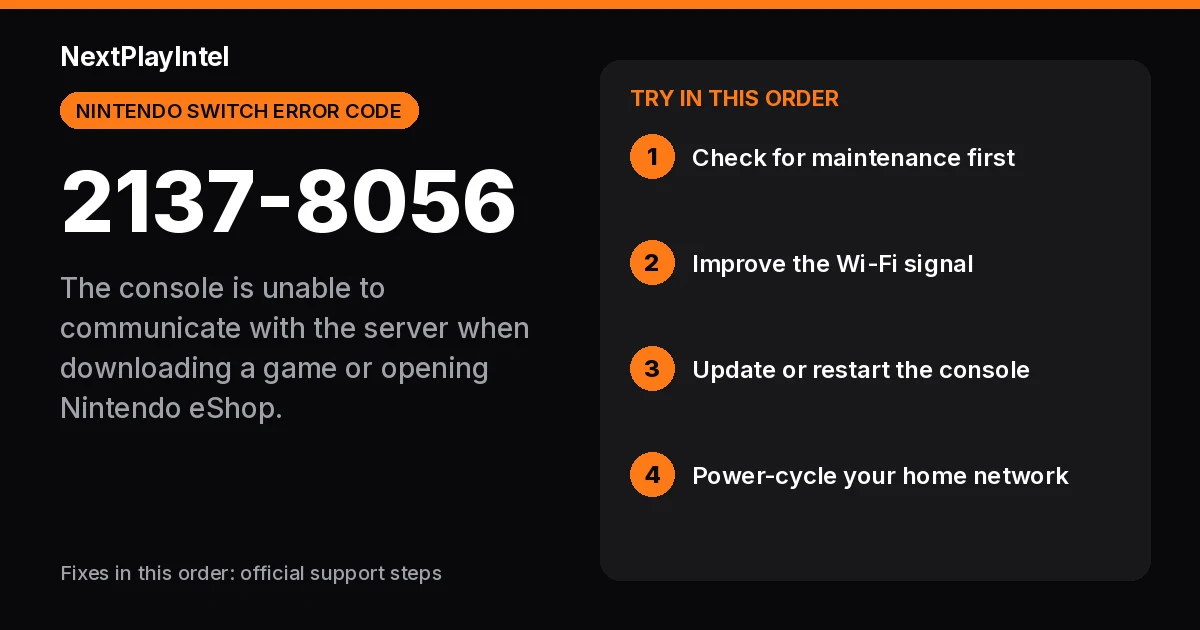
What 2137-8056 means
Nintendo Support says: “The console is unable to communicate with the server when downloading a game or opening Nintendo eShop.” (official page)
Error 2137-8056 appears on Nintendo Switch and Switch 2 when you try to download a game or open Nintendo eShop. It comes with the message “Unable to communicate with the server. The network may be busy or the signal strength may be poor. Please try again later.” Nintendo’s fixes run from checking for maintenance to Wi-Fi signal, updates, cache and DNS. Test your connection after each change so you know which step helped.
Match what you see
Where 2137-8056 appears tells you where to start. Find the row closest to your situation, then jump to that step.
| What you see | Most likely cause | Start at |
|---|---|---|
| 2137-8056 when opening Nintendo eShop | The console cannot communicate with the server | Check Nintendo’s network status page |
| 2137-8056 when downloading a game | Same server communication error | Move within 10–15 feet of the router and retry |
| Message says the network may be busy or signal poor | Signal or congestion problem | Power-cycle the modem and router |
| Error continues with no maintenance listed | Move on to Nintendo’s console and network checks | Reset cache, then try alternate DNS |
Likely causes
- Nintendo eShop maintenance or a server issue (Nintendo asks you to check its network status page first).
- A busy network or poor wireless signal, as the error message itself states.
- Home network equipment that needs a power cycle, or a DNS server that is not working.
- Cached web data for the affected user, or wireless interference from nearby objects and devices.
How to fix 2137-8056, easiest first
- Check for maintenance first
Open support.nintendo.com/networkstatus and look for Nintendo eShop maintenance or server issues. If there is maintenance, wait it out. If there is no notice and the error persists, Nintendo suggests trying again later. - Improve the Wi-Fi signal
Move the console within 10 to 15 feet of your wireless router while troubleshooting. Nintendo also suggests taking the console out of the dock while you test, then returning it when you are done. - Update or restart the console
Go to System Settings > System > System Update to check for an update. If the console is already up to date, restart it: hold the POWER button for three seconds, then select Power Options > Restart. - Power-cycle your home network
Unplug the power cable from your modem and from your router if it is separate. If the modem’s lights stay on, it may have a backup battery that must be removed. After 30 seconds, plug the modem back in and wait for its lights to stay steady, then do the same for the router. - Reset the cache for the affected user
On Nintendo Switch, go to System Settings > System > Formatting Options > Reset Cache. Select the user who is opening Nintendo eShop, then select Reset. Nintendo says this deletes passwords, cookies, history and other web-related data saved on the console. Nintendo’s article has separate Reset Cache instructions for Switch 2. - Try an alternate DNS
Select Settings from the HOME Menu, then Internet > Internet Settings. Select your network under Saved Networks (Switch 2) or Registered Networks (Switch), then Change Settings > DNS Settings > Manual. Hold B to clear each field. Enter 8.8.8.8 as Primary DNS and 8.8.4.4 as Secondary DNS. Nintendo notes these are Google public DNS servers, subject to Google’s terms, and other public DNS options exist. - Reduce interference or switch bands
Move metal objects and electronics away from the console and router, including filing cabinets, speakers, power strips, glass and cordless phones. If your router supports both 2.4 GHz and 5 GHz, try connecting to the other band.
| Step | What to do | Source |
|---|---|---|
| 1 | Check for maintenance first | Official |
| 2 | Improve the Wi-Fi signal | Official |
| 3 | Update or restart the console | Official |
| 4 | Power-cycle your home network | Official |
| 5 | Reset the cache for the affected user | Official |
| 6 | Try an alternate DNS | Official |
| 7 | Reduce interference or switch bands | Official |
When to contact support
If the error continues after these steps, Nintendo asks you to contact Nintendo Support. If you are not sure whether your router supports both 2.4 GHz and 5 GHz, Nintendo suggests asking your internet service provider. When you contact support, mention whether the network status page showed maintenance and which steps you tried.
Have this ready before you contact support:
- What Nintendo's network status page showed for the eShop at the time
- Whether it happens on every download or only one game, and on both Wi-Fi and wired
- Which steps you've tried, especially Reset Cache and an alternate DNS
2137-8056 FAQ
What does Switch error 2137-8056 mean?
It appears when the console cannot communicate with the server while downloading a game or opening Nintendo eShop. The message says the network may be busy or the signal may be poor.
Does 2137-8056 affect Nintendo Switch 2?
Yes. Nintendo’s article covers Nintendo Switch 2, Nintendo Switch, Switch Lite and Switch OLED.
Is 2137-8056 caused by eShop maintenance?
It can be. Nintendo’s first check is its network status page; if maintenance is listed, wait until it ends.
What does Reset Cache delete?
Nintendo says it deletes passwords, cookies, history and other web-related data saved on the console for the selected user.
Which DNS does Nintendo suggest?
8.8.8.8 as primary and 8.8.4.4 as secondary. These are Google public DNS servers; Nintendo says other public DNS options also exist.
Sources
Related codes and how they differ
- 2123-1502: A connection or download error. Nintendo says to keep selecting Continue first.
- 2005-0003: A download failed, usually because of the microSD card.
- 2110-3127: The Switch can't connect to your network at all.
Switch troubleshooting guide · All Switch codes · Error code directory