

PS5 error code
PS5 SU-101337-5: Fix a Console That Did Not Start Properly
Try this first: Turn off the PS5 and unplug the power cable. Sony specifies a five-minute wait before you plug the cable back in and turn the console on again. Give it the full five minutes. This is the only step on Sony’s code page that does not risk your data.
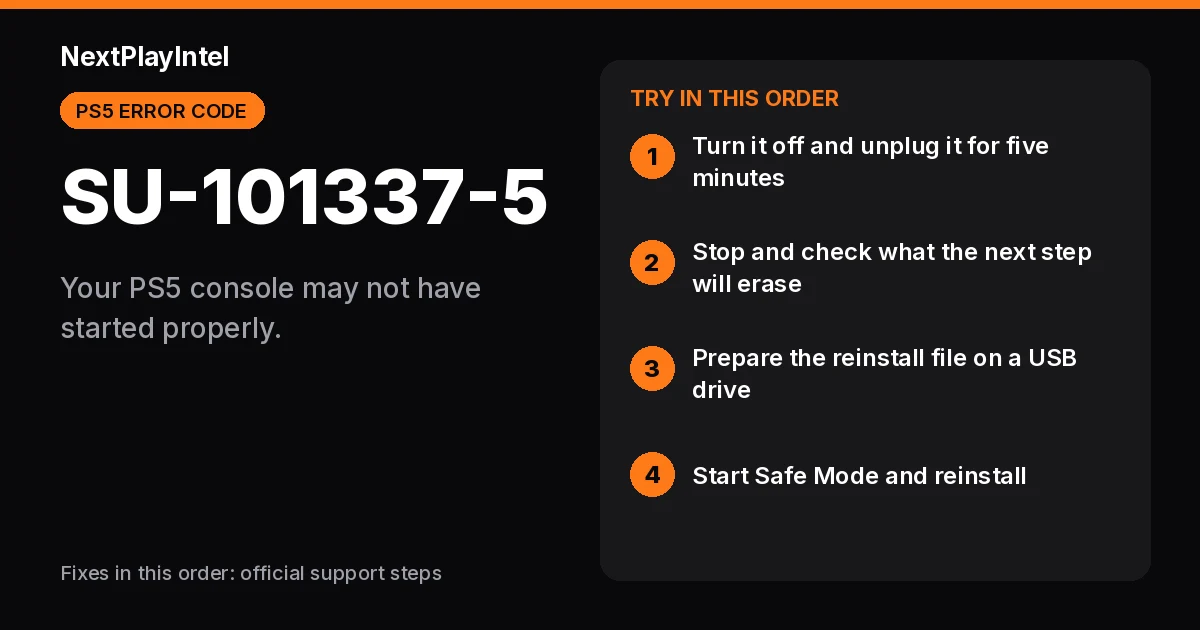
What SU-101337-5 means
PlayStation says: “Your PS5 console may not have started properly.” (official page)
Sony says SU-101337-5 appears when your PS5 may not have started properly. Its fix list is short and escalates fast: a five-minute power drain, then a Safe Mode system software reinstall that deletes everything on the console, then repair. Because the second step erases data, the order matters more than usual.
Match what you see
Where SU-101337-5 appears tells you where to start. Find the row closest to your situation, then jump to that step.
| What you see | Most likely cause | Start at |
|---|---|---|
| SU-101337-5 appears and the PS5 does not start normally | The console may not have started properly | Turn off, unplug for five minutes, then turn on again |
| The console still does not start correctly after the power drain | Sony’s next step is a full system software reinstall | Back up if you can, then reinstall from Safe Mode |
| The PS5 does not recognize the reinstall file on the USB drive | Sony says to check the folder and file names | Check PS5 > UPDATE > PS5UPDATE.PUP in uppercase |
| Safe Mode will not start, or the error returns after the reinstall | The console may need repair | Use PlayStation Repairs |
Likely causes
- The console may not have started properly (Sony’s stated meaning of the code).
- Sony’s code page does not name a narrower trigger, such as a specific update or hardware part.
- If the problem persists or Safe Mode cannot be started, Sony says the console may need repair.
How to fix SU-101337-5, easiest first
- Turn it off and unplug it for five minutes
Turn off the PS5 and unplug the power cable. Sony specifies a five-minute wait before you plug the cable back in and turn the console on again. Give it the full five minutes. This is the only step on Sony’s code page that does not risk your data. - Stop and check what the next step will erase
If the console still does not start correctly, Sony’s next instruction is Reset PS5 (Reinstall System Software). Sony’s Safe Mode guide says this deletes all user data and removes the system software, and its reinstall guide calls it the last step in troubleshooting. Anything not backed up to cloud storage or a USB drive can be lost. Sony’s reinstall guide also suggests trying a manual system software update before you reset; Safe Mode has an Update System Software option for that. If you cannot afford to lose local data, contact PlayStation Support before going further. - Prepare the reinstall file on a USB drive
On a PC or Mac, format a USB drive as FAT32 or exFAT. Create a folder named PS5 and, inside it, a folder named UPDATE. From Sony’s PS5 system software update page, open the “Reinstall system software” section and download the reinstallation file. Save it in the UPDATE folder as PS5UPDATE.PUP. Use the reinstall file, not the regular update file. - Start Safe Mode and reinstall
Turn off the PS5 and plug in the USB drive. Press and hold the power button, and release it after the second beep (the first beep sounds when you press, the second about seven seconds later). Connect the controller with a USB cable and press the PS button. Select Reset PS5 (Reinstall System Software) and follow the on-screen steps. - If the file is not recognized, fix the names
If the console does not recognize the update file, Sony says to check the folder and file names. Make sure that the path is PS5 > UPDATE > PS5UPDATE.PUP and that every name is entered in uppercase letters, then try again.
| Step | What to do | Source |
|---|---|---|
| 1 | Turn it off and unplug it for five minutes | Official |
| 2 | Stop and check what the next step will erase | Official |
| 3 | Prepare the reinstall file on a USB drive | Official |
| 4 | Start Safe Mode and reinstall | Official |
| 5 | If the file is not recognized, fix the names | Official |
When to contact support
Sony says that if the problem persists, or Safe Mode cannot be started, your console may need repair; use PlayStation Repairs to arrange it. Note the exact code and whether the five-minute power drain or the reinstall changed anything. Sony’s page does not identify a specific faulty part, and this guide does not either.
Have this ready before you contact support:
- Whether you left the PS5 unplugged for the full five minutes
- Whether the PS5 starts Safe Mode, and which options you've used
- Whether the USB reinstall file was recognized (folder PS5 > UPDATE, file PS5UPDATE.PUP)
SU-101337-5 FAQ
What does SU-101337-5 mean on PS5?
Sony says your PS5 console may not have started properly.
Will fixing SU-101337-5 delete my data?
The first step does not: unplug the console for five minutes. Sony’s second step, Reset PS5 (Reinstall System Software), deletes all user data, so back up first if you can.
How long should I leave the PS5 unplugged?
Sony says to wait five minutes before plugging the power cable back in.
What should the USB reinstall file be called?
Save it as PS5UPDATE.PUP inside a folder named UPDATE, inside a folder named PS5, on a FAT32 or exFAT drive. Use uppercase letters.
What if my PS5 will not start Safe Mode?
Sony says the console may need repair. Its Safe Mode guide also suggests turning the console off and on again or checking the cables before requesting a repair.
Sources
Related codes and how they differ
- CE-108262-9: An error reading the system software or application data.
- SU-101312-8: The PS5 can't detect its Blu-ray Disc drive.
PS5 troubleshooting guide · All PS5 codes · Error code directory