

PC launcher error code
VAN 68 Error: Fix Riot Vanguard Connection Drops
Try this first: A restart gives Vanguard a fresh start. Riot says this can fix many temporary Vanguard connection problems. After each step, test in Practice Tool or a custom game if you can, so you do not disrupt a matchmade game or risk penalties if the error returns.
What VAN 68 means
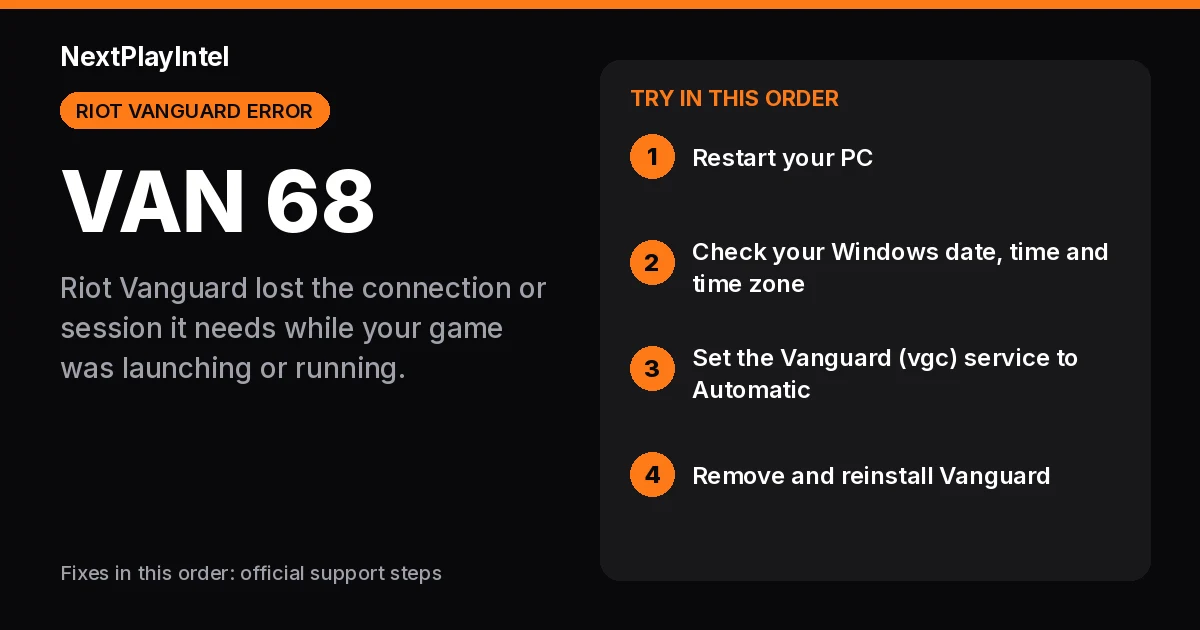
Riot Games Support says: “Riot Vanguard lost the connection or session it needs while your game was launching or running.” (official page)
VAN 68 is a Riot Vanguard error. Riot says it usually means Vanguard lost the connection or session it needs while your game was launching or running. That is different from VAN 1067, where Vanguard hits an unexpected issue while starting or checking in, and from VAN 152, which Riot says is a hardware ID ban that no reinstall or connection fix removes. Riot’s VAN 68 article does not ask you to turn on TPM 2.0, Secure Boot or Memory Integrity (HVCI); those checks belong to other VAN errors such as VAN 9003. Riot’s VAN 68 order starts with a PC restart and a Windows time check, then the vgc service, a Vanguard reinstall, a clean boot, a game reinstall, Killer Network software and a full connection check that includes VPNs and the firewall.
Match what you see
Where VAN 68 appears tells you where to start. Find the row closest to your situation, then jump to that step.
| What you see | Most likely cause | Start at |
|---|---|---|
| The game crashes or disconnects with “connection error … VAN 68” | Vanguard lost its connection or session | Restart your PC |
| VAN 68 appears right after the PC wakes or the clock looks wrong | Secure connections can fail with wrong time settings | Set the Windows date, time and time zone correctly |
| VAN 68 keeps coming back on launch | Vanguard may not be running when the game starts | Set the vgc service to Automatic |
| You use a VPN, proxy or a strict firewall | Riot says VPNs and proxies frequently cause connection problems, and a firewall can block the Riot Client or Vanguard | Turn off the VPN or proxy, then allow vgc.exe through the firewall |
| The PC uses a Killer network adapter or Killer Intelligence Center | Killer prioritisation can interfere with your connection | Turn off Killer Prioritization Engine or Killer Network Service |
| The message mentions a hardware ID ban or the User Rules (Section 7) | That is VAN 152, not a lost Vanguard session | See the VAN 152 guide |
| The code is VAN 1067, or it started after a new USB device or a skipped Windows update | VAN 1067 is a different official fault: Vanguard failed while starting or checking in | See the VAN 1067 guide |
Likely causes
- Riot Vanguard lost the connection or session it needs while the game was launching or running (Riot’s stated meaning).
- Wrong Windows date, time or time zone settings, which Riot says can make services and secure connections fail.
- The Vanguard (vgc) service not running when the game starts, or not set to Automatic (unless you use Vanguard Pre-Check).
- Corrupted Vanguard or game files, background apps or services interfering, or Killer network traffic prioritisation.
- A VPN or proxy. Riot’s PC connection guide says these frequently cause connection problems and must be turned off while you troubleshoot.
- Windows Firewall or other security software blocking the Riot Client or Vanguard. Riot says to allow those apps through the firewall rather than turning the firewall off.
- Wider PC connection problems, covered by Riot’s PC connection troubleshooting guide: a wireless link, other devices using the network, stuck TCP/IP settings or DNS issues.
How to fix VAN 68, easiest first
- Restart your PC
A restart gives Vanguard a fresh start. Riot says this can fix many temporary Vanguard connection problems. After this and every later step, launch your game and test in Practice Tool or a custom game if you can. Riot says that lets you test safely without disrupting matchmade games or risking penalties if the error appears again. - Check your Windows date, time and time zone
Riot says wrong date, time or time zone settings can make services and secure connections fail before the game fully launches. Use Microsoft’s guide to set time, date and time zone settings in Windows, then try again. - Set the Vanguard (vgc) service to Automatic
Skip this if you use Vanguard Pre-Check, which starts Vanguard on demand when you launch a Riot game. Otherwise press Windows key + R, type services.msc and press Enter. Find vgc and double-click it. Set Startup type to Automatic. If Service status is Stopped, select Start. Select Apply, then OK, and restart your PC. After the restart, launch the Riot Client and try your game again. Riot says Vanguard should then start automatically whenever Windows boots. - Remove and reinstall Vanguard
Do this on a Windows account with admin access, and do it before you reinstall the game — that is Riot’s VAN 68 order. Close every game that launches from the Riot Client, then right-click the Riot Client tray icon and select Exit so it no longer appears in the system tray. Right-click the red Riot Vanguard tray icon, select Advanced, then Uninstall Vanguard, and follow the prompts. You can also uninstall Riot Vanguard from Add or Remove programs. Restart the PC. Riot says Vanguard is fully gone if it no longer appears in the system tray after that restart. Then launch your game so Vanguard reinstalls automatically. If Vanguard will not uninstall, Riot’s advanced steps are: open Command Prompt as administrator, run sc delete vgc and then sc delete vgk, restart, delete any leftover C:\Program Files\Riot Vanguard folder, then launch the game again. - Perform a clean boot
Press Windows key + R, type msconfig and press Enter. On the Services tab, tick Hide all Microsoft services first, then select Disable all. Re-tick vgc, because Riot says Vanguard games will not launch with it disabled, then select Apply. On the Startup tab, open Task Manager, note which startup apps are enabled, disable them and restart. If the error stops, re-enable items one at a time to find the conflict. - Reinstall your game
Riot says this replaces corrupted or missing game files that may stop Vanguard or the game from launching. Close the Riot Client first; Riot says that is required before you uninstall a Riot game. In Windows, open Installed apps, uninstall the game, then download it again from RiotGames.com so the Riot Client reinstalls it. Follow Riot’s uninstall and reinstall guide if you need a deeper cleanup. On VAN 68 this comes after the Vanguard reinstall and the clean boot, and before the connection checks — which is a different order from VAN 1067, where the game reinstall is last. - Disable Killer Network Service
Only if your PC has Killer networking. In Killer Intelligence Center, go to Settings and turn off Killer Prioritization Engine (called Advanced Stream Detect on older versions). Without that app, open services.msc, find Killer Network Service or Rivet Bandwidth Control, set Startup type to Disabled, select Apply and OK. Restart either way. - Check your connection, VPN and firewall
If VAN 68 is still there, work through Riot’s PC connection troubleshooting guide. Switch to a wired Ethernet connection if you can. Power cycle your modem and router: turn both off, wait at least 30 seconds, then turn them back on. Pause downloads, streams, cloud syncing and other heavy network use, and disconnect other devices that are using the same network hard if you can. Reset TCP/IP as that guide describes, then switch to a public DNS. Turn off any VPN or proxy; Riot says these frequently cause connection problems and must be off while you troubleshoot. Then configure your firewall instead of turning it off. In Windows Security, open Firewall & network protection, select Allow an app through firewall, then Change settings. If the Riot Client or your game is already listed, allow it for the network types you use. If it is missing, select Allow another app and add C:\Program Files\Riot Vanguard\vgc.exe and C:\Program Files\Riot Vanguard\vgm.exe, plus C:\Riot Games\Riot Client\RiotClientServices.exe. For VALORANT also add C:\Riot Games\VALORANT\live\VALORANT.exe and C:\Riot Games\VALORANT\live\ShooterGame\Binaries\Win64\VALORANT-Win64-Shipping.exe. For League of Legends add C:\Riot Games\League of Legends\LeagueClient.exe, LeagueClientUx.exe, LeagueClientUxRenderer.exe and C:\Riot Games\League of Legends\Game\League of Legends.exe. If you installed Riot Games somewhere else, browse to that folder instead. After changing firewall rules, launch the Riot Client and test again.
| Step | What to do | Source |
|---|---|---|
| 1 | Restart your PC | Official |
| 2 | Check your Windows date, time and time zone | Official |
| 3 | Set the Vanguard (vgc) service to Automatic | Official |
| 4 | Remove and reinstall Vanguard | Official |
| 5 | Perform a clean boot | Official |
| 6 | Reinstall your game | Official |
| 7 | Disable Killer Network Service | Official |
| 8 | Check your connection, VPN and firewall | Official |
When to contact support
If VAN 68 still appears after these steps, submit a ticket to Riot Player Support and attach your logs. Riot’s article asks you to attach logs so it can take a closer look. If the message is actually VAN 1067, start with Windows updates instead. If it mentions a hardware ID ban or the User Rules (Section 7), that is VAN 152, and reinstalls will not remove it. Riot doesn’t list a hardware fault for VAN 68, and this guide doesn’t add one.
Have this ready before you contact support:
- Which Riot game showed VAN 68, and whether it happened at launch or mid-match
- Whether a restart, the Windows date and time check, and setting the vgc service to Automatic made any difference
- Whether vgc was Stopped or not set to Automatic in services.msc
- Whether a VPN or proxy was on, and whether you allowed vgc.exe through the firewall
- Whether you uninstalled Vanguard, restarted, launched the game to reinstall it, then tried a clean boot and a game reinstall
- Whether you use a Killer network adapter
VAN 68 FAQ
What is VAN 68?
Riot says VAN 68 usually means Riot Vanguard lost the connection or session it needs while your game was launching or running.
How do I fix VAN 68?
Follow Riot’s order: restart your PC, check the Windows time settings, set the vgc service to Automatic, uninstall then reinstall Vanguard, clean boot, reinstall the game, disable Killer Network Service, then check your connection, including any VPN or proxy and the firewall.
Is VAN 68 only a VALORANT error?
Riot files VAN 68 in its Riot-wide support section, and its steps refer to “your game”. The sample message it quotes is from VALORANT.
Is VAN 68 the same as VAN 1067?
No. Riot says VAN 68 means Vanguard lost the connection or session it needs. VAN 1067 means Vanguard hit an unexpected issue starting or checking in. VAN 1067 starts with Windows Update and unplugging controllers. VAN 68 starts with a restart and a Windows time check, and it reinstalls the game before the connection check.
Is VAN 68 the same as VAN 152?
No. VAN 152 means the device has a hardware ID ban. Riot says reinstalling Vanguard or the game, changing your connection or restarting the PC will not remove it.
Does VAN 68 mean I need TPM 2.0 or Memory Integrity (HVCI)?
No. Riot’s VAN 68 article does not ask you to enable TPM 2.0, Secure Boot or Memory Integrity (HVCI). Those requirements appear on other VAN errors, such as VAN 9001, VAN 9003, VAN 9005 and VAN: RESTRICTION.
Sources
- Riot Games Support
- Riot Games Support
- Riot Games Support
- Riot Games Support
- Riot Games Support
- Riot Games Support
- Riot Games Support
- Riot Games Support
- Riot Games Support
- Riot Games Support
- Riot Games Support
- Riot Games Support
Related codes and how they differ
- VAN 1067: Riot says Vanguard hit an unexpected issue starting or checking in with your system. Its list starts with Windows updates and unplugging controllers, and it reinstalls the game last.
- VAN 152: A hardware ID ban, not a connection fault. Riot says reinstalls and connection changes will not remove it.
- VAN 9003: Secure Boot is off, so Vanguard will not run. That is a firmware setting, not a lost session.
PC launcher troubleshooting guide · All PC launcher codes · Error code directory