

PC launcher error code
Epic II-E1003 Error: Fix “Install Failed” in 5 Steps
Try this first: In the legacy launcher, select the Settings icon next to your profile in the top right, then Settings. If RESTART AND UPDATE appears, select it. You may see a Windows security (UAC) prompt. In the Epic Games Launcher Preview, select the Epic Games logo in the top left, then Settings > About, and select Check now next to Version.
What II-E1003 means
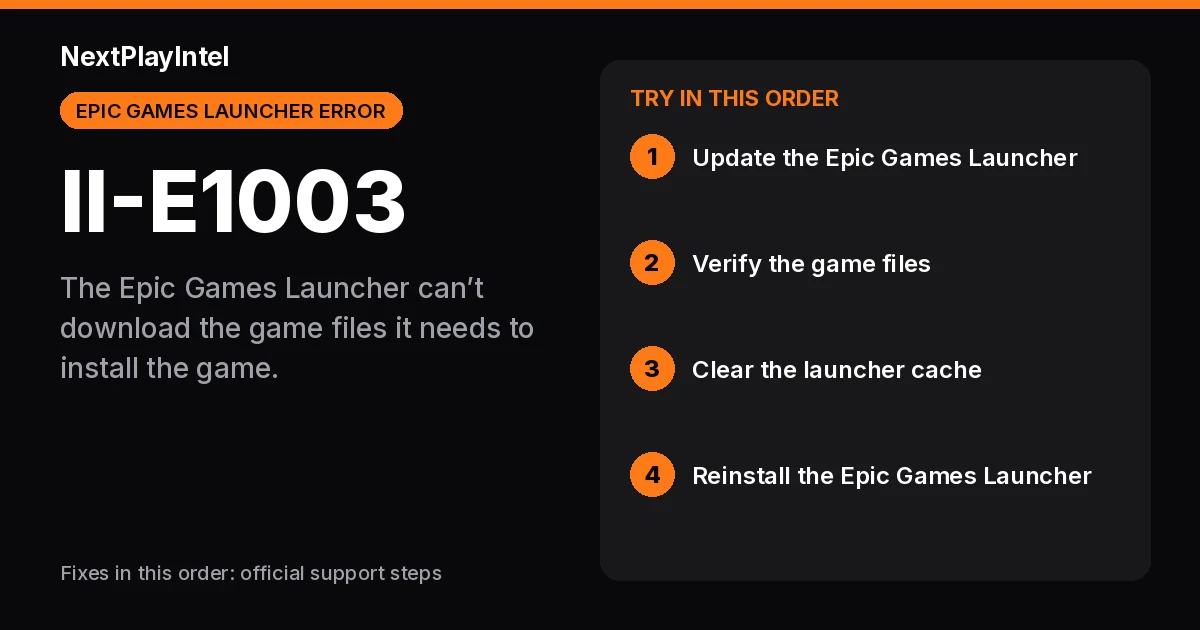
Epic Games Store Support says: “The Epic Games Launcher can’t download the game files it needs to install the game.” (official page)
II-E1003 means the Epic Games Launcher couldn’t download the files a game needs to install. Epic lists five fixes, in order: update the launcher, verify the game files, clear the launcher cache, reinstall the launcher and switch to a public DNS. Reinstalling removes every game installed through Epic, so leave it until last. If your error says IS-0009, MD-DL-0, IS-DS01 or LS-0019 instead, it’s a different install failure with its own fix, listed under Related codes below.
Match what you see
Where II-E1003 appears tells you where to start. Find the row closest to your situation, then jump to that step.
| What you see | Most likely cause | Start at |
|---|---|---|
| II-E1003 “Install Failed” appears while a game installs | The launcher can’t download the files it needs | Update the Epic Games Launcher |
| The error returns on the same game after updating | Local game files may need checking | Verify the game files from Library > Manage |
| The error continues after verifying | Cached launcher data may be in the way | Clear the launcher cache |
| Downloads still fail after a reinstall | Epic’s last listed step is a DNS change | Switch to a public DNS such as Google DNS |
Likely causes
- The Epic Games Launcher can’t download the game files it needs for installation (Epic’s stated meaning of II-E1003).
- Epic’s article doesn’t name a narrower cause. Its fixes point to an out-of-date launcher, damaged or mismatched game files, stale launcher cache data and DNS or connection problems.
How to fix II-E1003, easiest first
- Update the Epic Games Launcher
In the legacy launcher, select the Settings icon next to your profile in the top right, then Settings. If RESTART AND UPDATE appears, select it. You may see a Windows security (UAC) prompt. In the Epic Games Launcher Preview, select the Epic Games logo in the top left, then Settings > About, and select Check now next to Version. - Verify the game files
Verifying checks the game’s files and repairs any that are damaged or different. Epic says your saved data isn’t affected. In the legacy launcher, go to Library, select the three dots on the game, choose Manage, then Verify. In the Preview launcher, open Library, select the game, select the three dots next to Play, then Manage > Verify. Wait for it to finish; this can take a while. Epic notes this only works for games that have Epic Games as the source. - Clear the launcher cache
Legacy launcher on Windows: select the up arrow in the lower-right corner of the taskbar, right-click the Epic Games icon and select Exit. Press Windows key + R, type %localappdata% and press Enter. Open EpicGamesLauncher > Saved and delete these folders if they’re there: webcache, webcache_4147 and webcache_4430. Delete only those folders. On a Mac, exit the launcher, use Finder > Go > Go to Folder, enter ~/Library/Caches/com.epicgames.EpicGamesLauncher, move the webcache folder to the Trash and empty it. In the Preview launcher, go to Settings > About and select Clear and restart under Cached data. - Reinstall the Epic Games Launcher
Epic warns that this removes all games installed through the launcher, so only do it once steps 1 to 3 have failed. On Windows, exit the launcher, run Windows System File Checker as Epic’s article directs, restart the PC, then uninstall Epic Games Launcher from Add or Remove Programs. Download the latest installer from the Epic Games Store using the Download button in the top-right corner. - Switch to a public DNS
Epic suggests this when other connection fixes haven’t worked. On Windows 11, right-click the Windows icon, select System, then Network & internet. Select Ethernet if you’re wired; on Wi-Fi, select Wi-Fi, then Hardware properties. Select Edit next to DNS server assignment. Choose Manual, turn on IPv4 and enter 8.8.8.8 as the preferred DNS and 8.8.4.4 as the alternate. Epic also lists Google’s IPv6 addresses (2001:4860:4860:0:0:0:0:8888 and 2001:4860:4860:0:0:0:0:8844) and says Cloudflare’s public DNS is another option. Select Save, then retry the install.
| Step | What to do | Source |
|---|---|---|
| 1 | Update the Epic Games Launcher | Official |
| 2 | Verify the game files | Official |
| 3 | Clear the launcher cache | Official |
| 4 | Reinstall the Epic Games Launcher | Official |
| 5 | Switch to a public DNS | Official |
Fixes owners report
From public threads we read. These are individual reports, not official advice, and NextPlayIntel did not test them.
- In August 2026, players reported install and update failures, including II-E1003, on Epic Games Launcher versions 20.2.1 to 20.2.3. A community post passed on a statement, shared in the community Discord, that Epic had rolled back 20.2.2 and 20.2.3. It said to restart the launcher and use Restart and Update in Settings. We could not find that statement on Epic's own site. (r/EpicGamesPC, August 2026)
- The same post gave a temporary workaround. Add -UseEOSSDKSocial=false after the closing quotation mark in the Target box of a desktop shortcut, then open the launcher from that shortcut after fully closing it. The poster later edited the post to say version 20.2.4 appeared to fix the problem, so update the launcher first. (r/EpicGamesPC, August 2026)
When to contact support
If II-E1003 still appears after all five steps, contact Epic Games Support from its help site. Tell them the exact code, the game, whether you use the legacy launcher or the Preview launcher, and which steps you’ve tried. Epic’s II-E1003 article doesn’t list any further fixes, and this guide doesn’t add any.
II-E1003 FAQ
What does II-E1003 mean on Epic Games?
Epic says the Epic Games Launcher can’t download the game files it needs to install the game.
How do I fix II-E1003?
Follow Epic’s order: update the launcher, verify the game files, clear the launcher cache, reinstall the launcher and then switch to a public DNS. Retry the install after each step.
Does II-E1003 affect Fortnite?
Epic’s article covers installing any game in the Epic Games Launcher and doesn’t single out one title, so the same steps apply if a Fortnite install fails with this code.
Will reinstalling the Epic Games Launcher delete my games?
Yes. Epic says reinstalling the launcher removes all games installed through it. Verifying game files doesn’t affect saved data.
Was II-E1003 caused by a launcher update?
In August 2026 players reported II-E1003 on launcher versions 20.2.1 to 20.2.3, and later said version 20.2.4 fixed it. Update the launcher first. If the error stays after that, Epic's steps on this page still apply.
How is II-E1003 different from IS-0009 or MD-DL-0?
II-E1003 means the launcher can’t download the files at all. IS-0009 means a downloaded file is corrupt or invalid, and MD-DL-0 means the download timed out. Each has its own Epic fix.
Sources
- Epic Games Store
- Epic Games Store
- Epic Games Store
- Epic Games Store
- Epic Games Store
- Epic Games Store
Related codes and how they differ
- Epic IS-0009: Manifest failed to load: the download stops because a file is corrupt or invalid, not because files can’t be reached.
- Epic MD-DL-0: The install package download times out. Epic’s fix gives the download a longer timeout.
- Epic IS-DS01 / IS-IN-DS01: Not enough free disk space to finish the install. Free up space; network fixes won’t help.
- Epic IS-0002-DP-OS-F: A Windows folder permission problem stops the launcher writing files, so the fix is permissions, not the download.
- Epic IS-EO: The installer exits early (IS-EO-IS-FAILED). Epic starts with restarting and updating the launcher.
- Epic LS-0019: The game’s prerequisites failed to install correctly or completely.
- Epic AS-3: No connection: Epic calls it a generic network configuration error.
PC launcher troubleshooting guide · All PC launcher codes · Error code directory