

PC launcher error code
Epic Games AS-3: Fix the No Connection Error
Try this first: Epic says enabling IPv6 can help with AS-3. Open your active network adapter’s Properties and ensure Internet Protocol Version 6 (TCP/IPv6) is checked, then save with OK. On Windows 10, Epic’s route starts at Settings > Network and Internet > Status > Change adapter options. On Windows 11, its route uses Control Panel > Network and Internet > Network and Sharing Center > Change adapter settings. Right-click the adapter you actually use and choose Properties. Do not disable IPv4 or replace unrelated adapter values.
What AS-3 means
Epic Games says: “A generic network configuration error.” (official page)
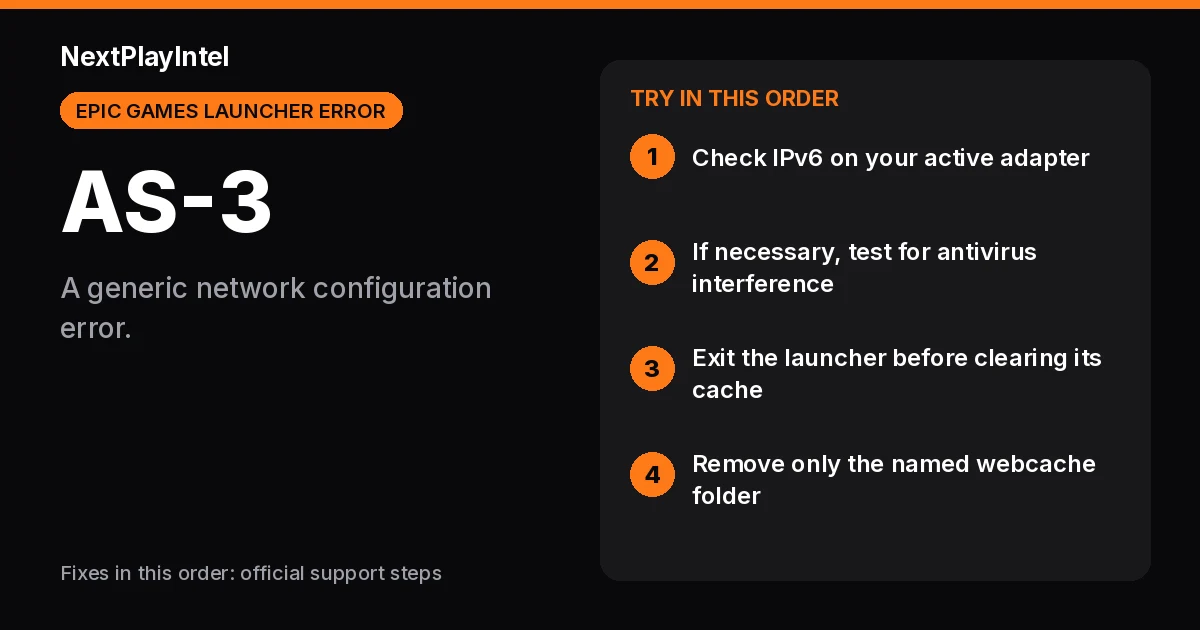
Epic describes AS-3 as a generic network configuration error. Its AS-3-specific support page recommends enabling IPv6; its broader AS-code page supplies a launcher webcache reset. These are two different official checks, not a promise that deleting a cache will repair every connection failure. The steps below are for Windows.
Match what you see
Where AS-3 appears tells you where to start. Find the row closest to your situation, then jump to that step.
| What you see | Most likely cause | Start at |
|---|---|---|
| The launcher shows AS-3 and won’t sign in or connect | Network configuration, often IPv6 on the active adapter | Step 1 on this page |
| AS-3 persists after the IPv6 check | Antivirus interference or a stale launcher webcache | Steps 2–5 on this page |
Likely causes
- A generic network configuration problem on the PC (Epic's definition of AS-3).
- IPv6 disabled on the active network adapter.
- A stale Epic Games Launcher webcache, or antivirus interfering with the connection.
How to fix AS-3, easiest first
- Check IPv6 on your active adapter
Epic says enabling IPv6 can help with AS-3. Open your active network adapter’s Properties and ensure Internet Protocol Version 6 (TCP/IPv6) is checked, then save with OK. On Windows 10, Epic’s route starts at Settings > Network and Internet > Status > Change adapter options. On Windows 11, its route uses Control Panel > Network and Internet > Network and Sharing Center > Change adapter settings. Right-click the adapter you actually use and choose Properties. Do not disable IPv4 or replace unrelated adapter values. - If necessary, test for antivirus interference
Epic’s AS-3 page next asks whether antivirus is interfering and suggests a temporary disable-and-retry test. This is a diagnostic test, not advice to leave protection off. Only do it if you can restore protection immediately and understand your security product’s controls. If the connection works only during that test, re-enable protection and contact the antivirus vendor, as Epic recommends. - Exit the launcher before clearing its cache
Epic’s broader AS-code page says a network configuration issue or webcache may be involved. Right-click the Epic Games Launcher icon in the Windows system tray and choose Exit. Closing only its main window is not the same instruction. - Remove only the named webcache folder
Press Windows key + R, type %localappdata% and open it. Go into Epic Games Launcher > Saved and delete the webcache folder identified in Epic’s instructions. Do not delete the whole Saved folder, your game installation folders, or other folders in Local AppData. This is the launcher-cache procedure from Epic’s AS-code page. - Restart the PC and retry the launcher
Epic’s AS-code checklist finishes by restarting the computer and opening the Epic Games Launcher again. If AS-3 persists, use Epic’s connection troubleshooting and support path rather than repeatedly removing unrelated files or copying router commands from a different error guide.
| Step | What to do | Source |
|---|---|---|
| 1 | Check IPv6 on your active adapter | Official |
| 2 | If necessary, test for antivirus interference | Official |
| 3 | Exit the launcher before clearing its cache | Official |
| 4 | Remove only the named webcache folder | Official |
| 5 | Restart the PC and retry the launcher | Official |
Fixes owners report
From public threads we read. These are individual reports, not official advice, and NextPlayIntel did not test them.
- On 9–10 November 2023 many players hit AS-3 at once. Several signed in through a phone hotspot or VPN, then switched back to home Wi-Fi; others fixed it by restarting the modem. That points to the network path rather than the PC. (r/FortNiteBR, November 2023)
- In the same thread, a 2024 reply says ipconfig /flushdns fixed it. A 2025 reply says a third-party app had changed WinHTTP proxy settings, and netsh winhttp reset proxy (in an administrator Command Prompt) restored the connection. (r/FortNiteBR, 2024–2025)
- One owner said deleting the launcher's webcache folders fixed AS-3 for only a few days. What kept working was briefly switching from the 5GHz to the 2.4GHz Wi-Fi band to sign in, then switching back. (r/EpicGamesHelp, May 2024)
When to contact support
If AS-3 remains after the appropriate Windows checks, contact Epic Games Support through its official Help site. State the exact code, Windows version, whether IPv6 was enabled and whether the cache reset changed anything. If Epic’s antivirus test alone resolves it, its specific instruction is to contact the antivirus provider for further assistance. Do not send anyone a password or sign-in code as troubleshooting evidence.
AS-3 FAQ
What does Epic Games AS-3 mean?
Epic calls AS-3 a generic network configuration error. Its code-specific page says enabling IPv6 can help.
Should I disable IPv6 for AS-3?
No. The AS-3-specific official page recommends enabling IPv6, not disabling it.
What folder does Epic tell me to delete?
Its broader AS-code checklist names the webcache folder inside %localappdata% > Epic Games Launcher > Saved. It does not tell you to delete all of Saved.
Should I leave antivirus turned off?
No. Epic describes a temporary test and says to contact the antivirus provider if that test resolves the issue. Restore your protection afterward.
Why does AS-3 go away on a phone hotspot or VPN?
Epic calls AS-3 a generic network configuration error. Players who could sign in on a hotspot or VPN but not on home Wi-Fi had a problem on that network path; restarting the modem, flushing DNS or resetting the WinHTTP proxy fixed it for some. Treat a VPN as a test, not a permanent fix.
Sources
Related codes and how they differ
- Epic II-E1003: Install Failed: the launcher can’t download the game files it needs. Start by updating the launcher, then verify files.
- Epic IS-0009: Manifest failed to load: the download stops because a file is corrupt or invalid, not because files can’t be reached.
- Epic MD-DL-0: The install package download times out. Epic’s fix gives the download a longer timeout.
- Epic IS-DS01 / IS-IN-DS01: Not enough free disk space to finish the install. Free up space; network fixes won’t help.
- Epic IS-0002-DP-OS-F: A Windows folder permission problem stops the launcher writing files, so the fix is permissions, not the download.
- Epic IS-EO: The installer exits early (IS-EO-IS-FAILED). Epic starts with restarting and updating the launcher.
- Epic LS-0019: The game’s prerequisites failed to install correctly or completely.
PC launcher troubleshooting guide · All PC launcher codes · Error code directory