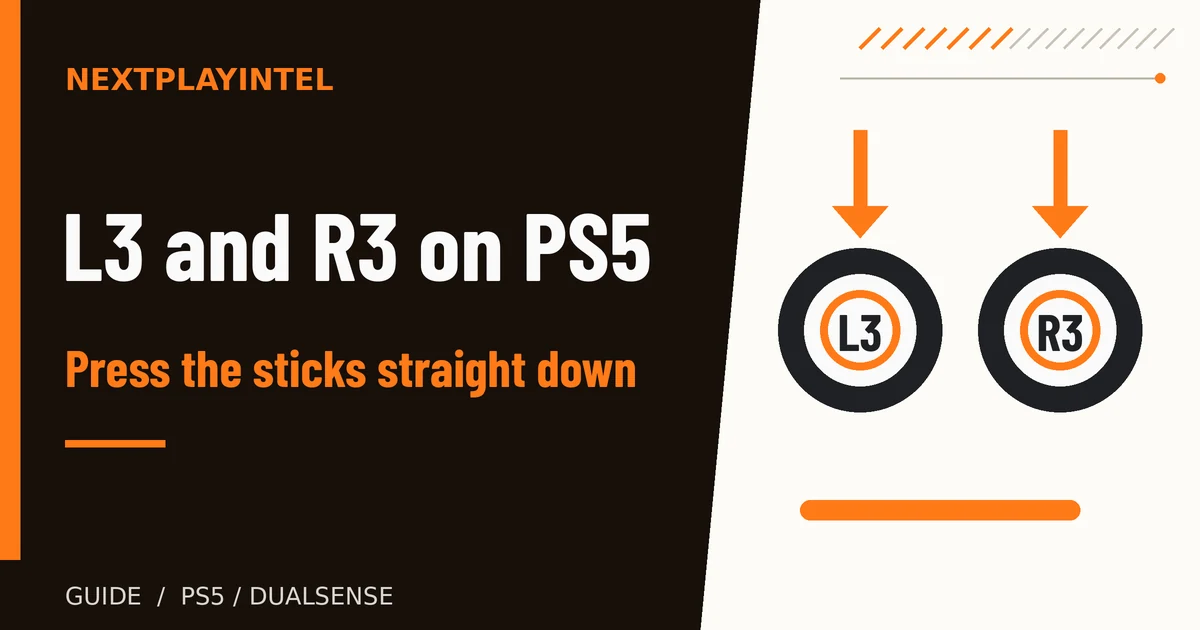
L3 on a PS5 controller is the left stick pressed straight down, and R3 is the right stick pressed the same way. Sony's DualSense part names list them as Left stick/L3 button and Right stick/R3 button. There's no separate L3 or R3 key anywhere else on the controller, so look at the sticks.
Key facts
Item | Detail |
|---|---|
L3 | Press the left stick straight down |
R3 | Press the right stick straight down |
Sony's names | Left stick/L3 button and Right stick/R3 button |
L3 + R3 prompt | Press both sticks down together |
Remap on PS5 | Settings > Accessibility > Controllers > Custom Button Assignments for DualSense Wireless Controller |
In PS5 menus | L3 and R3 zoom web page cards when Zoom is on |
First fix if it stops working | Reset the controller, then update the PS5 |
Repairs | PlayStation Repairs lists a Button or analog stick issue option |
Where L3 and R3 are on a DualSense
The DualSense has two thumbsticks on its front. Each stick does two jobs: tilt it to move, or press it into the controller to use it as a button. Sony's part-name chart puts it plainly: "Press on the stick to use it as the L3 button," and the same for R3 on the right.
The numbering matches the other left-side buttons: L1 and L2 sit on the left edge and L3 is the left stick. R1, R2 and R3 mirror them on the right.
Button | Where it is |
|---|---|
L1 | Left shoulder |
L2 | Left trigger |
L3 | Left stick, pressed down |
R1 | Right shoulder |
R2 | Right trigger |
R3 | Right stick, pressed down |
What L3 and R3 do in a game depends on that game, so check its controls screen. On the PS5 itself, Sony uses them to zoom in and out of web page cards when the Zoom accessibility setting is on.
How to press L3 and R3
Rest your thumb on top of the left stick.
Push straight down into the controller without tilting it.
Let go. That's one L3 press.
Do the same on the right stick for R3.
If a game asks for L3 + R3, press both sticks down at the same time.
How to remap L3 or R3 on PS5
If a stick press is awkward or worn, you can move its job to another button.
Go to Settings > Accessibility.
Select Controllers > Custom Button Assignments for DualSense Wireless Controller.
Select the button you want to change, then select the function you want it to have.
Select Apply.
DualSense Edge owners can also assign buttons in a controller profile, per Sony's button functions page.
L3 or R3 not working on PS5
Try Sony's steps in this order:
Turn off the PS5 and unplug the controller's USB cable.
Find the reset button in the small hole next to the Sony logo on the back.
Press and hold it with a pin for at least 5 seconds.
Reconnect with the USB cable and press the PS button.
Update the PS5 system software. Our controller update guide also covers DualSense firmware.
If the press still doesn't register, PlayStation's troubleshooting page sends you to Button or analog stick issue under PlayStation Repairs. Our DualSense reset guide has more connection fixes, and our PS5 controller on PC guide helps if L3 works on the console but not in PC games. More controller help is in our guides hub.
Frequently asked questions
What button is L3 on PS5?
It's the left stick. Press it straight down into the controller and it works as the L3 button. There's no separate L3 key.
What is L3 and R3 on PS5?
They're the two stick presses on the DualSense. L3 is pressing the left stick down, and R3 is pressing the right stick down.
How do you press L3 and R3 on PS5?
Push the left stick straight down for L3 and the right stick straight down for R3. For an L3 + R3 prompt, press both sticks at the same time.
Why is L3 on my PS5 controller not working?
Reset the DualSense with the button on the back for at least 5 seconds, reconnect by USB and update the PS5. If it still fails, Sony points to PlayStation Repairs for button or stick issues.
Sources & verification
Sources last verified on . This article covers published information, not hands-on testing.