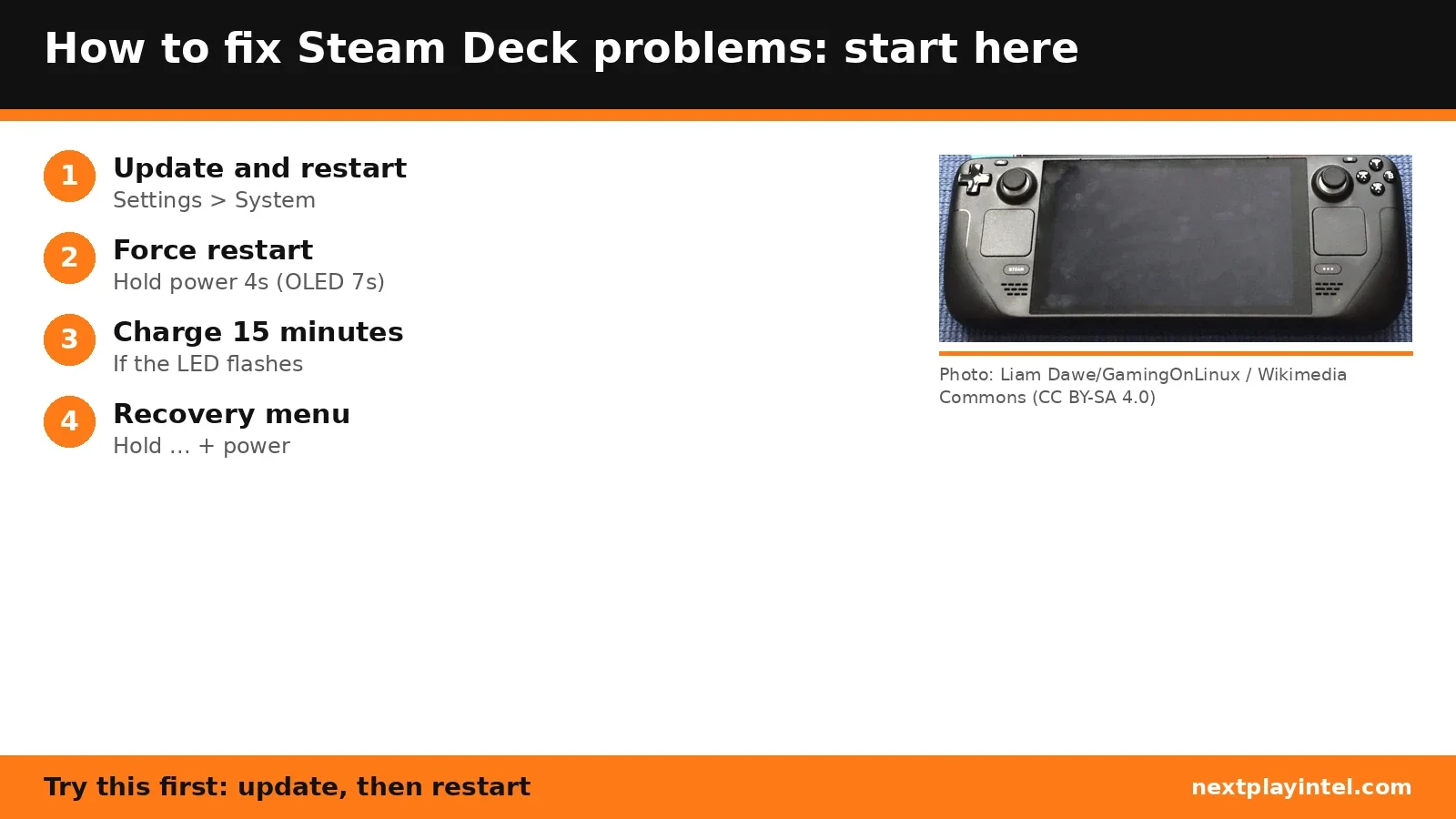
Fix the most common Steam Deck problems in order, from a frozen or dead Deck to charging, sound and Bluetooth issues, then SteamOS recovery, using Valve's official steps.
This guide summarises Valve's Steam Support pages checked on 31 October 2026. Unless stated, steps apply to both Steam Deck LCD and OLED. NextPlayIntel did not test these fixes on hardware; follow the linked official page if anything differs.
Quick Answer: Summary of Steps
Install updates: Steam > Settings > System > Software Updates, then restart.
Exit or disable any third-party apps installed in Desktop Mode and test again.
If the Deck is frozen, hold power for 4 seconds (7 on OLED). If that fails, hold for 10 seconds (16 on OLED).
If the LED flashes when you press power, the battery is empty: charge for at least 15 minutes with the supplied charger.
If SteamOS still will not work, use Factory Reset or the recovery menu below.
Force restart times
Situation | Steam Deck LCD | Steam Deck OLED |
|---|---|---|
Frozen but powered on | Hold power 4 seconds | Hold power 7 seconds |
Still unresponsive (OS-level) | Hold power 10 seconds | Hold power 16 seconds |
Will not turn on or charge
A new Steam Deck LCD ships in battery-saving shipping mode. Plug in the supplied power supply for a short time to wake it. OLED models can be turned on out of the box by holding power for 7 seconds.
If the LED is lit, the Deck is receiving charge. It stays lit at full charge, and dims after 3 to 5 seconds (15 on OLED) as normal.
If the LED flashes after you press power, the battery is depleted. Plug the supplied charger straight into the Deck and leave it for at least 15 minutes.
If it charges but the power button does nothing, hold Volume + while powering on, then choose Continue to boot from the BIOS options.
Reading under 100% after a long time on the charger is normal: Valve lets the battery slowly discharge to protect its health.
The Deck uses USB Power Delivery and does not support Fast Charging or Quick Charge.
No sound or Bluetooth problems
No speaker sound: disconnect any Bluetooth, USB-C or 3.5mm audio device, switch to another output and back to the speakers.
On Steam Deck LCD the built-in mic is unavailable while a 3.5mm plug is connected. Use a headset with its own mic. OLED can use the built-in mic at the same time.
Bluetooth: put the device in pairing mode, check Settings > Bluetooth is on, then select the device in the list.
Factory Reset (Deck still boots)
This erases all local data, including installed games, and reinstalls Steam and SteamOS. Press the Steam button, go to Settings > System, scroll down and select Factory Reset.
Recovery menu (Deck will not boot)
Plug the Deck into its power supply.
Fully power down by holding the power button for 10 seconds.
Hold the ... button and press power. Keep holding ... until the SteamOS menu appears.
Choose Previous B to roll back to the previous SteamOS version, or ERASE USER DATA FROM DECK to wipe local data.
Valve also documents re-imaging the Deck with a SteamOS recovery image on a USB drive. Follow the full steps on SteamOS Recovery before you try that.
Error codes and more help
Search the NextPlayIntel error-code directory for launcher and store errors, or see Valve's Steam Deck Basic Use & Troubleshooting page. If nothing works, contact Steam Support from that page.
Frequently asked questions
How do I force restart a frozen Steam Deck?
Hold the power button for 4 seconds on Steam Deck LCD or 7 seconds on OLED. If it stays frozen, hold it for 10 seconds (16 on OLED).
Why is my Steam Deck light flashing and not turning on?
Valve says a flashing LED after pressing power means the battery is depleted. Charge it with the supplied power supply for at least 15 minutes.
How do I get to the Steam Deck recovery menu?
Power down by holding power for 10 seconds, then hold the ... button and press power. Keep holding ... until the SteamOS menu appears.
Does Factory Reset delete my games?
Yes. Valve says Factory Reset clears all local data, including games, and reinstalls Steam and SteamOS.
Sources & verification
Sources last verified on . This article covers published information, not hands-on testing.
Editorial & update notes
New guide published 31 Oct 2026, based only on official manufacturer support pages. Not tested on hardware.